Notebooklm connector
Automates NotebookLM from Claude Code using browser automation via the Claude Chrome extension — creating notebooks, adding sources, and triggering outputs without manual clicking.
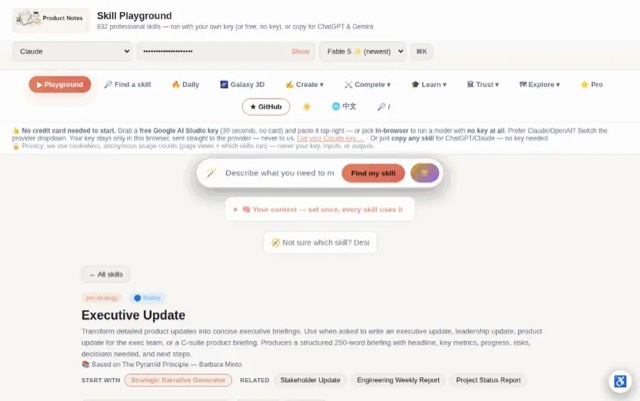
From the mohitagw15856/pm-claude-skills README — shows the whole collection, not only this skill. · view on GitHub
How to use it
Claude Code
- Run the line below. It pulls the whole folder into
~/.claude/skills/notebooklm-connector. - Describe your job in plain words. Claude Code follows the skill from there.
npx degit mohitagw15856/pm-claude-skills/skills/notebooklm-connector#main ~/.claude/skills/notebooklm-connectorFor one project only, change the path to .claude/skills/notebooklm-connector.
Claude (web or desktop app)
- On this page open ⋯ → Download .md.
- Save it as SKILL.md in a folder, zip the folder, then Customize → Skills → + → Create skill → Upload a skill.
- Pick the file and Save. Claude shows the name and description and runs a security scan.
- Check the skill is switched on.
- Start a new chat and describe your job in plain words. The AI follows the skill from there.
ChatGPT or another app
- ChatGPT: make a Project and paste it into Instructions.
- Neither? Paste it at the top of a new chat — it works for that chat.
Not working?
- Check which app you pasted it into — the steps above name the right one.
- Some skills need the paid tier of Claude or ChatGPT.
Paste into Claude, ChatGPT or Cursor.
Source of Notebooklm connector
Show the full text184 lines
| name | description |
|---|---|
| notebooklm-connector | Automates NotebookLM from Claude Code using browser automation via the Claude Chrome extension — creating notebooks, adding sources, and triggering outputs without manual clicking. Use when you want to create a NotebookLM notebook, add URLs or documents as sources, or generate mindmaps, audio overviews, or briefing docs programmatically. Produces a confirmed checklist of completed actions and a direct link to the notebook. |
NotebookLM Connector
The Problem
NotebookLM is one of the best AI research tools — but it doesn't connect to your other tools. Every notebook requires manual setup inside the NotebookLM UI: open browser, name the notebook, paste URLs one by one, click generate. For researchers, builders, or anyone who works with a high volume of sources, this friction compounds fast.
This skill automates NotebookLM from Claude Code using browser automation via the Claude Chrome extension.
Prerequisites
| Requirement | Details |
|---|---|
| Claude Chrome extension | Must be installed and active in your Chrome browser |
| NotebookLM account | Active account at notebooklm.google.com |
| Chrome browser | Open and signed into NotebookLM |
If the Chrome extension is not installed, this skill cannot function. There is no fallback — you will need to perform actions manually.
Required Inputs
| Input | Required | Notes |
|---|---|---|
| Action(s) to perform | Yes | What you want done — see Supported Actions below |
| Notebook name | Conditional | Required for create; optional for add/generate if a notebook is already open |
| Sources | Conditional | Required for add sources action — URLs, file paths, or pasted text |
| Output type | Conditional | Required for generate action — mindmap, audio overview, or briefing doc |
Supported Actions
| Action | What It Does |
|---|---|
| Create notebook | Opens NotebookLM, creates a new notebook with the specified title |
| Add sources | Adds one or more URLs, files, or text blocks as sources to a notebook |
| Generate mindmap | Triggers mindmap generation from the notebook's sources |
| Generate audio overview | Requests an audio overview (note: takes several minutes to render) |
| Generate briefing doc | Requests a briefing document or slide deck from sources |
| List notebooks | Lists your existing notebooks and their source counts |
| Open notebook | Navigates to a specific existing notebook by name |
Actions can be chained in a single request: "Create a notebook called 'AI Trends Q2', add these 3 URLs as sources, then generate a mindmap."
Output Structure
After completing actions, Claude returns a structured confirmation:
## NotebookLM — Actions Completed

**Notebook:** [Notebook name]
**URL:** [Direct link to the notebook]
**Actions completed:**
- [x] Created notebook: "[Name]"
- [x] Added source: [URL or file name]
- [x] Added source: [URL or file name]
- [x] Triggered: Mindmap generation

**Status:** [Any pending items — e.g. "Audio overview is generating, check back in 5–10 minutes"]

**Notes:** [Any issues encountered or deviations from the requested actions]
If an action fails, the failed step is marked with [ ] and a reason is provided. See Error Handling below.
Instructions for Claude
Step 1 — Parse and confirm the request
Before opening any browser, parse the full request into discrete steps:
- What notebook is being targeted (new or existing)?
- What sources need to be added (list each URL or file)?
- What outputs need to be generated?
If anything is ambiguous — e.g. "add my research sources" without specifying what they are — ask for clarification before proceeding. Do not guess at source URLs.
Step 2 — Check the Chrome extension is available
Confirm browser automation is available via the Claude Chrome extension. If it is not active, stop and report:
"This skill requires the Claude Chrome extension to be installed and active. Please install it at [extension URL] and try again."
Step 3 — Navigate to NotebookLM
Open or navigate to https://notebooklm.google.com. Confirm the user is logged in. If a login screen appears, stop and ask the user to log in manually, then retry.
Step 4 — Execute actions in order
Execute each action in the sequence requested. After each action, confirm it completed before moving to the next. Do not batch actions speculatively.
Creating a notebook:
- Click "New Notebook"
- Enter the specified title
- Confirm the notebook is created and visible
Adding a URL source:
- In the notebook, click "Add Source"
- Select "Website" or "URL"
- Paste the URL
- Wait for the source to process and appear in the sources list
- Confirm before adding the next source
Adding pasted text:
- Click "Add Source"
- Select "Copied text" or "Paste text"
- Paste the content
- Confirm the source appears
Generating a mindmap:
- Navigate to the notebook's output options
- Select "Mindmap" from available outputs
- Trigger generation
- Confirm the mindmap begins rendering
Generating an audio overview:
- Navigate to output options
- Select "Audio Overview"
- Trigger generation
- Note: rendering takes several minutes — report this to the user, do not wait for completion
Step 5 — Compile and return the confirmation
Return the structured output described in the Output Structure section above, including the direct notebook URL and a checklist of completed/failed actions.
Error Handling
If any step fails, do the following:
- Stop at the failed step (do not attempt to continue)
- Report the exact step that failed and what was observed
- Suggest a manual workaround for that step
- Offer to retry from that point
Common failures and workarounds:
| Failure | Likely Cause | Manual Workaround |
|---|---|---|
| Extension not detected | Extension not installed or disabled | Install from Chrome Web Store |
| Login screen appears | Session expired | Log in manually, then retry |
| Source fails to process | URL is paywalled or blocked | Download content and add as pasted text instead |
| Mindmap not available | Source volume too low | Add more sources (NotebookLM requires minimum content) |
| Audio overview grayed out | Sources not yet indexed | Wait 1–2 minutes for indexing, then retry |
Limitations
- Chrome extension required — This skill does not work in the Claude web interface without the extension. It cannot function in API-only or terminal-only Claude setups.
- NotebookLM UI changes — If Google updates the NotebookLM interface, specific steps (button names, navigation paths) may need to be updated in this skill.
- Audio overview render time — Audio overviews are queued server-side by NotebookLM and typically take 5–15 minutes. Claude can trigger the request but cannot wait for completion.
- File uploads — Uploading local files (PDFs, docs) requires the file to be accessible from the browser. File paths must be absolute.
- Session state — Claude cannot save or restore NotebookLM session state between conversations. Each session starts fresh.
Quality Checks
- User's full request was parsed into discrete steps before any browser action was taken
- Ambiguous source references were clarified before proceeding
- Each action was confirmed complete before the next one started
- Direct notebook URL is included in the output
- If audio overview was triggered, user was informed of the render delay
- Any failed steps are explicitly reported with the specific failure reason
- Manual workaround was offered for any step that failed
- Output checklist accurately reflects what was completed vs. what failed
Anti-Patterns
- Do not proceed with any browser action before the full request has been parsed into discrete steps — ambiguous source references must be clarified before navigating
- Do not guess at source URLs if the user says "add my research sources" without specifying them — ask for the explicit list before starting
- Do not batch actions speculatively — each action must be confirmed complete before the next one begins to avoid compounding failures
- Do not wait for audio overview rendering to complete — audio overviews take 5–15 minutes server-side; report the trigger and move on rather than blocking the session
- Do not attempt this skill if the Claude Chrome extension is not active — report the missing prerequisite immediately rather than attempting browser steps that will fail
Example Trigger Phrases
- "Open NotebookLM and create a notebook called 'Competitor Analysis Q2'"
- "Add these 5 URLs as sources to my NotebookLM notebook"
- "Generate a mindmap in NotebookLM from my current notebook"
- "Create a NotebookLM notebook on AI agent frameworks, add these sources, and generate an audio overview"
- "What notebooks do I have in NotebookLM?"
- "Add this article to NotebookLM: [URL]"
- "Generate a briefing doc from my NotebookLM sources on [topic]"
| 1 | |
| 2 | name notebooklm-connector |
| 3 | description "Automates NotebookLM from Claude Code using browser automation via the Claude Chrome extension — creating notebooks, adding sources, and triggering outputs without manual clicking. Use when you want to create a NotebookLM notebook, add URLs or documents as sources, or generate mindmaps, audio overviews, or briefing docs programmatically. Produces a confirmed checklist of completed actions and a direct link to the notebook." |
| 4 | |
| 5 | |
| 6 | # NotebookLM Connector |
| 7 | |
| 8 | ## The Problem |
| 9 | |
| 10 | NotebookLM is one of the best AI research tools — but it doesn't connect to your other tools. Every notebook requires manual setup inside the NotebookLM UI: open browser, name the notebook, paste URLs one by one, click generate. For researchers, builders, or anyone who works with a high volume of sources, this friction compounds fast. |
| 11 | |
| 12 | This skill automates NotebookLM from Claude Code using browser automation via the Claude Chrome extension. |
| 13 | |
| 14 | ## Prerequisites |
| 15 | |
| 16 | | Requirement | Details | |
| 17 | |-------------|---------| |
| 18 | | Claude Chrome extension | Must be installed and active in your Chrome browser | |
| 19 | | NotebookLM account | Active account at notebooklm.google.com | |
| 20 | | Chrome browser | Open and signed into NotebookLM | |
| 21 | |
| 22 | If the Chrome extension is not installed, this skill cannot function. There is no fallback — you will need to perform actions manually. |
| 23 | |
| 24 | ## Required Inputs |
| 25 | |
| 26 | | Input | Required | Notes | |
| 27 | |-------|----------|-------| |
| 28 | | Action(s) to perform | Yes | What you want done — see Supported Actions below | |
| 29 | | Notebook name | Conditional | Required for create; optional for add/generate if a notebook is already open | |
| 30 | | Sources | Conditional | Required for add sources action — URLs, file paths, or pasted text | |
| 31 | | Output type | Conditional | Required for generate action — mindmap, audio overview, or briefing doc | |
| 32 | |
| 33 | ## Supported Actions |
| 34 | |
| 35 | | Action | What It Does | |
| 36 | |--------|-------------| |
| 37 | | Create notebook | Opens NotebookLM, creates a new notebook with the specified title | |
| 38 | | Add sources | Adds one or more URLs, files, or text blocks as sources to a notebook | |
| 39 | | Generate mindmap | Triggers mindmap generation from the notebook's sources | |
| 40 | | Generate audio overview | Requests an audio overview (note: takes several minutes to render) | |
| 41 | | Generate briefing doc | Requests a briefing document or slide deck from sources | |
| 42 | | List notebooks | Lists your existing notebooks and their source counts | |
| 43 | | Open notebook | Navigates to a specific existing notebook by name | |
| 44 | |
| 45 | Actions can be chained in a single request: "Create a notebook called 'AI Trends Q2', add these 3 URLs as sources, then generate a mindmap." |
| 46 | |
| 47 | ## Output Structure |
| 48 | |
| 49 | After completing actions, Claude returns a structured confirmation: |
| 50 | |
| 51 | |
| 52 | ## NotebookLM — Actions Completed |
| 53 | |
| 54 | **Notebook:** [Notebook name] |
| 55 | **URL:** [Direct link to the notebook] |
| 56 | **Actions completed:** |
| 57 | - [x] Created notebook: "[Name]" |
| 58 | - [x] Added source: [URL or file name] |
| 59 | - [x] Added source: [URL or file name] |
| 60 | - [x] Triggered: Mindmap generation |
| 61 | |
| 62 | **Status:** [Any pending items — e.g. "Audio overview is generating, check back in 5–10 minutes"] |
| 63 | |
| 64 | **Notes:** [Any issues encountered or deviations from the requested actions] |
| 65 | |
| 66 | |
| 67 | If an action fails, the failed step is marked with `[ ]` and a reason is provided. See Error Handling below. |
| 68 | |
| 69 | ## Instructions for Claude |
| 70 | |
| 71 | ### Step 1 — Parse and confirm the request |
| 72 | |
| 73 | Before opening any browser, parse the full request into discrete steps: |
| 74 | |
| 75 | What notebook is being targeted (new or existing)? |
| 76 | What sources need to be added (list each URL or file)? |
| 77 | What outputs need to be generated? |
| 78 | |
| 79 | If anything is ambiguous — e.g. "add my research sources" without specifying what they are — ask for clarification before proceeding. Do not guess at source URLs. |
| 80 | |
| 81 | ### Step 2 — Check the Chrome extension is available |
| 82 | |
| 83 | Confirm browser automation is available via the Claude Chrome extension. If it is not active, stop and report: |
| 84 | |
| 85 | > "This skill requires the Claude Chrome extension to be installed and active. Please install it at [extension URL] and try again." |
| 86 | |
| 87 | ### Step 3 — Navigate to NotebookLM |
| 88 | |
| 89 | Open or navigate to `https://notebooklm.google.com`. Confirm the user is logged in. If a login screen appears, stop and ask the user to log in manually, then retry. |
| 90 | |
| 91 | ### Step 4 — Execute actions in order |
| 92 | |
| 93 | Execute each action in the sequence requested. After each action, confirm it completed before moving to the next. Do not batch actions speculatively. |
| 94 | |
| 95 | **Creating a notebook:** |
| 96 | Click "New Notebook" |
| 97 | Enter the specified title |
| 98 | Confirm the notebook is created and visible |
| 99 | |
| 100 | **Adding a URL source:** |
| 101 | In the notebook, click "Add Source" |
| 102 | Select "Website" or "URL" |
| 103 | Paste the URL |
| 104 | Wait for the source to process and appear in the sources list |
| 105 | Confirm before adding the next source |
| 106 | |
| 107 | **Adding pasted text:** |
| 108 | Click "Add Source" |
| 109 | Select "Copied text" or "Paste text" |
| 110 | Paste the content |
| 111 | Confirm the source appears |
| 112 | |
| 113 | **Generating a mindmap:** |
| 114 | Navigate to the notebook's output options |
| 115 | Select "Mindmap" from available outputs |
| 116 | Trigger generation |
| 117 | Confirm the mindmap begins rendering |
| 118 | |
| 119 | **Generating an audio overview:** |
| 120 | Navigate to output options |
| 121 | Select "Audio Overview" |
| 122 | Trigger generation |
| 123 | Note: rendering takes several minutes — report this to the user, do not wait for completion |
| 124 | |
| 125 | ### Step 5 — Compile and return the confirmation |
| 126 | |
| 127 | Return the structured output described in the Output Structure section above, including the direct notebook URL and a checklist of completed/failed actions. |
| 128 | |
| 129 | ## Error Handling |
| 130 | |
| 131 | If any step fails, do the following: |
| 132 | |
| 133 | Stop at the failed step (do not attempt to continue) |
| 134 | Report the exact step that failed and what was observed |
| 135 | Suggest a manual workaround for that step |
| 136 | Offer to retry from that point |
| 137 | |
| 138 | **Common failures and workarounds:** |
| 139 | |
| 140 | | Failure | Likely Cause | Manual Workaround | |
| 141 | |---------|-------------|-------------------| |
| 142 | | Extension not detected | Extension not installed or disabled | Install from Chrome Web Store | |
| 143 | | Login screen appears | Session expired | Log in manually, then retry | |
| 144 | | Source fails to process | URL is paywalled or blocked | Download content and add as pasted text instead | |
| 145 | | Mindmap not available | Source volume too low | Add more sources (NotebookLM requires minimum content) | |
| 146 | | Audio overview grayed out | Sources not yet indexed | Wait 1–2 minutes for indexing, then retry | |
| 147 | |
| 148 | ## Limitations |
| 149 | |
| 150 | **Chrome extension required** — This skill does not work in the Claude web interface without the extension. It cannot function in API-only or terminal-only Claude setups. |
| 151 | **NotebookLM UI changes** — If Google updates the NotebookLM interface, specific steps (button names, navigation paths) may need to be updated in this skill. |
| 152 | **Audio overview render time** — Audio overviews are queued server-side by NotebookLM and typically take 5–15 minutes. Claude can trigger the request but cannot wait for completion. |
| 153 | **File uploads** — Uploading local files (PDFs, docs) requires the file to be accessible from the browser. File paths must be absolute. |
| 154 | **Session state** — Claude cannot save or restore NotebookLM session state between conversations. Each session starts fresh. |
| 155 | |
| 156 | ## Quality Checks |
| 157 | |
| 158 | [ ] User's full request was parsed into discrete steps before any browser action was taken |
| 159 | [ ] Ambiguous source references were clarified before proceeding |
| 160 | [ ] Each action was confirmed complete before the next one started |
| 161 | [ ] Direct notebook URL is included in the output |
| 162 | [ ] If audio overview was triggered, user was informed of the render delay |
| 163 | [ ] Any failed steps are explicitly reported with the specific failure reason |
| 164 | [ ] Manual workaround was offered for any step that failed |
| 165 | [ ] Output checklist accurately reflects what was completed vs. what failed |
| 166 | |
| 167 | ## Anti-Patterns |
| 168 | |
| 169 | [ ] Do not proceed with any browser action before the full request has been parsed into discrete steps — ambiguous source references must be clarified before navigating |
| 170 | [ ] Do not guess at source URLs if the user says "add my research sources" without specifying them — ask for the explicit list before starting |
| 171 | [ ] Do not batch actions speculatively — each action must be confirmed complete before the next one begins to avoid compounding failures |
| 172 | [ ] Do not wait for audio overview rendering to complete — audio overviews take 5–15 minutes server-side; report the trigger and move on rather than blocking the session |
| 173 | [ ] Do not attempt this skill if the Claude Chrome extension is not active — report the missing prerequisite immediately rather than attempting browser steps that will fail |
| 174 | |
| 175 | ## Example Trigger Phrases |
| 176 | |
| 177 | "Open NotebookLM and create a notebook called 'Competitor Analysis Q2'" |
| 178 | "Add these 5 URLs as sources to my NotebookLM notebook" |
| 179 | "Generate a mindmap in NotebookLM from my current notebook" |
| 180 | "Create a NotebookLM notebook on AI agent frameworks, add these sources, and generate an audio overview" |
| 181 | "What notebooks do I have in NotebookLM?" |
| 182 | "Add this article to NotebookLM: [URL]" |
| 183 | "Generate a briefing doc from my NotebookLM sources on [topic]" |
| 184 |
Discussion
Browse more free Claude skills.