Word Doc Tracked Changes Skill
Produce properly-formatted tracked changes for a Word document.
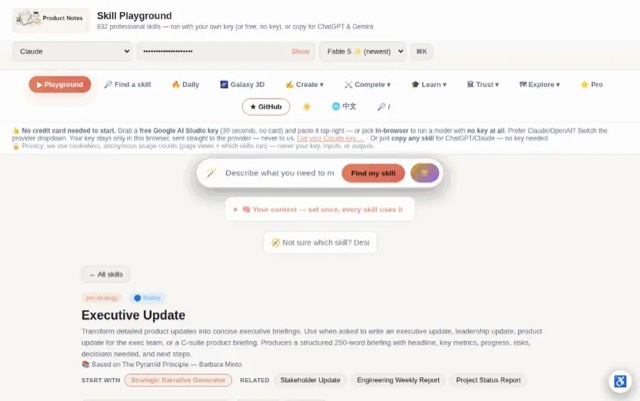
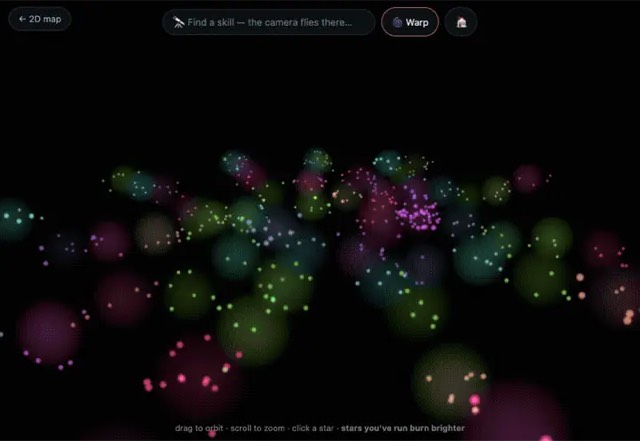
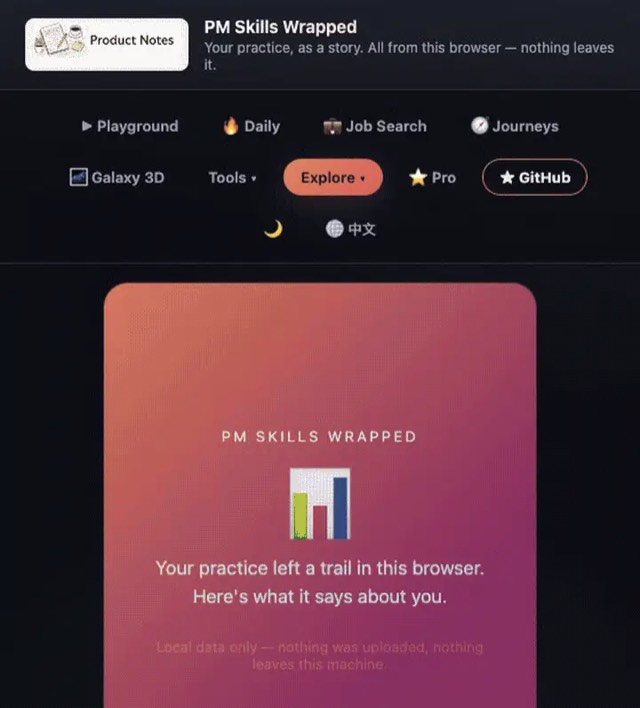
From the mohitagw15856/pm-claude-skills README — shows the whole collection, not only this skill. · view on GitHub
How to use it
Claude Code
- Run the line below. It pulls the whole folder into
~/.claude/skills/docx-tracked-changes. - Describe your job in plain words. Claude Code follows the skill from there.
npx degit mohitagw15856/pm-claude-skills/skills/docx-tracked-changes#main ~/.claude/skills/docx-tracked-changesFor one project only, change the path to .claude/skills/docx-tracked-changes.
Claude (web or desktop app)
- On this page open ⋯ → Download .md.
- Save it as SKILL.md in a folder, zip the folder, then Customize → Skills → + → Create skill → Upload a skill.
- Pick the file and Save. Claude shows the name and description and runs a security scan.
- Check the skill is switched on.
- Start a new chat and describe your job in plain words. The AI follows the skill from there.
ChatGPT or another app
- ChatGPT: make a Project and paste it into Instructions.
- Neither? Paste it at the top of a new chat — it works for that chat.
Not working?
- Check which app you pasted it into — the steps above name the right one.
- Some skills need the paid tier of Claude or ChatGPT.
Paste into Claude, ChatGPT or Cursor.
Source of Word Doc Tracked Changes Skill
Show the full text129 lines
| name | description |
|---|---|
| docx-tracked-changes | Produce properly-formatted tracked changes for a Word document. Use when asked to redline a document, suggest edits to a contract or document, create tracked changes for review, or mark up a document with proposed revisions. Produces a complete redline with insertions, deletions, and margin comments that can be applied to the source document. Best used with Claude Opus 4.7 or newer for reliable tracked changes handling. |
Word Doc Tracked Changes Skill
Produces properly-structured tracked changes for a Word document — insertions, deletions, replacements, and margin comments formatted so they can be applied directly to the source document. Built to leverage Opus 4.7 improvements in .docx redlining and tracked changes generation.
Required Inputs
Ask the user for these if not provided:
- The document (paste the text or upload the .docx)
- Review type (legal review / copy edit / substantive rewrite / compliance check / plain English rewrite)
- Review scope (full document / specific sections / specific clause type)
- Reviewer role (author / manager / legal counsel / subject matter expert)
Output Structure
1. Redline Summary
Document: [Name or identifier] Review type: [As stated] Reviewer: [Role] Total changes: [Insertions: N / Deletions: N / Comments: N] Overall assessment: [1-2 sentences — is this document close to final, or does it need substantial revision?]
2. Top-Level Changes
Changes that affect the meaning or structure of the document:
Change N — [Section or paragraph reference]
- Original: "[Exact original text]"
- Suggested: "[Proposed new text]"
- Reason: [Why this change — substantive/legal/clarity]
3. Line-by-Line Tracked Changes
For each paragraph that needs changes, format as:
[Paragraph reference — e.g. "Section 3, Paragraph 2"]
Original:
[Exact original paragraph]
Tracked changes:
[Same paragraph with deletions marked as
strikethroughand insertions marked as bold]
Clean version:
[Final clean text after applying changes]
4. Margin Comments
Comments that flag issues without proposing a specific wording change:
Comment N — [Location] "[Comment text — written as the reviewer would write it. Direct, specific, actionable.]"
Comments are for things like:
- "This clause conflicts with Section 7 — please reconcile"
- "Missing definition of [term] used throughout"
- "Confirm figure with finance team"
5. Stylistic Edits
Line-level stylistic changes (if scope includes copy editing):
| Location | Before | After | Reason |
|---|---|---|---|
| Para 3 | [Text] | [Text] | [Readability/grammar/consistency] |
6. Pattern Flags
Issues that repeat across the document:
[Pattern — e.g. "Passive voice overuse"]
- Instances: [count]
- Examples: [2-3 specific locations]
- Suggested approach: [How to address]
7. Review Completeness
| Review dimension | Covered |
|---|---|
| Grammar and syntax | Yes / No |
| Clarity and readability | Yes / No |
| Substantive accuracy | Yes / No / N/A |
| Compliance/legal check | Yes / No / N/A |
| Consistency with referenced documents | Yes / No / N/A |
8. How to Apply These Changes
Instructions for applying the redline:
In Microsoft Word:
- Enable Track Changes (Review tab → Track Changes)
- Apply the changes from Section 3 in order
- Add comments from Section 4 using Review → New Comment
- Send the redlined document back to the reviewer
In Google Docs:
- Switch to Suggesting mode (top right pencil icon)
- Apply the changes from Section 3
- Add comments using the comment button in the margin
Quality Checks
- Every tracked change has the original text preserved exactly
- Substantive changes are separated from stylistic changes
- Comments are written as the reviewer would write them, not meta-commentary
- Pattern issues identified separately from individual changes
- Application instructions match the target platform
Anti-Patterns
- Do not paraphrase original text when creating tracked deletions — the original text must be preserved exactly, character for character, or the tracked change cannot be reviewed against source
- Do not mix substantive changes with stylistic edits in the same section — reviewers need to approve substantive changes at a different threshold than copy edits
- Do not write margin comments as meta-commentary about the review process ("This section needs work") — comments must be actionable instructions the author can act on
- Do not flag every imperfect sentence as a change — over-redlining trains authors to accept changes without reading, which defeats the purpose of tracked review
- Do not produce a redline without a summary of top-level changes — reviewers read the summary first and use it to decide which changes to scrutinise in detail
Example Trigger Phrases
- "Redline this contract"
- "Create tracked changes for this document"
- "Mark up this document with proposed edits"
- "Review this and suggest changes in tracked changes format"
- "Give me a redline version of this draft"
Why This Works Better on Opus 4.7
Tracked changes require the model to preserve source text exactly while suggesting alternatives — earlier models would paraphrase the original or lose track of which text was original vs suggested. Opus 4.7 improvements specifically target this workflow.
| 1 | |
| 2 | name docx-tracked-changes |
| 3 | description "Produce properly-formatted tracked changes for a Word document. Use when asked to redline a document, suggest edits to a contract or document, create tracked changes for review, or mark up a document with proposed revisions. Produces a complete redline with insertions, deletions, and margin comments that can be applied to the source document. Best used with Claude Opus 4.7 or newer for reliable tracked changes handling." |
| 4 | |
| 5 | |
| 6 | # Word Doc Tracked Changes Skill |
| 7 | |
| 8 | Produces properly-structured tracked changes for a Word document — insertions, deletions, replacements, and margin comments formatted so they can be applied directly to the source document. Built to leverage Opus 4.7 improvements in .docx redlining and tracked changes generation. |
| 9 | |
| 10 | ## Required Inputs |
| 11 | |
| 12 | Ask the user for these if not provided: |
| 13 | **The document** (paste the text or upload the .docx) |
| 14 | **Review type** (legal review / copy edit / substantive rewrite / compliance check / plain English rewrite) |
| 15 | **Review scope** (full document / specific sections / specific clause type) |
| 16 | **Reviewer role** (author / manager / legal counsel / subject matter expert) |
| 17 | |
| 18 | ## Output Structure |
| 19 | |
| 20 | ### 1. Redline Summary |
| 21 | |
| 22 | **Document:** [Name or identifier] |
| 23 | **Review type:** [As stated] |
| 24 | **Reviewer:** [Role] |
| 25 | **Total changes:** [Insertions: N / Deletions: N / Comments: N] |
| 26 | **Overall assessment:** [1-2 sentences — is this document close to final, or does it need substantial revision?] |
| 27 | |
| 28 | ### 2. Top-Level Changes |
| 29 | |
| 30 | Changes that affect the meaning or structure of the document: |
| 31 | |
| 32 | **Change N — [Section or paragraph reference]** |
| 33 | Original: "[Exact original text]" |
| 34 | Suggested: "[Proposed new text]" |
| 35 | Reason: [Why this change — substantive/legal/clarity] |
| 36 | |
| 37 | ### 3. Line-by-Line Tracked Changes |
| 38 | |
| 39 | For each paragraph that needs changes, format as: |
| 40 | |
| 41 | **[Paragraph reference — e.g. "Section 3, Paragraph 2"]** |
| 42 | |
| 43 | Original: |
| 44 | > [Exact original paragraph] |
| 45 | |
| 46 | Tracked changes: |
| 47 | > [Same paragraph with deletions marked as ~~strikethrough~~ and insertions marked as **bold**] |
| 48 | |
| 49 | Clean version: |
| 50 | > [Final clean text after applying changes] |
| 51 | |
| 52 | ### 4. Margin Comments |
| 53 | |
| 54 | Comments that flag issues without proposing a specific wording change: |
| 55 | |
| 56 | **Comment N — [Location]** |
| 57 | "[Comment text — written as the reviewer would write it. Direct, specific, actionable.]" |
| 58 | |
| 59 | Comments are for things like: |
| 60 | "This clause conflicts with Section 7 — please reconcile" |
| 61 | "Missing definition of [term] used throughout" |
| 62 | "Confirm figure with finance team" |
| 63 | |
| 64 | ### 5. Stylistic Edits |
| 65 | |
| 66 | Line-level stylistic changes (if scope includes copy editing): |
| 67 | |
| 68 | | Location | Before | After | Reason | |
| 69 | |---|---|---|---| |
| 70 | | Para 3 | [Text] | [Text] | [Readability/grammar/consistency] | |
| 71 | |
| 72 | ### 6. Pattern Flags |
| 73 | |
| 74 | Issues that repeat across the document: |
| 75 | |
| 76 | **[Pattern — e.g. "Passive voice overuse"]** |
| 77 | Instances: [count] |
| 78 | Examples: [2-3 specific locations] |
| 79 | Suggested approach: [How to address] |
| 80 | |
| 81 | ### 7. Review Completeness |
| 82 | |
| 83 | | Review dimension | Covered | |
| 84 | |---|---| |
| 85 | | Grammar and syntax | Yes / No | |
| 86 | | Clarity and readability | Yes / No | |
| 87 | | Substantive accuracy | Yes / No / N/A | |
| 88 | | Compliance/legal check | Yes / No / N/A | |
| 89 | | Consistency with referenced documents | Yes / No / N/A | |
| 90 | |
| 91 | ### 8. How to Apply These Changes |
| 92 | |
| 93 | Instructions for applying the redline: |
| 94 | |
| 95 | **In Microsoft Word:** |
| 96 | Enable Track Changes (Review tab → Track Changes) |
| 97 | Apply the changes from Section 3 in order |
| 98 | Add comments from Section 4 using Review → New Comment |
| 99 | Send the redlined document back to the reviewer |
| 100 | |
| 101 | **In Google Docs:** |
| 102 | Switch to Suggesting mode (top right pencil icon) |
| 103 | Apply the changes from Section 3 |
| 104 | Add comments using the comment button in the margin |
| 105 | |
| 106 | ## Quality Checks |
| 107 | [ ] Every tracked change has the original text preserved exactly |
| 108 | [ ] Substantive changes are separated from stylistic changes |
| 109 | [ ] Comments are written as the reviewer would write them, not meta-commentary |
| 110 | [ ] Pattern issues identified separately from individual changes |
| 111 | [ ] Application instructions match the target platform |
| 112 | |
| 113 | ## Anti-Patterns |
| 114 | |
| 115 | [ ] Do not paraphrase original text when creating tracked deletions — the original text must be preserved exactly, character for character, or the tracked change cannot be reviewed against source |
| 116 | [ ] Do not mix substantive changes with stylistic edits in the same section — reviewers need to approve substantive changes at a different threshold than copy edits |
| 117 | [ ] Do not write margin comments as meta-commentary about the review process ("This section needs work") — comments must be actionable instructions the author can act on |
| 118 | [ ] Do not flag every imperfect sentence as a change — over-redlining trains authors to accept changes without reading, which defeats the purpose of tracked review |
| 119 | [ ] Do not produce a redline without a summary of top-level changes — reviewers read the summary first and use it to decide which changes to scrutinise in detail |
| 120 | |
| 121 | ## Example Trigger Phrases |
| 122 | "Redline this contract" |
| 123 | "Create tracked changes for this document" |
| 124 | "Mark up this document with proposed edits" |
| 125 | "Review this and suggest changes in tracked changes format" |
| 126 | "Give me a redline version of this draft" |
| 127 | |
| 128 | ## Why This Works Better on Opus 4.7 |
| 129 | Tracked changes require the model to preserve source text exactly while suggesting alternatives — earlier models would paraphrase the original or lose track of which text was original vs suggested. Opus 4.7 improvements specifically target this workflow. |
Discussion
Browse more free Claude skills.