Thumbnail Creator Skill (via Gemini)
Generate article or newsletter thumbnail candidates using the Gemini API from inside Claude Code.
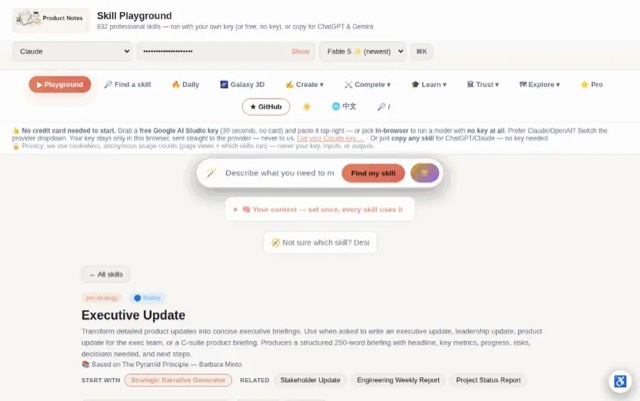
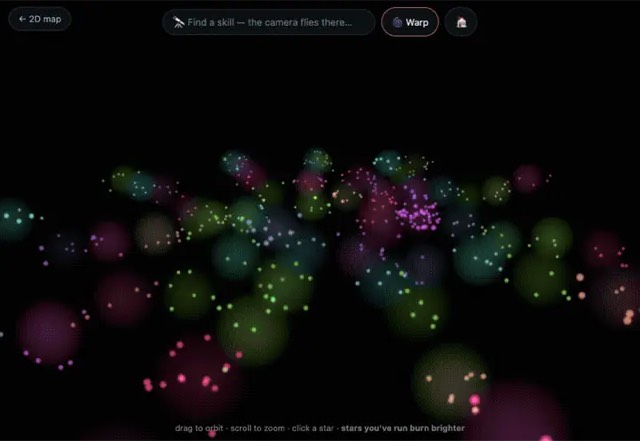
From the mohitagw15856/pm-claude-skills README — shows the whole collection, not only this skill. · view on GitHub
How to use it
Claude Code
- Run the line below. It pulls the whole folder into
~/.claude/skills/thumbnail-creator, including the files SKILL.md points to. - Describe your job in plain words. Claude Code follows the skill from there.
npx degit mohitagw15856/pm-claude-skills/skills/thumbnail-creator#main ~/.claude/skills/thumbnail-creatorFor one project only, change the path to .claude/skills/thumbnail-creator. This skill also uses generate_image.py, evaluation_report.md — copying SKILL.md alone won't be enough. See the folder on GitHub.
Claude (web or desktop app)
- On this page open ⋯ → Download .md.
- Save it as SKILL.md in a folder, zip the folder, then Customize → Skills → + → Create skill → Upload a skill.
- Pick the file and Save. Claude shows the name and description and runs a security scan.
- Check the skill is switched on.
- Start a new chat and describe your job in plain words. The AI follows the skill from there.
ChatGPT or another app
- ChatGPT: make a Project and paste it into Instructions.
- Neither? Paste it at the top of a new chat — it works for that chat.
Not working?
- Check which app you pasted it into — the steps above name the right one.
- Some skills need the paid tier of Claude or ChatGPT.
Paste into Claude, ChatGPT or Cursor.
Source of Thumbnail Creator Skill (via Gemini)
Show the full text634 lines
| name | description |
|---|---|
| thumbnail-creator | Generate article or newsletter thumbnail candidates using the Gemini API from inside Claude Code. Claude reads article copy, proposes composition concepts, writes image generation prompts incorporating brand specs, calls Gemini to generate the images, evaluates the results via computer vision, and returns ranked candidates with rationale. Use when asked to create thumbnails, generate cover images, or produce visual candidates for an article or newsletter. |
Thumbnail Creator Skill (via Gemini)
Generates article and newsletter thumbnail candidates by acting as an image-generation agent inside Claude Code. Instead of switching between tools and prompting Gemini's web UI one image at a time, this skill makes Claude do the full loop: read the copy, propose compositions, write tailored prompts, call the Gemini API, evaluate the outputs, and return ranked results with brief rationale.
The output is production-ready thumbnail candidates you can drop directly into your CMS, newsletter tool, or social scheduler.
Prerequisites
Both of these must be in place before the skill can generate images:
1. Gemini API Key
Get a free key from Google AI Studio.
Set it as an environment variable:
export GEMINI_API_KEY=<your-key>
To persist it across sessions, add to your shell profile (~/.zshrc or ~/.bashrc):
echo 'export GEMINI_API_KEY=<your-key>' >> ~/.zshrc
source ~/.zshrc
Verify it is set:
echo $GEMINI_API_KEY
2. generate_image.py Script
This script must exist at ./generate_image.py in the project root. The full template is provided in the Script Template section below. Claude will check for it and offer to create it if missing.
Python dependencies:
pip install google-generativeai Pillow requests
Or with uv:
uv pip install google-generativeai Pillow requests
Required Inputs
Claude will ask for these if not provided:
| Input | Required | Notes |
|---|---|---|
| Article copy or URL | Yes | Paste the full article text, or provide a URL to fetch. Used to extract themes, hooks, and key claims for composition. |
| Brand colours | Recommended | Hex codes or descriptive names. E.g. #1A1A2E (navy), #E94560 (coral). If not provided, Claude uses clean neutral defaults. |
| Fonts / type style | Recommended | E.g. "bold sans-serif", "editorial serif", "Neue Haas Grotesk". Used in prompt to guide text treatment. |
| Style reference description | Recommended | E.g. "flat illustration, minimal, like Stripe's marketing site" or "photorealistic, dark background, high contrast". A style image URL can also be provided. |
| Output dimensions | No | Defaults to 1792x1024 (landscape, standard article thumbnail). Options: 1024x1024 (square), 1024x1792 (portrait/mobile). |
| Number of candidates | No | Defaults to 4. Min 1, max 8 (API limits and cost). |
| Article title (if different from H1) | No | Used as the primary text element in image prompts. |
| Candidate selection | No | After proposing compositions, Claude asks which to generate. User can say "all" or pick by number. |
Output Structure
Phase 1 — Composition Proposals (text, before any API calls)
Claude presents 3-4 composition concepts for user approval. Format:
Composition Concepts for: "[Article Title]"

1. BOLD CLAIM
   Layout:    Full-bleed dark background, large white headline centred,
              single accent data point (e.g. "3x faster") in brand colour below
   Mood:      High authority, newsletter-style
   Best for:  LinkedIn, Substack headers
   Rationale: The article's central claim ("X outperforms Y by 3x") is specific
              enough to anchor the visual — readers stop on data.

2. CONCEPTUAL OBJECT
   Layout:    Central object illustration (e.g. a broken clock for a time-waste article),
              title in upper third, minimal texture background
   Mood:      Editorial, Medium-style
   Best for:  Blog header, Medium cover, email preheader
   Rationale: Gives art directors visual metaphor flexibility; works across sizes.

3. CONTRAST SPLIT
   Layout:    Left half brand colour, right half white or image,
              title on colour side, supporting subtext on white side
   Mood:      Clean, professional, startup-brand feel
   Best for:  Newsletter, LinkedIn carousel first slide
   Rationale: Split layout performs consistently in newsletter A/B tests;
              text is readable at small sizes.

4. TYPOGRAPHIC ONLY
   Layout:    No illustration, oversized title treatment,
              author name in small caps at bottom, thin rule separator
   Mood:      Premium, confident, editorial
   Best for:  Substack, Ghost, high-density email lists
   Rationale: Works when the brand has strong type identity. Fastest to produce.

Which compositions do you want generated? (Reply with numbers, e.g. "1, 3" or "all")
Phase 2 — Generated Image Files
After generation, Claude saves files to ./thumbnails/[article-slug]/:
thumbnails/
└── article-slug-from-title/
    ├── candidate_01_bold_claim.png
    ├── candidate_02_conceptual_object.png
    ├── candidate_03_contrast_split.png
    ├── candidate_04_typographic.png
    └── evaluation_report.md
Phase 3 — Evaluation Summary Table
Claude evaluates each returned image via computer vision and produces:
Thumbnail Evaluation — "[Article Title]"
Generated: 2026-05-27  |  Model: Gemini Imagen  |  Dimensions: 1792x1024

| # | Candidate | Composition | Brand Fit /10 | Text Legibility /10 | Recommendation |
|---|---|---|---|---|---|
| 1 | candidate_01_bold_claim.png | Bold Claim | 9 | 8 | ★ Top pick — strong data anchor, brand colours correct, title readable at 200px width |
| 2 | candidate_02_conceptual_object.png | Conceptual Object | 7 | 9 | Good fallback — legible, clean, but illustration style drifted slightly from brand |
| 3 | candidate_03_contrast_split.png | Contrast Split | 8 | 7 | Works well at full size; test at thumbnail size before publishing — right side text tightens |
| 4 | candidate_04_typographic.png | Typographic | 9 | 10 | Strongest for email — zero brand drift risk, completely text-based |

Recommended for web:          candidate_01_bold_claim.png
Recommended for email/mobile: candidate_04_typographic.png
Recommended for social:       candidate_03_contrast_split.png

Files saved to: ./thumbnails/article-slug-from-title/
How Claude Should Execute This Skill
Step 1 — Ingest and analyse the article
Accept article copy as pasted text or a URL.
If a URL is provided, fetch the page and extract:
- The H1 title
- The first 3-5 paragraphs (the hook, central claim, and key points)
- Any notable statistics or named frameworks mentioned
- The author name (for typographic compositions)
If text is pasted, read it directly. Focus on:
- The hook: What is the opening claim or tension?
- The central thesis: What is the one thing the article argues or teaches?
- Key specifics: Any numbers, named frameworks, or concrete examples that could anchor a visual
- Tone: Is this formal/authoritative, conversational/accessible, provocative/challenge-based?
Summarise these findings internally before proposing compositions — the proposals should feel tailored to this specific article, not generic.
Step 2 — Collect brand specs
Ask the user for brand specs if not provided:
To generate on-brand thumbnails, I need a few details:

1. Brand colours (hex codes or descriptions) — e.g. #1A1A2E, #E94560
2. Font style preference — e.g. "bold sans-serif", "editorial serif", "geometric"
3. Visual style — e.g. "flat minimal", "photorealistic", "illustrated", "typographic only"
4. Any style references — describe a brand or publication whose aesthetic you want to match,
   or share an image URL

If you don't have brand specs yet, say "use clean defaults" and I'll use a professional
dark-on-white editorial style.
If the user says "use clean defaults", apply:
- Background:
#FFFFFFor#0F0F0F(dark mode default) - Accent:
#2563EB(blue) - Font style: bold geometric sans-serif
- Style: minimal flat, no textures, high contrast
Step 3 — Propose composition concepts
Write 3-4 composition concepts tailored to the article's tone and content. Each concept must:
- Have a name (short, memorable label)
- Describe the layout precisely (where title goes, what visual element anchors it, background treatment)
- Note the mood and the use case it's best suited for
- Include a rationale sentence explaining why this composition fits this specific article
After presenting the concepts, ask which to generate. Wait for user confirmation before making any API calls.
Step 4 — Write Gemini image generation prompts
For each selected composition, write a detailed image generation prompt. Image generation prompts follow a different grammar than text prompts — they are descriptive, not instructional.
Prompt structure:
[Subject/composition] + [Style] + [Colour palette] + [Mood/lighting] +
[Text treatment if any] + [What to avoid]
Example prompt for Bold Claim composition:
Article thumbnail image. Large bold white sans-serif headline text reading "3x Faster Than
Traditional Methods" centred on a deep navy blue background (#1A1A2E). Small coral accent
text (#E94560) below reading the subtitle. Minimal flat design, no gradients, no stock photo
elements, no people. Clean professional editorial style, high contrast, newsletter header
format, 16:9 landscape orientation. The composition is typographic — text is the hero,
no illustration required. Avoid: clip art, drop shadows, low contrast, crowded layout.
Prompt rules:
- Include exact hex colours when brand colours are provided
- Specify the exact headline text to appear in the image
- Name the style explicitly ("flat design", "editorial", "photorealistic") — Gemini responds well to style category names
- Add a negative prompt ("Avoid: ...") at the end to reduce drift from brand style
- Keep prompts under 300 words — longer prompts do not reliably produce better outputs
Step 5 — Check prerequisites and run the generation script
Before calling the API, verify:
# Check API key is set
echo $GEMINI_API_KEY

# Check script exists
ls -la ./generate_image.py

# Check dependencies
python3 -c "import google.generativeai, PIL, requests; print('Dependencies OK')"
If the script is missing, offer to create it using the template in the Script Template section below.
Run the generation script for each prompt:
python3 generate_image.py \
  --prompt "your full prompt here" \
  --output "./thumbnails/article-slug/candidate_01_bold_claim.png" \
  --width 1792 \
  --height 1024
Or pass all prompts in a batch config file:
python3 generate_image.py --config ./thumbnails/article-slug/prompts.json
Step 6 — Evaluate generated images
After each image is saved, examine it using computer vision. Evaluate on two dimensions:
Brand Fit (score /10):
- Are the brand colours correct? (1-2 points each)
- Does the style match the requested aesthetic? (2 points)
- Is the layout consistent with the composition brief? (2 points)
- Are there any AI artefacts, distorted text, or unintended elements? (-1 per issue)
Text Legibility (score /10):
- Is the headline text readable at full resolution? (3 points)
- Is the headline text readable when the image is scaled to 300px wide (thumbnail size)? (3 points)
- Is there sufficient contrast between text and background? (2 points)
- Is the text placement within safe zones (not cut off at edges)? (2 points)
Note: Gemini Imagen sometimes renders text with spelling errors or distorted letterforms. If this happens, note it in the evaluation and suggest the user add the text overlay manually in Canva or Figma.
Step 7 — Produce the evaluation report
Write the evaluation summary table (format shown in Output Structure section) and save it as evaluation_report.md in the output folder.
Include:
- One-line rationale for each score
- A top pick recommendation per use case (web, email/mobile, social)
- Any production notes (e.g. "text rendering is imperfect on candidate_02 — overlay text manually")
- The full prompts used, so the user can iterate directly in AI Studio if needed
Step 8 — Offer iteration
After delivering the candidates, offer one iteration pass:
Want me to iterate on any of these?

Options:
- Adjust colours or style on a specific candidate
- Try a different composition concept
- Change the headline text
- Rerun with different Gemini parameters (different temperature/seed)
- Generate additional variants of the top pick

Just tell me what to change.
Script Template
Claude should offer to write this file if generate_image.py is not present. This is the canonical template to use.
#!/usr/bin/env python3
"""
generate_image.py — Gemini Imagen wrapper for Thumbnail Creator skill.

Usage:
    python3 generate_image.py --prompt "..." --output "./out.png" [--width 1792] [--height 1024]
    python3 generate_image.py --config ./prompts.json

Config JSON format:
    [
      {
        "prompt": "...",
        "output": "./thumbnails/slug/candidate_01.png",
        "width": 1792,
        "height": 1024
      }
    ]

Requirements:
    pip install google-generativeai Pillow
"""

import os
import sys
import json
import argparse
import base64
from pathlib import Path

try:
    import google.generativeai as genai
    from google.generativeai import types as genai_types
except ImportError:
    print("ERROR: google-generativeai not installed. Run: pip install google-generativeai")
    sys.exit(1)

try:
    from PIL import Image
    import io
except ImportError:
    print("ERROR: Pillow not installed. Run: pip install Pillow")
    sys.exit(1)


def get_api_key() -> str:
    key = os.environ.get("GEMINI_API_KEY", "")
    if not key:
        print("ERROR: GEMINI_API_KEY environment variable is not set.")
        print("Get a key at: https://aistudio.google.com/app/apikey")
        print("Then run: export GEMINI_API_KEY=<your-key>")
        sys.exit(1)
    return key


def generate_image(
    prompt: str,
    output_path: str,
    width: int = 1792,
    height: int = 1024,
) -> bool:
    """
    Call Gemini Imagen to generate a single image and save it to output_path.
    Returns True on success, False on failure.
    """
    api_key = get_api_key()
    genai.configure(api_key=api_key)

    # Determine aspect ratio from dimensions
    ratio = width / height
    if abs(ratio - 16/9) < 0.1:
        aspect_ratio = "16:9"
    elif abs(ratio - 1.0) < 0.1:
        aspect_ratio = "1:1"
    elif abs(ratio - 9/16) < 0.1:
        aspect_ratio = "9:16"
    else:
        aspect_ratio = "16:9"  # default fallback

    try:
        imagen_model = genai.ImageGenerationModel("imagen-3.0-generate-002")

        result = imagen_model.generate_images(
            prompt=prompt,
            number_of_images=1,
            aspect_ratio=aspect_ratio,
            safety_filter_level="block_only_high",
            person_generation="allow_adult",
        )

        if not result.images:
            print(f"  No images returned for: {output_path}")
            return False

        image_data = result.images[0]

        # Ensure output directory exists
        Path(output_path).parent.mkdir(parents=True, exist_ok=True)

        # Save the image
        if hasattr(image_data, '_image_bytes'):
            img_bytes = image_data._image_bytes
        elif hasattr(image_data, 'image'):
            img_bytes = image_data.image
        else:
            # Fallback: try to access raw data
            img_bytes = bytes(image_data)

        img = Image.open(io.BytesIO(img_bytes))

        # Resize to exact dimensions if needed
        if img.size != (width, height):
            img = img.resize((width, height), Image.LANCZOS)

        img.save(output_path, format="PNG", optimize=True)
        print(f"  Saved: {output_path} ({img.size[0]}x{img.size[1]})")
        return True

    except Exception as e:
        print(f"  ERROR generating image: {e}")
        return False


def run_from_args():
    parser = argparse.ArgumentParser(description="Gemini Imagen wrapper for thumbnail generation")
    parser.add_argument("--prompt", type=str, help="Image generation prompt")
    parser.add_argument("--output", type=str, help="Output file path (.png)")
    parser.add_argument("--width", type=int, default=1792, help="Image width in pixels")
    parser.add_argument("--height", type=int, default=1024, help="Image height in pixels")
    parser.add_argument("--config", type=str, help="JSON config file with batch of prompts")
    args = parser.parse_args()

    if args.config:
        # Batch mode
        with open(args.config, "r") as f:
            items = json.load(f)
        print(f"Batch mode: {len(items)} image(s) to generate")
        results = []
        for i, item in enumerate(items, start=1):
            print(f"\n[{i}/{len(items)}] Generating: {item['output']}")
            ok = generate_image(
                prompt=item["prompt"],
                output_path=item["output"],
                width=item.get("width", 1792),
                height=item.get("height", 1024),
            )
            results.append({"output": item["output"], "ok": ok})

        print(f"\nBatch complete: {sum(r['ok'] for r in results)}/{len(results)} succeeded")
        for r in results:
            status = "OK " if r["ok"] else "ERR"
            print(f"  {status}  {r['output']}")

    elif args.prompt and args.output:
        # Single image mode
        print(f"Generating: {args.output}")
        ok = generate_image(
            prompt=args.prompt,
            output_path=args.output,
            width=args.width,
            height=args.height,
        )
        if ok:
            print("Done.")
        else:
            print("Failed.")
            sys.exit(1)

    else:
        parser.print_help()
        sys.exit(1)


if __name__ == "__main__":
    run_from_args()
To create this file from inside Claude Code:
# Claude will write this file if it doesn't exist:
ls ./generate_image.py || echo "Script missing — Claude will create it"
Prompt Writing Reference
Claude should use this reference when writing image generation prompts. These patterns produce the most consistent results with Gemini Imagen.
Composition patterns
| Composition type | Prompt anchor phrase |
|---|---|
| Text-led, dark background | "Bold white sans-serif headline text on deep [colour] background, minimal flat design" |
| Text-led, light background | "High-contrast black headline text on clean white background, editorial layout" |
| Object/illustration centred | "Centred [object] illustration, [style], [colour] background, title text in upper third" |
| Split layout | "Vertical split: left half [colour], right half white. Headline on left side, supporting text on right" |
| Photography style | "Photorealistic [scene description], [mood] lighting, [colour] colour grade, text overlay area at [position]" |
Style modifiers that work well with Gemini
flat design, no gradients— clean vector-style outputseditorial magazine style— sophisticated, typographicminimal, lots of whitespace— reduces visual noisehigh contrast, bold typography— strong thumbnail legibilityBauhaus-inspired— geometric, structureddark mode aesthetic— dark backgrounds with light textstartup marketing style— clean, optimistic, sans-serif
Negative prompts (always include)
Append to every prompt:
Avoid: stock photography clichés, clipart, excessive gradients, drop shadows,
cluttered layout, lens flares, watermarks, low contrast text, AI artefacts.
Text rendering note
Gemini Imagen sometimes renders short text phrases accurately and longer headlines poorly. If the article headline is longer than 6 words, consider splitting it in the prompt:
Primary headline: "[First 4-5 words]"
Secondary text:   "[Remaining words]"
Or instruct the user to add text overlay manually in Canva after generation if legibility is critical.
Troubleshooting
| Issue | Cause | Fix |
|---|---|---|
GEMINI_API_KEY not set |
Environment variable missing | Run export GEMINI_API_KEY=<your-key> and retry |
ModuleNotFoundError: google.generativeai |
Dependency missing | Run pip install google-generativeai |
No images returned |
Safety filter triggered | Revise prompt to remove any ambiguous language; check that the prompt doesn't describe faces, violence, or brand logos |
| Generated image has garbled text | Imagen text rendering limitation | Use shorter headline in prompt, or plan to add text overlay in Canva/Figma post-generation |
| Image is the wrong size | Aspect ratio mismatch | Confirm --width and --height args match one of the supported ratios (16:9, 1:1, 9:16) |
generate_image.py not found |
Script not created yet | Ask Claude to create it using the template above |
| API quota exceeded | Free tier limit | Wait or upgrade to Gemini API paid tier |
| Style drift from brand | Prompt not specific enough | Add exact hex codes and specific style descriptors; add stronger negative prompt |
Quality Checks
Before marking the task complete, verify each item:
-
GEMINI_API_KEYenvironment variable confirmed set before any API calls -
generate_image.pyscript exists in project root — created from template if missing - All Python dependencies installed and verified (
google-generativeai,Pillow) - Composition proposals were presented and user confirmed which to generate before any API calls
- Each composition proposal is specific to this article's content — not generic placeholders
- Brand colours (hex codes) are included in the image generation prompts
- Negative prompt appended to every image generation prompt
- Headline text in prompts is 6 words or fewer per text element (longer headlines split or noted as overlay candidates)
- Output folder created at
./thumbnails/[article-slug]/with correct slug derived from article title - Files named with candidate number and composition name (
candidate_01_bold_claim.png) - Each generated image evaluated via computer vision — not assumed to be correct
- Brand Fit and Text Legibility scores are specific and justified, not round numbers
- Any text rendering issues noted in evaluation with "add text overlay manually" recommendation
- Evaluation report saved as
evaluation_report.mdin the output folder - At least one recommendation given per use case: web, email/mobile, social
- Full prompts used are included in the evaluation report for user iteration reference
- Iteration offer made after delivering results
Anti-Patterns
- Do not generate thumbnails without incorporating brand colours and style specs when provided — off-brand outputs must be regenerated
- Do not skip the evaluation step — all candidates must be scored before being presented to the user
- Do not present only one thumbnail candidate — always generate multiple options for comparison
- Do not include the full image generation prompts in a separate document — they must be included in the evaluation report for iteration reference
- Do not claim a thumbnail is final without offering an iteration round
Example Trigger Phrases
- "Create thumbnails for this article"
- "Generate cover image candidates for my newsletter"
- "Make me 4 thumbnail options for this post"
- "Can you generate some thumbnail ideas using Gemini?"
- "I need a featured image for this article — use my brand colours"
- "Create a thumbnail for this piece using Gemini" [followed by article text or URL]
- "Generate article cover images for these brand specs: [colours, style]"
- "Make thumbnail candidates and rank them"
- "I need newsletter header images — here's the copy"
- "Generate and evaluate thumbnail options for this draft"
- "Use Gemini to create cover image options"
- "Thumbnail this article" [followed by article text]
- "Create 3 thumbnail compositions and pick the best one"
Cost and Rate Limits
Gemini AI Studio free tier (as of early 2026):
- Imagen 3: 10 images per day (free)
- Rate limit: varies by region and account tier
Paid tier:
- Imagen 3 pricing: approximately $0.03-0.05 per image (check current Google Cloud pricing)
- For a typical session generating 4-8 candidates, total cost is under $0.40
Recommendation:
- Use the free tier for exploration and iteration
- Generate final production candidates on paid tier for higher daily limits
- For newsletter teams generating thumbnails weekly, the paid tier is more practical
Originally created by Karen Spinner (Wondering About AI) — adapted and extended for this library.
| 1 | |
| 2 | name thumbnail-creator |
| 3 | description "Generate article or newsletter thumbnail candidates using the Gemini API from inside Claude Code. Claude reads article copy, proposes composition concepts, writes image generation prompts incorporating brand specs, calls Gemini to generate the images, evaluates the results via computer vision, and returns ranked candidates with rationale. Use when asked to create thumbnails, generate cover images, or produce visual candidates for an article or newsletter." |
| 4 | |
| 5 | |
| 6 | # Thumbnail Creator Skill (via Gemini) |
| 7 | |
| 8 | Generates article and newsletter thumbnail candidates by acting as an image-generation agent inside Claude Code. Instead of switching between tools and prompting Gemini's web UI one image at a time, this skill makes Claude do the full loop: read the copy, propose compositions, write tailored prompts, call the Gemini API, evaluate the outputs, and return ranked results with brief rationale. |
| 9 | |
| 10 | The output is production-ready thumbnail candidates you can drop directly into your CMS, newsletter tool, or social scheduler. |
| 11 | |
| 12 | |
| 13 | |
| 14 | ## Prerequisites |
| 15 | |
| 16 | Both of these must be in place before the skill can generate images: |
| 17 | |
| 18 | ### 1. Gemini API Key |
| 19 | |
| 20 | Get a free key from [Google AI Studio]. |
| 21 | |
| 22 | Set it as an environment variable: |
| 23 | |
| 24 | |
| 25 | export GEMINI_API_KEY=<your-key> |
| 26 | |
| 27 | |
| 28 | To persist it across sessions, add to your shell profile (`~/.zshrc` or `~/.bashrc`): |
| 29 | |
| 30 | |
| 31 | echo 'export GEMINI_API_KEY=<your-key>' >> ~/.zshrc |
| 32 | source ~/.zshrc |
| 33 | |
| 34 | |
| 35 | Verify it is set: |
| 36 | |
| 37 | |
| 38 | echo $GEMINI_API_KEY |
| 39 | |
| 40 | |
| 41 | ### 2. generate_image.py Script |
| 42 | |
| 43 | This script must exist at `./generate_image.py` in the project root. The full template is provided in the Script Template section below. Claude will check for it and offer to create it if missing. |
| 44 | |
| 45 | **Python dependencies:** |
| 46 | |
| 47 | |
| 48 | pip install google-generativeai Pillow requests |
| 49 | |
| 50 | |
| 51 | Or with uv: |
| 52 | |
| 53 | |
| 54 | uv pip install google-generativeai Pillow requests |
| 55 | |
| 56 | |
| 57 | |
| 58 | |
| 59 | ## Required Inputs |
| 60 | |
| 61 | Claude will ask for these if not provided: |
| 62 | |
| 63 | | Input | Required | Notes | |
| 64 | |---|---|---| |
| 65 | | Article copy or URL | Yes | Paste the full article text, or provide a URL to fetch. Used to extract themes, hooks, and key claims for composition. | |
| 66 | | Brand colours | Recommended | Hex codes or descriptive names. E.g. `#1A1A2E` (navy), `#E94560` (coral). If not provided, Claude uses clean neutral defaults. | |
| 67 | | Fonts / type style | Recommended | E.g. "bold sans-serif", "editorial serif", "Neue Haas Grotesk". Used in prompt to guide text treatment. | |
| 68 | | Style reference description | Recommended | E.g. "flat illustration, minimal, like Stripe's marketing site" or "photorealistic, dark background, high contrast". A style image URL can also be provided. | |
| 69 | | Output dimensions | No | Defaults to `1792x1024` (landscape, standard article thumbnail). Options: `1024x1024` (square), `1024x1792` (portrait/mobile). | |
| 70 | | Number of candidates | No | Defaults to 4. Min 1, max 8 (API limits and cost). | |
| 71 | | Article title (if different from H1) | No | Used as the primary text element in image prompts. | |
| 72 | | Candidate selection | No | After proposing compositions, Claude asks which to generate. User can say "all" or pick by number. | |
| 73 | |
| 74 | |
| 75 | |
| 76 | ## Output Structure |
| 77 | |
| 78 | ### Phase 1 — Composition Proposals (text, before any API calls) |
| 79 | |
| 80 | Claude presents 3-4 composition concepts for user approval. Format: |
| 81 | |
| 82 | |
| 83 | Composition Concepts for: "[Article Title]" |
| 84 | |
| 85 | 1. BOLD CLAIM |
| 86 | Layout: Full-bleed dark background, large white headline centred, |
| 87 | single accent data point (e.g. "3x faster") in brand colour below |
| 88 | Mood: High authority, newsletter-style |
| 89 | Best for: LinkedIn, Substack headers |
| 90 | Rationale: The article's central claim ("X outperforms Y by 3x") is specific |
| 91 | enough to anchor the visual — readers stop on data. |
| 92 | |
| 93 | 2. CONCEPTUAL OBJECT |
| 94 | Layout: Central object illustration (e.g. a broken clock for a time-waste article), |
| 95 | title in upper third, minimal texture background |
| 96 | Mood: Editorial, Medium-style |
| 97 | Best for: Blog header, Medium cover, email preheader |
| 98 | Rationale: Gives art directors visual metaphor flexibility; works across sizes. |
| 99 | |
| 100 | 3. CONTRAST SPLIT |
| 101 | Layout: Left half brand colour, right half white or image, |
| 102 | title on colour side, supporting subtext on white side |
| 103 | Mood: Clean, professional, startup-brand feel |
| 104 | Best for: Newsletter, LinkedIn carousel first slide |
| 105 | Rationale: Split layout performs consistently in newsletter A/B tests; |
| 106 | text is readable at small sizes. |
| 107 | |
| 108 | 4. TYPOGRAPHIC ONLY |
| 109 | Layout: No illustration, oversized title treatment, |
| 110 | author name in small caps at bottom, thin rule separator |
| 111 | Mood: Premium, confident, editorial |
| 112 | Best for: Substack, Ghost, high-density email lists |
| 113 | Rationale: Works when the brand has strong type identity. Fastest to produce. |
| 114 | |
| 115 | Which compositions do you want generated? (Reply with numbers, e.g. "1, 3" or "all") |
| 116 | |
| 117 | |
| 118 | ### Phase 2 — Generated Image Files |
| 119 | |
| 120 | After generation, Claude saves files to `./thumbnails/[article-slug]/`: |
| 121 | |
| 122 | |
| 123 | thumbnails/ |
| 124 | └── article-slug-from-title/ |
| 125 | ├── candidate_01_bold_claim.png |
| 126 | ├── candidate_02_conceptual_object.png |
| 127 | ├── candidate_03_contrast_split.png |
| 128 | ├── candidate_04_typographic.png |
| 129 | └── evaluation_report.md |
| 130 | |
| 131 | |
| 132 | ### Phase 3 — Evaluation Summary Table |
| 133 | |
| 134 | Claude evaluates each returned image via computer vision and produces: |
| 135 | |
| 136 | |
| 137 | Thumbnail Evaluation — "[Article Title]" |
| 138 | Generated: 2026-05-27 | Model: Gemini Imagen | Dimensions: 1792x1024 |
| 139 | |
| 140 | | # | Candidate | Composition | Brand Fit /10 | Text Legibility /10 | Recommendation | |
| 141 | |---|---|---|---|---|---| |
| 142 | | 1 | candidate_01_bold_claim.png | Bold Claim | 9 | 8 | ★ Top pick — strong data anchor, brand colours correct, title readable at 200px width | |
| 143 | | 2 | candidate_02_conceptual_object.png | Conceptual Object | 7 | 9 | Good fallback — legible, clean, but illustration style drifted slightly from brand | |
| 144 | | 3 | candidate_03_contrast_split.png | Contrast Split | 8 | 7 | Works well at full size; test at thumbnail size before publishing — right side text tightens | |
| 145 | | 4 | candidate_04_typographic.png | Typographic | 9 | 10 | Strongest for email — zero brand drift risk, completely text-based | |
| 146 | |
| 147 | Recommended for web: candidate_01_bold_claim.png |
| 148 | Recommended for email/mobile: candidate_04_typographic.png |
| 149 | Recommended for social: candidate_03_contrast_split.png |
| 150 | |
| 151 | Files saved to: ./thumbnails/article-slug-from-title/ |
| 152 | |
| 153 | |
| 154 | |
| 155 | |
| 156 | ## How Claude Should Execute This Skill |
| 157 | |
| 158 | ### Step 1 — Ingest and analyse the article |
| 159 | |
| 160 | Accept article copy as pasted text or a URL. |
| 161 | |
| 162 | If a URL is provided, fetch the page and extract: |
| 163 | The H1 title |
| 164 | The first 3-5 paragraphs (the hook, central claim, and key points) |
| 165 | Any notable statistics or named frameworks mentioned |
| 166 | The author name (for typographic compositions) |
| 167 | |
| 168 | If text is pasted, read it directly. Focus on: |
| 169 | **The hook:** What is the opening claim or tension? |
| 170 | **The central thesis:** What is the one thing the article argues or teaches? |
| 171 | **Key specifics:** Any numbers, named frameworks, or concrete examples that could anchor a visual |
| 172 | **Tone:** Is this formal/authoritative, conversational/accessible, provocative/challenge-based? |
| 173 | |
| 174 | Summarise these findings internally before proposing compositions — the proposals should feel tailored to this specific article, not generic. |
| 175 | |
| 176 | ### Step 2 — Collect brand specs |
| 177 | |
| 178 | Ask the user for brand specs if not provided: |
| 179 | |
| 180 | |
| 181 | To generate on-brand thumbnails, I need a few details: |
| 182 | |
| 183 | 1. Brand colours (hex codes or descriptions) — e.g. #1A1A2E, #E94560 |
| 184 | 2. Font style preference — e.g. "bold sans-serif", "editorial serif", "geometric" |
| 185 | 3. Visual style — e.g. "flat minimal", "photorealistic", "illustrated", "typographic only" |
| 186 | 4. Any style references — describe a brand or publication whose aesthetic you want to match, |
| 187 | or share an image URL |
| 188 | |
| 189 | If you don't have brand specs yet, say "use clean defaults" and I'll use a professional |
| 190 | dark-on-white editorial style. |
| 191 | |
| 192 | |
| 193 | If the user says "use clean defaults", apply: |
| 194 | Background: `#FFFFFF` or `#0F0F0F` (dark mode default) |
| 195 | Accent: `#2563EB` (blue) |
| 196 | Font style: bold geometric sans-serif |
| 197 | Style: minimal flat, no textures, high contrast |
| 198 | |
| 199 | ### Step 3 — Propose composition concepts |
| 200 | |
| 201 | Write 3-4 composition concepts tailored to the article's tone and content. Each concept must: |
| 202 | Have a name (short, memorable label) |
| 203 | Describe the layout precisely (where title goes, what visual element anchors it, background treatment) |
| 204 | Note the mood and the use case it's best suited for |
| 205 | Include a rationale sentence explaining why this composition fits this specific article |
| 206 | |
| 207 | After presenting the concepts, ask which to generate. Wait for user confirmation before making any API calls. |
| 208 | |
| 209 | ### Step 4 — Write Gemini image generation prompts |
| 210 | |
| 211 | For each selected composition, write a detailed image generation prompt. Image generation prompts follow a different grammar than text prompts — they are descriptive, not instructional. |
| 212 | |
| 213 | **Prompt structure:** |
| 214 | |
| 215 | [Subject/composition] + [Style] + [Colour palette] + [Mood/lighting] + |
| 216 | [Text treatment if any] + [What to avoid] |
| 217 | |
| 218 | |
| 219 | **Example prompt for Bold Claim composition:** |
| 220 | |
| 221 | Article thumbnail image. Large bold white sans-serif headline text reading "3x Faster Than |
| 222 | Traditional Methods" centred on a deep navy blue background (#1A1A2E). Small coral accent |
| 223 | text (#E94560) below reading the subtitle. Minimal flat design, no gradients, no stock photo |
| 224 | elements, no people. Clean professional editorial style, high contrast, newsletter header |
| 225 | format, 16:9 landscape orientation. The composition is typographic — text is the hero, |
| 226 | no illustration required. Avoid: clip art, drop shadows, low contrast, crowded layout. |
| 227 | |
| 228 | |
| 229 | **Prompt rules:** |
| 230 | Include exact hex colours when brand colours are provided |
| 231 | Specify the exact headline text to appear in the image |
| 232 | Name the style explicitly ("flat design", "editorial", "photorealistic") — Gemini responds well to style category names |
| 233 | Add a negative prompt ("Avoid: ...") at the end to reduce drift from brand style |
| 234 | Keep prompts under 300 words — longer prompts do not reliably produce better outputs |
| 235 | |
| 236 | ### Step 5 — Check prerequisites and run the generation script |
| 237 | |
| 238 | Before calling the API, verify: |
| 239 | |
| 240 | |
| 241 | # Check API key is set |
| 242 | echo $GEMINI_API_KEY |
| 243 | |
| 244 | # Check script exists |
| 245 | ls -la ./generate_image.py |
| 246 | |
| 247 | # Check dependencies |
| 248 | python3 -c "import google.generativeai, PIL, requests; print('Dependencies OK')" |
| 249 | |
| 250 | |
| 251 | If the script is missing, offer to create it using the template in the Script Template section below. |
| 252 | |
| 253 | Run the generation script for each prompt: |
| 254 | |
| 255 | |
| 256 | python3 generate_image.py \ |
| 257 | --prompt "your full prompt here" \ |
| 258 | --output "./thumbnails/article-slug/candidate_01_bold_claim.png" \ |
| 259 | --width 1792 \ |
| 260 | --height 1024 |
| 261 | |
| 262 | |
| 263 | Or pass all prompts in a batch config file: |
| 264 | |
| 265 | |
| 266 | python3 generate_image.py --config ./thumbnails/article-slug/prompts.json |
| 267 | |
| 268 | |
| 269 | ### Step 6 — Evaluate generated images |
| 270 | |
| 271 | After each image is saved, examine it using computer vision. Evaluate on two dimensions: |
| 272 | |
| 273 | **Brand Fit (score /10):** |
| 274 | Are the brand colours correct? (1-2 points each) |
| 275 | Does the style match the requested aesthetic? (2 points) |
| 276 | Is the layout consistent with the composition brief? (2 points) |
| 277 | Are there any AI artefacts, distorted text, or unintended elements? (-1 per issue) |
| 278 | |
| 279 | **Text Legibility (score /10):** |
| 280 | Is the headline text readable at full resolution? (3 points) |
| 281 | Is the headline text readable when the image is scaled to 300px wide (thumbnail size)? (3 points) |
| 282 | Is there sufficient contrast between text and background? (2 points) |
| 283 | Is the text placement within safe zones (not cut off at edges)? (2 points) |
| 284 | |
| 285 | Note: Gemini Imagen sometimes renders text with spelling errors or distorted letterforms. If this happens, note it in the evaluation and suggest the user add the text overlay manually in Canva or Figma. |
| 286 | |
| 287 | ### Step 7 — Produce the evaluation report |
| 288 | |
| 289 | Write the evaluation summary table (format shown in Output Structure section) and save it as `evaluation_report.md` in the output folder. |
| 290 | |
| 291 | Include: |
| 292 | One-line rationale for each score |
| 293 | A top pick recommendation per use case (web, email/mobile, social) |
| 294 | Any production notes (e.g. "text rendering is imperfect on candidate_02 — overlay text manually") |
| 295 | The full prompts used, so the user can iterate directly in AI Studio if needed |
| 296 | |
| 297 | ### Step 8 — Offer iteration |
| 298 | |
| 299 | After delivering the candidates, offer one iteration pass: |
| 300 | |
| 301 | |
| 302 | Want me to iterate on any of these? |
| 303 | |
| 304 | Options: |
| 305 | - Adjust colours or style on a specific candidate |
| 306 | - Try a different composition concept |
| 307 | - Change the headline text |
| 308 | - Rerun with different Gemini parameters (different temperature/seed) |
| 309 | - Generate additional variants of the top pick |
| 310 | |
| 311 | Just tell me what to change. |
| 312 | |
| 313 | |
| 314 | |
| 315 | |
| 316 | ## Script Template |
| 317 | |
| 318 | Claude should offer to write this file if `generate_image.py` is not present. This is the canonical template to use. |
| 319 | |
| 320 | |
| 321 | #!/usr/bin/env python3 |
| 322 | """ |
| 323 | generate_image.py — Gemini Imagen wrapper for Thumbnail Creator skill. |
| 324 | |
| 325 | Usage: |
| 326 | python3 generate_image.py --prompt "..." --output "./out.png" [--width 1792] [--height 1024] |
| 327 | python3 generate_image.py --config ./prompts.json |
| 328 | |
| 329 | Config JSON format: |
| 330 | [ |
| 331 | { |
| 332 | "prompt": "...", |
| 333 | "output": "./thumbnails/slug/candidate_01.png", |
| 334 | "width": 1792, |
| 335 | "height": 1024 |
| 336 | } |
| 337 | ] |
| 338 | |
| 339 | Requirements: |
| 340 | pip install google-generativeai Pillow |
| 341 | """ |
| 342 | |
| 343 | import os |
| 344 | import sys |
| 345 | import json |
| 346 | import argparse |
| 347 | import base64 |
| 348 | from pathlib import Path |
| 349 | |
| 350 | try: |
| 351 | import google.generativeai as genai |
| 352 | from google.generativeai import types as genai_types |
| 353 | except ImportError: |
| 354 | print("ERROR: google-generativeai not installed. Run: pip install google-generativeai") |
| 355 | sys.exit(1) |
| 356 | |
| 357 | try: |
| 358 | from PIL import Image |
| 359 | import io |
| 360 | except ImportError: |
| 361 | print("ERROR: Pillow not installed. Run: pip install Pillow") |
| 362 | sys.exit(1) |
| 363 | |
| 364 | |
| 365 | def get_api_key() -> str: |
| 366 | key = os.environ.get("GEMINI_API_KEY", "") |
| 367 | if not key: |
| 368 | print("ERROR: GEMINI_API_KEY environment variable is not set.") |
| 369 | print("Get a key at: https://aistudio.google.com/app/apikey") |
| 370 | print("Then run: export GEMINI_API_KEY=<your-key>") |
| 371 | sys.exit(1) |
| 372 | return key |
| 373 | |
| 374 | |
| 375 | def generate_image( |
| 376 | prompt: str, |
| 377 | output_path: str, |
| 378 | width: int = 1792, |
| 379 | height: int = 1024, |
| 380 | ) -> bool: |
| 381 | """ |
| 382 | Call Gemini Imagen to generate a single image and save it to output_path. |
| 383 | Returns True on success, False on failure. |
| 384 | """ |
| 385 | api_key = get_api_key() |
| 386 | genai.configure(api_key=api_key) |
| 387 | |
| 388 | # Determine aspect ratio from dimensions |
| 389 | ratio = width / height |
| 390 | if abs(ratio - 16/9) < 0.1: |
| 391 | aspect_ratio = "16:9" |
| 392 | elif abs(ratio - 1.0) < 0.1: |
| 393 | aspect_ratio = "1:1" |
| 394 | elif abs(ratio - 9/16) < 0.1: |
| 395 | aspect_ratio = "9:16" |
| 396 | else: |
| 397 | aspect_ratio = "16:9" # default fallback |
| 398 | |
| 399 | try: |
| 400 | imagen_model = genai.ImageGenerationModel("imagen-3.0-generate-002") |
| 401 | |
| 402 | result = imagen_model.generate_images( |
| 403 | prompt=prompt, |
| 404 | number_of_images=1, |
| 405 | aspect_ratio=aspect_ratio, |
| 406 | safety_filter_level="block_only_high", |
| 407 | person_generation="allow_adult", |
| 408 | ) |
| 409 | |
| 410 | if not result.images: |
| 411 | print(f" No images returned for: {output_path}") |
| 412 | return False |
| 413 | |
| 414 | image_data = result.images[0] |
| 415 | |
| 416 | # Ensure output directory exists |
| 417 | Path(output_path).parent.mkdir(parents=True, exist_ok=True) |
| 418 | |
| 419 | # Save the image |
| 420 | if hasattr(image_data, '_image_bytes'): |
| 421 | img_bytes = image_data._image_bytes |
| 422 | elif hasattr(image_data, 'image'): |
| 423 | img_bytes = image_data.image |
| 424 | else: |
| 425 | # Fallback: try to access raw data |
| 426 | img_bytes = bytes(image_data) |
| 427 | |
| 428 | img = Image.open(io.BytesIO(img_bytes)) |
| 429 | |
| 430 | # Resize to exact dimensions if needed |
| 431 | if img.size != (width, height): |
| 432 | img = img.resize((width, height), Image.LANCZOS) |
| 433 | |
| 434 | img.save(output_path, format="PNG", optimize=True) |
| 435 | print(f" Saved: {output_path} ({img.size[0]}x{img.size[1]})") |
| 436 | return True |
| 437 | |
| 438 | except Exception as e: |
| 439 | print(f" ERROR generating image: {e}") |
| 440 | return False |
| 441 | |
| 442 | |
| 443 | def run_from_args(): |
| 444 | parser = argparse.ArgumentParser(description="Gemini Imagen wrapper for thumbnail generation") |
| 445 | parser.add_argument("--prompt", type=str, help="Image generation prompt") |
| 446 | parser.add_argument("--output", type=str, help="Output file path (.png)") |
| 447 | parser.add_argument("--width", type=int, default=1792, help="Image width in pixels") |
| 448 | parser.add_argument("--height", type=int, default=1024, help="Image height in pixels") |
| 449 | parser.add_argument("--config", type=str, help="JSON config file with batch of prompts") |
| 450 | args = parser.parse_args() |
| 451 | |
| 452 | if args.config: |
| 453 | # Batch mode |
| 454 | with open(args.config, "r") as f: |
| 455 | items = json.load(f) |
| 456 | print(f"Batch mode: {len(items)} image(s) to generate") |
| 457 | results = [] |
| 458 | for i, item in enumerate(items, start=1): |
| 459 | print(f"\n[{i}/{len(items)}] Generating: {item['output']}") |
| 460 | ok = generate_image( |
| 461 | prompt=item["prompt"], |
| 462 | output_path=item["output"], |
| 463 | width=item.get("width", 1792), |
| 464 | height=item.get("height", 1024), |
| 465 | ) |
| 466 | results.append({"output": item["output"], "ok": ok}) |
| 467 | |
| 468 | print(f"\nBatch complete: {sum(r['ok'] for r in results)}/{len(results)} succeeded") |
| 469 | for r in results: |
| 470 | status = "OK " if r["ok"] else "ERR" |
| 471 | print(f" {status} {r['output']}") |
| 472 | |
| 473 | elif args.prompt and args.output: |
| 474 | # Single image mode |
| 475 | print(f"Generating: {args.output}") |
| 476 | ok = generate_image( |
| 477 | prompt=args.prompt, |
| 478 | output_path=args.output, |
| 479 | width=args.width, |
| 480 | height=args.height, |
| 481 | ) |
| 482 | if ok: |
| 483 | print("Done.") |
| 484 | else: |
| 485 | print("Failed.") |
| 486 | sys.exit(1) |
| 487 | |
| 488 | else: |
| 489 | parser.print_help() |
| 490 | sys.exit(1) |
| 491 | |
| 492 | |
| 493 | if __name__ == "__main__": |
| 494 | run_from_args() |
| 495 | |
| 496 | |
| 497 | **To create this file from inside Claude Code:** |
| 498 | |
| 499 | # Claude will write this file if it doesn't exist: |
| 500 | ls ./generate_image.py || echo "Script missing — Claude will create it" |
| 501 | |
| 502 | |
| 503 | |
| 504 | |
| 505 | ## Prompt Writing Reference |
| 506 | |
| 507 | Claude should use this reference when writing image generation prompts. These patterns produce the most consistent results with Gemini Imagen. |
| 508 | |
| 509 | ### Composition patterns |
| 510 | |
| 511 | | Composition type | Prompt anchor phrase | |
| 512 | |---|---| |
| 513 | | Text-led, dark background | "Bold white sans-serif headline text on deep [colour] background, minimal flat design" | |
| 514 | | Text-led, light background | "High-contrast black headline text on clean white background, editorial layout" | |
| 515 | | Object/illustration centred | "Centred [object] illustration, [style], [colour] background, title text in upper third" | |
| 516 | | Split layout | "Vertical split: left half [colour], right half white. Headline on left side, supporting text on right" | |
| 517 | | Photography style | "Photorealistic [scene description], [mood] lighting, [colour] colour grade, text overlay area at [position]" | |
| 518 | |
| 519 | ### Style modifiers that work well with Gemini |
| 520 | |
| 521 | `flat design, no gradients` — clean vector-style outputs |
| 522 | `editorial magazine style` — sophisticated, typographic |
| 523 | `minimal, lots of whitespace` — reduces visual noise |
| 524 | `high contrast, bold typography` — strong thumbnail legibility |
| 525 | `Bauhaus-inspired` — geometric, structured |
| 526 | `dark mode aesthetic` — dark backgrounds with light text |
| 527 | `startup marketing style` — clean, optimistic, sans-serif |
| 528 | |
| 529 | ### Negative prompts (always include) |
| 530 | |
| 531 | Append to every prompt: |
| 532 | |
| 533 | |
| 534 | Avoid: stock photography clichés, clipart, excessive gradients, drop shadows, |
| 535 | cluttered layout, lens flares, watermarks, low contrast text, AI artefacts. |
| 536 | |
| 537 | |
| 538 | ### Text rendering note |
| 539 | |
| 540 | Gemini Imagen sometimes renders short text phrases accurately and longer headlines poorly. If the article headline is longer than 6 words, consider splitting it in the prompt: |
| 541 | |
| 542 | |
| 543 | Primary headline: "[First 4-5 words]" |
| 544 | Secondary text: "[Remaining words]" |
| 545 | |
| 546 | |
| 547 | Or instruct the user to add text overlay manually in Canva after generation if legibility is critical. |
| 548 | |
| 549 | |
| 550 | |
| 551 | ## Troubleshooting |
| 552 | |
| 553 | | Issue | Cause | Fix | |
| 554 | |---|---|---| |
| 555 | | `GEMINI_API_KEY not set` | Environment variable missing | Run `export GEMINI_API_KEY=<your-key>` and retry | |
| 556 | | `ModuleNotFoundError: google.generativeai` | Dependency missing | Run `pip install google-generativeai` | |
| 557 | | `No images returned` | Safety filter triggered | Revise prompt to remove any ambiguous language; check that the prompt doesn't describe faces, violence, or brand logos | |
| 558 | | Generated image has garbled text | Imagen text rendering limitation | Use shorter headline in prompt, or plan to add text overlay in Canva/Figma post-generation | |
| 559 | | Image is the wrong size | Aspect ratio mismatch | Confirm `--width` and `--height` args match one of the supported ratios (16:9, 1:1, 9:16) | |
| 560 | | `generate_image.py not found` | Script not created yet | Ask Claude to create it using the template above | |
| 561 | | API quota exceeded | Free tier limit | Wait or upgrade to Gemini API paid tier | |
| 562 | | Style drift from brand | Prompt not specific enough | Add exact hex codes and specific style descriptors; add stronger negative prompt | |
| 563 | |
| 564 | |
| 565 | |
| 566 | ## Quality Checks |
| 567 | |
| 568 | Before marking the task complete, verify each item: |
| 569 | |
| 570 | [ ] `GEMINI_API_KEY` environment variable confirmed set before any API calls |
| 571 | [ ] `generate_image.py` script exists in project root — created from template if missing |
| 572 | [ ] All Python dependencies installed and verified (`google-generativeai`, `Pillow`) |
| 573 | [ ] Composition proposals were presented and user confirmed which to generate before any API calls |
| 574 | [ ] Each composition proposal is specific to this article's content — not generic placeholders |
| 575 | [ ] Brand colours (hex codes) are included in the image generation prompts |
| 576 | [ ] Negative prompt appended to every image generation prompt |
| 577 | [ ] Headline text in prompts is 6 words or fewer per text element (longer headlines split or noted as overlay candidates) |
| 578 | [ ] Output folder created at `./thumbnails/[article-slug]/` with correct slug derived from article title |
| 579 | [ ] Files named with candidate number and composition name (`candidate_01_bold_claim.png`) |
| 580 | [ ] Each generated image evaluated via computer vision — not assumed to be correct |
| 581 | [ ] Brand Fit and Text Legibility scores are specific and justified, not round numbers |
| 582 | [ ] Any text rendering issues noted in evaluation with "add text overlay manually" recommendation |
| 583 | [ ] Evaluation report saved as `evaluation_report.md` in the output folder |
| 584 | [ ] At least one recommendation given per use case: web, email/mobile, social |
| 585 | [ ] Full prompts used are included in the evaluation report for user iteration reference |
| 586 | [ ] Iteration offer made after delivering results |
| 587 | |
| 588 | |
| 589 | |
| 590 | ## Anti-Patterns |
| 591 | |
| 592 | [ ] Do not generate thumbnails without incorporating brand colours and style specs when provided — off-brand outputs must be regenerated |
| 593 | [ ] Do not skip the evaluation step — all candidates must be scored before being presented to the user |
| 594 | [ ] Do not present only one thumbnail candidate — always generate multiple options for comparison |
| 595 | [ ] Do not include the full image generation prompts in a separate document — they must be included in the evaluation report for iteration reference |
| 596 | [ ] Do not claim a thumbnail is final without offering an iteration round |
| 597 | |
| 598 | ## Example Trigger Phrases |
| 599 | |
| 600 | "Create thumbnails for this article" |
| 601 | "Generate cover image candidates for my newsletter" |
| 602 | "Make me 4 thumbnail options for this post" |
| 603 | "Can you generate some thumbnail ideas using Gemini?" |
| 604 | "I need a featured image for this article — use my brand colours" |
| 605 | "Create a thumbnail for this piece using Gemini" [followed by article text or URL] |
| 606 | "Generate article cover images for these brand specs: [colours, style]" |
| 607 | "Make thumbnail candidates and rank them" |
| 608 | "I need newsletter header images — here's the copy" |
| 609 | "Generate and evaluate thumbnail options for this draft" |
| 610 | "Use Gemini to create cover image options" |
| 611 | "Thumbnail this article" [followed by article text] |
| 612 | "Create 3 thumbnail compositions and pick the best one" |
| 613 | |
| 614 | |
| 615 | |
| 616 | ## Cost and Rate Limits |
| 617 | |
| 618 | **Gemini AI Studio free tier (as of early 2026):** |
| 619 | Imagen 3: 10 images per day (free) |
| 620 | Rate limit: varies by region and account tier |
| 621 | |
| 622 | **Paid tier:** |
| 623 | Imagen 3 pricing: approximately $0.03-0.05 per image (check current Google Cloud pricing) |
| 624 | For a typical session generating 4-8 candidates, total cost is under $0.40 |
| 625 | |
| 626 | **Recommendation:** |
| 627 | Use the free tier for exploration and iteration |
| 628 | Generate final production candidates on paid tier for higher daily limits |
| 629 | For newsletter teams generating thumbnails weekly, the paid tier is more practical |
| 630 | |
| 631 | |
| 632 | |
| 633 | *Originally created by Karen Spinner (Wondering About AI) — adapted and extended for this library.* |
| 634 |
Discussion
Browse more free Claude skills or everything in Content creator.