Setup Openseo
Setup openseo
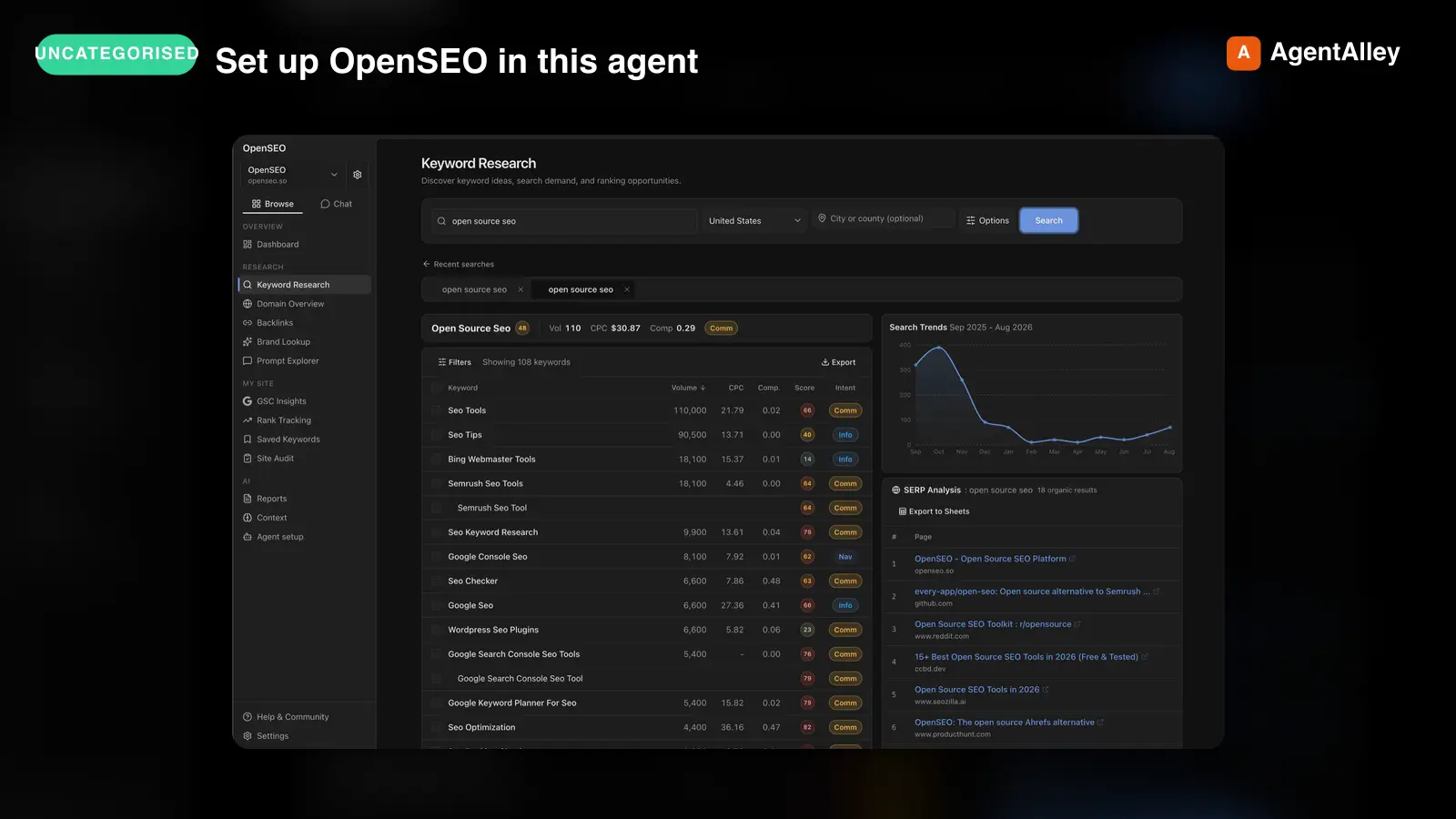
Set up OpenSEO in the current AI agent. Use when a user pastes the OpenSEO installation prompt or asks to connect its plugin, MCP, and skills.
---
name: setup-openseo
description: Set up OpenSEO in the current AI agent. Use when a user pastes the OpenSEO installation prompt or asks to connect its plugin, MCP, and skills.
metadata:
  internal: true
---

Set up OpenSEO in this agent. Do what you can; guide me through anything that needs my input.

## 1. Check this agent

- Identify this agent and its version. Ask only if you cannot tell.
- Check for an existing OpenSEO connection. Preserve other integrations and avoid duplicates.
- Check for OpenSEO skills separately. A connection without skills is incomplete.

## 2. If this is ChatGPT

If I pasted this into a regular ChatGPT conversation (web or desktop app, not Codex), you cannot install OpenSEO from here. Don't run commands or edit files. Instead, give me these steps and stop:
Overview
Set up OpenSEO in this agent. Do what you can; guide me through anything that needs my input.
Manual install (npx, ZIP)
npx skills add every-app/open-seo --skill setup-openseo -g -a claude-codenpx degit every-app/open-seo/.agents/skills/setup-openseo#main ~/.claude/skills/setup-openseoConnects with Agent Alley MCP · agentalley.io/mcp
Files included
SKILL.md6.8 KB
Read SKILL.md here
Show the full text85 lines
Set up OpenSEO in this agent. Do what you can; guide me through anything that needs my input.
1. Check this agent
- Identify this agent and its version. Ask only if you cannot tell.
- Check for an existing OpenSEO connection. Preserve other integrations and avoid duplicates.
- Check for OpenSEO skills separately. A connection without skills is incomplete.
2. If this is ChatGPT
If I pasted this into a regular ChatGPT conversation (web or desktop app, not Codex), you cannot install OpenSEO from here. Don't run commands or edit files. Instead, give me these steps and stop:
- Open the OpenSEO plugin for ChatGPT and select Install plugin.
- Sign in to OpenSEO and approve the connection.
- Start a new chat, select OpenSEO from the + menu, and send: "Use OpenSEO to check my connection and list my projects."
The plugin connects only to hosted OpenSEO. If https://app.openseo.so/mcp is not on openseo.so (self-hosted), or the plugin isn't available for my account, point me to the custom connection steps in the ChatGPT setup guide with that server URL. ChatGPT needs a publicly reachable HTTPS URL. If I'm in Codex, continue below.
3. Install the plugin first
The official plugin bundles MCP + SEO skills, with OpenSEO namespacing and shared updates.
- Codex: follow the plugin guide.
- Claude Code: follow the plugin guide.
- Claude Cowork, the Claude desktop app, or claude.ai: you cannot install plugins from this chat, so don't run commands. Tell me to open Customize (in Cowork, the Cowork tab first) → Plugins → + or Add → Add marketplace → Add from a repository, enter
https://github.com/every-app/open-seo, and install OpenSEO. Then I start a new task and type/to check that OpenSEO skills appear. If I already have a custom OpenSEO connector, have me remove it once the plugin signs in. Plugins need a paid plan, and the plugin connects only to hosted OpenSEO. On Free, skip it: have me add the OpenSEO connector from Claude's directory (or search for OpenSEO under Customize → Connectors) and upload the public skills in Customize → Skills. Ifhttps://app.openseo.so/mcpis not on openseo.so (self-hosted), skip it too: have me add that endpoint under Customize → Connectors → Add custom connector and upload the public skills the same way. Then continue at step 5. - Other agents: verify plugin compatibility in their current documentation.
- Check the installed client's help before running commands.
4. Fall back to MCP + skills
If the plugin is unsupported:
- Add
https://app.openseo.so/mcpusing the MCP guide. - Install the public SEO skills for this agent only.
- Do not copy internal repository skills or duplicate bundled skills.
- If skills are unsupported, use MCP alone and link to the workflow guides.
For self-hosted OpenSEO, use its endpoint directly; the official plugin targets the hosted service.
5. Sign in
- Hosted OpenSEO: Prefer OAuth and let me approve login in my browser. If this client cannot use OAuth, send me to
https://app.openseo.so/settings→ API keys. Have me enter the key in the client's secret settings or environment, never chat or a repository. - Self-hosted OpenSEO: Follow the deployment's authentication instructions. A local server configured without authentication needs no OAuth or OpenSEO API key. For Cloudflare Access deployments, follow the self-hosting guide to configure Managed OAuth for the MCP client.
- Manual setup needed? Use this agent’s current documentation and give only the steps I need to do myself.
6. Reload and verify
- Use the current agent’s native reload flow, checking its installed version, help, or official documentation. Prefer automatic discovery or an in-place reload; restart only if required to load the new tools and skills.
- Once tools load in this session, run whoami and list_projects (free reads). Check skill discovery too. If a reload needs my action, give the instructions rather than repeatedly retrying unavailable tools.
- Track installation, sign-in, and verification separately. A connected server is not proof that this session can use its tools. Never claim verification before the free reads succeed.
- If list_projects returns no projects, ask for my website and create a project for it with create_project. Creating a project uses no credits.
- Do not run paid research during installation.
7. Finish with a short handoff
Keep progress updates brief. The final reply must be 140 words or fewer and follow this template:
Status [Briefly say what succeeded or what blocked setup.]
Next
[Give the native reload command or UI action for this agent, only if needed.]Then say “Check that OpenSEO is connected.” Approve sign-in if prompted.- Try one of these:
[SEO Audit invocation](recommended) — find your website's biggest SEO issues.[SEO Project Setup invocation]— interview you about your website and set up its project context.[Keyword Research invocation]— find keywords worth targeting.[Local SEO invocation]— review your Google Business Profile and local competitors.
Want to know what was set up? Just ask.
Adapt the template to the actual result:
- If I must install the plugin by hand, as in Claude Cowork, replace step 1 with those clicks.
- If installation failed, name the blocker and replace reload with the fix. If fully verified, say it is ready and omit reload. Do not claim sign-in failed or is required merely because tools need reloading.
- Recommend this agent’s idiomatic way to invoke each installed skill: its native command, mention, picker, or natural-language request. Use the discovered skill name and plugin namespace; do not assume
/skill-nameworks everywhere or create aliases to force it. Check the agent’s help or official documentation when unsure. If skills are unsupported, give equivalent plain-language requests using the connected tools. Recommend workflows; do not run them during installation. - Keep tool names such as whoami and list_projects in your checks, not the final reply. Omit versions, paths, connection details, skill counts, other integrations, and cleanup commands unless they explain the blocker or I ask. Do not add more sections or a verification checklist.
| 1 | |
| 2 | name setup-openseo |
| 3 | description Set up OpenSEO in the current AI agent. Use when a user pastes the OpenSEO installation prompt or asks to connect its plugin, MCP, and skills. |
| 4 | metadata |
| 5 | internal true |
| 6 | |
| 7 | |
| 8 | Set up OpenSEO in this agent. Do what you can; guide me through anything that needs my input. |
| 9 | |
| 10 | ## 1. Check this agent |
| 11 | |
| 12 | Identify this agent and its version. Ask only if you cannot tell. |
| 13 | Check for an existing OpenSEO connection. Preserve other integrations and avoid duplicates. |
| 14 | Check for OpenSEO skills separately. A connection without skills is incomplete. |
| 15 | |
| 16 | ## 2. If this is ChatGPT |
| 17 | |
| 18 | If I pasted this into a regular ChatGPT conversation (web or desktop app, not Codex), you cannot install OpenSEO from here. Don't run commands or edit files. Instead, give me these steps and stop: |
| 19 | |
| 20 | Open the [OpenSEO plugin for ChatGPT] and select **Install plugin**. |
| 21 | Sign in to OpenSEO and approve the connection. |
| 22 | Start a new chat, select OpenSEO from the **+** menu, and send: "Use OpenSEO to check my connection and list my projects." |
| 23 | |
| 24 | The plugin connects only to hosted OpenSEO. If `https://app.openseo.so/mcp` is not on openseo.so (self-hosted), or the plugin isn't available for my account, point me to the custom connection steps in the [ChatGPT setup guide] with that server URL. ChatGPT needs a publicly reachable HTTPS URL. If I'm in Codex, continue below. |
| 25 | |
| 26 | ## 3. Install the plugin first |
| 27 | |
| 28 | The official plugin bundles MCP + SEO skills, with OpenSEO namespacing and shared updates. |
| 29 | |
| 30 | **Codex:** follow the [plugin guide]. |
| 31 | **Claude Code:** follow the [plugin guide]. |
| 32 | **Claude Cowork, the Claude desktop app, or claude.ai:** you cannot install plugins from this chat, so don't run commands. Tell me to open **Customize** (in Cowork, the **Cowork** tab first) → **Plugins** → **+** or **Add** → **Add marketplace** → **Add from a repository**, enter `https://github.com/every-app/open-seo`, and install **OpenSEO**. Then I start a new task and type `/` to check that OpenSEO skills appear. If I already have a custom OpenSEO connector, have me remove it once the plugin signs in. Plugins need a paid plan, and the plugin connects only to hosted OpenSEO. On Free, skip it: have me add the [OpenSEO connector] from Claude's directory (or search for OpenSEO under **Customize → Connectors**) and upload the [public skills] in **Customize → Skills**. If `https://app.openseo.so/mcp` is not on openseo.so (self-hosted), skip it too: have me add that endpoint under **Customize → Connectors** → **Add custom connector** and upload the public skills the same way. Then continue at step 5. |
| 33 | **Other agents:** verify plugin compatibility in their current documentation. |
| 34 | Check the installed client's help before running commands. |
| 35 | |
| 36 | ## 4. Fall back to MCP + skills |
| 37 | |
| 38 | If the plugin is unsupported: |
| 39 | |
| 40 | Add `https://app.openseo.so/mcp` using the [MCP guide]. |
| 41 | Install the [public SEO skills] for this agent only. |
| 42 | Do not copy internal repository skills or duplicate bundled skills. |
| 43 | If skills are unsupported, use MCP alone and link to the workflow guides. |
| 44 | |
| 45 | For self-hosted OpenSEO, use its endpoint directly; the official plugin targets the hosted service. |
| 46 | |
| 47 | ## 5. Sign in |
| 48 | |
| 49 | **Hosted OpenSEO:** Prefer OAuth and let me approve login in my browser. If this client cannot use OAuth, send me to `https://app.openseo.so/settings` → API keys. Have me enter the key in the client's secret settings or environment, never chat or a repository. |
| 50 | **Self-hosted OpenSEO:** Follow the deployment's authentication instructions. A local server configured without authentication needs no OAuth or OpenSEO API key. For Cloudflare Access deployments, follow the self-hosting guide to configure Managed OAuth for the MCP client. |
| 51 | **Manual setup needed?** Use this agent’s current documentation and give only the steps I need to do myself. |
| 52 | |
| 53 | ## 6. Reload and verify |
| 54 | |
| 55 | Use the current agent’s native reload flow, checking its installed version, help, or official documentation. Prefer automatic discovery or an in-place reload; restart only if required to load the new tools and skills. |
| 56 | Once tools load in this session, run whoami and list_projects (free reads). Check skill discovery too. If a reload needs my action, give the instructions rather than repeatedly retrying unavailable tools. |
| 57 | Track installation, sign-in, and verification separately. A connected server is not proof that this session can use its tools. Never claim verification before the free reads succeed. |
| 58 | If list_projects returns no projects, ask for my website and create a project for it with create_project. Creating a project uses no credits. |
| 59 | Do not run paid research during installation. |
| 60 | |
| 61 | ## 7. Finish with a short handoff |
| 62 | |
| 63 | Keep progress updates brief. The final reply must be **140 words or fewer** and follow this template: |
| 64 | |
| 65 | **Status** |
| 66 | [Briefly say what succeeded or what blocked setup.] |
| 67 | |
| 68 | **Next** |
| 69 | |
| 70 | `[Give the native reload command or UI action for this agent, only if needed.]` Then say “Check that OpenSEO is connected.” Approve sign-in if prompted. |
| 71 | Try one of these: |
| 72 | `[SEO Audit invocation]` **(recommended)** — find your website's biggest SEO issues. |
| 73 | `[SEO Project Setup invocation]` — interview you about your website and set up its project context. |
| 74 | `[Keyword Research invocation]` — find keywords worth targeting. |
| 75 | `[Local SEO invocation]` — review your Google Business Profile and local competitors. |
| 76 | |
| 77 | Want to know what was set up? Just ask. |
| 78 | |
| 79 | Adapt the template to the actual result: |
| 80 | |
| 81 | If I must install the plugin by hand, as in Claude Cowork, replace step 1 with those clicks. |
| 82 | If installation failed, name the blocker and replace reload with the fix. If fully verified, say it is ready and omit reload. Do not claim sign-in failed or is required merely because tools need reloading. |
| 83 | Recommend this agent’s idiomatic way to invoke each installed skill: its native command, mention, picker, or natural-language request. Use the discovered skill name and plugin namespace; do not assume `/skill-name` works everywhere or create aliases to force it. Check the agent’s help or official documentation when unsure. If skills are unsupported, give equivalent plain-language requests using the connected tools. Recommend workflows; do not run them during installation. |
| 84 | Keep tool names such as whoami and list_projects in your checks, not the final reply. Omit versions, paths, connection details, skill counts, other integrations, and cleanup commands unless they explain the blocker or I ask. Do not add more sections or a verification checklist. |
| 85 |
Details
- License
- MIT
- Stars on the repo
- ★ 28,622
- Checked
- Source
- every-app/open-seo ↗
- Creator
- every-app · 7 listings
Similar skills
See all → Cross-Platform Reverse Engineer
 morluto/rea · by morlutoReverse engineer native, managed, Electron/JavaScript, packaged, firmware, and browser targets with REA. Use shipped-artifact or requested runtime evidence to explain features, compare versions, decompile code, or guide a reconstruction. Skip REA for ordinary source-repository architecture analysis.★ 316k GitHub stars
 Brainstorm Ideas
 obra/superpowers · by obraYou MUST use this before any creative work - creating features, building components, adding functionality, or modifying behavior. Explores user intent, requirements and design before implementation.★ 290k GitHub stars
 Code Review Feedback Analyzerobra/superpowers · by obraUse when receiving code review feedback, before implementing suggestions, especially if feedback seems unclear or technically questionable - requires technical rigor and verification, not performative agreement or blind implementation★ 290k GitHub stars
 Bug Diagnosis Framework
 mattpocock/skills · by mattpocockDiagnosis loop for hard bugs and performance regressions. Use when the user says "diagnose"/"debug this", or reports something broken/throwing/failing/slow.★ 267k GitHub stars
 Implement Specmattpocock/skills · by mattpocockImplement the result of /to-spec and /to-tickets in code.★ 267k GitHub stars
 PR Description Writermattpocock/skills · by mattpocockUse when writing a PR body.★ 267k GitHub stars
More from every-app
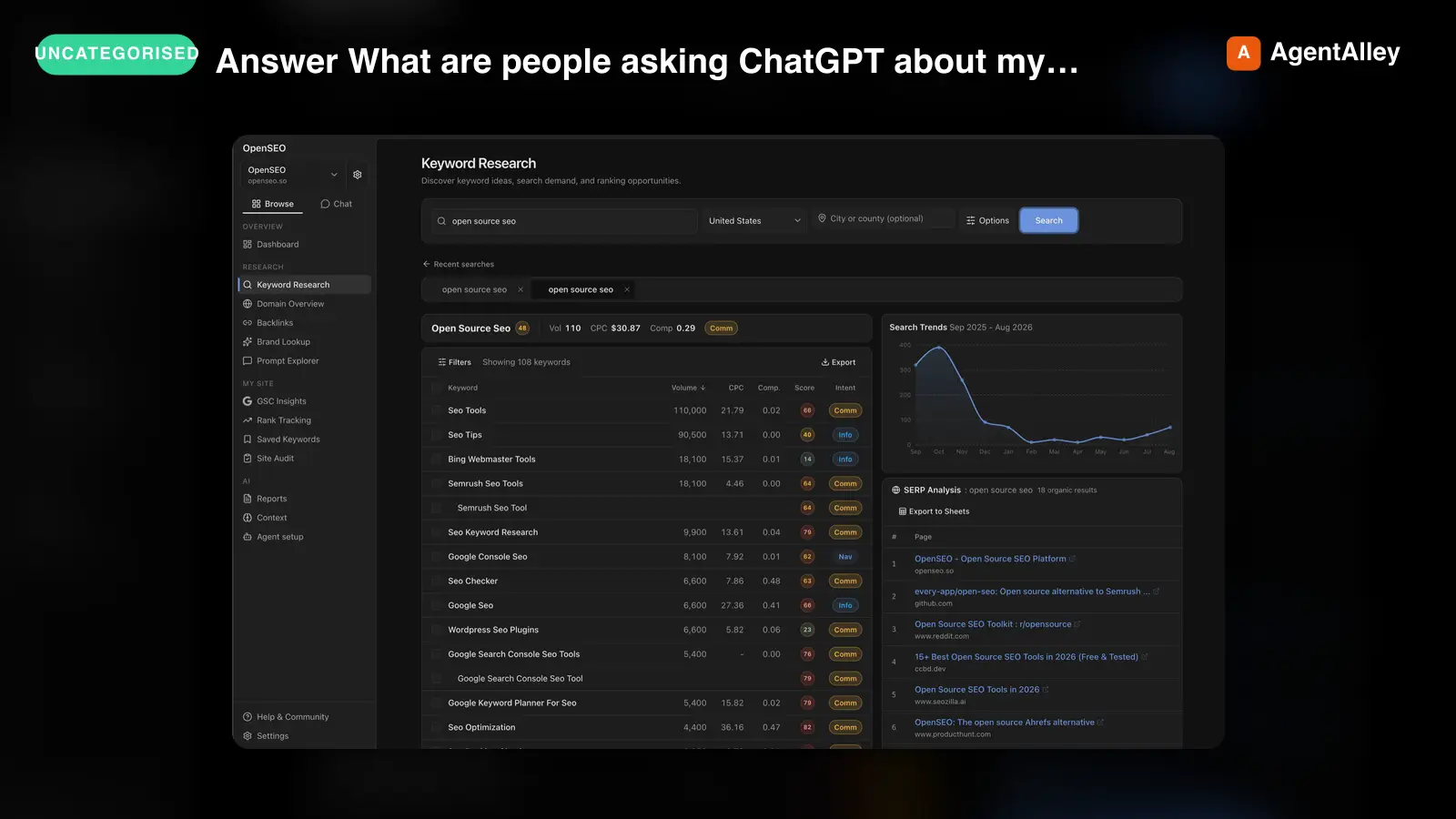 AI Prompt Research
 every-app/open-seo · by every-appFind the questions people ask about a market, how ChatGPT answers them, and which sites get cited in the answers. Use when the user asks what people ask AI about their niche, wants prompt ideas, or wants to know where their brand is missing before choosing prompts to track. Research only; it never saves tracking or starts answer collection.★ 28.6k GitHub stars
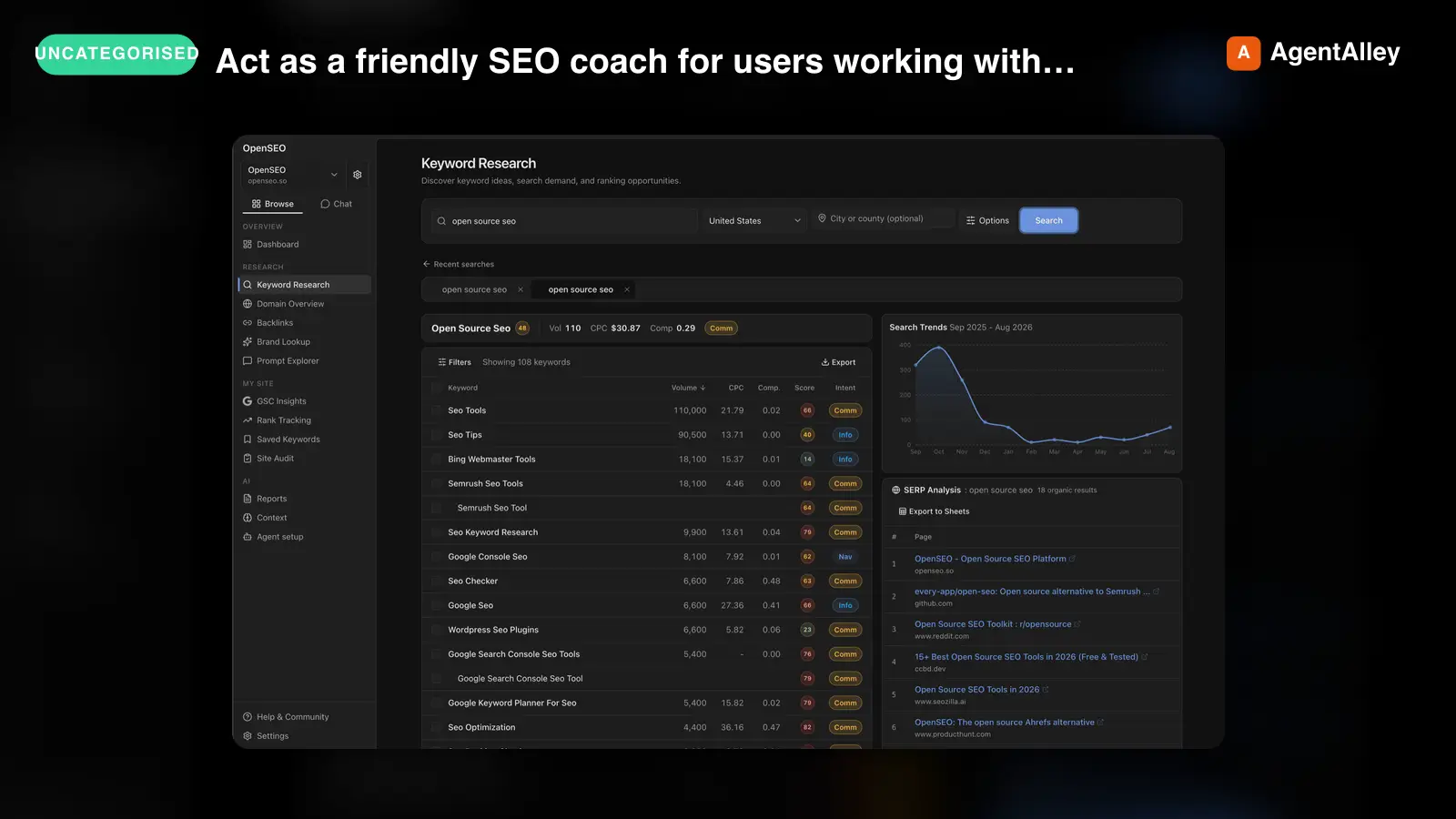 OpenSEO Coachevery-app/open-seo · by every-appEnter a friendly OpenSEO coach mode that explains workflows, recommends next steps, and helps users use agents, web search, scraping, and MCP data effectively.★ 28.6k GitHub stars
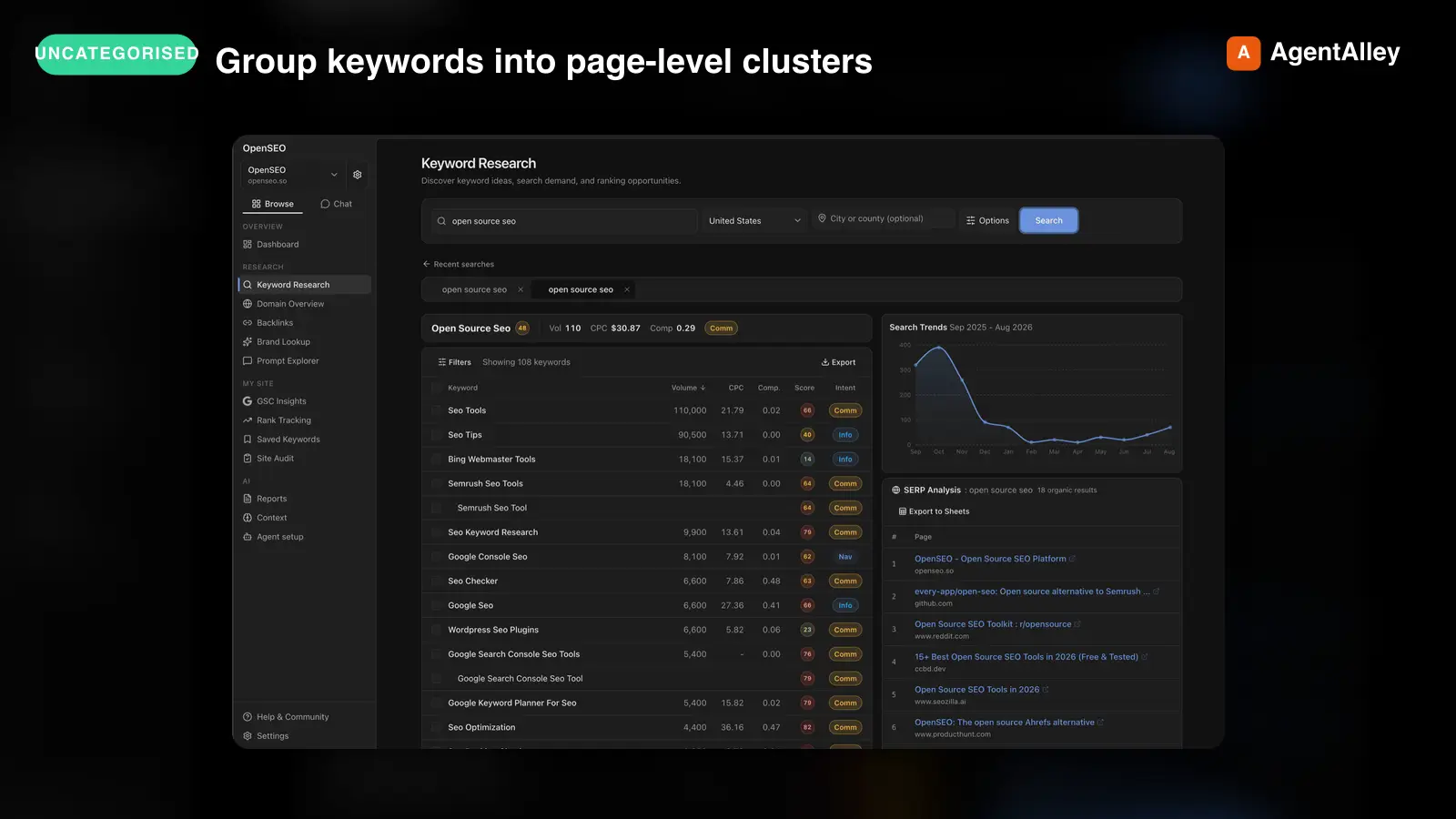 OpenSEO Keyword Clusteringevery-app/open-seo · by every-appCluster keywords by intent and map them to existing or proposed pages.★ 28.6k GitHub stars
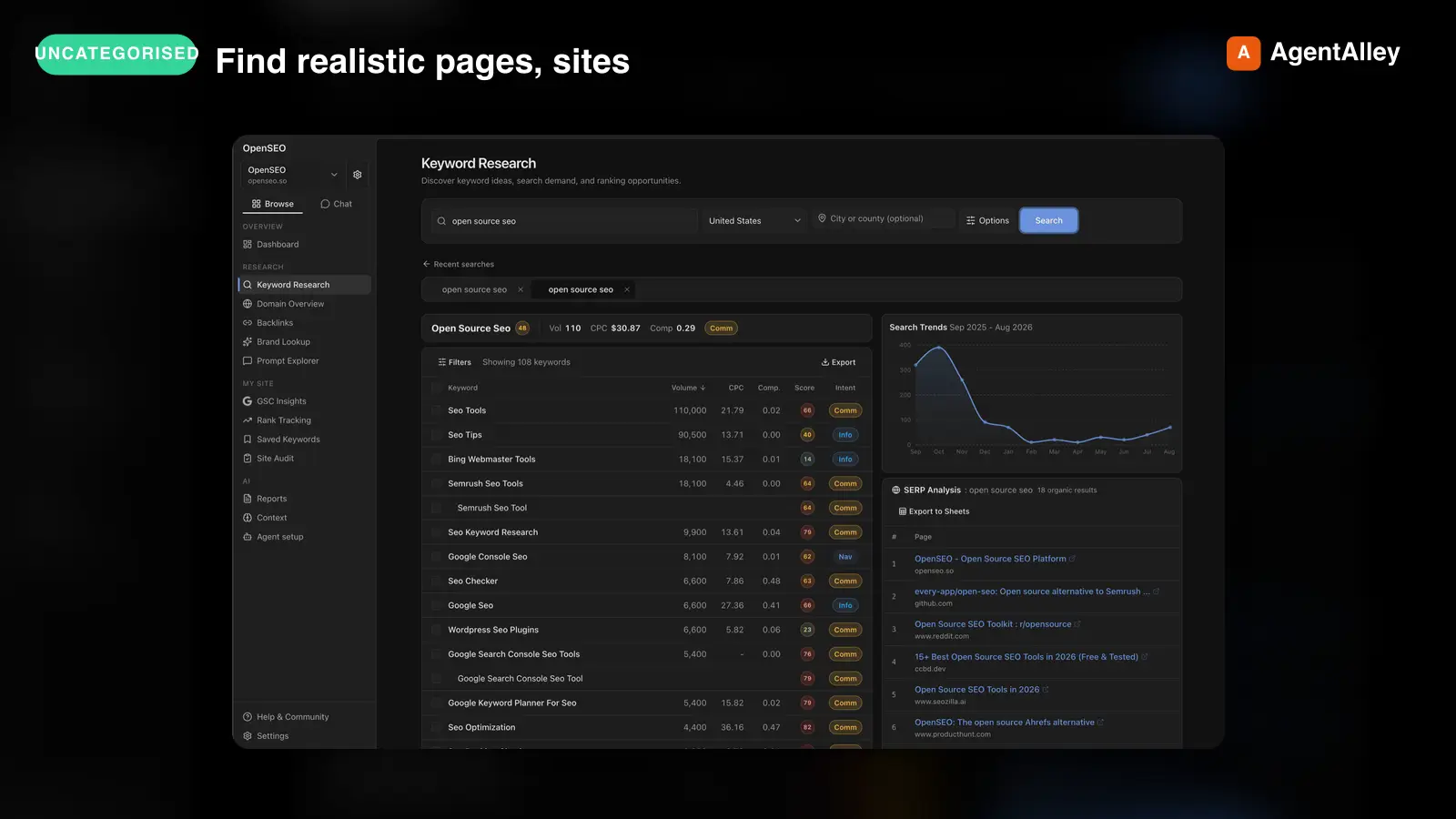 OpenSEO Link Prospectingevery-app/open-seo · by every-appFind link prospects, discover contact paths, and draft outreach from SERPs and backlink signals.★ 28.6k GitHub stars
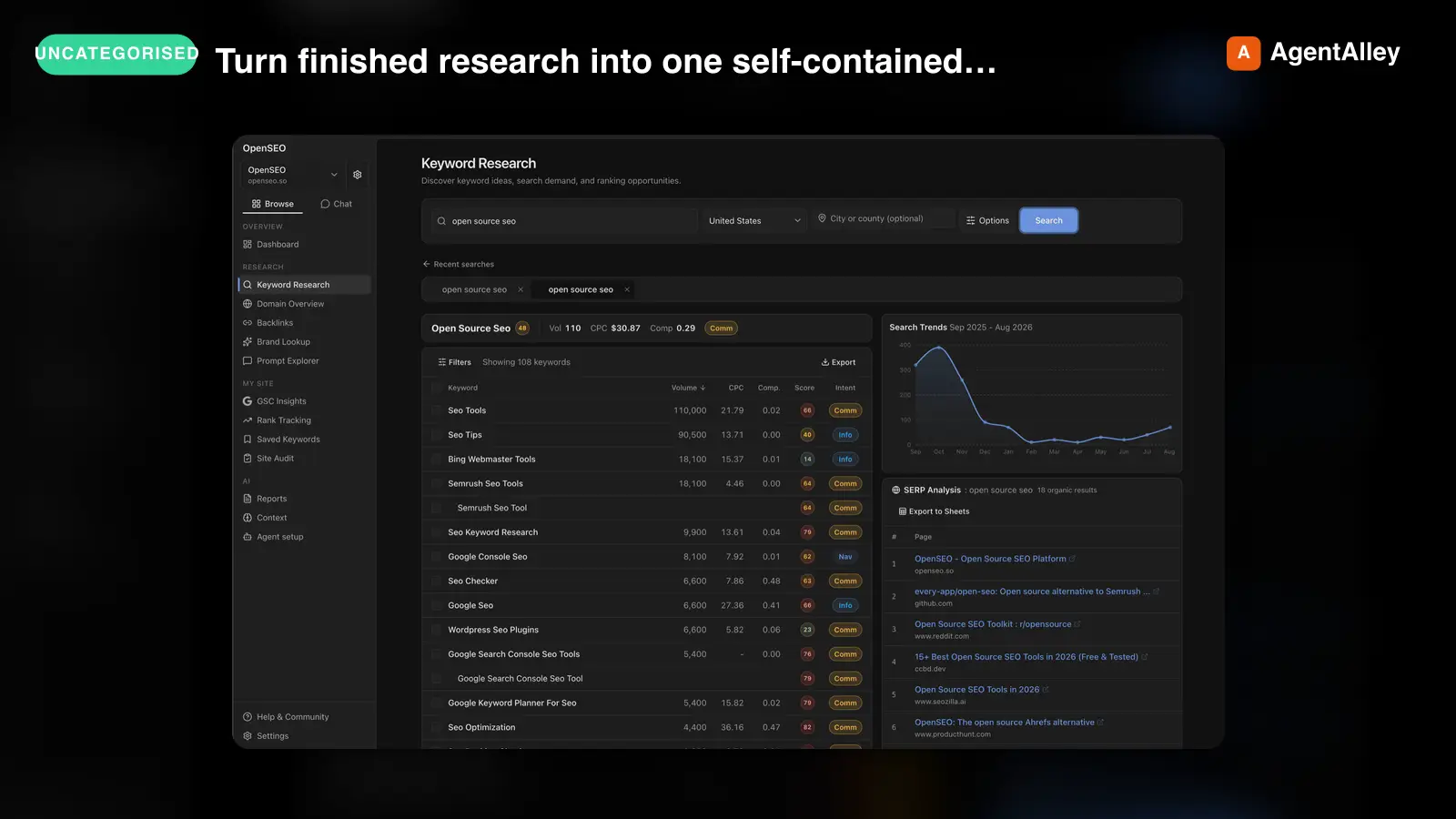 OpenSEO Reportevery-app/open-seo · by every-appWrite and save an OpenSEO report as one self-contained HTML page. Use when a skill has finished its research, and whenever the user asks for a report, check-in, or summary, or names a report template.★ 28.6k GitHub stars
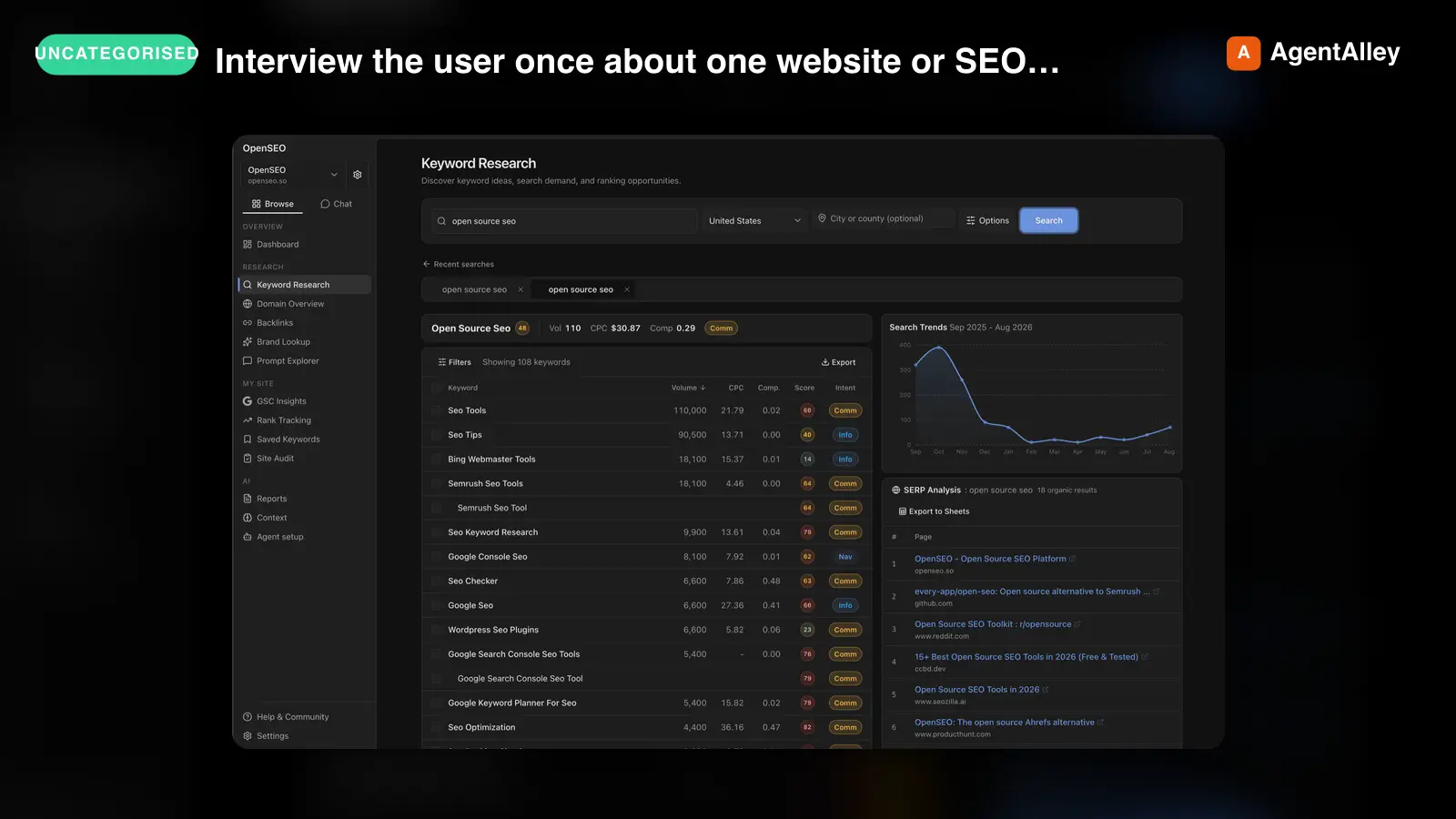 OpenSEO SEO Project Setupevery-app/open-seo · by every-appPopulate a project's shared OpenSEO context — site scope, goals, positioning, competitors, key pages, and preferences — plus MCP checks and Search Console intake.★ 28.6k GitHub stars