Build, run, and visualize multi-step AI generation workflows
Muapi workflow
Build, run, and visualize multi-step AI generation workflows. The AI architect translates natural language descriptions into connected node graphs — chain image generation, video creation, enhancement, and editing into automated pipelines.
---
name: muapi-workflow
version: 0.1.0
description: Build, run, and visualize multi-step AI generation workflows. The AI architect translates natural language descriptions into connected node graphs — chain image generation, video creation, enhancement, and editing into automated pipelines.
---

# AI Workflow Builder

Chain any combination of muapi.ai generation steps into automated pipelines. The AI architect converts your plain-language description into a runnable node graph.

## Prerequisites

Always ensure the `muapi` CLI is up-to-date before running any commands. Reinstall from source at the start of every session:

```bash
pip install --upgrade /path/to/muapi-cli
```
Overview
Chain any combination of muapi.ai generation steps into automated pipelines. The AI architect converts your plain-language description into a runnable node graph.
Manual install (npx, ZIP)
npx skills add SamurAIGPT/Generative-Media-Skills --skill muapi-workflow -g -a claude-codemkdir -p ~/.claude/skills && curl -sL https://codeload.github.com/SamurAIGPT/Generative-Media-Skills/tar.gz/5519622e885a \
| tar -xz -C ~/.claude/skills --strip-components=2 Generative-Media-Skills-5519622e885a/library/workflowNew-Item -ItemType Directory -Force "$HOME\.claude\skills" | Out-Null; Invoke-WebRequest "https://m.agentalley.io/zip/98a6338b82b3582a0e61/workflow.zip" -OutFile "$env:TEMP\workflow.zip"; Expand-Archive "$env:TEMP\workflow.zip" -DestinationPath "$HOME\.claude\skills" -ForceConnects with Agent Alley MCP · agentalley.io/mcp
Files included
SKILL.md6.5 KBscripts/5 files · 3.0 KB
Read the files here
SamurAIGPT/
Show the full text197 lines
AI Workflow Builder
Chain any combination of muapi.ai generation steps into automated pipelines. The AI architect converts your plain-language description into a runnable node graph.
Prerequisites
Always ensure the muapi CLI is up-to-date before running any commands. Reinstall from source at the start of every session:
pip install --upgrade /path/to/muapi-cli
Replace /path/to/muapi-cli with the actual path to the muapi-cli directory in the workspace (the directory containing pyproject.toml).
Core Operations
- Generate (
generate-workflow.sh) — AI architect creates a workflow from a description - Discover (
discover-workflow.sh) — Find a relevant existing workflow by natural language - Edit (
generate-workflow.sh --workflow-id) — Modify an existing workflow with a prompt - Interactive Run (
interactive-run.sh) — Prompt for inputs and execute a workflow - Run (
run-workflow.sh) — Execute a workflow, poll node-by-node, collect outputs - CLI (
muapi workflow) — Full CRUD + visualization directly from the terminal
Agent Guided Discovery & Selection
As an AI agent, you have the ability to read and understand the purpose of available workflows to select the best one for the user's task (e.g., "create a UGC video").
- Discover: Fetch the catalog of available workflows and their descriptions in JSON format.
muapi workflow discover --output-json - Match (Internal Reasoning): Use your LLM capabilities to analyze the
name,category, anddescriptionfields of the returned workflows. Find the best match for the user's intent. - Analyze: If you find a promising candidate, inspect its structure to ensure it has the necessary nodes and parameters.
CRITICAL RULE: The output ofmuapi workflow get <workflow_id>muapi workflow getwill include an "API Inputs" table. You MUST read this table to understand what inputs are required. - Choose & Confirm & Prompt User:
- If one workflow is a perfect match, you MUST ask the user to provide the exact values for the required API inputs before executing it. Never invent or guess input values (like prompts, URLs, etc.) on your own.
- If multiple workflows are highly relevant, present the options to the user with their descriptions and ask them to confirm which one to use, and also ask for the required inputs.
- If no workflow matches the user's complex request, offer to architect a new one using
muapi workflow create.
Example Agent Reasoning
"The user wants a product promo video. I fetched the catalog using
discover. I see two potential workflows:
wf_123: 'Product promo with background music'wf_456: 'Simple video gen' I will analyzewf_123withget. It has the required nodes. I will suggestwf_123or just run it if the match is precise."
Protocol: Building a Workflow
Step 1 — Describe your pipeline
muapi workflow create "take a text prompt, generate an image with flux-dev, then upscale it to 4K"
The architect returns a workflow with a unique ID and a node graph. Save the ID.
Step 2 — Inspect and visualize
# Rich ASCII node graph in the terminal
muapi workflow get <workflow_id>

# Or raw JSON
muapi workflow get <workflow_id> --output-json
Step 3 — Run it
# Run with specific inputs
muapi workflow execute <workflow_id> \
  --input "node1.prompt=a glowing crystal cave at midnight"

# Use --download to pull results locally
muapi workflow execute <workflow_id> \
  --input "node1.prompt=a sunset" \
  --download ./outputs
Step 4 — Discovery (Optional)
If you want to reuse an existing workflow instead of creating a new one:
# Search by keywords
muapi workflow discover "ugc video"
Step 5 — Interactive Execution
Run a workflow and have the CLI prompt you for each required input:
muapi workflow run-interactive <workflow_id>
Workflow Examples
Image Pipelines
# Text → Image → Upscale
muapi workflow create "take a text prompt, generate with flux-dev, upscale the result"

# Text → Image → Background removal → Product shot
muapi workflow create "generate a product image with hidream, remove background, create professional product shot"
Video Pipelines
# Text → Video
muapi workflow create "generate a 10-second cinematic video from a text prompt using kling-master"

# Image → Video → Lipsync
muapi workflow create "animate an input image with seedance, then apply lipsync from an audio file"
Editing an Existing Workflow
# Add a step
muapi workflow edit <id> --prompt "add a face-swap step after the image generation"

# Swap a model
muapi workflow edit <id> --prompt "change the video model from kling to veo3"
CLI Reference
# List all your workflows
muapi workflow list

# Browse templates
muapi workflow templates

# Generate new workflow
muapi workflow create "text → flux image → upscale → face swap"

# Visualize a workflow
muapi workflow get <id>

# Execute with inputs
muapi workflow execute <id> --input "node1.prompt=a sunset"

# Monitor a run
muapi workflow status <run_id>

# Get outputs
muapi workflow outputs <run_id> --download ./results

# Edit with AI
muapi workflow edit <id> --prompt "add lipsync at the end"

# Rename / delete
muapi workflow rename <id> --name "Product Pipeline v2"
muapi workflow delete <id>
MCP Tools (for AI agents)
| Tool | Description |
|---|---|
muapi_workflow_list |
List user's workflows |
muapi_workflow_create |
AI architect: prompt → workflow |
muapi_workflow_get |
Get workflow definition + node graph |
muapi_workflow_execute |
Run with specific inputs |
muapi_workflow_status |
Node-by-node run status |
muapi_workflow_outputs |
Final output URLs |
Constraints
- Workflows can contain any combination of muapi.ai nodes (image, video, audio, enhance, edit)
- Node outputs are automatically wired as inputs to downstream nodes
--syncmode waits up to 120s for generation; use--asyncfor complex workflows and poll separately- Run timeouts: 10 minutes maximum per workflow execution
| 1 | |
| 2 | name muapi-workflow |
| 3 | version 0.1.0 |
| 4 | description Build, run, and visualize multi-step AI generation workflows. The AI architect translates natural language descriptions into connected node graphs — chain image generation, video creation, enhancement, and editing into automated pipelines. |
| 5 | |
| 6 | |
| 7 | # AI Workflow Builder |
| 8 | |
| 9 | Chain any combination of muapi.ai generation steps into automated pipelines. The AI architect converts your plain-language description into a runnable node graph. |
| 10 | |
| 11 | ## Prerequisites |
| 12 | |
| 13 | Always ensure the `muapi` CLI is up-to-date before running any commands. Reinstall from source at the start of every session: |
| 14 | |
| 15 | |
| 16 | pip install --upgrade /path/to/muapi-cli |
| 17 | |
| 18 | |
| 19 | Replace `/path/to/muapi-cli` with the actual path to the `muapi-cli` directory in the workspace (the directory containing `pyproject.toml`). |
| 20 | |
| 21 | ## Core Operations |
| 22 | |
| 23 | **Generate** (`generate-workflow.sh`) — AI architect creates a workflow from a description |
| 24 | **Discover** (`discover-workflow.sh`) — Find a relevant existing workflow by natural language |
| 25 | **Edit** (`generate-workflow.sh --workflow-id`) — Modify an existing workflow with a prompt |
| 26 | **Interactive Run** (`interactive-run.sh`) — Prompt for inputs and execute a workflow |
| 27 | **Run** (`run-workflow.sh`) — Execute a workflow, poll node-by-node, collect outputs |
| 28 | **CLI** (`muapi workflow`) — Full CRUD + visualization directly from the terminal |
| 29 | |
| 30 | |
| 31 | |
| 32 | ## Agent Guided Discovery & Selection |
| 33 | |
| 34 | As an AI agent, you have the ability to read and understand the purpose of available workflows to select the best one for the user's task (e.g., "create a UGC video"). |
| 35 | |
| 36 | **Discover**: Fetch the catalog of available workflows and their descriptions in JSON format. |
| 37 | |
| 38 | muapi workflow discover --output-json |
| 39 | |
| 40 | **Match (Internal Reasoning)**: Use your LLM capabilities to analyze the `name`, `category`, and `description` fields of the returned workflows. Find the best match for the user's intent. |
| 41 | **Analyze**: If you find a promising candidate, inspect its structure to ensure it has the necessary nodes and parameters. |
| 42 | |
| 43 | muapi workflow get <workflow_id> |
| 44 | |
| 45 | **CRITICAL RULE**: The output of `muapi workflow get` will include an "API Inputs" table. You MUST read this table to understand what inputs are required. |
| 46 | **Choose & Confirm & Prompt User**: |
| 47 | If one workflow is a perfect match, you MUST ask the user to provide the exact values for the required API inputs before executing it. **Never invent or guess input values (like prompts, URLs, etc.) on your own.** |
| 48 | If multiple workflows are highly relevant, present the options to the user with their descriptions and ask them to confirm which one to use, and also ask for the required inputs. |
| 49 | If no workflow matches the user's complex request, offer to **architect** a new one using `muapi workflow create`. |
| 50 | |
| 51 | ### Example Agent Reasoning |
| 52 | > "The user wants a product promo video. I fetched the catalog using `discover`. I see two potential workflows: |
| 53 | > 1. `wf_123`: 'Product promo with background music' |
| 54 | > 2. `wf_456`: 'Simple video gen' |
| 55 | > I will analyze `wf_123` with `get`. It has the required nodes. I will suggest `wf_123` or just run it if the match is precise." |
| 56 | |
| 57 | |
| 58 | |
| 59 | ## Protocol: Building a Workflow |
| 60 | |
| 61 | ### Step 1 — Describe your pipeline |
| 62 | |
| 63 | |
| 64 | muapi workflow create "take a text prompt, generate an image with flux-dev, then upscale it to 4K" |
| 65 | |
| 66 | |
| 67 | The architect returns a workflow with a unique ID and a node graph. Save the ID. |
| 68 | |
| 69 | ### Step 2 — Inspect and visualize |
| 70 | |
| 71 | |
| 72 | # Rich ASCII node graph in the terminal |
| 73 | muapi workflow get <workflow_id> |
| 74 | |
| 75 | # Or raw JSON |
| 76 | muapi workflow get <workflow_id> --output-json |
| 77 | |
| 78 | |
| 79 | ### Step 3 — Run it |
| 80 | |
| 81 | |
| 82 | # Run with specific inputs |
| 83 | muapi workflow execute <workflow_id> \ |
| 84 | --input "node1.prompt=a glowing crystal cave at midnight" |
| 85 | |
| 86 | # Use --download to pull results locally |
| 87 | muapi workflow execute <workflow_id> \ |
| 88 | --input "node1.prompt=a sunset" \ |
| 89 | --download ./outputs |
| 90 | |
| 91 | |
| 92 | ### Step 4 — Discovery (Optional) |
| 93 | If you want to reuse an existing workflow instead of creating a new one: |
| 94 | |
| 95 | |
| 96 | # Search by keywords |
| 97 | muapi workflow discover "ugc video" |
| 98 | |
| 99 | |
| 100 | ### Step 5 — Interactive Execution |
| 101 | Run a workflow and have the CLI prompt you for each required input: |
| 102 | |
| 103 | |
| 104 | muapi workflow run-interactive <workflow_id> |
| 105 | |
| 106 | |
| 107 | |
| 108 | |
| 109 | ## Workflow Examples |
| 110 | |
| 111 | ### Image Pipelines |
| 112 | |
| 113 | |
| 114 | # Text → Image → Upscale |
| 115 | muapi workflow create "take a text prompt, generate with flux-dev, upscale the result" |
| 116 | |
| 117 | # Text → Image → Background removal → Product shot |
| 118 | muapi workflow create "generate a product image with hidream, remove background, create professional product shot" |
| 119 | |
| 120 | |
| 121 | ### Video Pipelines |
| 122 | |
| 123 | |
| 124 | # Text → Video |
| 125 | muapi workflow create "generate a 10-second cinematic video from a text prompt using kling-master" |
| 126 | |
| 127 | # Image → Video → Lipsync |
| 128 | muapi workflow create "animate an input image with seedance, then apply lipsync from an audio file" |
| 129 | |
| 130 | |
| 131 | |
| 132 | |
| 133 | ## Editing an Existing Workflow |
| 134 | |
| 135 | |
| 136 | # Add a step |
| 137 | muapi workflow edit <id> --prompt "add a face-swap step after the image generation" |
| 138 | |
| 139 | # Swap a model |
| 140 | muapi workflow edit <id> --prompt "change the video model from kling to veo3" |
| 141 | |
| 142 | |
| 143 | |
| 144 | |
| 145 | ## CLI Reference |
| 146 | |
| 147 | |
| 148 | # List all your workflows |
| 149 | muapi workflow list |
| 150 | |
| 151 | # Browse templates |
| 152 | muapi workflow templates |
| 153 | |
| 154 | # Generate new workflow |
| 155 | muapi workflow create "text → flux image → upscale → face swap" |
| 156 | |
| 157 | # Visualize a workflow |
| 158 | muapi workflow get <id> |
| 159 | |
| 160 | # Execute with inputs |
| 161 | muapi workflow execute <id> --input "node1.prompt=a sunset" |
| 162 | |
| 163 | # Monitor a run |
| 164 | muapi workflow status <run_id> |
| 165 | |
| 166 | # Get outputs |
| 167 | muapi workflow outputs <run_id> --download ./results |
| 168 | |
| 169 | # Edit with AI |
| 170 | muapi workflow edit <id> --prompt "add lipsync at the end" |
| 171 | |
| 172 | # Rename / delete |
| 173 | muapi workflow rename <id> --name "Product Pipeline v2" |
| 174 | muapi workflow delete <id> |
| 175 | |
| 176 | |
| 177 | |
| 178 | |
| 179 | ## MCP Tools (for AI agents) |
| 180 | |
| 181 | | Tool | Description | |
| 182 | |------|-------------| |
| 183 | | `muapi_workflow_list` | List user's workflows | |
| 184 | | `muapi_workflow_create` | AI architect: prompt → workflow | |
| 185 | | `muapi_workflow_get` | Get workflow definition + node graph | |
| 186 | | `muapi_workflow_execute` | Run with specific inputs | |
| 187 | | `muapi_workflow_status` | Node-by-node run status | |
| 188 | | `muapi_workflow_outputs` | Final output URLs | |
| 189 | |
| 190 | |
| 191 | |
| 192 | ## Constraints |
| 193 | |
| 194 | Workflows can contain any combination of muapi.ai nodes (image, video, audio, enhance, edit) |
| 195 | Node outputs are automatically wired as inputs to downstream nodes |
| 196 | `--sync` mode waits up to 120s for generation; use `--async` for complex workflows and poll separately |
| 197 | Run timeouts: 10 minutes maximum per workflow execution |
Details
- Version
- 0.1.0
- Updated
- Sep 8, 2026
- License
- MIT
- Stars on the repo
- ★ 4,317
- Checked
- Source
- SamurAIGPT/Generative-Media-Skills ↗
- Creator
- SamurAIGPT · 16 listings
Similar skills
See all →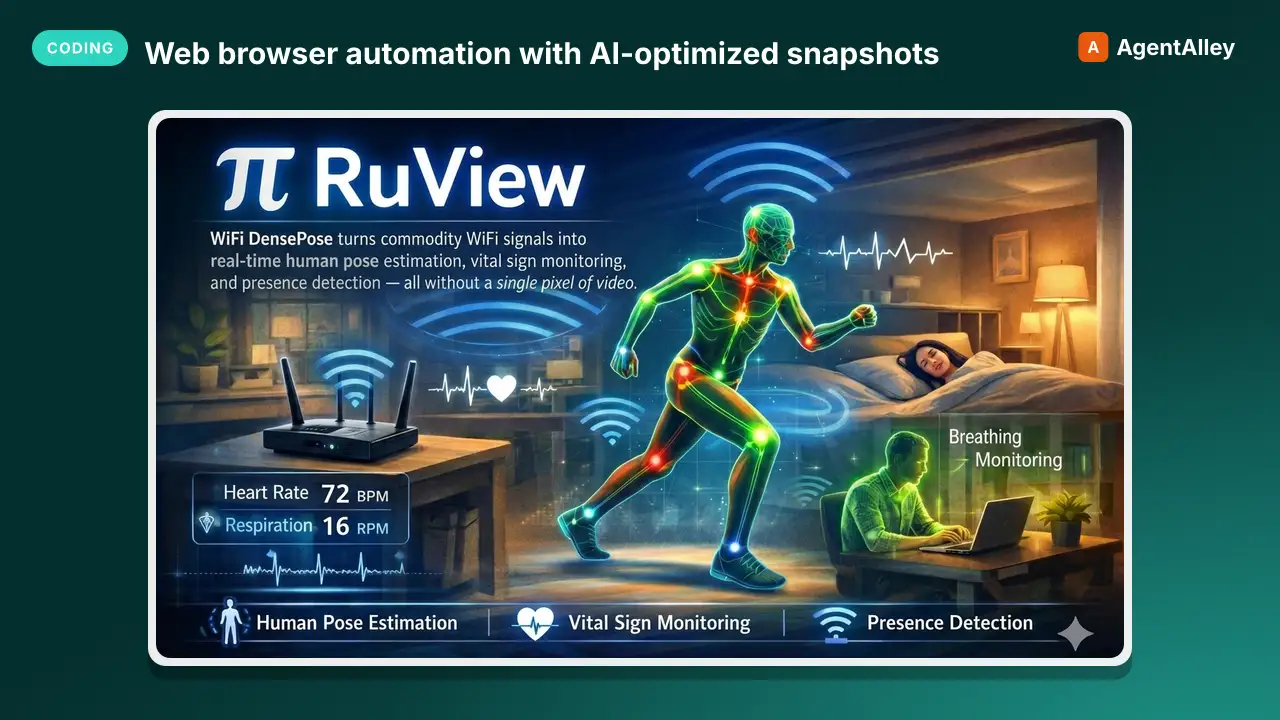 SkillWeb browser automation with AI-optimized snapshotsBrowser Automation Skill
 ruvnet/RuView · by ruvnetWeb browser automation with AI-optimized snapshots for claude-flow agents★ 94.7k GitHub stars
 SkillDeepEval evaluation workflow for AI agents
 confident-ai/deepeval · by confident-aiDeepEval evaluation workflow for AI agents and LLM applications. TRIGGER when the user wants to evaluate or improve an AI agent, tool-using workflow, multi-turn chatbot, RAG pipeline, or LLM app; add evals; generate datasets or goldens; use deepeval generate; use deepeval test run; send results to Confident AI; monitor production; run online evals; inspect traces; or iterate on prompts, tools, retrieval, or agent behavior from eval failures. AI agents are the primary use case. Covers Python SDK, pytest eval suites, CLI generation, traced evals, Confident AI reporting, and agent-driven improvement loops. DO NOT TRIGGER for unrelated generic pytest, non-AI test setup, or non-DeepEval observability work unless the user asks to compare or migrate to DeepEval; for instrumenting an app with DeepEval tracing, @observe, or framework integrations (use the `deepeval-tracing` skill); or for raw OpenTelemetry / OTLP export without the deepeval package (use the `deepeval-otel` skill).★ 18.7k GitHub stars
 SkillBrowser automation with persistent named pagesDev browser
 SawyerHood/dev-browser · by SawyerHoodBrowser automation with persistent named pages via the dev-browser CLI. Use when users ask to navigate websites, fill forms, take screenshots, extract web data, test web apps, log into sites, or automate browser workflows. Trigger phrases include "go to [url]", "click on", "fill out the form", "take a screenshot", "scrape", "automate", "test the website", "log into", "open the browser", or any browser interaction request.★ 6.7k GitHub stars
 SkillTurn visible project context, a proven thread, skillTurn into app
 BuilderIO/skills · by BuilderIOTurn visible project context, a proven thread, skill, or workflow into a runnable Agent-Native app with simple buttons, visible agent steps, preview, and deployment handoff. Use when a user invokes `/turn-into-app` or asks to make a workflow into an app, including from Claude or ChatGPT on the web, including when the source is a spreadsheet link or upload.★ 4.5k GitHub stars
 SkillComplete browser automation with PlaywrightPlaywright Browser Automation
 lackeyjb/playwright-skill · by lackeyjbComplete browser automation with Playwright. Auto-detects dev servers, writes reusable test scripts, and supports screenshots, responsive checks, UX validation, login flows, link checks, and arbitrary browser automation. Use when the user wants to test a website, automate browser interactions, validate web functionality, or perform browser-based testing.★ 3.2k GitHub stars
 SkillUse TinyFish for web search, fetching URLs, reading pagesTinyFish CLI
 tinyfish-io/tinyfish-cookbook · by tinyfish-ioUse TinyFish for web search, fetching URLs, reading pages, current information, source-backed answers, research, docs, pricing/product pages, extraction, scraping, and browser automation. Use whenever the user asks to search, find, look up, research, compare, get information from the web, summarize a URL, fetch page content, or automate a website.★ 2.2k GitHub stars
More from SamurAIGPT
 SkillGenerate a high-converting ad creative setMuapi ad creative
 SamurAIGPT/Generative-Media-Skills · by SamurAIGPTGenerate a high-converting ad creative set — hero image, ad copy variations, and platform-optimized crops for Meta, Google Display, and LinkedIn.★ 4.3k GitHub stars
 SkillTurn a long video into N viral-ready short clipsMuapi AI clippingSamurAIGPT/Generative-Media-Skills · by SamurAIGPTTurn a long video into N viral-ready short clips with a single managed API call. Wraps muapi.ai's `/ai-clipping` endpoint, which handles transcription, highlight ranking through a virality framework (hook / emotional peak / opinion bomb / revelation / conflict / quotable / story peak / practical value), overlap dedupe, and vertical face-tracking auto-crop server-side. No local Whisper, no local LLM, no GPU.★ 4.3k GitHub stars
 SkillGenerate a high-cut-density action / fight scene by firstMuapi AI fight sceneSamurAIGPT/Generative-Media-Skills · by SamurAIGPTGenerate a high-cut-density action / fight scene by first composing a 16-cell storyboard image, then driving Seedance 2.0 image-to-video off that storyboard. Stacks GPT-Image-2 (character sheet + storyboard), Nano-Banana-2 (environment concept), and Seedance 2.0 i2v.★ 4.3k GitHub stars
 SkillTurn a real lifestyle photo into a polished chibi cloneMuapi chibi collage effectSamurAIGPT/Generative-Media-Skills · by SamurAIGPTTurn a real lifestyle photo into a polished "chibi clone sticker diary" image — the original person stays photorealistic, surrounded by 5–8 kawaii chibi mini-clones, scrapbook doodles, and handwritten-style captions that match the scene.★ 4.3k GitHub stars
 SkillDirect high-fidelity cinematic video with AIMuapi cinema directorSamurAIGPT/Generative-Media-Skills · by SamurAIGPTDirect high-fidelity cinematic video with AI — translates creative intent into technical cinematographic directives for Veo3, Kling, and Luma video models via muapi.ai★ 4.3k GitHub stars
 SkillCreate a polished, on-brand Instagram postMuapi instagram postSamurAIGPT/Generative-Media-Skills · by SamurAIGPTCreate a polished, on-brand Instagram post — square or portrait hero image with matching caption and hashtags.★ 4.3k GitHub stars