
Make a demo video with OpenScreen skill
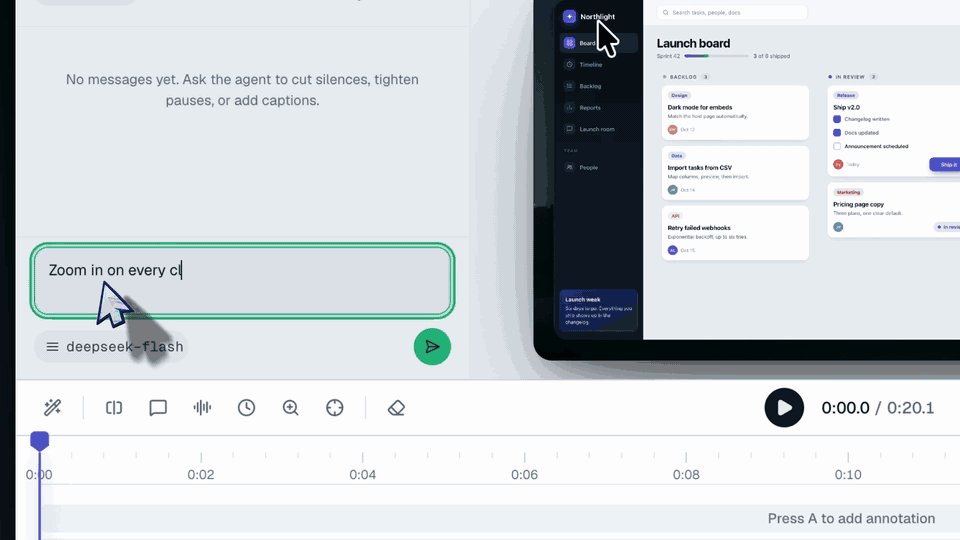
Illustration · not a resultFrom the getopenscreen/openscreen README — shows the whole collection, not only this skill.source ↗
Make a polished video of an app or a feature with OpenScreen's MCP tools, from storyboard to recording, editing and export, then either attach it to a pull request or draft a post on X.
by getopenscreen·MIT license·★ 4,520 Stars on the repo·GitHub ↗
npx degit getopenscreen/openscreen/plugin/skills/openscreen-demo#main ~/.claude/skills/openscreen-demoChecked ·commit main
Files of Make a demo video with OpenScreen
Show the full text150 lines
Make a demo video with OpenScreen
You produce a short MP4 that shows one feature, zooms on the action and carries its message in on-screen callouts. You do the whole job through OpenScreen's MCP tools: record, edit, export, look. It ends one of two ways:
- A pull request video: 10 to 30 s, showing the change a pull request makes, attached to that pull request so reviewers watch it in place (step 8).
- A launch demo: 20 to 60 s, 1080p, with a post drafted for X (step 9). Nothing is ever posted without the user's explicit yes.
1. Set up OpenScreen
You need the tools startRecording, stopRecording, exportVideo and getFrames. Both of OpenScreen's MCP servers have them: the one the app serves (AI settings → MCP server), and openscreen mcp, set up below. If you have them, go to step 2. Otherwise set OpenScreen up, once per machine, doing only what is missing.
The app. Its executable is the MCP server:
| OS | Executable |
|---|---|
| Windows | %LOCALAPPDATA%\Programs\Openscreen\Openscreen.exe, or C:\Program Files\Openscreen\Openscreen.exe. The Microsoft Store version is openscreen on the PATH from the release after 2.1.0 (where openscreen). An older Store version has no fixed path to register: if it is the only one installed, offer the installer below |
| macOS | /Applications/Openscreen.app/Contents/MacOS/Openscreen |
| Linux | openscreen on the PATH, or the AppImage |
Run "<executable>" help: it must list mcp. If the app is missing, or too old to list it, offer to install the latest release, and do it only once the user agrees:
- Find the installer for this machine in the latest release of
getopenscreen/openscreen:gh release view --repo getopenscreen/openscreen --json assets, or https://github.com/getopenscreen/openscreen/releases/latest.- macOS:
Openscreen-macOS-Apple-Silicon-<version>.dmg, or-Intel-(checkuname -m). Mount it, copyOpenscreen.appto/Applications, unmount it. - Windows: the
Openscreen.Setup.<version>.exeinstaller, run with/S /currentuserfor a silent install for the current user. - Linux: the
.deb,.rpmor.pacmanfor the distribution, or the.AppImagemade executable.
- macOS:
- Check
helpagain. If even the latest release does not listmcp, this OpenScreen feature is not released yet: say so and stop.
The MCP server. Add it to the agent, then the tools load in the next session:
- Claude Code:
claude mcp add openscreen -- "<executable>" mcp - Codex:
codex mcp add openscreen -- "<executable>" mcp - Cursor and others: a stdio server with the executable as
commandand["mcp"]asargs.
Permissions.
- macOS: the app that runs the agent needs, in System Settings → Privacy & Security, the Screen Recording permission to record at all, and the Accessibility permission for OpenScreen to record the pointer's clicks and shapes. Without Accessibility a take driven with the real mouse gets no zoom on its clicks: grant it, or hand the clicks over with
setPointerTrackas for a scripted take. - Linux: the desktop's picker opens on every recording, and the user chooses the window.
Hand over to the next session. Write the user's request, and anything already decided, to openscreen-demo-plan.md in the working directory. Then ask the user to start a new session and say continue the OpenScreen demo. In that session, read the file and carry on from step 2.
2. Plan before recording
Write a storyboard and show it to the user in a few lines, then carry on unless they object.
- One message. What should a viewer remember after 3 seconds? The first beat shows the result, not a setup screen.
- Launch demo: 3 to 6 beats, 20 to 60 seconds. Each beat is one action and one callout of 6 words or fewer. X autoplays muted, so the callouts carry the story, not a voice.
- Pull request video: 1 to 3 beats, 10 to 30 seconds. Show what the change does, not the whole product: the new behavior, or the bug no longer happening. The pull request text explains the rest, so one short callout per beat is enough.
- Realistic data. Seed the app with believable content. No real customer data, secrets, tokens or personal notifications on screen.
3. Set the stage
- Start the app and open it on the starting state of the first beat.
- Give it one clean window of about 1600×1000. For a web app, open it in an app window without browser chrome:
chrome --app=http://localhost:3000 --window-size=1600,1000 --user-data-dir=<temp folder>. Its title is the page's<title>. - Call
listSourcesand pick a unique part of the window's title. - Only the app on screen. No browser toolbar, address bar, local file path, user name, bookmark bar, translation prompt or notification in the recorded window. Recording one window keeps the rest of the desktop out.
4. Record
startRecordingwithwindow. It returns once capture has started. Connected to the server in the app, the take goes through OpenScreen's recording bar: the editor closes, the bar counts down, andstopRecordingopens the take in the editor. Passcameraonly when the user wants to appear on screen: the webcam then shows as a picture-in-picture. Passmicrophone: truewhen the user narrates: without it the take has no voice, and nothing to caption.- Play the storyboard. Move deliberately, and pause about one second after each result appears.
stopRecordingwith atitle. Keep what it returns:projectId,checkpointId,videoPath,recordingStartedAt.
How you drive the app decides the cursor.
- Real mouse (computer-use, or any tool that moves the actual pointer): OpenScreen records the pointer, draws a clean cursor and already zooms on the clicks (see Zoom on the action below). If your mouse tool cannot click in the app's window (some only read browsers, for one), drive it from a script instead.
- A script (Playwright, CDP): the screen pointer never moves, so the take has no cursor and no zoom. In the script, log every action as it runs:
atisDate.now(),xandyare the action's position as fractions of the window,clickis true for a click. Hand the log tosetPointerTrackafterstopRecording; its description gives the formula from a page's coordinates. A script also gives the cleanest take: same timing on every run, no hesitation.
A video you already have needs no recording: createProject with its absolute videoPath lays it out as a project, and returns a projectId and a checkpointId as stopRecording does. Check it as a take in step 5, its videoPath included, then go on from step 6.
5. Check the take
getFrames on the videoPath, about 6 frames. Is it the right window? Is anything private visible? Did every beat happen? If not, record again: a new take costs less than a fix in editing.
6. Edit
Use the document tools, always with the projectId. Read the project first with getCurrentDocument: its notes say which times are in the recording's seconds and which on the editor's ruler.
One clock. Place every effect in ruler seconds, and look at the result with getFrames and the projectId, which takes the same seconds. Never read times off the exported file: a cut or a speed-up shifts its clock away from the ruler.
- Format first:
setAspectRatiofor where the video will be shown,16:9for X. Do it before placing text. - Cut dead time: the setup at the start, the stop at the end, any wait. Use
addTrims, oraddSpeedto fast-forward a wait instead of cutting it. - Zoom on the action: clicks close in time and on screen share one zoom, and the first 2.5 s stay wide. Check them, then add or move zooms with
addZoomsandsetZoomwhere a result deserves its own. Hold a zoom at least 1.5 s. After a cut that removed some,addAutoZoomsplans them again on the clicks left, clear of the zooms still there. - Frame the app: when the take shows more than the app,
setClipRangewith acropRegioncrops the clip to it. - Callouts: one
addAnnotationper beat, short, placed clear of the action. Text sits on the output frame and stays put when the picture zooms. Use its look for hierarchy: a large title withanimation: "typewriter", step callouts withanimation: "pop". An arrow,type: "figure", points at a control the text names.setAnnotationmoves or restyles one. - Hide what is private: an email address, a token or a name that shows on screen gets
addAnnotationwithtype: "blur"over the span it is visible. Its x, y, width and height are percent of the recording's picture, not of the frame, so it stays on what it hides when a zoom moves the picture. Check it withgetFrames. - An effect no setting offers (a ripple on each click, a glitch on a cut, a color grade): read the resource
openscreen://effects/contract, then write it as WGSL withaddEffect. It reads the clicks and the pointer already placed on the frame. Code that does not compile comes back with the compiler's error at your line: fix it and call again. The result gives a cost tier; keep heavy effects to short spans. Check the effect withgetFramesat the moments it acts. - Music or a voiceover:
importMediawith the file's absolute path adds it to the project's media, thenaddAudioplays it over a span.removeMediatakes back a file the timeline no longer uses. - Name:
setProjectInforenames the project, if thetitlegiven tostopRecordingno longer fits. - Captions, for a narrated take (
startRecordingwithmicrophone: true):transcribewith theprojectId. Whisper runs on this machine and can take a minute; a take has no transcript before this.setCaptionSettingswithenabled: trueand astyle, plusanchorV,insetYormaxWordsPerLineif the callouts need room.- To caption in another language:
getCaptionTranslationUnitswith thelanguage, translate each unit yourself as a whole phrase, store them withputCaptionTranslation, thensetCaptionSettingswith thatlanguage. getCaptionsreads it all back. The export burns the captions in. A misheard name is fixed withsetWordText(orsetVocabulary, thentranscribeagain with thelanguage), a flubbed phrase cut withgetTranscriptWordsandremoveWords.
- Undo:
restoreCheckpointwith thecheckpointIdtakes the project back to the raw take in one step. It also puts back the take's own pointer track, undoing anysetPointerTrackmade since. - Open in the app: while OpenScreen is running, your edits go through it, so a project the user has open in its editor changes there live and they can undo each edit. If an edit is refused as "open in the OpenScreen editor", the app did not answer: retry once, then ask the user to close the project there or restart OpenScreen.
Keep the rest as it is: the background, padding, shadow and cursor style are chosen to look good. When the user asks for a different look, setEditorSettings sets it (background, frame, camera layout, cursor, volume); getCurrentDocument shows the current values under settings, and settingsContext.inactive says which ones would change nothing right now.
7. Export and review
exportVideowith theprojectIdand an absolute path: resolve, say,demo/demo.mp4against your working directory first, since the server in the app refuses a relative path. For a pull request video, passquality: "medium"(720p) to keep the file small. For a GIF (a README, say), end the path in.gifand passgifSize: "small"(480p).getFrameswith theprojectId, at the ruler seconds of your beats. While you edit, you can call it before exporting: without a current export it renders the frames the export would show.- Check every frame:
- Is each callout readable and clear of the action?
- Is each zoom on the thing that changes?
- Are there black frames, cut-off text or a leftover setup screen?
- Fix the project and export again until it holds.
Never commit the video to the repository: it goes into the pull request or the post, not the code.
8. Attach it to the pull request
Only to a pull request the user asked for a video on, or one you open for them in this task.
Check the size. GitHub takes videos up to 10 MB in a repository on a free plan, 100 MB on a paid one. Over the limit, cut or speed up a beat and export again.
Write the text around it in a file, say
demo/pr-video.md: one line saying what the video shows, then the video alone in its own paragraph, so GitHub shows a player and not a link:**Demo:** the export dialog now remembers the last format. Attach it with
gh, version 2.99.0 or later (gh --version).ghuploads the file and puts its URL in place of the path. You need push access to the repository.- On an existing pull request, as a comment:
gh pr comment <number> --body-file demo/pr-video.md --attach demo/pr-video.mp4 - On a pull request you are opening: put the same two lines in its body, and pass
--attach demo/pr-video.mp4togh pr create.
- On an existing pull request, as a comment:
With an older
gh, ask the user to update it. On GitHub Enterprise Server, whereghcannot attach files at all, skip--attach. In both cases, use a browser tool that can attach a file to the comment box on the pull request's page, or else give the user the file and the text to drop in themselves.Report the comment's or the pull request's URL.
9. Post on X
- Write the post. At most 280 characters: the hook first, then what it does, then the link if there is one. One or two hashtags at most.
- Check X's limits. The video must be an MP4 of at most 2 min 20 s and 512 MB for an account without Premium. The export fits.
- Ask the user. Show the post text, the video path and one frame, and ask for an explicit yes. A "looks good" given to an earlier step is not one.
- Post, after the yes only. Use a browser tool that can attach a file to the composer at https://x.com/compose/post, or the X API if the user has set one up. If you cannot attach a file, give the user the text and the file instead.
- Report the post's URL.
When it goes wrong
The recording did not start: the window title did not match, or capture is not permitted. ChecklistSourcesand the permissions in step 1.- Recording, exporting or an edit refused, naming MCP edits: you are connected to the server in the app, which records, exports and edits only once the user allows it. Ask them to turn on MCP edits under AI settings → MCP server.
- No cursor in the video: the app was driven by a script. See step 4.
transcribefails withno-audio: the take was recorded with neithermicrophonenorsystemAudio. Record again with one of them.- No zoom on an early click: the first 2.5 s stay wide on purpose. Start the first action after that.
unknown flag: --attach:ghis older than 2.99.0. See step 8.
| 1 | |
| 2 | name openscreen-demo |
| 3 | description Make a polished video of an app or a feature with OpenScreen's MCP tools, from storyboard to recording, editing and export, then either attach it to a pull request or draft a post on X. Use when the user asks for a demo, a demo video, a screen recording, a product video, a launch clip, a video for X/Twitter, LinkedIn or a README, or to show a change in a pull request ("add a video to the PR", "show the feature to reviewers"). Also use to set OpenScreen up for an agent, and to continue an OpenScreen demo in a new session. |
| 4 | |
| 5 | |
| 6 | # Make a demo video with OpenScreen |
| 7 | |
| 8 | You produce a short MP4 that shows one feature, zooms on the action and carries its message in on-screen callouts. You do the whole job through OpenScreen's MCP tools: record, edit, export, look. It ends one of two ways: |
| 9 | |
| 10 | **A pull request video:** 10 to 30 s, showing the change a pull request makes, attached to that pull request so reviewers watch it in place (step 8). |
| 11 | **A launch demo:** 20 to 60 s, 1080p, with a post drafted for X (step 9). **Nothing is ever posted without the user's explicit yes.** |
| 12 | |
| 13 | ## 1. Set up OpenScreen |
| 14 | |
| 15 | You need the tools `startRecording`, `stopRecording`, `exportVideo` and `getFrames`. Both of OpenScreen's MCP servers have them: the one the app serves (*AI settings* → *MCP server*), and `openscreen mcp`, set up below. If you have them, go to step 2. Otherwise set OpenScreen up, once per machine, doing only what is missing. |
| 16 | |
| 17 | **The app.** Its executable is the MCP server: |
| 18 | |
| 19 | | OS | Executable | |
| 20 | |---|---| |
| 21 | | Windows | `%LOCALAPPDATA%\Programs\Openscreen\Openscreen.exe`, or `C:\Program Files\Openscreen\Openscreen.exe`. The Microsoft Store version is `openscreen` on the PATH from the release after 2.1.0 (`where openscreen`). An older Store version has no fixed path to register: if it is the only one installed, offer the installer below | |
| 22 | | macOS | `/Applications/Openscreen.app/Contents/MacOS/Openscreen` | |
| 23 | | Linux | `openscreen` on the PATH, or the AppImage | |
| 24 | |
| 25 | Run `"<executable>" help`: it must list `mcp`. If the app is missing, or too old to list it, offer to install the latest release, and do it only once the user agrees: |
| 26 | |
| 27 | Find the installer for this machine in the latest release of `getopenscreen/openscreen`: `gh release view --repo getopenscreen/openscreen --json assets`, or https://github.com/getopenscreen/openscreen/releases/latest. |
| 28 | **macOS:** `Openscreen-macOS-Apple-Silicon-<version>.dmg`, or `-Intel-` (check `uname -m`). Mount it, copy `Openscreen.app` to `/Applications`, unmount it. |
| 29 | **Windows:** the `Openscreen.Setup.<version>.exe` installer, run with `/S /currentuser` for a silent install for the current user. |
| 30 | **Linux:** the `.deb`, `.rpm` or `.pacman` for the distribution, or the `.AppImage` made executable. |
| 31 | Check `help` again. If even the latest release does not list `mcp`, this OpenScreen feature is not released yet: say so and stop. |
| 32 | |
| 33 | **The MCP server.** Add it to the agent, then the tools load in the next session: |
| 34 | |
| 35 | **Claude Code:** `claude mcp add openscreen -- "<executable>" mcp` |
| 36 | **Codex:** `codex mcp add openscreen -- "<executable>" mcp` |
| 37 | **Cursor and others:** a stdio server with the executable as `command` and `["mcp"]` as `args`. |
| 38 | |
| 39 | **Permissions.** |
| 40 | **macOS:** the app that runs the agent needs, in System Settings → Privacy & Security, the Screen Recording permission to record at all, and the Accessibility permission for OpenScreen to record the pointer's clicks and shapes. Without Accessibility a take driven with the real mouse gets no zoom on its clicks: grant it, or hand the clicks over with `setPointerTrack` as for a scripted take. |
| 41 | **Linux:** the desktop's picker opens on every recording, and the user chooses the window. |
| 42 | |
| 43 | **Hand over to the next session.** Write the user's request, and anything already decided, to `openscreen-demo-plan.md` in the working directory. Then ask the user to start a new session and say *continue the OpenScreen demo*. In that session, read the file and carry on from step 2. |
| 44 | |
| 45 | ## 2. Plan before recording |
| 46 | |
| 47 | Write a storyboard and show it to the user in a few lines, then carry on unless they object. |
| 48 | |
| 49 | **One message.** What should a viewer remember after 3 seconds? The first beat shows the result, not a setup screen. |
| 50 | **Launch demo: 3 to 6 beats, 20 to 60 seconds.** Each beat is one action and one callout of 6 words or fewer. X autoplays muted, so the callouts carry the story, not a voice. |
| 51 | **Pull request video: 1 to 3 beats, 10 to 30 seconds.** Show what the change does, not the whole product: the new behavior, or the bug no longer happening. The pull request text explains the rest, so one short callout per beat is enough. |
| 52 | **Realistic data.** Seed the app with believable content. No real customer data, secrets, tokens or personal notifications on screen. |
| 53 | |
| 54 | ## 3. Set the stage |
| 55 | |
| 56 | Start the app and open it on the starting state of the first beat. |
| 57 | Give it one clean window of about 1600×1000. For a web app, open it in an app window without browser chrome: `chrome --app=http://localhost:3000 --window-size=1600,1000 --user-data-dir=<temp folder>`. Its title is the page's `<title>`. |
| 58 | Call `listSources` and pick a unique part of the window's title. |
| 59 | **Only the app on screen.** No browser toolbar, address bar, local file path, user name, bookmark bar, translation prompt or notification in the recorded window. Recording one window keeps the rest of the desktop out. |
| 60 | |
| 61 | ## 4. Record |
| 62 | |
| 63 | `startRecording` with `window`. It returns once capture has started. Connected to the server in the app, the take goes through OpenScreen's recording bar: the editor closes, the bar counts down, and `stopRecording` opens the take in the editor. Pass `camera` only when the user wants to appear on screen: the webcam then shows as a picture-in-picture. Pass `microphone: true` when the user narrates: without it the take has no voice, and nothing to caption. |
| 64 | Play the storyboard. Move deliberately, and pause about one second after each result appears. |
| 65 | `stopRecording` with a `title`. Keep what it returns: `projectId`, `checkpointId`, `videoPath`, `recordingStartedAt`. |
| 66 | |
| 67 | **How you drive the app decides the cursor.** |
| 68 | **Real mouse** (computer-use, or any tool that moves the actual pointer): OpenScreen records the pointer, draws a clean cursor and already zooms on the clicks (see *Zoom on the action* below). If your mouse tool cannot click in the app's window (some only read browsers, for one), drive it from a script instead. |
| 69 | **A script** (Playwright, CDP): the screen pointer never moves, so the take has no cursor and no zoom. In the script, log every action as it runs: `at` is `Date.now()`, `x` and `y` are the action's position as fractions of the window, `click` is true for a click. Hand the log to `setPointerTrack` after `stopRecording`; its description gives the formula from a page's coordinates. A script also gives the cleanest take: same timing on every run, no hesitation. |
| 70 | |
| 71 | **A video you already have** needs no recording: `createProject` with its absolute `videoPath` lays it out as a project, and returns a `projectId` and a `checkpointId` as `stopRecording` does. Check it as a take in step 5, its `videoPath` included, then go on from step 6. |
| 72 | |
| 73 | ## 5. Check the take |
| 74 | |
| 75 | `getFrames` on the `videoPath`, about 6 frames. Is it the right window? Is anything private visible? Did every beat happen? If not, record again: a new take costs less than a fix in editing. |
| 76 | |
| 77 | ## 6. Edit |
| 78 | |
| 79 | Use the document tools, always with the `projectId`. Read the project first with `getCurrentDocument`: its notes say which times are in the recording's seconds and which on the editor's ruler. |
| 80 | |
| 81 | **One clock.** Place every effect in ruler seconds, and look at the result with `getFrames` and the `projectId`, which takes the same seconds. Never read times off the exported file: a cut or a speed-up shifts its clock away from the ruler. |
| 82 | |
| 83 | **Format first:** `setAspectRatio` for where the video will be shown, `16:9` for X. Do it before placing text. |
| 84 | **Cut dead time:** the setup at the start, the stop at the end, any wait. Use `addTrims`, or `addSpeed` to fast-forward a wait instead of cutting it. |
| 85 | **Zoom on the action:** clicks close in time and on screen share one zoom, and the first 2.5 s stay wide. Check them, then add or move zooms with `addZooms` and `setZoom` where a result deserves its own. Hold a zoom at least 1.5 s. After a cut that removed some, `addAutoZooms` plans them again on the clicks left, clear of the zooms still there. |
| 86 | **Frame the app:** when the take shows more than the app, `setClipRange` with a `cropRegion` crops the clip to it. |
| 87 | **Callouts:** one `addAnnotation` per beat, short, placed clear of the action. Text sits on the output frame and stays put when the picture zooms. Use its look for hierarchy: a large title with `animation: "typewriter"`, step callouts with `animation: "pop"`. An arrow, `type: "figure"`, points at a control the text names. `setAnnotation` moves or restyles one. |
| 88 | **Hide what is private:** an email address, a token or a name that shows on screen gets `addAnnotation` with `type: "blur"` over the span it is visible. Its x, y, width and height are percent of the recording's picture, not of the frame, so it stays on what it hides when a zoom moves the picture. Check it with `getFrames`. |
| 89 | **An effect no setting offers** (a ripple on each click, a glitch on a cut, a color grade): read the resource `openscreen://effects/contract`, then write it as WGSL with `addEffect`. It reads the clicks and the pointer already placed on the frame. Code that does not compile comes back with the compiler's error at your line: fix it and call again. The result gives a cost tier; keep heavy effects to short spans. Check the effect with `getFrames` at the moments it acts. |
| 90 | **Music or a voiceover:** `importMedia` with the file's absolute path adds it to the project's media, then `addAudio` plays it over a span. `removeMedia` takes back a file the timeline no longer uses. |
| 91 | **Name:** `setProjectInfo` renames the project, if the `title` given to `stopRecording` no longer fits. |
| 92 | **Captions, for a narrated take** (`startRecording` with `microphone: true`): |
| 93 | `transcribe` with the `projectId`. Whisper runs on this machine and can take a minute; a take has no transcript before this. |
| 94 | `setCaptionSettings` with `enabled: true` and a `style`, plus `anchorV`, `insetY` or `maxWordsPerLine` if the callouts need room. |
| 95 | To caption in another language: `getCaptionTranslationUnits` with the `language`, translate each unit yourself as a whole phrase, store them with `putCaptionTranslation`, then `setCaptionSettings` with that `language`. |
| 96 | `getCaptions` reads it all back. The export burns the captions in. |
| 97 | A misheard name is fixed with `setWordText` (or `setVocabulary`, then `transcribe` again with the `language`), a flubbed phrase cut with `getTranscriptWords` and `removeWords`. |
| 98 | **Undo:** `restoreCheckpoint` with the `checkpointId` takes the project back to the raw take in one step. It also puts back the take's own pointer track, undoing any `setPointerTrack` made since. |
| 99 | **Open in the app:** while OpenScreen is running, your edits go through it, so a project the user has open in its editor changes there live and they can undo each edit. If an edit is refused as "open in the OpenScreen editor", the app did not answer: retry once, then ask the user to close the project there or restart OpenScreen. |
| 100 | |
| 101 | Keep the rest as it is: the background, padding, shadow and cursor style are chosen to look good. When the user asks for a different look, `setEditorSettings` sets it (background, frame, camera layout, cursor, volume); `getCurrentDocument` shows the current values under `settings`, and `settingsContext.inactive` says which ones would change nothing right now. |
| 102 | |
| 103 | ## 7. Export and review |
| 104 | |
| 105 | `exportVideo` with the `projectId` and an absolute path: resolve, say, `demo/demo.mp4` against your working directory first, since the server in the app refuses a relative path. For a pull request video, pass `quality: "medium"` (720p) to keep the file small. For a GIF (a README, say), end the path in `.gif` and pass `gifSize: "small"` (480p). |
| 106 | `getFrames` with the `projectId`, at the ruler seconds of your beats. While you edit, you can call it before exporting: without a current export it renders the frames the export would show. |
| 107 | Check every frame: |
| 108 | Is each callout readable and clear of the action? |
| 109 | Is each zoom on the thing that changes? |
| 110 | Are there black frames, cut-off text or a leftover setup screen? |
| 111 | Fix the project and export again until it holds. |
| 112 | |
| 113 | Never commit the video to the repository: it goes into the pull request or the post, not the code. |
| 114 | |
| 115 | ## 8. Attach it to the pull request |
| 116 | |
| 117 | Only to a pull request the user asked for a video on, or one you open for them in this task. |
| 118 | |
| 119 | **Check the size.** GitHub takes videos up to 10 MB in a repository on a free plan, 100 MB on a paid one. Over the limit, cut or speed up a beat and export again. |
| 120 | **Write the text around it** in a file, say `demo/pr-video.md`: one line saying what the video shows, then the video alone in its own paragraph, so GitHub shows a player and not a link: |
| 121 | |
| 122 | |
| 123 | **Demo:** the export dialog now remembers the last format. |
| 124 | |
| 125 |  |
| 126 | |
| 127 | |
| 128 | **Attach it with `gh`**, version 2.99.0 or later (`gh --version`). `gh` uploads the file and puts its URL in place of the path. You need push access to the repository. |
| 129 | On an existing pull request, as a comment: `gh pr comment <number> --body-file demo/pr-video.md --attach demo/pr-video.mp4` |
| 130 | On a pull request you are opening: put the same two lines in its body, and pass `--attach demo/pr-video.mp4` to `gh pr create`. |
| 131 | **With an older `gh`,** ask the user to update it. **On GitHub Enterprise Server,** where `gh` cannot attach files at all, skip `--attach`. In both cases, use a browser tool that can attach a file to the comment box on the pull request's page, or else give the user the file and the text to drop in themselves. |
| 132 | Report the comment's or the pull request's URL. |
| 133 | |
| 134 | ## 9. Post on X |
| 135 | |
| 136 | **Write the post.** At most 280 characters: the hook first, then what it does, then the link if there is one. One or two hashtags at most. |
| 137 | **Check X's limits.** The video must be an MP4 of at most 2 min 20 s and 512 MB for an account without Premium. The export fits. |
| 138 | **Ask the user.** Show the post text, the video path and one frame, and ask for an explicit yes. A "looks good" given to an earlier step is not one. |
| 139 | **Post, after the yes only.** Use a browser tool that can attach a file to the composer at https://x.com/compose/post, or the X API if the user has set one up. If you cannot attach a file, give the user the text and the file instead. |
| 140 | Report the post's URL. |
| 141 | |
| 142 | ## When it goes wrong |
| 143 | |
| 144 | **`The recording did not start`:** the window title did not match, or capture is not permitted. Check `listSources` and the permissions in step 1. |
| 145 | **Recording, exporting or an edit refused, naming *MCP edits*:** you are connected to the server in the app, which records, exports and edits only once the user allows it. Ask them to turn on *MCP edits* under *AI settings* → *MCP server*. |
| 146 | **No cursor in the video:** the app was driven by a script. See step 4. |
| 147 | **`transcribe` fails with `no-audio`:** the take was recorded with neither `microphone` nor `systemAudio`. Record again with one of them. |
| 148 | **No zoom on an early click:** the first 2.5 s stay wide on purpose. Start the first action after that. |
| 149 | **`unknown flag: --attach`:** `gh` is older than 2.99.0. See step 8. |
| 150 |
Discussion
Alternatives
 FFmpeg for Video ProductionVideo and audio processing with FFmpeg. Use for format conversion, resizing, compression, audio extraction, and preparing assets for Remotion. Triggers include converting GIF to MP4, resizing video, extracting audio, compressing files, or any media transformation task.fake-screencast — screenshots → simulated screen recordingTurn static SCREENSHOTS into a simulated screen recording (TSX) — a fake screencast with an animated cursor that eases to targets and clicks, a browser URL bar that updates per page, hard-cut navigations, in-page filter crossfades, smooth scroll, and a ken-burns zoom onto the payoff. Use when a beat needs to show a walkthrough of a web app / dashboard / settings page and you'd rather build it from screenshots than get (or ask for) a real screen recording — "fake a screen recording", "turn these screenshots into a screencast", "simulate clicking through the dashboard", "animate this UI walkthrough", "cursor moving through the app". Built on remotion/src/lib/screencast.tsx. This is a technique WITHIN step 2 (make-tsx): defer timeline/render/bake orchestration to make-tsx and raw crash-free TSX rules to vidtsx-2d-generator. Not for a single static page clone (use WebBrowserFrame directly) and not when the point is genuine proof of real speed/output (use a real recording).Khan explainerUse when the user wants a Khan Academy style explainer video, a blackboard or whiteboard lesson, a hand-drawn chalk-talk animation, a short narrated video that teaches a concept ("explain X in a video", "explainer video", "teach X in 30 seconds"), or a tutorial that draws hand-written arrows, circles and captions over product screenshots ("draw over the UI", "annotated walkthrough"), or clips cut from a YouTube video or podcast where the speaker's real audio plays under a blackboard drawn to it ("khanify this video", "clip this with the Khan visual"), especially when it must be free, local, and use no paid APIs or keys. macOS only.Understanding ladderPick the output format that makes an explanation easiest to understand, following Karpathy's understanding ladder — (1) plain controlled text, (2) diagram, (3) interactive HTML page, (4) 3Blue1Brown-style explainer video. Classify the content (definition/steps, process/causality, parameter→outcome, unfolding derivation), recommend the lowest rung that fully answers, then produce it. Works in English and Chinese. Use when the user says "explain this clearly", "help me understand", "draw a diagram", "make it interactive", "make an explainer video", "what's the best way to explain X", "understanding ladder", "Karpathy ladder", or 「讲清楚」「帮我理解」「画个图」「做个交互页」「做个讲解视频」「用哪种方式讲最好懂」「理解阶梯」; also when explaining a non-trivial concept, mechanism, algorithm, or an AI agent's output.
Browse more free Claude skills or everything in Content creator.