Khan explainer skill
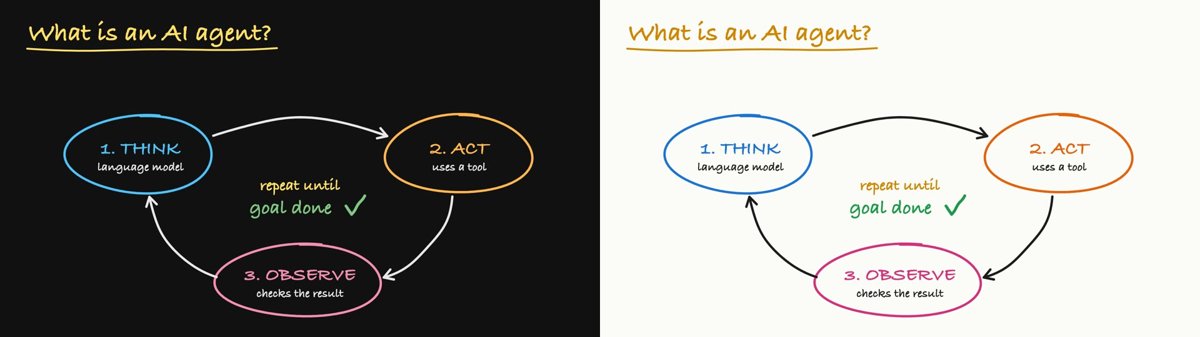
Illustration · not a resultFrom the haiderfarooq3/khan-explainer README — shows the whole collection, not only this skill.source ↗
Use when the user wants a Khan Academy style explainer video, a blackboard or whiteboard lesson, a hand-drawn chalk-talk animation, a short narrated video that teaches a concept ("explain X in a video", "explainer video", "teach X in 30 seconds"), or a tutorial that draws hand-written arrows, circles and captions over product screenshots ("draw over the UI", "annotated walkthrough"), or clips cut from a YouTube video or podcast where the speaker's real audio plays under a blackboard drawn to it ("khanify this video", "clip this with the Khan visual"), especially when it must be free, local, and use no paid APIs or keys.
by haiderfarooq3·MIT license·★ 113 Stars on the repo·GitHub ↗
Files of Khan explainer
haiderfarooq3/
Show the full text239 lines
Khan Explainer
A pen draws while a voice explains. Three modes, one renderer:
- Blackboard lesson. A diagram drawn on a black board, Khan Academy style.
- Draw-over-UI tutorial. Arrows, circles and numbered captions drawn over product screenshots.
- Real-audio clip. A real person's voice, cut from a video, with the board drawn to their words. See "Real-audio clips".
One scene file in, one MP4 out, in seconds. Free and local: HTML canvas, Playwright, macOS say, ffmpeg. No keys.
Every mode renders as chalk on a blackboard or marker on a whiteboard, landscape or vertical.
Made by Haider Farooq (github.com/haiderfarooq3). Free for anyone to use and change (MIT).
Core principle: the voice drives the clock. A scene is a list of beats. A beat is one spoken clause plus the drawing that happens while it is said. The renderer speaks each beat first, measures it, and fits that beat's drawing to it. Never hardcode seconds or guess when a word lands.
Workflow
- Script the beats. One idea per beat, split at commas and full stops. Check the length formula below.
- Plan the picture. Lesson: lay out the whole board. Tutorial: capture the stills and their rectangles. Each has a section below.
- Write
scene.jsin a scratch folder. Copyexamples/ai-agents.jsfor a lesson orexamples/ui-tutorial.jsfor a tutorial. - Render:
node ~/.claude/skills/khan-explainer/scripts/render.js scene.js out.mp4 - Read the
sheetimage it prints. It shows the board at the end of every beat. The same folder holds every beat full-size asb000.jpg,b001.jpgand so on. Open those to check that a ring really sits on a small button. Fix everyWARN(text off the board, or one label on another), overlap and spill, then re-render. A render takes seconds, so iterate. - Deliver the MP4 and say which voice it used.
Each output line is beat N start +duration. The sheet path is new on every render.
First run on a machine: cd scripts && npm install && npx playwright install chromium.
Length and pace
| Pace | Settings | Seconds, roughly |
|---|---|---|
| Quick explainer | defaults: rate: 170, gap: 0.15 |
words ÷ 3 + beats × 0.15 + 1.3 |
| Tutorial | rate: 150, gap: 0.6 |
words ÷ 2.9 + beats × 0.6 + 1.3 |
A 10-second explainer is about 24 words in 5 beats. A 60-second tutorial is about 145 words in 15 beats. The formula lands within about 5%, and the render prints the real length. To hit a target, change the words, not rate.
Use the tutorial pace whenever the viewer has to find something on a screen. The quick pace feels rushed there.
Scene API
scene({
  voice: 'Samantha', rate: 170, size: [1280, 720],   // all optional. [720, 1280] = vertical
  lang: 'ar',                                        // the language spoken: picks the voice (see "Other languages")
  gap: 0.15, dim: 0.2,                               // seconds between beats; screenshot darkening
  theme: 'light',                                    // whiteboard and marker. Leave it out for the blackboard.
  beats: [
    { say: 'Spoken clause.', draw: p => { /* p runs 0 to 1 while it is spoken */ } },
    { dur: 1.5, draw: p => {} },                       // silent beat, in seconds
    { clear: true, say: 'Next idea.', draw: p => {} }, // wipes the board first
    { bg: 'shots/home.png', say: 'Start here.', draw: p => {} }, // screenshot as the board
    { theme: 'dark', say: 'Lights off.', draw: p => {} }         // flips the board from this beat on
    // With `audio: 'audio.wav'` on the scene, nothing is spoken by the computer: each beat takes
    // `at: 12.4` (seconds into that file) and `say` is only a note. See "Real-audio clips".
  ],
})
Every draw call is (geometry, p, style). Points are [x, y] in board units.
| Call | Draws |
|---|---|
write(str, x, y, p, {size, color, center, lang}) |
Handwriting, letter by letter. y is the baseline. Arabic, Urdu and Hebrew run left from x. |
stroke(points, p, {color, width}) |
Any shape, drawn progressively. |
arrow(from, to, p, {color, ctrl}) |
Arrow. ctrl is a point that bends it. |
check(x, y, p, {size, color}) |
Tick mark. |
line(a, b) curve(a, b, ctrl) oval(cx, cy, rx, ry) box(x, y, w, h) |
Return points for stroke. |
ring(rect, pad) around(rect, pad) |
An oval or a frame around a {x, y, w, h} rectangle, for stroke. |
view(captureWidth, cropTop) |
Maps screenshot positions to the board. .r(rect) for a rectangle, .p(x, y) for a point. |
seg(p, from, to) |
A slice of the beat, to order strokes: seg(p, 0, .4) then seg(p, .4, 1). |
C.yellow blue orange pink green red purple white |
Chalk colours. On the whiteboard the same names are marker inks, and white is black. |
Text width is about 0.45 × size per character for a normal label and 0.63 × size per capital. Work it out before placing a label beside anything.
Other languages
write takes any script and writes it the way that script is written by hand. The first letter of the string decides the direction; its script picks the face.
| Script | Direction | Set in | Width per letter, roughly |
|---|---|---|---|
| Arabic, Persian | right to left | naskh, regular weight | 0.3–0.5 × size (vowel marks add none). Give it about twice a Latin label's size. |
| Urdu | right to left | nastaliq: letters slope down to the left and stack about 1.6 × size tall |
0.5 × size. Keep it near 0.7× a Latin size and leave a tall line. |
| Hebrew | right to left | regular weight, points (niqqud) kept | 0.65 × size |
| Hindi, Bengali, Tamil and other Indic | left to right, hung from a headline | regular weight | 0.7–0.9 × size per syllable |
| Thai, Lao, Khmer, Burmese | left to right, no spaces between words | looped, regular weight | 0.6 × size |
| Chinese, Japanese, Korean | left to right, one square per character | bold | 1.0 × size per character |
| Cyrillic, Greek | left to right | bold | 0.65 × size |
- Right-to-left text.
xis the right end of the text, where the pen starts (the centre withcenter: true), and the word is uncovered right to left. - Shaped, not sliced. Every non-Latin string is shaped once as a whole and uncovered in writing order, so joined Arabic letters keep their forms, a vowel mark stays on its letter, and a Hindi vowel sign that sits before its consonant appears with it.
- Urdu. It shares Arabic's letters, so
writespots it only by a letter Arabic does not use (ٹ ڈ ڑ ں ہ ھ ے). Putlang: 'ur'on the scene or on the call to be sure of the nastaliq hand. - Mixed labels. A Latin label that quotes a foreign word keeps the handwriting and runs left to right; the quoted word is set in its own script's face.
- The voice.
langon the scene picks the built-in voice:arMajed,heCarmit,hiLekha,zhTingting,jaKyoko,koYuna,thKanya,ruMilena,elMelina,trYelda,idDamayanti,esMónica,frThomas,deAnna,itAlice,ptLuciana,bnPiya,taVani,teGeeta,knSoumya,ukLesya,viLinh,plZosia,nlXander,svAlva,msAmira. A missing voice stops the render with where to download it. macOS has no voice for Urdu or Persian: useeleven(its multilingual model speaks them) oraudio. An English scene can still show foreign words: thensayspells the sound ("kitaab") and the board shows the word. - The off-board and overlap warnings measure the ink, not the letter count, so a long nastaliq swash or a tall stack of marks still warns.
See examples/arabic.js (an Arabic lesson) and examples/languages.js (one word in eight languages).
node tests/run.js renders every example and the same short scene in fifteen languages (tests/languages/), and fails on any warning. node tests/fonts.js prints which face each script gets on this machine: a Mac face, a Noto face, or none.
Light and dark
The board is a blackboard unless told otherwise. Three ways to change that:
theme: 'light'on the scene: a whiteboard, with the colour names mapped to marker inks.KHAN_THEME=light node scripts/render.js scene.js out-light.mp4: re-skins a finished scene without editing it.themeon a beat: flips the board from that beat on. The ink already on it changes colour with it.
Read C.blue inside draw, never into a variable at the top of the file, or it keeps the first theme's colour.
On a white board every hard edge shows, so look at the light sheet separately from the dark one.
A human voice (optional)
say is free and robotic. For a human voice, export ELEVENLABS_API_KEY and name a voice on the scene:
scene({ eleven: '<voice id>', beats: [...] })
scene({ eleven: { voice: '<voice id>', model: 'eleven_multilingual_v2', settings: { speed: 1.1 } }, beats: [...] })
- The whole script is read in one take and cut back into beats at the character times ElevenLabs returns. It sounds like one person talking, and the pen still follows every clause.
gapdefaults to 0 here, because the take has its own pauses. Atspeed: 1.1expect about 3.3 words a second.- Takes are cached in
.voice/beside the scene. Re-rendering the same words is free, so lay the board out withsayfirst, then switch the voice on and change only drawings. - Changing any
saybuys a new take of the whole script.
Kokoro: a free local human voice. pip install kokoro soundfile once (for Japanese add "misaki[ja]" and run python -m unidic download; for Chinese add "misaki[zh]"), then put kokoro: true on the scene, or a voice name (kokoro: 'am_michael'), or { voice, speed }. KHAN_TTS=kokoro tries it on any scene without editing it. It speaks English, Spanish, French, Hindi, Italian, Japanese, Portuguese and Chinese, and lang picks its voice. For Arabic, Urdu, Hebrew and the rest, KHAN_TTS leaves the built-in voice on; use eleven for a human voice there. The model downloads on first use (about 330 MB), then runs offline. Takes are cached in .voice/kokoro/. KHAN_PYTHON names the Python that has it installed.
Blackboard lessons
- Lay out the whole board before writing code. 1280×720 units, 60 margin, title top-left. List each shape's centre and size for every beat, including the last, so the finished board fills the width instead of crowding one side.
- One colour per concept, reused whenever that concept returns.
- Draw what is being said as it is said. Never reveal a finished diagram.
- Diagrams and short labels only. No sentences on the board, no logos, no stock images.
- Talk like a tutor: plain words, "so", "now", "let's say". No term the board has not introduced.
- Exaggerate scale. If two things differ, draw the difference big enough to see at a glance.
- The board accumulates. Add
clear: trueonly when it is full, roughly every 5–6 beats.
Draw-over-UI tutorials
bg puts a screenshot on the board from that beat on and wipes earlier ink. Paths are relative to the scene file. Repeat the same bg on a later beat to wipe the annotations and mark up that screen again. clear: true takes the screenshot away as well, back to the plain board. dim darkens screenshots so the chalk reads, and a beat can override it, for example dim: 0 on a showcase image.
Capture. Pick the path that fits:
| Situation | Capture with | Coordinates |
|---|---|---|
| Public page, or a script can sign in | Playwright, viewport: {width: 1280, height: 720}, deviceScaleFactor: 1.5 |
CSS pixels are board units. Use them as they are, or through view(1280). |
| Needs the user's own logged-in browser, or video previews a bundled browser cannot play | A full screenshot in that browser, cropped to 16:9 | view(captureWidth, cropTop) |
For the second path, crop with ffmpeg. A 1440×900 window at 2× density, cut 90 CSS pixels from the top:
ffmpeg -i full.png -vf "crop=2880:1620:0:180,scale=1920:1080" shot.png
While capturing:
- Save
getBoundingClientRect()for every target. Never read coordinates off the image. - Measure again for every state, after it settles. Elements move and resize when focused or typed into, and menus open over the page.
- Match the capture to the board: the app's dark theme for the blackboard, its light theme for the whiteboard. Put the setting back afterwards. Only one theme available: see
dimunder Build. - Hide private data in the page first (
visibility: hiddenon the nodes), then look at every still. A broad rule hides things you need: "anything near the top" also matches content scrolled above the viewport. - Capture progress states while they exist. They collapse when the job ends.
- Never post in a shared or public space to stage a demo. Use existing results, or one cheap run in a private space the user has agreed to.
Build.
- Pass rectangles through
view()intoringoraround. Place labels in board units, in empty areas of the screen. - Number the steps in the labels: "1. Describe it", "2. Send".
- Give anything a first-timer finds strange its own screen: progress lines, tool calls, a stop button.
- Every beat adds something new to the picture. A beat that redraws the last ring in another colour is dead air.
- Chalk needs a dark surface and marker a light one.
dimwashes the screenshot towards the board's colour: on a mismatched or crowded screen, raise it to about0.55so the ink reads. - End on the result, not the setup.
Real-audio clips
A YouTube video or podcast in, a folder of vertical shorts out: the speaker's own audio, our board.
Still free and local. scripts/clip_audio.py does the transcribing and cutting.
- Get the audio. The system
yt-dlpgoes stale and YouTube answers 403 or a bot check, so run the newest one:uvx --from 'yt-dlp[default]@latest' yt-dlp --cookies-from-browser chrome -f "bestaudio[ext=m4a]/bestaudio" -o "src.%(ext)s" <url> - Transcribe.
uvx --with faster-whisper python scripts/clip_audio.py transcribe src.m4a workwriteswork/transcript.txt, one timed line per sentence. About 3 minutes for a 20-minute video. - Pick the moments. Read the whole transcript. A usable clip is 20 to 60 seconds, starts on a sentence that needs no earlier context, makes one point, and ends on its punchline. Skip sponsor reads, workshop plugs and outros. Write
clips.jsonwith each clip's first and last line times. - Cut.
... clip_audio.py cut src.m4a work clips.jsonwriteswork/clips/NN-slug/audio.wavandwords.txt. Every cut is transcribed again, sowords.txtholds word times inside the clip. Fix any line markedCHECKbefore drawing: the cut caught a stray word or lost one. - Draw. One
scene.jsper clip folder:
scene({
  size: [720, 1280], audio: 'audio.wav',          // vertical; the recording is the clock
  beats: [
    { at: 0, say: 'note of what he says', draw: p => {} },   // `at` = seconds, read from words.txt
    { at: 4.44, say: 'next phrase', draw: p => {} },         // a beat lasts until the next `at`
  ],
})
atcomes fromwords.txt, never from a guess. To land a word inside a beat,segtakes(wordTime - at) / (nextAt - at).- Ink appears as the words are said or just after, never before.
- Vertical board: 720 x 1280. Keep ink inside x 50..670 and y 150..1010, because phone UI covers the rest. Title 52 to 60, labels 40 to 50, nothing below 28.
- Beat 1 writes a 2 to 5 word title naming the clip's point. Add something every 3 to 4 seconds.
clear: trueevery 12 to 20 seconds. End on the punchline, written big. - Draw only what is said in that clip, with the numbers as spoken. Keep swearing, logos and real faces off the board.
- The sheet tiles a vertical board six across. Open the last frame of each board full-size.
Both looks. Render every clip twice, once plain and once with KHAN_THEME=light (see "Light and dark"). The scene does not change.
Talking head (TikTok green-screen look). scripts/cutout (source cutout.swift, build with swiftc -O cutout.swift -o cutout) lifts the speaker off their background with macOS Vision: raw BGRA frames in, the same frames out with the matte as alpha. It hides itself on b-roll (no face to camera) and fades the bottom rows. scripts/talking_head_example.sh <clip-folder> <source-video> [light] is the working recipe: cut out once per clip into a ProRes 4444 cutout.mov, shrink the board to the top of the frame, overlay the speaker at the bottom with soft side edges.
- Set
CROP(w:h:x:y) to where the speaker sits in the source frame, above any captions the editor burned onto their chest, and check a frame from every clip. - Never edit a script while a batch is running it: bash reads the file as it goes and the in-flight runs break.
For many clips, finish one as the worked example, write the rules above into a brief, and give each parallel agent three clip folders plus that brief and the example.
Common mistakes
| Mistake | Fix |
|---|---|
| Label wider than its oval or box | Work out the width from the rule above. Widen the shape or shorten the label. |
| One long sentence in one beat | The pen crawls. Split it into clauses. |
| Splitting a beat mid-clause | Each beat is a separate take, so it sounds choppy. Split at punctuation. |
Emoji, ticks or arrow glyphs in write |
The font lacks them. Draw them with stroke, as check does. Keyboard symbols such as $ % + ! are fine. |
| An arrow pointing at something not drawn yet | It points at empty space until a later beat. Aim arrows only at what is already on the board. |
| An arrow drawn through a label | Start it from the side of the label that faces the target. |
| A key word drawn early in a long beat | p spans the whole beat. Use seg to place the stroke where the word falls, or split the beat. |
| A mispronounced word or a number | Respell it in say only ("one hundred ten"). Keep the written label correct ("$110"). |
| Old annotations still on screen | Ink carries over until a beat has bg or clear. Repeat the bg to start clean on the same screenshot; clear goes back to the plain board. |
Calling your own variable box, line, ring or check |
It hides the helper of that name inside your scene. Name rectangles after the thing: searchBox, sendBtn. |
| Converting screenshot coordinates by hand | Use view(). Hand arithmetic is where rings miss buttons. |
| Arabic or Hebrew placed by its left edge | For right-to-left text x is the right end. Use center: true to place it by its middle. |
| Urdu written in naskh | Add lang: 'ur' to the scene. Without an Urdu-only letter the text looks Arabic. |
| A sentence in another language read by the English voice | Set lang on the scene so the matching voice reads it. |
| Skipping the sheet | Coordinates are written blind. The sheet is the only check. |
| A real-audio beat timed by ear or by sentence length | Read at from words.txt. A guess drifts and the pen runs ahead of the voice. |
Limits
Built for macOS. On Linux the free voice falls back to espeak-ng (apt install espeak-ng), which speaks about a hundred languages but sounds rougher still; install the Noto fonts for the scripts you write. The free voice is robotic: use eleven or real audio when the voice matters. tts() in scripts/render.js is the one place to swap in another engine.
| 1 | |
| 2 | name khan-explainer |
| 3 | description Use when the user wants a Khan Academy style explainer video, a blackboard or whiteboard lesson, a hand-drawn chalk-talk animation, a short narrated video that teaches a concept ("explain X in a video", "explainer video", "teach X in 30 seconds"), or a tutorial that draws hand-written arrows, circles and captions over product screenshots ("draw over the UI", "annotated walkthrough"), or clips cut from a YouTube video or podcast where the speaker's real audio plays under a blackboard drawn to it ("khanify this video", "clip this with the Khan visual"), especially when it must be free, local, and use no paid APIs or keys. macOS only. |
| 4 | |
| 5 | |
| 6 | # Khan Explainer |
| 7 | |
| 8 | A pen draws while a voice explains. Three modes, one renderer: |
| 9 | |
| 10 | **Blackboard lesson.** A diagram drawn on a black board, Khan Academy style. |
| 11 | **Draw-over-UI tutorial.** Arrows, circles and numbered captions drawn over product screenshots. |
| 12 | **Real-audio clip.** A real person's voice, cut from a video, with the board drawn to their words. See "Real-audio clips". |
| 13 | |
| 14 | One scene file in, one MP4 out, in seconds. Free and local: HTML canvas, Playwright, macOS `say`, ffmpeg. No keys. |
| 15 | Every mode renders as chalk on a blackboard or marker on a whiteboard, landscape or vertical. |
| 16 | |
| 17 | Made by Haider Farooq ([github.com/haiderfarooq3]). Free for anyone to use and change (MIT). |
| 18 | |
| 19 | **Core principle: the voice drives the clock.** A scene is a list of beats. A beat is one spoken clause plus the drawing that happens while it is said. The renderer speaks each beat first, measures it, and fits that beat's drawing to it. Never hardcode seconds or guess when a word lands. |
| 20 | |
| 21 | ## Workflow |
| 22 | |
| 23 | **Script the beats.** One idea per beat, split at commas and full stops. Check the length formula below. |
| 24 | **Plan the picture.** Lesson: lay out the whole board. Tutorial: capture the stills and their rectangles. Each has a section below. |
| 25 | **Write `scene.js`** in a scratch folder. Copy `examples/ai-agents.js` for a lesson or `examples/ui-tutorial.js` for a tutorial. |
| 26 | **Render:** `node ~/.claude/skills/khan-explainer/scripts/render.js scene.js out.mp4` |
| 27 | **Read the `sheet` image it prints.** It shows the board at the end of every beat. The same folder holds every beat full-size as `b000.jpg`, `b001.jpg` and so on. Open those to check that a ring really sits on a small button. Fix every `WARN` (text off the board, or one label on another), overlap and spill, then re-render. A render takes seconds, so iterate. |
| 28 | Deliver the MP4 and say which voice it used. |
| 29 | |
| 30 | Each output line is `beat N start +duration`. The sheet path is new on every render. |
| 31 | |
| 32 | First run on a machine: `cd scripts && npm install && npx playwright install chromium`. |
| 33 | |
| 34 | ## Length and pace |
| 35 | |
| 36 | | Pace | Settings | Seconds, roughly | |
| 37 | |---|---|---| |
| 38 | | Quick explainer | defaults: `rate: 170`, `gap: 0.15` | words ÷ 3 + beats × 0.15 + 1.3 | |
| 39 | | Tutorial | `rate: 150, gap: 0.6` | words ÷ 2.9 + beats × 0.6 + 1.3 | |
| 40 | |
| 41 | A 10-second explainer is about 24 words in 5 beats. A 60-second tutorial is about 145 words in 15 beats. The formula lands within about 5%, and the render prints the real length. To hit a target, change the words, not `rate`. |
| 42 | |
| 43 | Use the tutorial pace whenever the viewer has to find something on a screen. The quick pace feels rushed there. |
| 44 | |
| 45 | ## Scene API |
| 46 | |
| 47 | |
| 48 | scene({ |
| 49 | voice: 'Samantha', rate: 170, size: [1280, 720], // all optional. [720, 1280] = vertical |
| 50 | lang: 'ar', // the language spoken: picks the voice (see "Other languages") |
| 51 | gap: 0.15, dim: 0.2, // seconds between beats; screenshot darkening |
| 52 | theme: 'light', // whiteboard and marker. Leave it out for the blackboard. |
| 53 | beats: [ |
| 54 | { say: 'Spoken clause.', draw: p => { /* p runs 0 to 1 while it is spoken */ } }, |
| 55 | { dur: 1.5, draw: p => {} }, // silent beat, in seconds |
| 56 | { clear: true, say: 'Next idea.', draw: p => {} }, // wipes the board first |
| 57 | { bg: 'shots/home.png', say: 'Start here.', draw: p => {} }, // screenshot as the board |
| 58 | { theme: 'dark', say: 'Lights off.', draw: p => {} } // flips the board from this beat on |
| 59 | // With `audio: 'audio.wav'` on the scene, nothing is spoken by the computer: each beat takes |
| 60 | // `at: 12.4` (seconds into that file) and `say` is only a note. See "Real-audio clips". |
| 61 | ], |
| 62 | }) |
| 63 | |
| 64 | |
| 65 | Every draw call is `(geometry, p, style)`. Points are `[x, y]` in board units. |
| 66 | |
| 67 | | Call | Draws | |
| 68 | |---|---| |
| 69 | | `write(str, x, y, p, {size, color, center, lang})` | Handwriting, letter by letter. `y` is the baseline. Arabic, Urdu and Hebrew run left from `x`. | |
| 70 | | `stroke(points, p, {color, width})` | Any shape, drawn progressively. | |
| 71 | | `arrow(from, to, p, {color, ctrl})` | Arrow. `ctrl` is a point that bends it. | |
| 72 | | `check(x, y, p, {size, color})` | Tick mark. | |
| 73 | | `line(a, b)` `curve(a, b, ctrl)` `oval(cx, cy, rx, ry)` `box(x, y, w, h)` | Return points for `stroke`. | |
| 74 | | `ring(rect, pad)` `around(rect, pad)` | An oval or a frame around a `{x, y, w, h}` rectangle, for `stroke`. | |
| 75 | | `view(captureWidth, cropTop)` | Maps screenshot positions to the board. `.r(rect)` for a rectangle, `.p(x, y)` for a point. | |
| 76 | | `seg(p, from, to)` | A slice of the beat, to order strokes: `seg(p, 0, .4)` then `seg(p, .4, 1)`. | |
| 77 | | `C.yellow` `blue` `orange` `pink` `green` `red` `purple` `white` | Chalk colours. On the whiteboard the same names are marker inks, and `white` is black. | |
| 78 | |
| 79 | Text width is about `0.45 × size` per character for a normal label and `0.63 × size` per capital. Work it out before placing a label beside anything. |
| 80 | |
| 81 | ## Other languages |
| 82 | |
| 83 | `write` takes any script and writes it the way that script is written by hand. The first letter of the string decides the direction; its script picks the face. |
| 84 | |
| 85 | | Script | Direction | Set in | Width per letter, roughly | |
| 86 | |---|---|---|---| |
| 87 | | Arabic, Persian | right to left | naskh, regular weight | `0.3–0.5 × size` (vowel marks add none). Give it about twice a Latin label's size. | |
| 88 | | Urdu | right to left | nastaliq: letters slope down to the left and stack about `1.6 × size` tall | `0.5 × size`. Keep it near `0.7×` a Latin size and leave a tall line. | |
| 89 | | Hebrew | right to left | regular weight, points (niqqud) kept | `0.65 × size` | |
| 90 | | Hindi, Bengali, Tamil and other Indic | left to right, hung from a headline | regular weight | `0.7–0.9 × size` per syllable | |
| 91 | | Thai, Lao, Khmer, Burmese | left to right, no spaces between words | looped, regular weight | `0.6 × size` | |
| 92 | | Chinese, Japanese, Korean | left to right, one square per character | bold | `1.0 × size` per character | |
| 93 | | Cyrillic, Greek | left to right | bold | `0.65 × size` | |
| 94 | |
| 95 | **Right-to-left text.** `x` is the right end of the text, where the pen starts (the centre with `center: true`), and the word is uncovered right to left. |
| 96 | **Shaped, not sliced.** Every non-Latin string is shaped once as a whole and uncovered in writing order, so joined Arabic letters keep their forms, a vowel mark stays on its letter, and a Hindi vowel sign that sits before its consonant appears with it. |
| 97 | **Urdu.** It shares Arabic's letters, so `write` spots it only by a letter Arabic does not use (ٹ ڈ ڑ ں ہ ھ ے). Put `lang: 'ur'` on the scene or on the call to be sure of the nastaliq hand. |
| 98 | **Mixed labels.** A Latin label that quotes a foreign word keeps the handwriting and runs left to right; the quoted word is set in its own script's face. |
| 99 | **The voice.** `lang` on the scene picks the built-in voice: `ar` Majed, `he` Carmit, `hi` Lekha, `zh` Tingting, `ja` Kyoko, `ko` Yuna, `th` Kanya, `ru` Milena, `el` Melina, `tr` Yelda, `id` Damayanti, `es` Mónica, `fr` Thomas, `de` Anna, `it` Alice, `pt` Luciana, `bn` Piya, `ta` Vani, `te` Geeta, `kn` Soumya, `uk` Lesya, `vi` Linh, `pl` Zosia, `nl` Xander, `sv` Alva, `ms` Amira. A missing voice stops the render with where to download it. macOS has no voice for Urdu or Persian: use `eleven` (its multilingual model speaks them) or `audio`. An English scene can still show foreign words: then `say` spells the sound ("kitaab") and the board shows the word. |
| 100 | The off-board and overlap warnings measure the ink, not the letter count, so a long nastaliq swash or a tall stack of marks still warns. |
| 101 | |
| 102 | See `examples/arabic.js` (an Arabic lesson) and `examples/languages.js` (one word in eight languages). |
| 103 | |
| 104 | `node tests/run.js` renders every example and the same short scene in fifteen languages (`tests/languages/`), and fails on any warning. `node tests/fonts.js` prints which face each script gets on this machine: a Mac face, a Noto face, or none. |
| 105 | |
| 106 | ## Light and dark |
| 107 | |
| 108 | The board is a blackboard unless told otherwise. Three ways to change that: |
| 109 | |
| 110 | `theme: 'light'` on the scene: a whiteboard, with the colour names mapped to marker inks. |
| 111 | `KHAN_THEME=light node scripts/render.js scene.js out-light.mp4`: re-skins a finished scene without editing it. |
| 112 | `theme` on a beat: flips the board from that beat on. The ink already on it changes colour with it. |
| 113 | |
| 114 | Read `C.blue` inside `draw`, never into a variable at the top of the file, or it keeps the first theme's colour. |
| 115 | On a white board every hard edge shows, so look at the light sheet separately from the dark one. |
| 116 | |
| 117 | ## A human voice (optional) |
| 118 | |
| 119 | `say` is free and robotic. For a human voice, export `ELEVENLABS_API_KEY` and name a voice on the scene: |
| 120 | |
| 121 | |
| 122 | scene({ eleven: '<voice id>', beats: [...] }) |
| 123 | scene({ eleven: { voice: '<voice id>', model: 'eleven_multilingual_v2', settings: { speed: 1.1 } }, beats: [...] }) |
| 124 | |
| 125 | |
| 126 | The whole script is read in one take and cut back into beats at the character times ElevenLabs returns. It sounds like one person talking, and the pen still follows every clause. |
| 127 | `gap` defaults to 0 here, because the take has its own pauses. At `speed: 1.1` expect about 3.3 words a second. |
| 128 | Takes are cached in `.voice/` beside the scene. Re-rendering the same words is free, so lay the board out with `say` first, then switch the voice on and change only drawings. |
| 129 | Changing any `say` buys a new take of the whole script. |
| 130 | |
| 131 | **Kokoro: a free local human voice.** `pip install kokoro soundfile` once (for Japanese add `"misaki[ja]"` and run `python -m unidic download`; for Chinese add `"misaki[zh]"`), then put `kokoro: true` on the scene, or a voice name (`kokoro: 'am_michael'`), or `{ voice, speed }`. `KHAN_TTS=kokoro` tries it on any scene without editing it. It speaks English, Spanish, French, Hindi, Italian, Japanese, Portuguese and Chinese, and `lang` picks its voice. For Arabic, Urdu, Hebrew and the rest, `KHAN_TTS` leaves the built-in voice on; use `eleven` for a human voice there. The model downloads on first use (about 330 MB), then runs offline. Takes are cached in `.voice/kokoro/`. `KHAN_PYTHON` names the Python that has it installed. |
| 132 | |
| 133 | ## Blackboard lessons |
| 134 | |
| 135 | **Lay out the whole board before writing code.** 1280×720 units, 60 margin, title top-left. List each shape's centre and size for every beat, including the last, so the finished board fills the width instead of crowding one side. |
| 136 | One colour per concept, reused whenever that concept returns. |
| 137 | Draw what is being said as it is said. Never reveal a finished diagram. |
| 138 | Diagrams and short labels only. No sentences on the board, no logos, no stock images. |
| 139 | Talk like a tutor: plain words, "so", "now", "let's say". No term the board has not introduced. |
| 140 | Exaggerate scale. If two things differ, draw the difference big enough to see at a glance. |
| 141 | The board accumulates. Add `clear: true` only when it is full, roughly every 5–6 beats. |
| 142 | |
| 143 | ## Draw-over-UI tutorials |
| 144 | |
| 145 | `bg` puts a screenshot on the board from that beat on and wipes earlier ink. Paths are relative to the scene file. Repeat the same `bg` on a later beat to wipe the annotations and mark up that screen again. `clear: true` takes the screenshot away as well, back to the plain board. `dim` darkens screenshots so the chalk reads, and a beat can override it, for example `dim: 0` on a showcase image. |
| 146 | |
| 147 | **Capture.** Pick the path that fits: |
| 148 | |
| 149 | | Situation | Capture with | Coordinates | |
| 150 | |---|---|---| |
| 151 | | Public page, or a script can sign in | Playwright, `viewport: {width: 1280, height: 720}, deviceScaleFactor: 1.5` | CSS pixels are board units. Use them as they are, or through `view(1280)`. | |
| 152 | | Needs the user's own logged-in browser, or video previews a bundled browser cannot play | A full screenshot in that browser, cropped to 16:9 | `view(captureWidth, cropTop)` | |
| 153 | |
| 154 | For the second path, crop with ffmpeg. A 1440×900 window at 2× density, cut 90 CSS pixels from the top: |
| 155 | |
| 156 | |
| 157 | ffmpeg -i full.png -vf "crop=2880:1620:0:180,scale=1920:1080" shot.png |
| 158 | |
| 159 | |
| 160 | While capturing: |
| 161 | |
| 162 | Save `getBoundingClientRect()` for every target. Never read coordinates off the image. |
| 163 | Measure again for every state, after it settles. Elements move and resize when focused or typed into, and menus open over the page. |
| 164 | Match the capture to the board: the app's dark theme for the blackboard, its light theme for the whiteboard. Put the setting back afterwards. Only one theme available: see `dim` under Build. |
| 165 | Hide private data in the page first (`visibility: hidden` on the nodes), then look at every still. A broad rule hides things you need: "anything near the top" also matches content scrolled above the viewport. |
| 166 | Capture progress states while they exist. They collapse when the job ends. |
| 167 | Never post in a shared or public space to stage a demo. Use existing results, or one cheap run in a private space the user has agreed to. |
| 168 | |
| 169 | **Build.** |
| 170 | |
| 171 | Pass rectangles through `view()` into `ring` or `around`. Place labels in board units, in empty areas of the screen. |
| 172 | Number the steps in the labels: "1. Describe it", "2. Send". |
| 173 | Give anything a first-timer finds strange its own screen: progress lines, tool calls, a stop button. |
| 174 | Every beat adds something new to the picture. A beat that redraws the last ring in another colour is dead air. |
| 175 | Chalk needs a dark surface and marker a light one. `dim` washes the screenshot towards the board's colour: on a mismatched or crowded screen, raise it to about `0.55` so the ink reads. |
| 176 | End on the result, not the setup. |
| 177 | |
| 178 | ## Real-audio clips |
| 179 | |
| 180 | A YouTube video or podcast in, a folder of vertical shorts out: the speaker's own audio, our board. |
| 181 | Still free and local. `scripts/clip_audio.py` does the transcribing and cutting. |
| 182 | |
| 183 | **Get the audio.** The system `yt-dlp` goes stale and YouTube answers 403 or a bot check, so run the newest one: |
| 184 | `uvx --from 'yt-dlp[default]@latest' yt-dlp --cookies-from-browser chrome -f "bestaudio[ext=m4a]/bestaudio" -o "src.%(ext)s" <url>` |
| 185 | **Transcribe.** `uvx --with faster-whisper python scripts/clip_audio.py transcribe src.m4a work` writes `work/transcript.txt`, one timed line per sentence. About 3 minutes for a 20-minute video. |
| 186 | **Pick the moments.** Read the whole transcript. A usable clip is 20 to 60 seconds, starts on a sentence that needs no earlier context, makes one point, and ends on its punchline. Skip sponsor reads, workshop plugs and outros. Write `clips.json` with each clip's first and last line times. |
| 187 | **Cut.** `... clip_audio.py cut src.m4a work clips.json` writes `work/clips/NN-slug/audio.wav` and `words.txt`. Every cut is transcribed again, so `words.txt` holds word times inside the clip. Fix any line marked `CHECK` before drawing: the cut caught a stray word or lost one. |
| 188 | **Draw.** One `scene.js` per clip folder: |
| 189 | |
| 190 | |
| 191 | scene({ |
| 192 | size: [720, 1280], audio: 'audio.wav', // vertical; the recording is the clock |
| 193 | beats: [ |
| 194 | { at: 0, say: 'note of what he says', draw: p => {} }, // `at` = seconds, read from words.txt |
| 195 | { at: 4.44, say: 'next phrase', draw: p => {} }, // a beat lasts until the next `at` |
| 196 | ], |
| 197 | }) |
| 198 | |
| 199 | |
| 200 | `at` comes from `words.txt`, never from a guess. To land a word inside a beat, `seg` takes `(wordTime - at) / (nextAt - at)`. |
| 201 | Ink appears as the words are said or just after, never before. |
| 202 | Vertical board: 720 x 1280. Keep ink inside x 50..670 and y 150..1010, because phone UI covers the rest. Title 52 to 60, labels 40 to 50, nothing below 28. |
| 203 | Beat 1 writes a 2 to 5 word title naming the clip's point. Add something every 3 to 4 seconds. `clear: true` every 12 to 20 seconds. End on the punchline, written big. |
| 204 | Draw only what is said in that clip, with the numbers as spoken. Keep swearing, logos and real faces off the board. |
| 205 | The sheet tiles a vertical board six across. Open the last frame of each board full-size. |
| 206 | |
| 207 | **Both looks.** Render every clip twice, once plain and once with `KHAN_THEME=light` (see "Light and dark"). The scene does not change. |
| 208 | |
| 209 | **Talking head (TikTok green-screen look).** `scripts/cutout` (source `cutout.swift`, build with `swiftc -O cutout.swift -o cutout`) lifts the speaker off their background with macOS Vision: raw BGRA frames in, the same frames out with the matte as alpha. It hides itself on b-roll (no face to camera) and fades the bottom rows. `scripts/talking_head_example.sh <clip-folder> <source-video> [light]` is the working recipe: cut out once per clip into a ProRes 4444 `cutout.mov`, shrink the board to the top of the frame, overlay the speaker at the bottom with soft side edges. |
| 210 | Set `CROP` (w:h:x:y) to where the speaker sits in the source frame, above any captions the editor burned onto their chest, and check a frame from every clip. |
| 211 | Never edit a script while a batch is running it: bash reads the file as it goes and the in-flight runs break. |
| 212 | |
| 213 | For many clips, finish one as the worked example, write the rules above into a brief, and give each parallel agent three clip folders plus that brief and the example. |
| 214 | |
| 215 | ## Common mistakes |
| 216 | |
| 217 | | Mistake | Fix | |
| 218 | |---|---| |
| 219 | | Label wider than its oval or box | Work out the width from the rule above. Widen the shape or shorten the label. | |
| 220 | | One long sentence in one beat | The pen crawls. Split it into clauses. | |
| 221 | | Splitting a beat mid-clause | Each beat is a separate take, so it sounds choppy. Split at punctuation. | |
| 222 | | Emoji, ticks or arrow glyphs in `write` | The font lacks them. Draw them with `stroke`, as `check` does. Keyboard symbols such as `$ % + !` are fine. | |
| 223 | | An arrow pointing at something not drawn yet | It points at empty space until a later beat. Aim arrows only at what is already on the board. | |
| 224 | | An arrow drawn through a label | Start it from the side of the label that faces the target. | |
| 225 | | A key word drawn early in a long beat | `p` spans the whole beat. Use `seg` to place the stroke where the word falls, or split the beat. | |
| 226 | | A mispronounced word or a number | Respell it in `say` only ("one hundred ten"). Keep the written label correct ("$110"). | |
| 227 | | Old annotations still on screen | Ink carries over until a beat has `bg` or `clear`. Repeat the `bg` to start clean on the same screenshot; `clear` goes back to the plain board. | |
| 228 | | Calling your own variable `box`, `line`, `ring` or `check` | It hides the helper of that name inside your scene. Name rectangles after the thing: `searchBox`, `sendBtn`. | |
| 229 | | Converting screenshot coordinates by hand | Use `view()`. Hand arithmetic is where rings miss buttons. | |
| 230 | | Arabic or Hebrew placed by its left edge | For right-to-left text `x` is the right end. Use `center: true` to place it by its middle. | |
| 231 | | Urdu written in naskh | Add `lang: 'ur'` to the scene. Without an Urdu-only letter the text looks Arabic. | |
| 232 | | A sentence in another language read by the English voice | Set `lang` on the scene so the matching voice reads it. | |
| 233 | | Skipping the sheet | Coordinates are written blind. The sheet is the only check. | |
| 234 | | A real-audio beat timed by ear or by sentence length | Read `at` from `words.txt`. A guess drifts and the pen runs ahead of the voice. | |
| 235 | |
| 236 | ## Limits |
| 237 | |
| 238 | Built for macOS. On Linux the free voice falls back to espeak-ng (`apt install espeak-ng`), which speaks about a hundred languages but sounds rougher still; install the Noto fonts for the scripts you write. The free voice is robotic: use `eleven` or real audio when the voice matters. `tts()` in `scripts/render.js` is the one place to swap in another engine. |
| 239 |
Discussion
Alternatives
 Make a demo video with OpenScreenMake a polished video of an app or a feature with OpenScreen's MCP tools, from storyboard to recording, editing and export, then either attach it to a pull request or draft a post on X. Use when the user asks for a demo, a demo video, a screen recording, a product video, a launch clip, a video for X/Twitter, LinkedIn or a README, or to show a change in a pull request ("add a video to the PR", "show the feature to reviewers"). Also use to set OpenScreen up for an agent, and to continue an OpenScreen demo in a new session.
 FFmpeg for Video ProductionVideo and audio processing with FFmpeg. Use for format conversion, resizing, compression, audio extraction, and preparing assets for Remotion. Triggers include converting GIF to MP4, resizing video, extracting audio, compressing files, or any media transformation task.fake-screencast — screenshots → simulated screen recordingTurn static SCREENSHOTS into a simulated screen recording (TSX) — a fake screencast with an animated cursor that eases to targets and clicks, a browser URL bar that updates per page, hard-cut navigations, in-page filter crossfades, smooth scroll, and a ken-burns zoom onto the payoff. Use when a beat needs to show a walkthrough of a web app / dashboard / settings page and you'd rather build it from screenshots than get (or ask for) a real screen recording — "fake a screen recording", "turn these screenshots into a screencast", "simulate clicking through the dashboard", "animate this UI walkthrough", "cursor moving through the app". Built on remotion/src/lib/screencast.tsx. This is a technique WITHIN step 2 (make-tsx): defer timeline/render/bake orchestration to make-tsx and raw crash-free TSX rules to vidtsx-2d-generator. Not for a single static page clone (use WebBrowserFrame directly) and not when the point is genuine proof of real speed/output (use a real recording).Understanding ladderPick the output format that makes an explanation easiest to understand, following Karpathy's understanding ladder — (1) plain controlled text, (2) diagram, (3) interactive HTML page, (4) 3Blue1Brown-style explainer video. Classify the content (definition/steps, process/causality, parameter→outcome, unfolding derivation), recommend the lowest rung that fully answers, then produce it. Works in English and Chinese. Use when the user says "explain this clearly", "help me understand", "draw a diagram", "make it interactive", "make an explainer video", "what's the best way to explain X", "understanding ladder", "Karpathy ladder", or 「讲清楚」「帮我理解」「画个图」「做个交互页」「做个讲解视频」「用哪种方式讲最好懂」「理解阶梯」; also when explaining a non-trivial concept, mechanism, algorithm, or an AI agent's output.
Browse more free Claude skills or everything in Content creator.