How to install a skill in Claude (and ChatGPT)
A skill teaches your AI a job once, and it uses it in every chat. This takes about two minutes. · about 2 min
- 1
Download the skill file
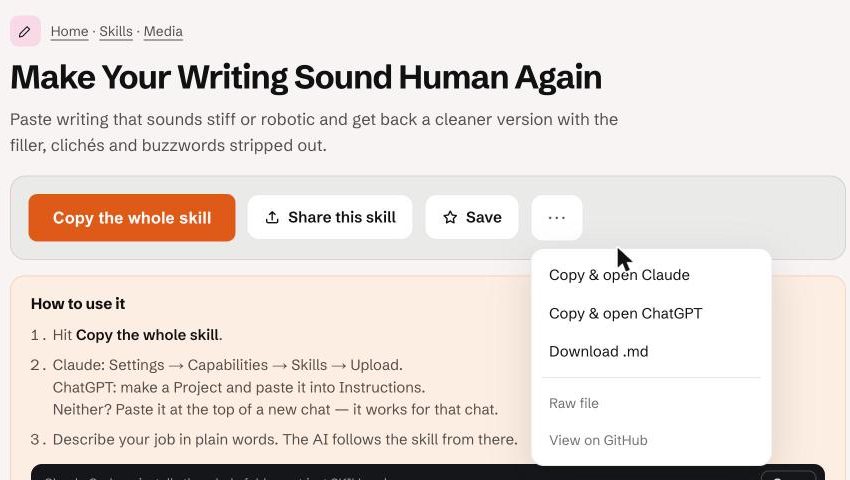
On the skill page, open the ⋯ menu and choose Download .md. That file is the whole skill.
- 2
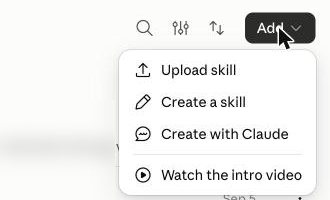
In Claude: Customize → Skills → Add → Upload skill
Open Claude on the web or desktop app, go to Customize, pick Skills, then Add and Upload skill.
- 3
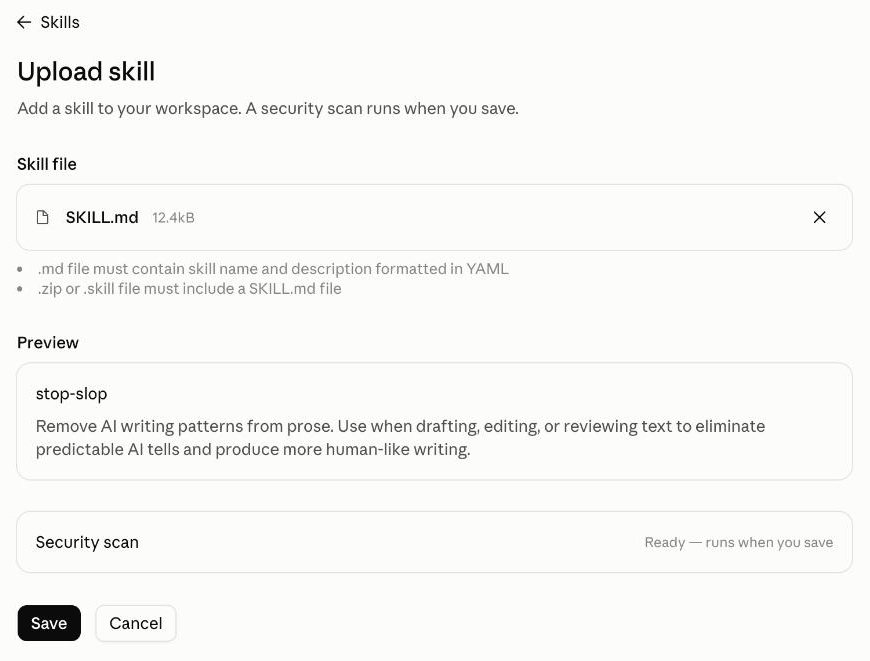
Choose the file and Save
Claude reads the name and description from the file and shows a preview. A security scan runs when you save.
- 4
Check it is switched on
The skill now appears in your list. The toggle on the right must be on.

- 5
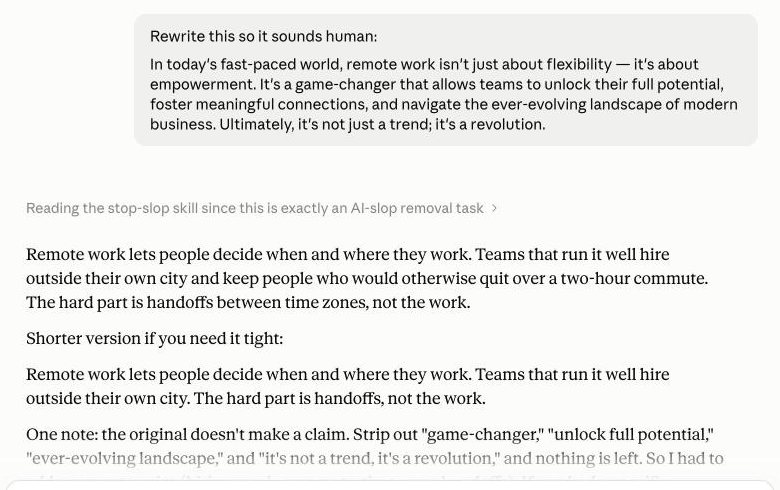
Just ask for the job
Start a new chat and describe what you want in plain words. You don't need to name the skill — Claude loads it when the job matches.
- 6
ChatGPT: use a Project
ChatGPT has no skill upload. Create a Project, open its Instructions, and paste the skill in (or add the .md file to the project). Every chat in that project follows it.
- 7
Claude Code: one line installs the whole folder
Some skills come with extra files. The Claude Code line on each skill page copies the full folder, not just SKILL.md.
npx degit <owner>/<repo>/<folder> ~/.claude/skills/<name>
Tips for the best results
- Read the description line in the skill — that's what makes the AI pick it up.
- Keep only the skills you use switched on, so they don't compete.
- If a skill mentions other files (like template.md), use the Claude Code line or copy the folder from GitHub.
Still stuck? Ask in the forum — say what you tried and where it broke.