How to connect an agent (MCP server) to Claude
Agents give your AI real tools: read a web page, search, work in GitHub. Hosted ones take one address and no install. · about 3 min
- 1
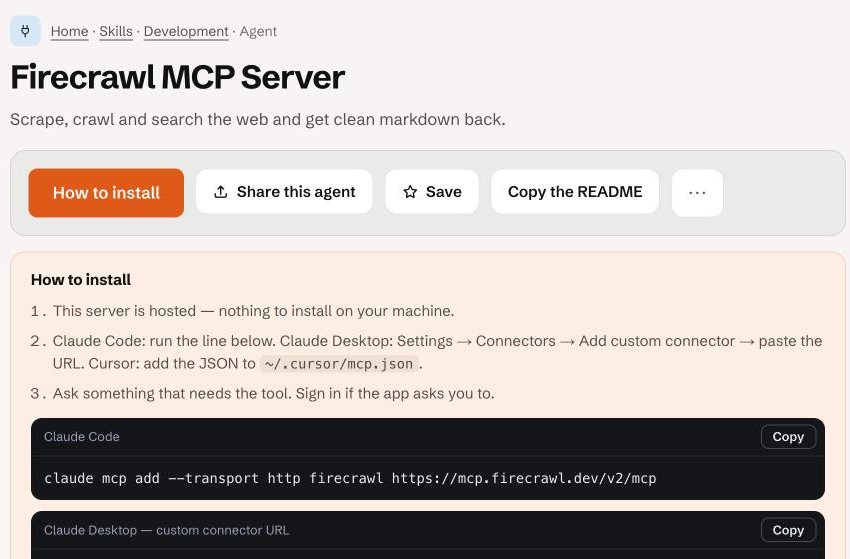
Open the agent's How to install box
Every agent page shows the exact line for Claude Code, the address for Claude, and a config block for Cursor. This example uses Firecrawl, which works without a key.
- 2
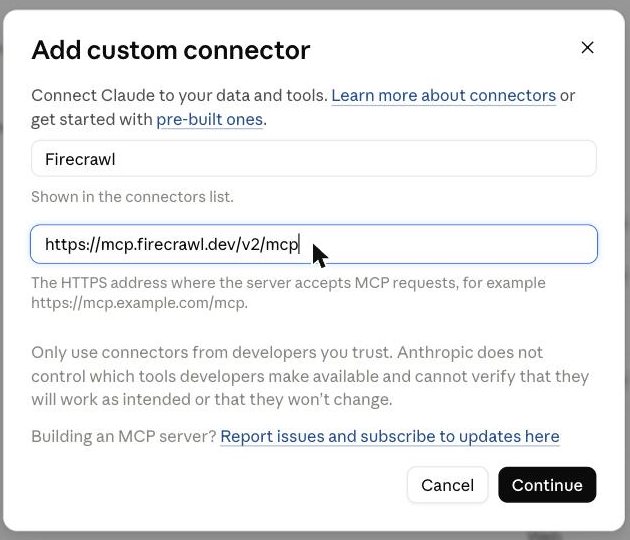
In Claude: Customize → Connectors → Add → Add custom connector
Give it a name and paste the server address. Continue.
- 3
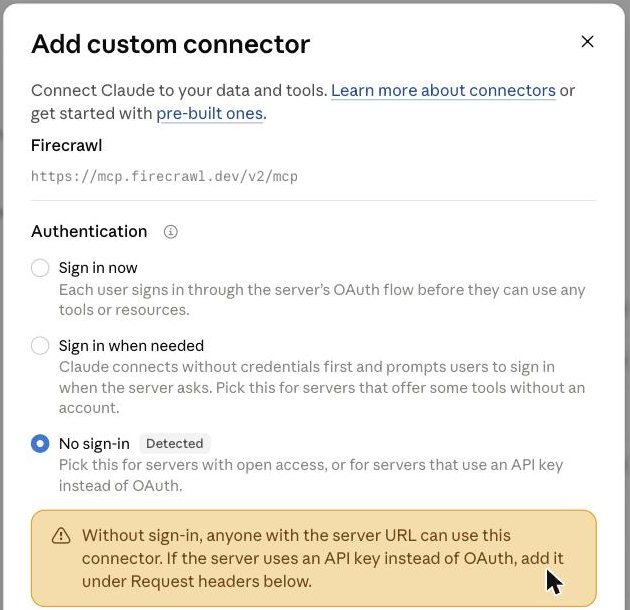
Choose how it signs in
Claude detects it for you. If the server needs an API key (GitHub, Brave Search, Context7), add it under Request headers.
- 4
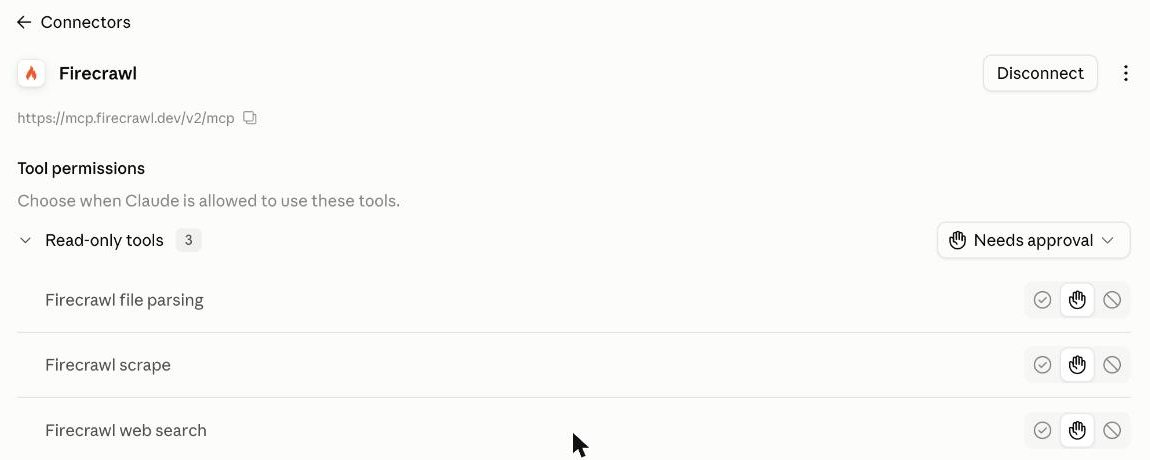
Add, then Connect
You'll see the tools the server gives Claude. By default each one asks before it runs.
- 5
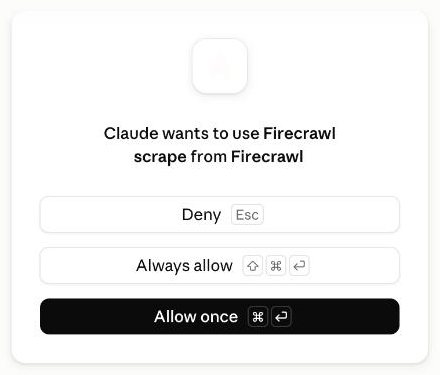
Ask for something that needs the tool
Claude asks permission the first time. Choose Allow once until you trust it.
- 6
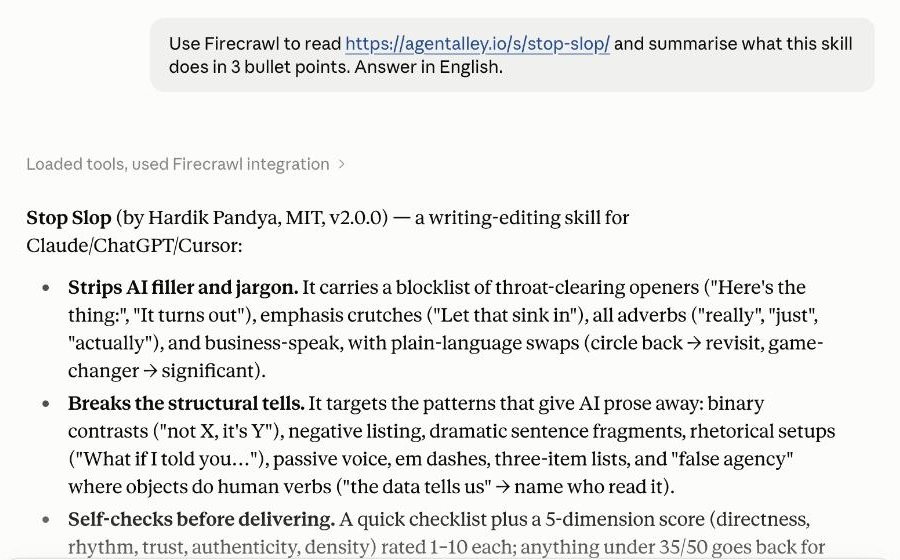
Check the answer used the tool
“Used Firecrawl integration” means the answer came from the live page, not the model's memory.
Tips for the best results
- Only connect agents from sources you trust. Check the author and licence on the page.
- Connect a few you really use — every extra tool adds noise.
- Servers that run on your computer (Filesystem, Git) need Claude Code, Claude Desktop or Cursor. Start them on one folder, not your whole drive.
Still stuck? Ask in the forum — say what you tried and where it broke.