Form strategy
Design forms that convert, validate well, resist spam, and integrate cleanly with downstream systems.
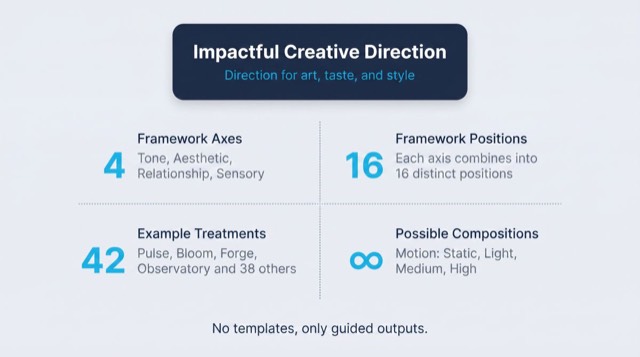
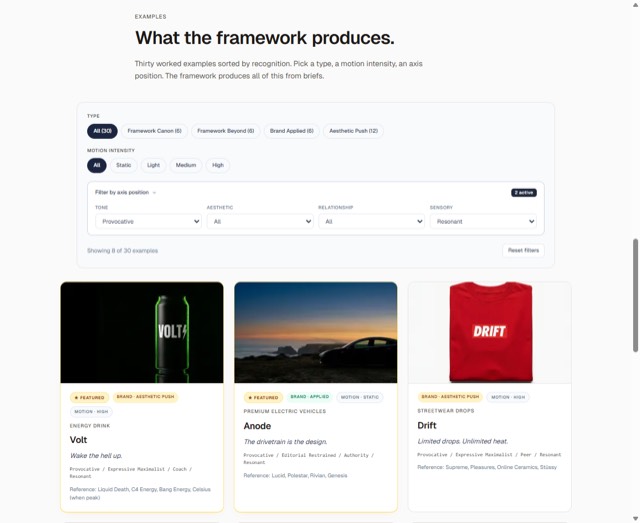
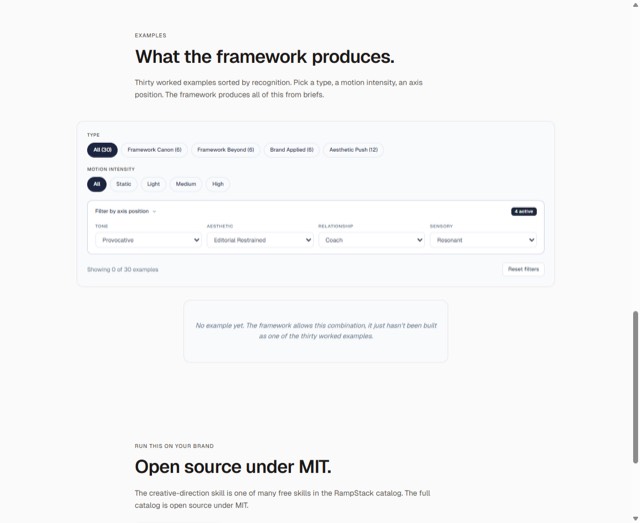
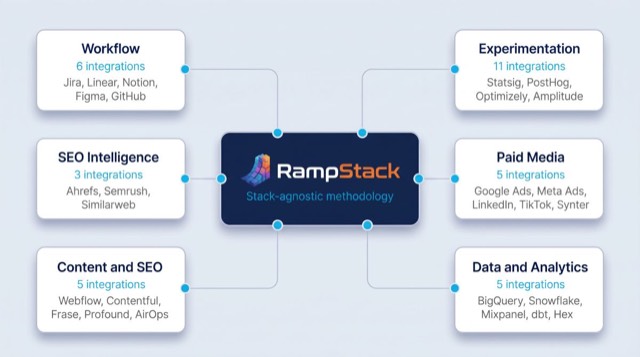
From the rampstackco/claude-skills README — shows the whole collection, not only this skill. · view on GitHub
How to use it
Claude Code
- Run the line below. It pulls the whole folder into
~/.claude/skills/form-strategy. - Describe your job in plain words. Claude Code follows the skill from there.
npx degit rampstackco/claude-skills/skills/form-strategy#main ~/.claude/skills/form-strategyFor one project only, change the path to .claude/skills/form-strategy.
Claude (web or desktop app)
- On this page open ⋯ → Download .md.
- Save it as SKILL.md in a folder, zip the folder, then Customize → Skills → + → Create skill → Upload a skill.
- Pick the file and Save. Claude shows the name and description and runs a security scan.
- Check the skill is switched on.
- Start a new chat and describe your job in plain words. The AI follows the skill from there.
ChatGPT or another app
- ChatGPT: make a Project and paste it into Instructions.
- Neither? Paste it at the top of a new chat — it works for that chat.
Not working?
- Check which app you pasted it into — the steps above name the right one.
- Some skills need the paid tier of Claude or ChatGPT.
Paste into Claude, ChatGPT or Cursor.
Source of Form strategy
Show the full text264 lines
| name | description | category | catalog_summary | display_order |
|---|---|---|---|---|
| form-strategy | Design forms that convert, validate well, resist spam, and integrate cleanly with downstream systems. Use this skill when designing or auditing any form (contact, signup, checkout, multi-step, embedded), planning validation logic, fighting spam, choosing form tooling, or improving form conversion. Triggers on form design, form validation, form conversion, multi-step form, form spam, captcha, honeypot, form abandonment, signup form, contact form. Also triggers when form completion rates are low or spam is overwhelming. | cross-cutting | Form design, validation patterns, spam prevention, conversion tuning | 1 |
Form Strategy
Forms are where intent becomes action. Design them well or lose conversions, frustrate users, and drown in spam. Stack-agnostic.
When to use
- Designing or redesigning a form
- Conversion is dropping on a key form
- Spam volume is overwhelming the inbox or database
- Auditing forms across a site
- Planning validation logic
- Choosing form tooling (form service, custom build, no-code)
- Integrating forms with CRM, email, or other downstream systems
- Multi-step form decisions
When NOT to use
- Generic conversion optimization (use
cro-optimization) - The copy on the form (use
landing-page-copy) - Backend handling beyond form-specific concerns (use
frontend-component-build,code-review-web) - General accessibility (use
accessibility-audit)
Required inputs
- The form's purpose (what action, what outcome)
- Current form (URL, screenshot, or fields)
- Current performance (completion rate, spam rate, conversion to next step)
- Downstream system (where submissions go: CRM, email, database, support tool)
- Business context (volume, urgency of leads, cost of false vs missed signups)
The framework: 5 dimensions
Every form decision falls into one of these dimensions.
Dimension 1: Field strategy
The biggest lever. Every additional field reduces conversion.
Questions to ask for each field:
- Is this required to deliver value to the user?
- Is this required to deliver value to the business?
- Can it be inferred from another source (email domain, behavior, context)?
- Can it be asked later (after first contact, on second visit, on settings page)?
Default rule: ask for the minimum to make the next step happen. Everything else later.
For a B2B contact form: name and email get you started. Phone, company size, role are nice-to-haves that often hurt conversion more than they help qualification.
For a checkout: country, postal code, address, name, payment. Anything else (referral source, marketing opt-in, account creation) is optional or moved to post-purchase.
Dimension 2: Field design
How each field looks and behaves.
- Labels above inputs beat placeholders. Placeholder labels disappear when typing.
- Inline labels (floating labels) work for very compact forms.
- Single column for almost every form. Eyes flow vertically.
- Logical grouping with visible spacing. Don't put unrelated fields next to each other.
- Right input type:
emailfor emails,telfor phone,numberfor numbers,datefor dates. Mobile keyboards adapt. - Autocomplete attributes:
autocomplete="email",autocomplete="given-name", etc. Browsers and password managers fill them in. - Sensible defaults for fields where one applies (country pre-selected by IP, etc.). Don't default to anything that would mislead if wrong.
Dimension 3: Validation
Tell users what's wrong, when, and how to fix it.
- Validate on blur, not on every keystroke. Inline errors that appear as someone types are jarring.
- Re-validate on submit (catch fields the user skipped).
- Specific messages: "Email must include @" beats "Invalid email."
- Position errors next to the field they refer to.
- Don't submit a form when there are errors. Highlight the first errored field. Scroll to it.
- Validate server-side too. Client validation is UX. Server validation is correctness.
For format-flexible fields (phone numbers, postal codes), validate liberally. Reject only what's clearly wrong, not what's "non-standard." Many phone formats exist.
Dimension 4: Spam defense
Public forms attract spam. Plan for it from day one.
Layered defense:
- Honeypot field. A hidden field that humans don't fill in but bots do. If it's filled, reject silently. Free, low-friction, surprisingly effective for low-effort spam.
- Time-based detection. Reject submissions completed in under 2-3 seconds (bots) or after very long delays (suspicious sessions).
- Rate limiting. Reject if the same IP submits too many times.
- CAPTCHA as a last resort. Modern invisible CAPTCHAs (hCaptcha, reCAPTCHA v3, Turnstile) are low-friction. Old image CAPTCHAs are conversion-killers.
- Behavioral signals. Did the cursor move? Was there scroll? Modern services track this.
- Content filtering. Reject obvious spam content (links, foreign-language content if your audience is local, common spam words).
- Server-side review. A queue rather than direct delivery to inboxes for high-spam-target forms.
For most contact forms: honeypot + time check + Turnstile (or similar) is sufficient.
Dimension 5: Submission flow
What happens after submit.
- Inline success message for short forms. Don't redirect just to confirm.
- Confirmation page for high-value submissions (to provide next steps, set expectations).
- Email confirmation for signups, purchases, RSVPs. Always.
- Save data on errors so the user doesn't re-enter everything.
- Optimistic UI (show success before the server confirms) for low-stakes forms; risky for high-stakes.
For multi-step forms:
- Show progress (3 of 5)
- Save state between steps (in case of refresh or navigation)
- Allow back navigation without losing data
- Validate per step, not just at the end
Workflow
Step 1: Audit current state
For each form on the site:
- What's its purpose?
- Number of fields, required vs optional
- Current completion rate
- Current spam rate
- Validation rules
- What happens after submit
- Where the data goes downstream
Step 2: Define success per form
Different forms have different success metrics:
- Lead form: qualified leads (defined by sales)
- Newsletter: confirmed subscriptions (after double opt-in)
- Contact: substantive replies (not just submissions)
- Checkout: successful payments
Track the metric that matters, not just submissions.
Step 3: Cut fields ruthlessly
Apply the field strategy filter. For each field, answer:
- Required to deliver value? Keep.
- Nice to have? Move to optional or later.
- Used for routing or qualification? Often can be inferred.
A 7-field form becomes a 3-field form. Conversion rises.
Step 4: Set up spam defense
Before launching a public form:
- Add a honeypot field
- Add time-based detection
- Add rate limiting
- Add a modern CAPTCHA if the form is high-traffic or high-spam
After launch, monitor. Tune layers based on what's actually getting through.
Step 5: Improve validation
Walk through each field:
- Is validation specific?
- Does it run at the right time (blur or submit, not on keystroke)?
- Are error messages actionable?
- Is server-side validation matching client-side?
Step 6: Verify accessibility
Critical baseline:
- Every input has an associated label (visually visible or
aria-label) - Errors are associated with inputs (
aria-describedby,aria-invalid) - Focus order matches visual order
- Color isn't the only way to indicate errors
- Form is fully keyboard-navigable
See accessibility-audit for the full WCAG audit.
Step 7: Test downstream
Submit the form. Verify:
- Data lands where it should
- Required fields are populated correctly
- Spam defenses are working (test with a script)
- The user gets the confirmation they expect
- Internal notification is timely
Forms break silently when downstream systems change. Test after any integration update.
Step 8: Monitor
- Completion rate over time
- Spam rate over time
- Errors per submission (high errors = bad UX)
- Drop-off field (where do people abandon?)
Failure patterns
Too many fields. Most B2B contact forms have 3x more fields than they need. Cut.
Validation that fires while typing. Annoying. Causes errors before the user has finished.
Generic error messages. "Invalid input." Where? Why? Be specific.
Required fields not marked. Users discover they're required only after submission fails. Mark required (or, for short forms, mark optional).
Autocomplete disabled. "For security." It's almost never a security improvement and always a UX cost. Leave autocomplete on.
Tab order is broken. Tab key skips fields or jumps backward. Set tabindex only when necessary; use natural DOM order.
Submit button below the fold. Especially on mobile. Users don't see it.
No save on error. User submits, has one error, returns to the form, all fields empty. Nightmare. Save the state.
Captcha as the only spam defense. Captchas are friction. Layered defense beats brute-force friction.
Captcha visible by default. Modern CAPTCHAs (Turnstile, reCAPTCHA v3) are invisible most of the time and only escalate when needed. Use those.
Newsletter signup that's actually a marketing list. Honor opt-in scope. If the user signed up for product updates, don't add them to the marketing newsletter.
Confirmation page that's a dead end. "Thanks for submitting" with no next step. What now? Provide an action (read related content, return to homepage, follow on social).
No double opt-in for marketing email. Bots and typos pollute the list. See email-deliverability for why this matters.
Email field accepting name@ as valid. Browser spec validation is loose. Validate against an actual format.
Custom date pickers worse than native. The native <input type="date"> is now good on most platforms. Don't reinvent unless you have a specific reason.
Forms that lose state on refresh. For long forms, save to localStorage and restore on load.
Output format
A form audit document includes:
- Form inventory: every form on the site
- Per-form review: purpose, fields, performance
- Recommendations: field cuts, validation improvements, spam defense, design changes
- Spam defense plan: layers per form
- Accessibility status: WCAG compliance per form
- Downstream integration map: where each form's data goes
- Monitoring plan: what's tracked
If required data is unavailable
This skill's output depends on data, measurements, or tool results it cannot generate on its own. When a required input, tool, or data source is unavailable or unverifiable, the sanctioned output is the deliverable with the gap stated: what was needed, what was actually obtained or verified, and which parts of the output are affected. Fabricating, estimating, or interpolating a required number to complete the deliverable is never sanctioned. A stated gap is a complete answer.
Reference files
references/form-anatomy-checklist.md: A field-by-field, behavior-by-behavior checklist for auditing or designing a form, covering structure, accessibility, validation, and spam defense.
| 1 | |
| 2 | name form-strategy |
| 3 | description "Design forms that convert, validate well, resist spam, and integrate cleanly with downstream systems. Use this skill when designing or auditing any form (contact, signup, checkout, multi-step, embedded), planning validation logic, fighting spam, choosing form tooling, or improving form conversion. Triggers on form design, form validation, form conversion, multi-step form, form spam, captcha, honeypot, form abandonment, signup form, contact form. Also triggers when form completion rates are low or spam is overwhelming." |
| 4 | category cross-cutting |
| 5 | catalog_summary "Form design, validation patterns, spam prevention, conversion tuning" |
| 6 | display_order 1 |
| 7 | |
| 8 | |
| 9 | # Form Strategy |
| 10 | |
| 11 | Forms are where intent becomes action. Design them well or lose conversions, frustrate users, and drown in spam. Stack-agnostic. |
| 12 | |
| 13 | |
| 14 | |
| 15 | ## When to use |
| 16 | |
| 17 | Designing or redesigning a form |
| 18 | Conversion is dropping on a key form |
| 19 | Spam volume is overwhelming the inbox or database |
| 20 | Auditing forms across a site |
| 21 | Planning validation logic |
| 22 | Choosing form tooling (form service, custom build, no-code) |
| 23 | Integrating forms with CRM, email, or other downstream systems |
| 24 | Multi-step form decisions |
| 25 | |
| 26 | ## When NOT to use |
| 27 | |
| 28 | Generic conversion optimization (use `cro-optimization`) |
| 29 | The copy on the form (use `landing-page-copy`) |
| 30 | Backend handling beyond form-specific concerns (use `frontend-component-build`, `code-review-web`) |
| 31 | General accessibility (use `accessibility-audit`) |
| 32 | |
| 33 | |
| 34 | |
| 35 | ## Required inputs |
| 36 | |
| 37 | The form's purpose (what action, what outcome) |
| 38 | Current form (URL, screenshot, or fields) |
| 39 | Current performance (completion rate, spam rate, conversion to next step) |
| 40 | Downstream system (where submissions go: CRM, email, database, support tool) |
| 41 | Business context (volume, urgency of leads, cost of false vs missed signups) |
| 42 | |
| 43 | |
| 44 | |
| 45 | ## The framework: 5 dimensions |
| 46 | |
| 47 | Every form decision falls into one of these dimensions. |
| 48 | |
| 49 | ### Dimension 1: Field strategy |
| 50 | |
| 51 | The biggest lever. Every additional field reduces conversion. |
| 52 | |
| 53 | **Questions to ask for each field:** |
| 54 | Is this required to deliver value to the user? |
| 55 | Is this required to deliver value to the business? |
| 56 | Can it be inferred from another source (email domain, behavior, context)? |
| 57 | Can it be asked later (after first contact, on second visit, on settings page)? |
| 58 | |
| 59 | **Default rule:** ask for the minimum to make the next step happen. Everything else later. |
| 60 | |
| 61 | For a B2B contact form: name and email get you started. Phone, company size, role are nice-to-haves that often hurt conversion more than they help qualification. |
| 62 | |
| 63 | For a checkout: country, postal code, address, name, payment. Anything else (referral source, marketing opt-in, account creation) is optional or moved to post-purchase. |
| 64 | |
| 65 | ### Dimension 2: Field design |
| 66 | |
| 67 | How each field looks and behaves. |
| 68 | |
| 69 | **Labels above inputs** beat placeholders. Placeholder labels disappear when typing. |
| 70 | **Inline labels** (floating labels) work for very compact forms. |
| 71 | **Single column** for almost every form. Eyes flow vertically. |
| 72 | **Logical grouping** with visible spacing. Don't put unrelated fields next to each other. |
| 73 | **Right input type:** `email` for emails, `tel` for phone, `number` for numbers, `date` for dates. Mobile keyboards adapt. |
| 74 | **Autocomplete attributes:** `autocomplete="email"`, `autocomplete="given-name"`, etc. Browsers and password managers fill them in. |
| 75 | **Sensible defaults** for fields where one applies (country pre-selected by IP, etc.). Don't default to anything that would mislead if wrong. |
| 76 | |
| 77 | ### Dimension 3: Validation |
| 78 | |
| 79 | Tell users what's wrong, when, and how to fix it. |
| 80 | |
| 81 | **Validate on blur, not on every keystroke.** Inline errors that appear as someone types are jarring. |
| 82 | **Re-validate on submit** (catch fields the user skipped). |
| 83 | **Specific messages:** "Email must include @" beats "Invalid email." |
| 84 | **Position errors next to the field** they refer to. |
| 85 | **Don't submit a form when there are errors.** Highlight the first errored field. Scroll to it. |
| 86 | **Validate server-side too.** Client validation is UX. Server validation is correctness. |
| 87 | |
| 88 | For format-flexible fields (phone numbers, postal codes), validate liberally. Reject only what's clearly wrong, not what's "non-standard." Many phone formats exist. |
| 89 | |
| 90 | ### Dimension 4: Spam defense |
| 91 | |
| 92 | Public forms attract spam. Plan for it from day one. |
| 93 | |
| 94 | **Layered defense:** |
| 95 | |
| 96 | **Honeypot field.** A hidden field that humans don't fill in but bots do. If it's filled, reject silently. Free, low-friction, surprisingly effective for low-effort spam. |
| 97 | **Time-based detection.** Reject submissions completed in under 2-3 seconds (bots) or after very long delays (suspicious sessions). |
| 98 | **Rate limiting.** Reject if the same IP submits too many times. |
| 99 | **CAPTCHA as a last resort.** Modern invisible CAPTCHAs (hCaptcha, reCAPTCHA v3, Turnstile) are low-friction. Old image CAPTCHAs are conversion-killers. |
| 100 | **Behavioral signals.** Did the cursor move? Was there scroll? Modern services track this. |
| 101 | **Content filtering.** Reject obvious spam content (links, foreign-language content if your audience is local, common spam words). |
| 102 | **Server-side review.** A queue rather than direct delivery to inboxes for high-spam-target forms. |
| 103 | |
| 104 | For most contact forms: honeypot + time check + Turnstile (or similar) is sufficient. |
| 105 | |
| 106 | ### Dimension 5: Submission flow |
| 107 | |
| 108 | What happens after submit. |
| 109 | |
| 110 | **Inline success message** for short forms. Don't redirect just to confirm. |
| 111 | **Confirmation page** for high-value submissions (to provide next steps, set expectations). |
| 112 | **Email confirmation** for signups, purchases, RSVPs. Always. |
| 113 | **Save data on errors** so the user doesn't re-enter everything. |
| 114 | **Optimistic UI** (show success before the server confirms) for low-stakes forms; risky for high-stakes. |
| 115 | |
| 116 | For multi-step forms: |
| 117 | Show progress (3 of 5) |
| 118 | Save state between steps (in case of refresh or navigation) |
| 119 | Allow back navigation without losing data |
| 120 | Validate per step, not just at the end |
| 121 | |
| 122 | |
| 123 | |
| 124 | ## Workflow |
| 125 | |
| 126 | ### Step 1: Audit current state |
| 127 | |
| 128 | For each form on the site: |
| 129 | What's its purpose? |
| 130 | Number of fields, required vs optional |
| 131 | Current completion rate |
| 132 | Current spam rate |
| 133 | Validation rules |
| 134 | What happens after submit |
| 135 | Where the data goes downstream |
| 136 | |
| 137 | ### Step 2: Define success per form |
| 138 | |
| 139 | Different forms have different success metrics: |
| 140 | Lead form: qualified leads (defined by sales) |
| 141 | Newsletter: confirmed subscriptions (after double opt-in) |
| 142 | Contact: substantive replies (not just submissions) |
| 143 | Checkout: successful payments |
| 144 | |
| 145 | Track the metric that matters, not just submissions. |
| 146 | |
| 147 | ### Step 3: Cut fields ruthlessly |
| 148 | |
| 149 | Apply the field strategy filter. For each field, answer: |
| 150 | Required to deliver value? Keep. |
| 151 | Nice to have? Move to optional or later. |
| 152 | Used for routing or qualification? Often can be inferred. |
| 153 | |
| 154 | A 7-field form becomes a 3-field form. Conversion rises. |
| 155 | |
| 156 | ### Step 4: Set up spam defense |
| 157 | |
| 158 | Before launching a public form: |
| 159 | Add a honeypot field |
| 160 | Add time-based detection |
| 161 | Add rate limiting |
| 162 | Add a modern CAPTCHA if the form is high-traffic or high-spam |
| 163 | |
| 164 | After launch, monitor. Tune layers based on what's actually getting through. |
| 165 | |
| 166 | ### Step 5: Improve validation |
| 167 | |
| 168 | Walk through each field: |
| 169 | Is validation specific? |
| 170 | Does it run at the right time (blur or submit, not on keystroke)? |
| 171 | Are error messages actionable? |
| 172 | Is server-side validation matching client-side? |
| 173 | |
| 174 | ### Step 6: Verify accessibility |
| 175 | |
| 176 | Critical baseline: |
| 177 | Every input has an associated label (visually visible or `aria-label`) |
| 178 | Errors are associated with inputs (`aria-describedby`, `aria-invalid`) |
| 179 | Focus order matches visual order |
| 180 | Color isn't the only way to indicate errors |
| 181 | Form is fully keyboard-navigable |
| 182 | |
| 183 | See `accessibility-audit` for the full WCAG audit. |
| 184 | |
| 185 | ### Step 7: Test downstream |
| 186 | |
| 187 | Submit the form. Verify: |
| 188 | Data lands where it should |
| 189 | Required fields are populated correctly |
| 190 | Spam defenses are working (test with a script) |
| 191 | The user gets the confirmation they expect |
| 192 | Internal notification is timely |
| 193 | |
| 194 | Forms break silently when downstream systems change. Test after any integration update. |
| 195 | |
| 196 | ### Step 8: Monitor |
| 197 | |
| 198 | Completion rate over time |
| 199 | Spam rate over time |
| 200 | Errors per submission (high errors = bad UX) |
| 201 | Drop-off field (where do people abandon?) |
| 202 | |
| 203 | |
| 204 | |
| 205 | ## Failure patterns |
| 206 | |
| 207 | **Too many fields.** Most B2B contact forms have 3x more fields than they need. Cut. |
| 208 | |
| 209 | **Validation that fires while typing.** Annoying. Causes errors before the user has finished. |
| 210 | |
| 211 | **Generic error messages.** "Invalid input." Where? Why? Be specific. |
| 212 | |
| 213 | **Required fields not marked.** Users discover they're required only after submission fails. Mark required (or, for short forms, mark optional). |
| 214 | |
| 215 | **Autocomplete disabled.** "For security." It's almost never a security improvement and always a UX cost. Leave autocomplete on. |
| 216 | |
| 217 | **Tab order is broken.** Tab key skips fields or jumps backward. Set `tabindex` only when necessary; use natural DOM order. |
| 218 | |
| 219 | **Submit button below the fold.** Especially on mobile. Users don't see it. |
| 220 | |
| 221 | **No save on error.** User submits, has one error, returns to the form, all fields empty. Nightmare. Save the state. |
| 222 | |
| 223 | **Captcha as the only spam defense.** Captchas are friction. Layered defense beats brute-force friction. |
| 224 | |
| 225 | **Captcha visible by default.** Modern CAPTCHAs (Turnstile, reCAPTCHA v3) are invisible most of the time and only escalate when needed. Use those. |
| 226 | |
| 227 | **Newsletter signup that's actually a marketing list.** Honor opt-in scope. If the user signed up for product updates, don't add them to the marketing newsletter. |
| 228 | |
| 229 | **Confirmation page that's a dead end.** "Thanks for submitting" with no next step. What now? Provide an action (read related content, return to homepage, follow on social). |
| 230 | |
| 231 | **No double opt-in for marketing email.** Bots and typos pollute the list. See `email-deliverability` for why this matters. |
| 232 | |
| 233 | **Email field accepting `name@` as valid.** Browser spec validation is loose. Validate against an actual format. |
| 234 | |
| 235 | **Custom date pickers worse than native.** The native `<input type="date">` is now good on most platforms. Don't reinvent unless you have a specific reason. |
| 236 | |
| 237 | **Forms that lose state on refresh.** For long forms, save to localStorage and restore on load. |
| 238 | |
| 239 | |
| 240 | |
| 241 | ## Output format |
| 242 | |
| 243 | A form audit document includes: |
| 244 | |
| 245 | **Form inventory:** every form on the site |
| 246 | **Per-form review:** purpose, fields, performance |
| 247 | **Recommendations:** field cuts, validation improvements, spam defense, design changes |
| 248 | **Spam defense plan:** layers per form |
| 249 | **Accessibility status:** WCAG compliance per form |
| 250 | **Downstream integration map:** where each form's data goes |
| 251 | **Monitoring plan:** what's tracked |
| 252 | |
| 253 | |
| 254 | |
| 255 | ## If required data is unavailable |
| 256 | |
| 257 | This skill's output depends on data, measurements, or tool results it cannot generate on its own. When a required input, tool, or data source is unavailable or unverifiable, the sanctioned output is the deliverable with the gap stated: what was needed, what was actually obtained or verified, and which parts of the output are affected. Fabricating, estimating, or interpolating a required number to complete the deliverable is never sanctioned. A stated gap is a complete answer. |
| 258 | |
| 259 | |
| 260 | |
| 261 | ## Reference files |
| 262 | |
| 263 | [`references/form-anatomy-checklist.md`]: A field-by-field, behavior-by-behavior checklist for auditing or designing a form, covering structure, accessibility, validation, and spam defense. |
| 264 |
Discussion
Browse more free Claude skills or everything in Product.