Goal
Teach any topic as a short interactive lesson that opens
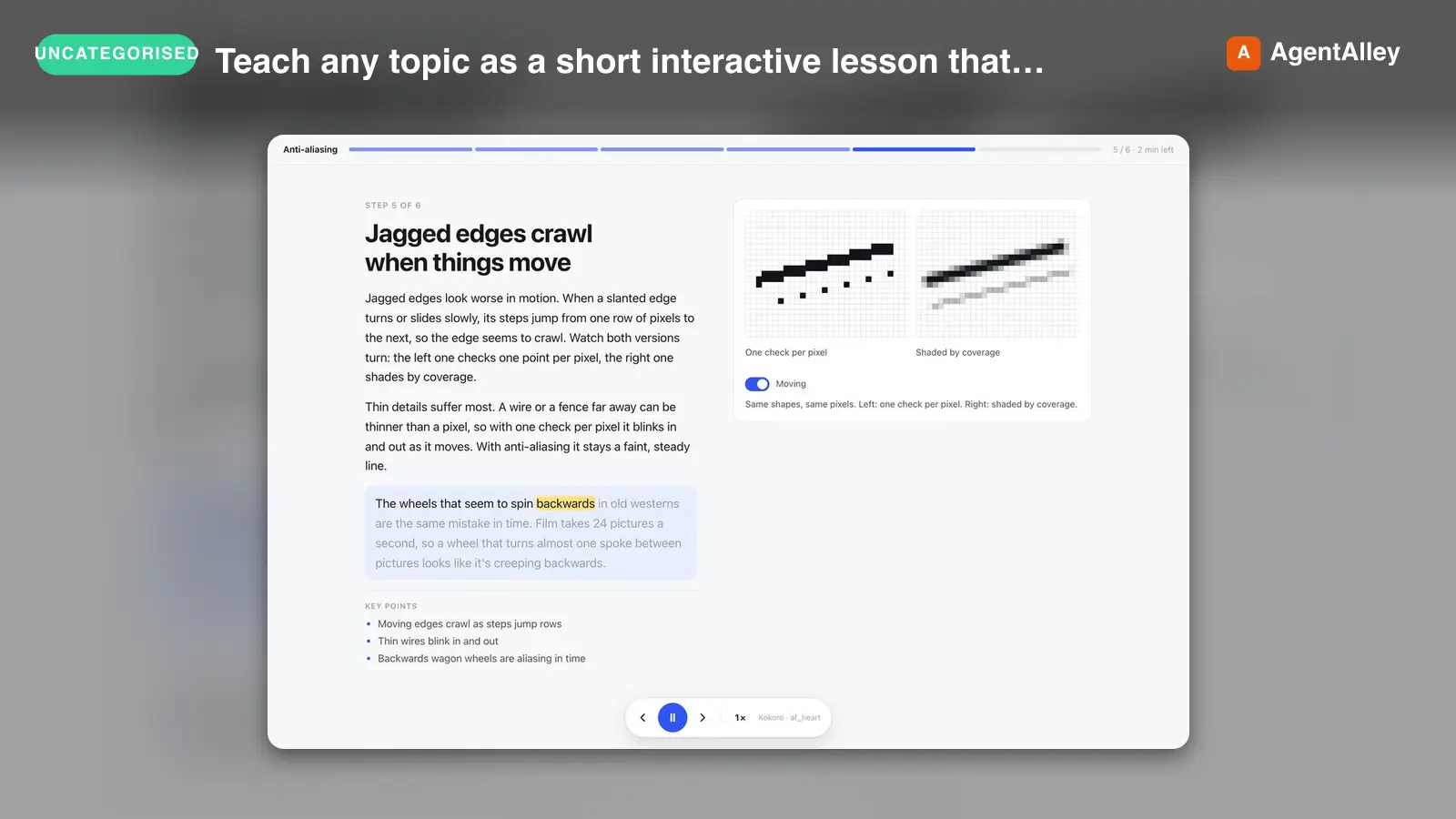
Teach any topic as a short interactive lesson that opens in Chrome: one idea per screen, each hung on a real-life example, the key terms and an outline first, a predict-first question where people usually guess wrong, small demos to…
---
name: charles-learn-anything
description: "Teach any topic as a short interactive lesson that opens in Chrome: one idea per screen, each hung on a real-life example, the key terms and an outline first, a predict-first question where people usually guess wrong, small demos to play with that change on the word the narrator says, stand-out facts, dot jots under every step, an acronym or phrase when there's a set to remember, quick checks with instant feedback, and a natural voice that reads along with each word highlighted at the speed you pick. Use when someone says teach me, help me understand, learn anything, walk me through, explain X step by step, make me a lesson on X, or I want to actually get X, and wants to understand a concept fast and properly rather than read a long answer."
---

# Goal

In 4 to 6 minutes of narration, the learner understands one topic well enough to explain it and get the quiz right. The lesson is a page on their computer that opens in Chrome. Building it takes about 10 minutes of your time: the kit already does the page, the player and the voice, so you only write the lesson and at most a few small demos.

Lessons live in `~/Learn/<topic-slug>/`: `lesson.json`, optionally `widgets.js` (the demos) and `assets/` (images). `examples/anti-aliasing/` is a complete lesson to copy from.

# Steps

## 1. Pin down one topic and its promise

Write the lesson's promise in one sentence: "Why slanted lines look jagged on screens, and how computers smooth them." If the request is a whole field ("teach me machine learning"), take the first 6-minute layer, say that's what this lesson covers, and offer the next layer at the end.

Why: a lesson that tries to cover a field teaches none of it. One layer learned properly sticks and makes the next one easy.
Overview
In 4 to 6 minutes of narration, the learner understands one topic well enough to explain it and get the quiz right. The lesson is a page on their computer that opens in Chrome. Building it takes about 10 minutes of your time: the kit already does the page, the player and the voice, so you only write the lesson and at most a few small demos.
Manual install (npx, ZIP)
npx skills add LemonFace0309/charles-skills --skill charles-learn-anything -g -a claude-codenpx degit LemonFace0309/charles-skills/skills/qol/charles-learn-anything#main ~/.claude/skills/charles-learn-anythingConnects with Agent Alley MCP · agentalley.io/mcp
Files included
SKILL.md11.9 KB
Read SKILL.md here
Show the full text158 lines
Goal
In 4 to 6 minutes of narration, the learner understands one topic well enough to explain it and get the quiz right. The lesson is a page on their computer that opens in Chrome. Building it takes about 10 minutes of your time: the kit already does the page, the player and the voice, so you only write the lesson and at most a few small demos.
Lessons live in ~/Learn/<topic-slug>/: lesson.json, optionally widgets.js (the demos) and assets/ (images). examples/anti-aliasing/ is a complete lesson to copy from.
Steps
1. Pin down one topic and its promise
Write the lesson's promise in one sentence: "Why slanted lines look jagged on screens, and how computers smooth them." If the request is a whole field ("teach me machine learning"), take the first 6-minute layer, say that's what this lesson covers, and offer the next layer at the end.
Why: a lesson that tries to cover a field teaches none of it. One layer learned properly sticks and makes the next one easy.
2. Outline 4 to 7 steps, concrete first
- One idea per step, and the step's title is the idea as a statement ("One check per pixel makes a staircase"), never a label ("Sampling").
- Order them: what they can already see or know, then how it works, then the fix or the variations, then where they'll meet it.
- Narration is at most 900 words in total (6 minutes at 1x) and at most 150 words per step (about a minute).
Why: engagement with lesson videos falls off past 6 minutes, and short segments the learner moves through beat one long stream (segmenting, d 0.67). Titles that state the idea work as a summary on their own.
3. Pick 2 to 4 key terms
Put the terms the lesson can't do without in terms, each defined in one plain sentence. The intro screen shows them with the outline before step 1.
Why: learning the names of the parts first frees attention for how they work (pre-training, d 0.78), and an outline up front tells them where it's going (signaling, d 0.70).
4. Choose each step's visual
What is this step's idea?
├── How something changes as you vary one thing (size, speed, amount) → a demo with one control
├── A process that unfolds over time → an animation, changed by cues in the narration
├── A before and after, or two ways compared → one picture with a toggle, or two side by side
├── The parts of a thing and how they connect → a diagram with the labels on the parts themselves
└── A definition, a list or some history → no visual (the step is text only)
- At most 2 controls per demo, and its starting state already shows the point before anyone touches it. Why: most readers never touch a control, so the demo has to teach as a picture first, and open-ended exploration fails beginners.
- At most 3 demos per lesson. Reuse one demo across steps with
widgetOptions(the anti-aliasing example uses one demo for four steps). Why: demos are the slowest part to build and the likeliest to break. - Put
[[name]]in the narration right before the word where the picture should change, and make the demo'scue(name)do that change. Why: changing the picture on the word that describes it is the strongest effect in the research (temporal contiguity, d 1.31). - Labels go on the parts, never in a legend (spatial contiguity, d 0.82).
- Never add decorative images, stock photos, mascots or music. Why: they cost attention and teach nothing (coherence, d 0.86).
references/widgets.md has the demo helpers and how to draw.
5. Hang every step on a real-life example
Pick each step's example before you write its narration:
What will the learner recognise?
├── Something they use or see every week (their phone, a game, an app, a TV) → use that
├── Something well known they've seen or heard (a film, a product, a song, a landmark) → use that
└── Nothing real shows it → a made-up case with real numbers
- Name it specifically ("a 1080p TV", "the wheels in old westerns"), never "a screen" or "a film", and put it right before or right after the idea it shows.
- Real numbers wherever there are any.
Why: an idea tied to something the learner already knows has somewhere to attach, and the example is what they remember first and rebuild the idea from ("the wagon wheels"). Illustrative examples help people learn abstract concepts, and an abstract statement on its own is the first thing forgotten.
6. Write the narration like a great teacher talking
The say text is both read aloud and shown with each word lit as it's spoken.
- The step's point is its first sentence.
- Bold a technical word the first time it's used (
**coverage**), at most 3 a step, and define it in the same sentence. The 2 to 4 the whole lesson depends on also go interms, which shows their definitions when someone taps them. Never point at anything the learner hasn't seen. Why: bold marks what's new, and when everything is bold nothing is. - At most one analogy in the lesson, two only if two ideas are genuinely abstract. Map it, say where it breaks, then go back to the real thing.
- Write for the ear: no symbols ("→", "≥", "e.g.", "vs."), no code, no parentheses doing real work, and every abbreviation spelled out the first time, unless the full name explains nothing (for ISO, say what it does instead). Leave out names the voice will likely mispronounce. Why: whatever only works on the page sounds broken when the voice reads it.
- "You", short sentences, no "simply", "just" or "obviously".
Why: a conversational style with "you" helps people learn (personalization, d 1.00), and the voice reads exactly what's written.
7. Make it stick
Stand-out facts. Put 1 to 3 in the lesson. A stand-out fact is true, specific and non-obvious, the kind that makes someone say "wait, really?" ("CDs sample sound 44,100 times a second, just over twice the highest pitch you can hear"), and it explains or extends the step's idea. Never trivia for its own sake.
- Give each one its own paragraph starting with
>, at most 40 words. The page shows it as a callout, and the voice reads it like any other paragraph. - Only facts you've checked against a source you trust: official documentation, a paper, or an established publication that says where its number came from. If you can't confirm one, leave it out; if sources disagree on a number, leave the number out; and never round a number to make it more striking. Check every other number in the narration the same way.
Why: surprise and curiosity make people remember, and a line set apart from the rest is remembered better than the same line mid-paragraph. They're also the facts people repeat to friends, so a wrong one spreads.
Dot jots. Give every step jots: 2 to 4 bullets of at most 8 words each, the step's points as the learner would write them in their notes. The page lists them under the narration and the voice doesn't read them, so numbers and symbols are fine, in the narration's names and notation. Write them fresh; never copy a sentence from the narration.
Why: a short list to glance back at is how people review and find their place again, and 2 to 4 items is what working memory holds at once. Copied sentences only make them read the same thing twice.
Memory aids.
Does the lesson have a fixed set of 3 or more things to remember (stages, types, causes, rules)?
├── No → no memory aid
└── Yes → Do the items' names or key words start with letters that spell a word or a pattern?
    ├── Yes → an acronym of those letters
    └── No → one short phrase that links them in order ("edges, image, time" for MSAA, FXAA and TAA)
- When the lesson has more than one set, pick the one they're most likely to mix up or forget the order of.
- Say it in the narration as a
>callout, and put it in that step's jots. - At most 2 per lesson. Never an acronym that needs explaining itself, or a letter that stands for a stretched word.
Why: a memory aid helps people recall a set and its order, but only a fixed set, and a forced one is one more thing to learn.
8. Add questions where they do work
predicton 1 or 2 steps, the ones where people usually guess wrong. It's asked before the step, whose text and picture stay blurred until they answer. Make sureterms, the intro and the steps before it don't give the answer away. Why: a question asked before the answer improves memory for exactly that point (g 0.54), mostly through the surprise of being wrong, so it's wasted on easy points.checkon 2 to 4 steps: one question about that step, shown when the narration ends. Why: answering from memory with the explanation right after it is one of the most reliable ways to learn (g 0.50).quiz: 3 questions across the whole lesson, andrecap: 3 to 5 one-sentence takeaways.- Every question has 2 to 4 choices with one clearly right, wrong choices that are the real misconceptions and use only what the lesson has taught by then, and a
whyof one or two sentences that explains the right answer.
9. Build, open and check it
python3 <this skill's folder>/kit/build.py ~/Learn/<topic-slug> --open
- The voice: Kokoro on fal.ai when
FAL_KEYis in the environment or a.env(in the lesson folder, the folder you run from, or your home folder). It sounds natural and costs about $0.02 per 1,000 characters, so about $0.12 for a 900-word lesson, and every sentence is cached, so a rebuild only pays for what changed. Without a key, the page reads with the browser's own voice for free, which sounds more robotic. Never pay for a voice the user didn't ask for. - Fix every error the build prints. It checks steps, questions and demo names.
- Then open every step once with the audio muted and confirm the demo draws, its controls work, each cue lands on its word and the predict step unblurs after an answer. Why: a broken demo in step 2 ends the lesson.
Deliver
The page open in Chrome, and in the chat: where it is (~/Learn/<topic-slug>/build/index.html), how long it is ("6 steps, about 4 minutes at 1x"), what the voice cost, and the shortcuts (Space plays and pauses, the arrow keys move between steps, [ and ] change the speed). Never paste the lesson into the chat.
lesson.json
{
  "title": "Anti-aliasing",
  "subtitle": "The promise from step 1, in one sentence.",
  "terms": [{ "term": "pixel", "def": "One plain sentence." }],
  "steps": [
    {
      "id": "staircase",
      "title": "The idea, as a statement",
      "predict": { "q": "…", "choices": ["…", "…", "…"], "answer": 0, "why": "…" },
      "say": "Paragraphs, separated by a blank line. **Terms** in bold. [[cue]]A cue fires on the next word.\n\n> A stand-out fact or a memory aid: its own paragraph, starting with > .",
      "jots": ["Two to four notes", "At most 8 words each"],
      "widget": "pixels",
      "widgetOptions": { "any": "settings this step's demo reads" },
      "image": "assets/diagram.png",
      "caption": "One line under the picture.",
      "check": { "q": "…", "choices": ["…", "…"], "answer": 1, "why": "…" }
    }
  ],
  "recap": ["…"],
  "quiz": [{ "q": "…", "choices": ["…", "…", "…"], "answer": 2, "why": "…" }]
}
Only title, steps, and each step's title and say are required. Use widget or image, not both.
| 1 | |
| 2 | name charles-learn-anything |
| 3 | description "Teach any topic as a short interactive lesson that opens in Chrome: one idea per screen, each hung on a real-life example, the key terms and an outline first, a predict-first question where people usually guess wrong, small demos to play with that change on the word the narrator says, stand-out facts, dot jots under every step, an acronym or phrase when there's a set to remember, quick checks with instant feedback, and a natural voice that reads along with each word highlighted at the speed you pick. Use when someone says teach me, help me understand, learn anything, walk me through, explain X step by step, make me a lesson on X, or I want to actually get X, and wants to understand a concept fast and properly rather than read a long answer." |
| 4 | |
| 5 | |
| 6 | # Goal |
| 7 | |
| 8 | In 4 to 6 minutes of narration, the learner understands one topic well enough to explain it and get the quiz right. The lesson is a page on their computer that opens in Chrome. Building it takes about 10 minutes of your time: the kit already does the page, the player and the voice, so you only write the lesson and at most a few small demos. |
| 9 | |
| 10 | Lessons live in `~/Learn/<topic-slug>/`: `lesson.json`, optionally `widgets.js` (the demos) and `assets/` (images). `examples/anti-aliasing/` is a complete lesson to copy from. |
| 11 | |
| 12 | # Steps |
| 13 | |
| 14 | ## 1. Pin down one topic and its promise |
| 15 | |
| 16 | Write the lesson's promise in one sentence: "Why slanted lines look jagged on screens, and how computers smooth them." If the request is a whole field ("teach me machine learning"), take the first 6-minute layer, say that's what this lesson covers, and offer the next layer at the end. |
| 17 | |
| 18 | Why: a lesson that tries to cover a field teaches none of it. One layer learned properly sticks and makes the next one easy. |
| 19 | |
| 20 | ## 2. Outline 4 to 7 steps, concrete first |
| 21 | |
| 22 | One idea per step, and the step's title is the idea as a statement ("One check per pixel makes a staircase"), never a label ("Sampling"). |
| 23 | Order them: what they can already see or know, then how it works, then the fix or the variations, then where they'll meet it. |
| 24 | Narration is at most 900 words in total (6 minutes at 1x) and at most 150 words per step (about a minute). |
| 25 | |
| 26 | Why: engagement with lesson videos falls off past 6 minutes, and short segments the learner moves through beat one long stream (segmenting, d 0.67). Titles that state the idea work as a summary on their own. |
| 27 | |
| 28 | ## 3. Pick 2 to 4 key terms |
| 29 | |
| 30 | Put the terms the lesson can't do without in `terms`, each defined in one plain sentence. The intro screen shows them with the outline before step 1. |
| 31 | |
| 32 | Why: learning the names of the parts first frees attention for how they work (pre-training, d 0.78), and an outline up front tells them where it's going (signaling, d 0.70). |
| 33 | |
| 34 | ## 4. Choose each step's visual |
| 35 | |
| 36 | |
| 37 | What is this step's idea? |
| 38 | ├── How something changes as you vary one thing (size, speed, amount) → a demo with one control |
| 39 | ├── A process that unfolds over time → an animation, changed by cues in the narration |
| 40 | ├── A before and after, or two ways compared → one picture with a toggle, or two side by side |
| 41 | ├── The parts of a thing and how they connect → a diagram with the labels on the parts themselves |
| 42 | └── A definition, a list or some history → no visual (the step is text only) |
| 43 | |
| 44 | |
| 45 | At most 2 controls per demo, and its starting state already shows the point before anyone touches it. Why: most readers never touch a control, so the demo has to teach as a picture first, and open-ended exploration fails beginners. |
| 46 | At most 3 demos per lesson. Reuse one demo across steps with `widgetOptions` (the anti-aliasing example uses one demo for four steps). Why: demos are the slowest part to build and the likeliest to break. |
| 47 | Put `[[name]]` in the narration right before the word where the picture should change, and make the demo's `cue(name)` do that change. Why: changing the picture on the word that describes it is the strongest effect in the research (temporal contiguity, d 1.31). |
| 48 | Labels go on the parts, never in a legend (spatial contiguity, d 0.82). |
| 49 | Never add decorative images, stock photos, mascots or music. Why: they cost attention and teach nothing (coherence, d 0.86). |
| 50 | |
| 51 | `references/widgets.md` has the demo helpers and how to draw. |
| 52 | |
| 53 | ## 5. Hang every step on a real-life example |
| 54 | |
| 55 | Pick each step's example before you write its narration: |
| 56 | |
| 57 | |
| 58 | What will the learner recognise? |
| 59 | ├── Something they use or see every week (their phone, a game, an app, a TV) → use that |
| 60 | ├── Something well known they've seen or heard (a film, a product, a song, a landmark) → use that |
| 61 | └── Nothing real shows it → a made-up case with real numbers |
| 62 | |
| 63 | |
| 64 | Name it specifically ("a 1080p TV", "the wheels in old westerns"), never "a screen" or "a film", and put it right before or right after the idea it shows. |
| 65 | Real numbers wherever there are any. |
| 66 | |
| 67 | Why: an idea tied to something the learner already knows has somewhere to attach, and the example is what they remember first and rebuild the idea from ("the wagon wheels"). Illustrative examples help people learn abstract concepts, and an abstract statement on its own is the first thing forgotten. |
| 68 | |
| 69 | ## 6. Write the narration like a great teacher talking |
| 70 | |
| 71 | The `say` text is both read aloud and shown with each word lit as it's spoken. |
| 72 | |
| 73 | The step's point is its first sentence. |
| 74 | Bold a technical word the first time it's used (`**coverage**`), at most 3 a step, and define it in the same sentence. The 2 to 4 the whole lesson depends on also go in `terms`, which shows their definitions when someone taps them. Never point at anything the learner hasn't seen. Why: bold marks what's new, and when everything is bold nothing is. |
| 75 | At most one analogy in the lesson, two only if two ideas are genuinely abstract. Map it, say where it breaks, then go back to the real thing. |
| 76 | Write for the ear: no symbols ("→", "≥", "e.g.", "vs."), no code, no parentheses doing real work, and every abbreviation spelled out the first time, unless the full name explains nothing (for ISO, say what it does instead). Leave out names the voice will likely mispronounce. Why: whatever only works on the page sounds broken when the voice reads it. |
| 77 | "You", short sentences, no "simply", "just" or "obviously". |
| 78 | |
| 79 | Why: a conversational style with "you" helps people learn (personalization, d 1.00), and the voice reads exactly what's written. |
| 80 | |
| 81 | ## 7. Make it stick |
| 82 | |
| 83 | **Stand-out facts.** Put 1 to 3 in the lesson. A stand-out fact is true, specific and non-obvious, the kind that makes someone say "wait, really?" ("CDs sample sound 44,100 times a second, just over twice the highest pitch you can hear"), and it explains or extends the step's idea. Never trivia for its own sake. |
| 84 | |
| 85 | Give each one its own paragraph starting with `> `, at most 40 words. The page shows it as a callout, and the voice reads it like any other paragraph. |
| 86 | Only facts you've checked against a source you trust: official documentation, a paper, or an established publication that says where its number came from. If you can't confirm one, leave it out; if sources disagree on a number, leave the number out; and never round a number to make it more striking. Check every other number in the narration the same way. |
| 87 | |
| 88 | Why: surprise and curiosity make people remember, and a line set apart from the rest is remembered better than the same line mid-paragraph. They're also the facts people repeat to friends, so a wrong one spreads. |
| 89 | |
| 90 | **Dot jots.** Give every step `jots`: 2 to 4 bullets of at most 8 words each, the step's points as the learner would write them in their notes. The page lists them under the narration and the voice doesn't read them, so numbers and symbols are fine, in the narration's names and notation. Write them fresh; never copy a sentence from the narration. |
| 91 | |
| 92 | Why: a short list to glance back at is how people review and find their place again, and 2 to 4 items is what working memory holds at once. Copied sentences only make them read the same thing twice. |
| 93 | |
| 94 | **Memory aids.** |
| 95 | |
| 96 | |
| 97 | Does the lesson have a fixed set of 3 or more things to remember (stages, types, causes, rules)? |
| 98 | ├── No → no memory aid |
| 99 | └── Yes → Do the items' names or key words start with letters that spell a word or a pattern? |
| 100 | ├── Yes → an acronym of those letters |
| 101 | └── No → one short phrase that links them in order ("edges, image, time" for MSAA, FXAA and TAA) |
| 102 | |
| 103 | |
| 104 | When the lesson has more than one set, pick the one they're most likely to mix up or forget the order of. |
| 105 | Say it in the narration as a `> ` callout, and put it in that step's jots. |
| 106 | At most 2 per lesson. Never an acronym that needs explaining itself, or a letter that stands for a stretched word. |
| 107 | |
| 108 | Why: a memory aid helps people recall a set and its order, but only a fixed set, and a forced one is one more thing to learn. |
| 109 | |
| 110 | ## 8. Add questions where they do work |
| 111 | |
| 112 | `predict` on 1 or 2 steps, the ones where people usually guess wrong. It's asked before the step, whose text and picture stay blurred until they answer. Make sure `terms`, the intro and the steps before it don't give the answer away. Why: a question asked before the answer improves memory for exactly that point (g 0.54), mostly through the surprise of being wrong, so it's wasted on easy points. |
| 113 | `check` on 2 to 4 steps: one question about that step, shown when the narration ends. Why: answering from memory with the explanation right after it is one of the most reliable ways to learn (g 0.50). |
| 114 | `quiz`: 3 questions across the whole lesson, and `recap`: 3 to 5 one-sentence takeaways. |
| 115 | Every question has 2 to 4 choices with one clearly right, wrong choices that are the real misconceptions and use only what the lesson has taught by then, and a `why` of one or two sentences that explains the right answer. |
| 116 | |
| 117 | ## 9. Build, open and check it |
| 118 | |
| 119 | |
| 120 | python3 <this skill's folder>/kit/build.py ~/Learn/<topic-slug> --open |
| 121 | |
| 122 | |
| 123 | The voice: Kokoro on fal.ai when `FAL_KEY` is in the environment or a `.env` (in the lesson folder, the folder you run from, or your home folder). It sounds natural and costs about $0.02 per 1,000 characters, so about $0.12 for a 900-word lesson, and every sentence is cached, so a rebuild only pays for what changed. Without a key, the page reads with the browser's own voice for free, which sounds more robotic. Never pay for a voice the user didn't ask for. |
| 124 | Fix every error the build prints. It checks steps, questions and demo names. |
| 125 | Then open every step once with the audio muted and confirm the demo draws, its controls work, each cue lands on its word and the predict step unblurs after an answer. Why: a broken demo in step 2 ends the lesson. |
| 126 | |
| 127 | # Deliver |
| 128 | |
| 129 | The page open in Chrome, and in the chat: where it is (`~/Learn/<topic-slug>/build/index.html`), how long it is ("6 steps, about 4 minutes at 1x"), what the voice cost, and the shortcuts (Space plays and pauses, the arrow keys move between steps, [ and ] change the speed). Never paste the lesson into the chat. |
| 130 | |
| 131 | # lesson.json |
| 132 | |
| 133 | |
| 134 | { |
| 135 | "title": "Anti-aliasing", |
| 136 | "subtitle": "The promise from step 1, in one sentence.", |
| 137 | "terms": [{ "term": "pixel", "def": "One plain sentence." }], |
| 138 | "steps": [ |
| 139 | { |
| 140 | "id": "staircase", |
| 141 | "title": "The idea, as a statement", |
| 142 | "predict": { "q": "…", "choices": ["…", "…", "…"], "answer": 0, "why": "…" }, |
| 143 | "say": "Paragraphs, separated by a blank line. **Terms** in bold. [[cue]]A cue fires on the next word.\n\n> A stand-out fact or a memory aid: its own paragraph, starting with > .", |
| 144 | "jots": ["Two to four notes", "At most 8 words each"], |
| 145 | "widget": "pixels", |
| 146 | "widgetOptions": { "any": "settings this step's demo reads" }, |
| 147 | "image": "assets/diagram.png", |
| 148 | "caption": "One line under the picture.", |
| 149 | "check": { "q": "…", "choices": ["…", "…"], "answer": 1, "why": "…" } |
| 150 | } |
| 151 | ], |
| 152 | "recap": ["…"], |
| 153 | "quiz": [{ "q": "…", "choices": ["…", "…", "…"], "answer": 2, "why": "…" }] |
| 154 | } |
| 155 | |
| 156 | |
| 157 | Only `title`, `steps`, and each step's `title` and `say` are required. Use `widget` or `image`, not both. |
| 158 |
Details
- License
- MIT
- Stars on the repo
- ★ 257
- Checked
- Source
- LemonFace0309/charles-skills ↗
- Creator
- LemonFace0309 · 15 listings
Similar skills
See all → Multi-Step Task Planner
 obra/superpowers · by obraUse when you have a spec or requirements for a multi-step task, before touching code★ 290k GitHub stars
 Plan Executor
 davila7/claude-code-templates · by davila7Use when you have a written implementation plan to execute in a separate session with review checkpoints★ 32.3k GitHub stars
 Project Planning Guidedavila7/claude-code-templates · by davila7Use when you have a spec or requirements for a multi-step task, before touching code★ 32.3k GitHub stars
 Goal Prompt Writer
 alirezarezvani/claude-skills · by alirezarezvaniConvert a rambling description of a desired outcome into one polished, autonomous /goal prompt ready to paste into a fresh session. Use when the user says "/fable-goal", "turn this into a goal prompt", "write me a fable prompt", "write the prompt that builds X", or rambles about something they want made and asks for the prompt that makes it happen. The output is a single copy-paste prompt, never the build itself. Do NOT use when the user wants the thing built right now in this session — only when they want the PROMPT that will make it happen in a fresh session.★ 26.3k GitHub stars
 Sprint Brief Generator
 mohitagw15856/pm-claude-skills · by mohitagw15856Generate a structured sprint brief from sprint data and goals. Use when asked to write a sprint brief, create a sprint summary, document sprint goals and scope, or produce a team-facing sprint overview. Produces a scannable brief with sprint goal, rationale, grouped work, critical path, risks, and definition of done.★ 1.4k GitHub stars
 Goal
 LemonFace0309/charles-skills · by LemonFace0309Build the visual that teaches what I'm saying in a reel - the real thing doing what I describe, a before/after flip or a side-by-side, a mark that shows what changes (a guide, a hatched band, corner brackets, a before|after sweep), a definition tab above the demo, a coloured agent cursor that makes the change on my word or moves the part itself, the CSS or another short caption under it, red marks on a real screenshot - sized for the slot charles-claude-editing gives, timed to my words, and simple enough to read in the 1-5 s a phone viewer gets. Use whenever a video explains a term, a fix, a technique, a number or a mechanism (my list reels, "10 niche ___ hacks", Day N of Removing AI Slop, reverse-engineering explainers), when charles-claude-editing asks for an explainer asset at a size, or when I say a teaching visual is too busy, too fast, too small, stale, hard to read, not engaging, or that it's hard to see what changed.★ 257 GitHub stars
More from LemonFace0309
 Colour AnalysisLemonFace0309/charles-skills · by LemonFace0309Critique the colour of any visual and the palette behind it: graphics meant to wow (posters, hero images, ads, thumbnails, social posts), landing pages and onboarding, and product app screens. Routes by what the visual is for, measures the real colours (60/30/10 area split, lightness structure, hue gaps, chroma, temperature, text contrast, colour-blind views), and writes a ranked critique with exact OKLCH and hex fixes, alternative palette directions and before/after previews. Use when someone asks to critique, analyse, review, check or fix colours or a palette; asks why colours clash, feel off, muddy, washed out, garish, cheap, cold or out of place; asks whether a palette or accent works, or whether someone's colour critique is right; or wants colour feedback on a design, screenshot, website, app or brand.★ 257 GitHub stars
 GoalLemonFace0309/charles-skills · by LemonFace0309Make premium, cinematic 3D explainer videos and 3D cutaways timed to a voiceover: dark 3D worlds lit with one warm accent, glowing signal paths, hero numbers that land on the word, labels pinned to parts, a running HUD counter, live app screens on 3D devices, and continuous camera moves with real depth of field and motion blur, rendered with three.js in headless Chrome (bun). Use whenever Charles asks for 3D explainers, 3D motion design, 'how X works' visuals, documentary-style or cinematic 3D, educational 3D animation, 3D b-roll for a voiceover, or 3D cutaways that replace parts of a talking-head video, for a whole reel or for one slot of a video he is editing (charles-claude-editing asks for an asset at a size).★ 257 GitHub stars
 GoalLemonFace0309/charles-skills · by LemonFace0309Make retro pixel-art, video-game style motion design timed to a voiceover, on any topic - a flat pixel mascot (or a cast made for the topic) acting out every line, pixel scenes, rebuilt app UI and the real pages, logos, covers and photos the words name, with counters, charts, stamps and hand-drawn marks landing on the word - rendered to video with HyperFrames from generated art (fal) and code. Use whenever Charles asks for "arcade", game-style, pixel, retro, opusjake-style or "fun" motion graphics or animations, for parts of a video he is editing (often from charles-claude-editing, which picks the layout and asks for an asset at that size: a 2:1 card above his face, a tall card, a split panel, an overlay or a new screen), or for a whole voiceover or reel.★ 257 GitHub stars
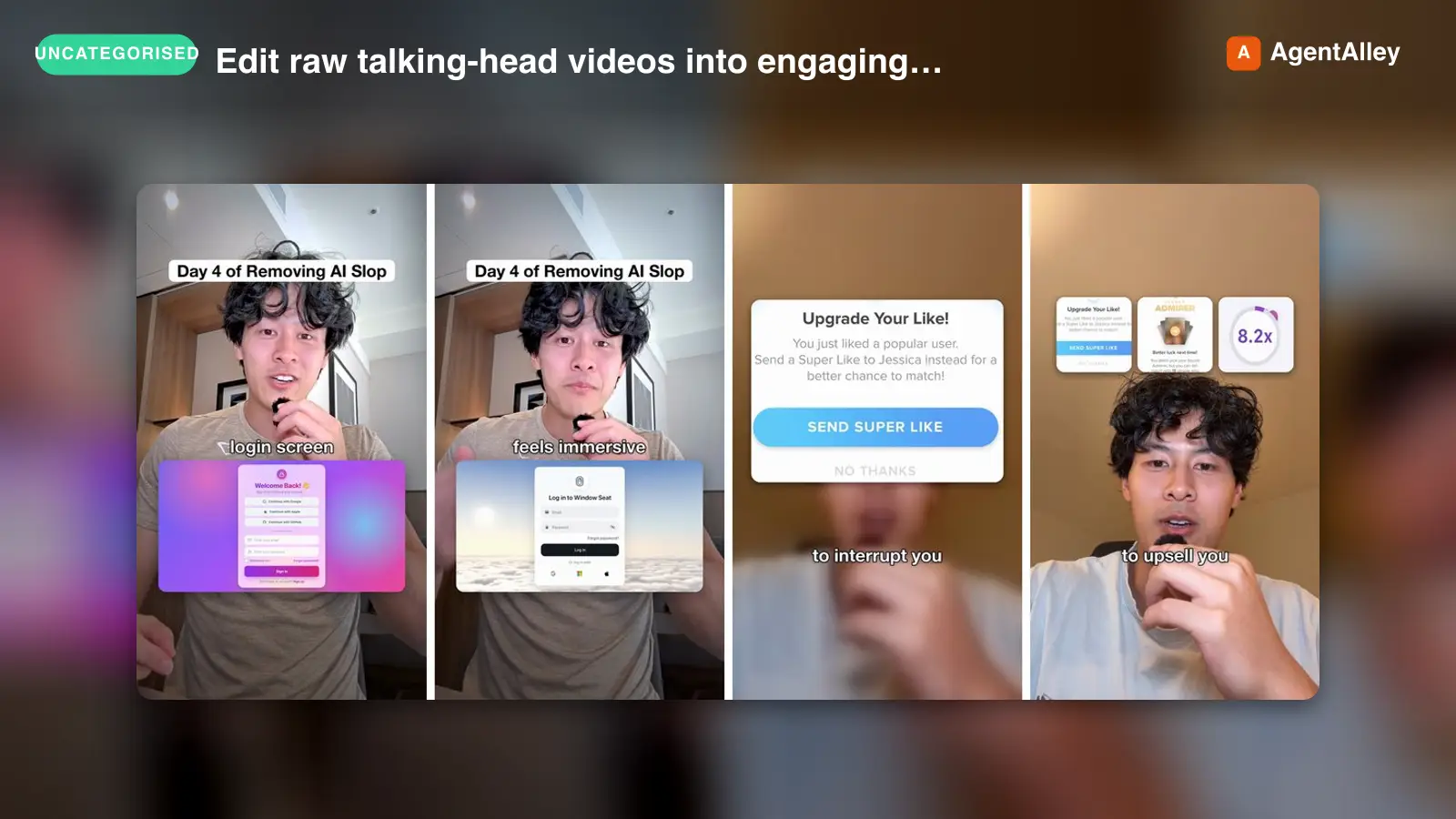 GoalLemonFace0309/charles-skills · by LemonFace0309Edit raw talking-head videos into engaging, organic-looking Instagram Reels / TikToks - cut dead space and stumbles, keep the last clean take, 2-3 word captions, retention-maxing image/video overlays (pop-culture stickers, cutouts, split screens, tweet screenshots), sound effects, a background track from the music folder, and a TikTok-title-style hook when asked. Covers news and education/entertainment videos. Use this whenever Charles shares a talking-head .MOV/.mp4 and asks to edit, cut, caption, add a hook, add overlays/b-roll/images/a split screen, add music or sound effects, "make it a reel", "minoify" it, or fix any of those in a video already edited this way - even if only one of those steps is asked for.★ 257 GitHub starsGoalLemonFace0309/charles-skills · by LemonFace0309Build the visual that teaches what I'm saying in a reel - the real thing doing what I describe, a before/after flip or a side-by-side, a mark that shows what changes (a guide, a hatched band, corner brackets, a before|after sweep), a definition tab above the demo, a coloured agent cursor that makes the change on my word or moves the part itself, the CSS or another short caption under it, red marks on a real screenshot - sized for the slot charles-claude-editing gives, timed to my words, and simple enough to read in the 1-5 s a phone viewer gets. Use whenever a video explains a term, a fix, a technique, a number or a mechanism (my list reels, "10 niche ___ hacks", Day N of Removing AI Slop, reverse-engineering explainers), when charles-claude-editing asks for an explainer asset at a size, or when I say a teaching visual is too busy, too fast, too small, stale, hard to read, not engaging, or that it's hard to see what changed.★ 257 GitHub stars
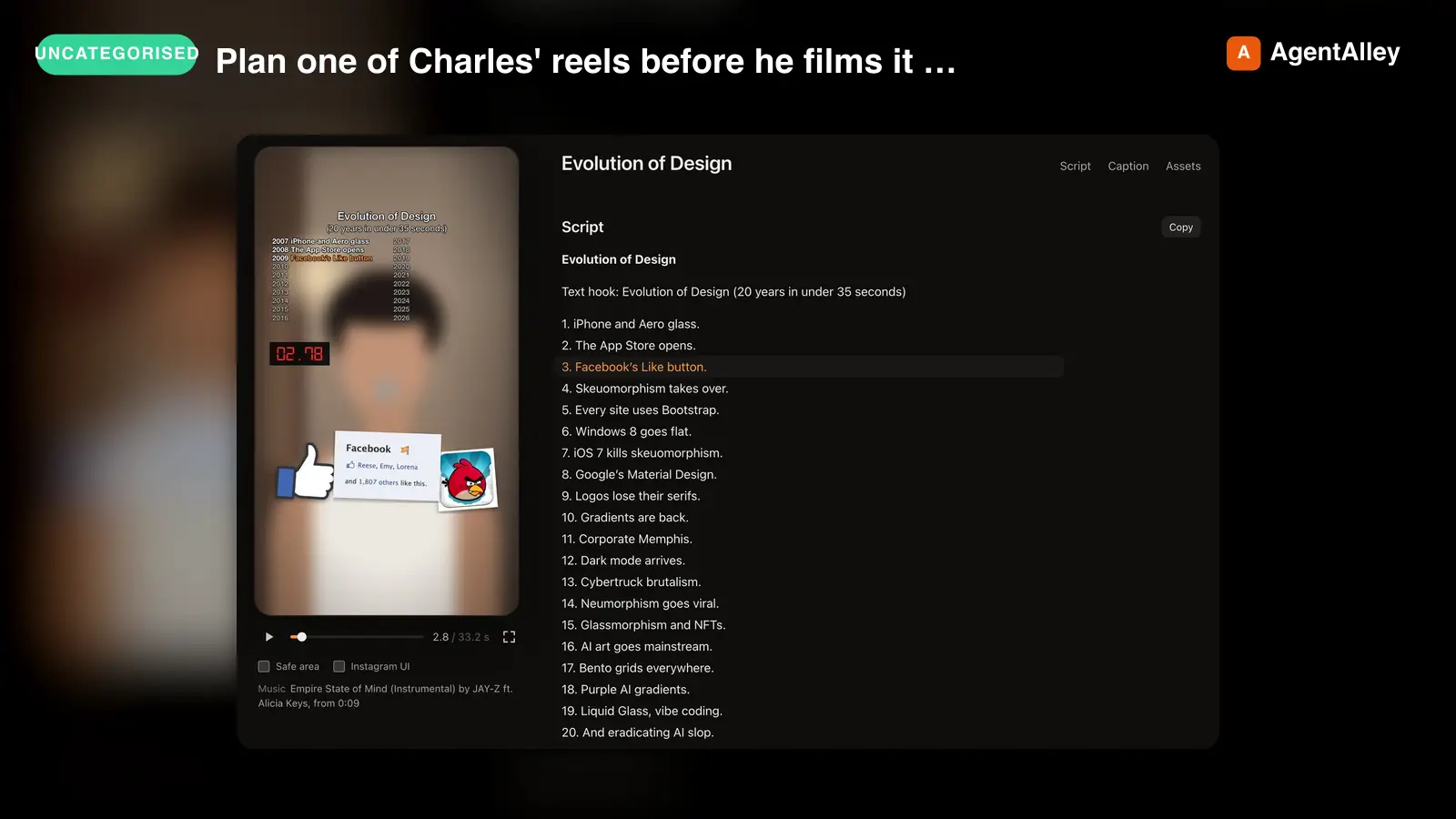 GoalLemonFace0309/charles-skills · by LemonFace0309Plan one of Charles' reels before he films it - from a video idea and a reference (his own reel, someone else's reel, or a post to credit), tear the reference down, write the script in his voice, source the real assets with their licences, write the caption with the credit, pick the music and its start point, write the plan file the edit reads, and publish a shareable plan page (an Artifact): the reel playing as a moving mockup over its music and a blurred stand-in for his footage, with full screen and Safe area and Instagram UI toggles, then the script, the caption options, the assets with their sources and the references the video came from. Use whenever Charles gives a video idea and a reference and wants the script, the assets, the caption, a mockup or a plan before filming ("make a video like this", "plan this reel", "script and assets for", "mock up this video", "do an evolution of ___ like this tweet"), and to update or republish a plan's page.★ 257 GitHub stars