Store screenshots — panorama skill
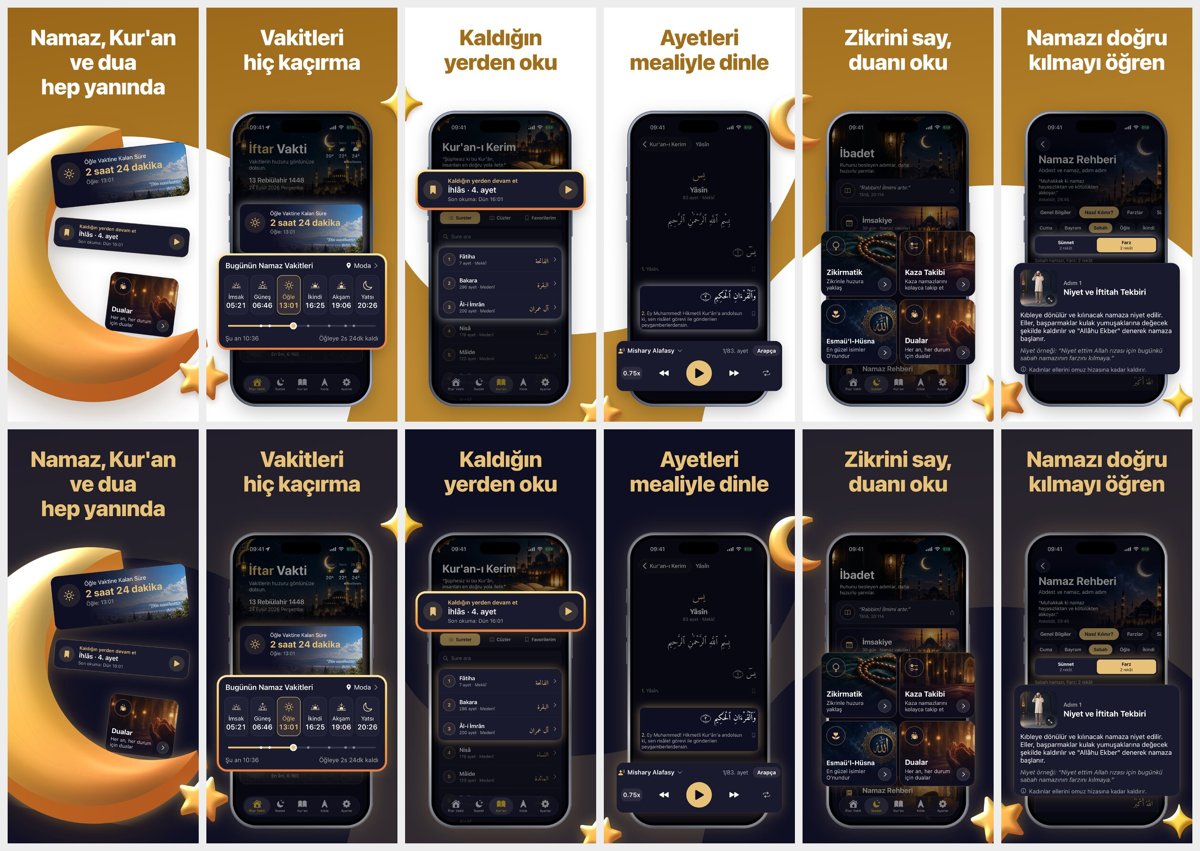
Illustration · not a resultFrom the zaferayan/store-screenshots-panorama-skill README — shows the whole collection, not only this skill.source ↗
Make finished App Store screenshot sets from raw screenshots — brand-colour gradient and white (or a dark-dominant dark theme) flowing as one panorama across the images, big centred heavy headlines, a device at a fixed spot with its screen dimmed while a cropped part pops out past it, and glossy puffy 3D objects from the app's own context (a crescent and stars for a prayer app, speech bubbles for a subtitle app) on the seams, with a phone-less hero where the app's symbol is a giant 3D object holding its own UI cards.
by zaferayan·MIT license·★ 18 Stars on the repo·GitHub ↗
npx degit zaferayan/store-screenshots-panorama-skill/skills/store-screenshots-panorama#main ~/.claude/skills/store-screenshots-panoramaChecked ·commit main
Files of Store screenshots — panorama
Show the full text163 lines
Store screenshots — panorama
Makes App Store sets from raw app screenshots that read as one surface. The layout was measured from a large
marketplace app's set; the 3D objects and the hero come from the app's own content. Details are in
references/style.md. Read that file end to end before the first set: the decisions the template doesn't make (colours,
curves, which part comes forward, which symbols become 3D, the Duo layout) come from there.
The user wants the result, not the process. Don't write plan, spec or measurement files, and don't stop for approval. Make the decisions yourself, produce the sets, check them, deliver. Ask only when an input is really missing and there is no sensible default — for example, ask for larger originals if the raw screenshots are narrower than 1206px.
Core rules
- The UI stays pixel-exact. Raw screenshots and crops of them are plain image layers. Don't redraw, regenerate with
AI, translate, or change any text on the screen. Cards are only cropped from the raw file with
data-crop. A store screenshot has to show the real app; an invented UI costs both trust and App Review. - Each device is shown with its own raw screenshots. On iPhone Duo the tab bar and status bar sit on the side, and
split views open on the inner display. Putting an iPhone screenshot in a Duo frame shows the app as something it
isn't; don't. If there are no Duo screenshots, make the iPhone sets and tell the user what to capture for Duo
(
style.md§10). - Dimming is a separate layer. The only thing applied to the screen is the
.phone.dimlayer; the pixels don't change. - Decoration comes from context. The 3D objects repeat the app's subject. Don't borrow campaign badges, ribbons, discount language, or random plus signs and hearts from shopping sets; they make every app look like a store ad.
- AI or 3D generation is only for objects and the hero symbol, never with a phone or UI in it.
- Unverified hardware is not drawn. The Duo frame has no camera, hinge or buttons; their positions are not verified.
- No other brands' logos or names.
- Superiority claims ("the best", "number 1") only with a source. Without one, write a benefit, not a claim.
- The status bar stays as it is in the raw screenshot.
Inputs and defaults
| Input | Default |
|---|---|
| iPhone raw screenshots | raw/ (1206×2622 or larger), shown in both themes. Or raw-light/ and raw-dark/: the app in light and in dark mode, same file names and sizes; each theme then shows its own (style.md §9). |
| Duo raw screenshots | raw-duo-outer/ (outer display) and raw-duo-inner/ (inner display), same order and file names; per appearance raw-duo-outer-light/, raw-duo-outer-dark/ and so on. Without them, no Duo sets are made. |
| Output folder | out/ |
| Device sets | iPhone 6.9" (1320×2868) and 6.3" (1206×2622): both are needed (style.md §4). With Duo screenshots, Duo outer (1398×2034) and inner (2007×2853). |
| Language | The raw screenshots' language. Headlines are written per language; crops are measured from that language's screenshots. |
| Theme | both: light and dark. If the user names one, make only that. |
| Colours | Derived from the raw screenshots (style.md §1, §9) |
| Messages and 3D symbols | You derive them from the raw screenshots (style.md §6, §8) |
Output: <out>/<lang>/<theme>/<device>/01.png … NN.png. Theme is light or dark; device is iphone-6.9,
iphone-6.3, duo-outer or duo-inner. The source HTML files and previews stay in <out>/.src/; don't delete them,
so the user can change the copy and render again. If the output folder already holds another set's files, don't touch
them; if anything would clash, pick a new subfolder and say so.
Files
references/style.md: colour roles, background, headline, devices, highlight techniques, 3D objects from context, hero, copy tone, dark theme, iPhone Duo.assets/panorama.html: the template. Device frames (iPhone, Duo outer, Duo inner), headline, crops (pop-out card, spotlight, frame, chip), dimming, puffy 3D objects (.obj: crescent, star, sparkle, bubble, play, note, heart, orb, or your own path), the hero object and per-theme raw folders (RAW) are ready; the layout measurements are fixed. Copy it and edit only the palette, the background shapes, the images andRAW.scripts/render.mjs: slices the panorama into PNGs.node <skill>/scripts/render.mjs <panorama.html> --out <dir> --theme light|dark --device iphone|duo-outer|duo-inner [--size WxH] [--preview <png>] [--only 2,5] [--no-slices]. Each device's default size is one App Store Connect accepts; for iPhone the default is 6.9", pass--size 1206x2622for 6.3". Thewarningsfield of its JSON output lists size, ratio and alpha problems, page errors, and contrast and crop warnings (WARN:).scripts/grid.mjs: draws a labelled pixel grid and trial boxes over a raw screenshot, to measure crops.node <skill>/scripts/grid.mjs raw/02.png --out <png> [--box x,y,w,h]. A crop guessed by eye drifts once it is scaled, so measure every crop on the grid.
Needs Node 18+ and Chrome (or Chromium, Edge, Brave); set CHROME_PATH if it isn't found. The headline font is
SF Pro Display on macOS and Inter (Google Fonts) elsewhere.
Workflow
- Inspect the raw screenshots. Check each file's pixel size, what each screen is for, and the text on it. Note the
app's subject and symbols: icon, tab icons, illustrations on the screens. The 3D objects and the hero symbol are
picked from these.
Pick the accent (A): the colour of buttons, the selected tab or the logo. Derive the palette from A as in
style.md§1. To sample colours, usemagick <png> -format "%[hex:p{x,y}]" info:or the grid image. Check whether the Duo folders exist and have the right sizes (style.md§10). Check which raw folders exist and pick each theme's folder (style.md§9). With light and dark folders, check that they hold the same file names at the same pixel sizes and show the same state (content, scroll position, time). - Plan the set in your head; don't write it down. Order: the hero, then the screens in order of value. For each image, decide: the headline, the colour of the headline zone (A or the second background, in groups of 2–3), the main highlight technique and the part to crop. Whatever part proves the screen's point is the main highlight. Then spread the 3D objects over the seams. The Duo sets tell the same story: same order, headlines, palette and symbols.
- Measure the crops. Run
grid.mjsfor each part, look at the image, try the box with--box, and look again. The box should hug the element with a little air, not cut text, and not take in neighbouring UI. Measure the card's corner radius too (data-r). Measure the Duo crops separately, from their own raw files. Measure on the light screenshots. With a dark folder, try the same boxes on the dark ones too (grid.mjs raw-dark/02.png --box …): the crops are shared, so they must hug the same element in both. - Build the iPhone panorama. Copy
assets/panorama.htmlto<out>/.src/panorama.html:- Change the palette in
:root. - Set
RAWin the script:{ light: 'raw-light', dark: 'raw-dark' }with two folders,{ light: 'raw', dark: 'raw' }with one. Write every path with the light folder; the dark render swaps it. - Write a
<section class="shot">for each image. Givedata-rawfor the crops; paths are relative to the.srcfolder the HTML is in (../../raw/…when the output isout/,../../../raw/…forout/x/). The crop and colour values in the template are only examples; measure all of them for this app. - Draw the background shapes in
svg.bg, in panorama coordinates: decide the colour sequence of the headline zones first, then route the shapes to match it. - Put the 3D objects on the seams as direct children of
.pano. Put the hero object in the first section. - Delete the example sections and objects.
- Change the palette in
- Build the Duo panoramas (if there are Duo screenshots). Copy the iPhone panorama to
.src/panorama-duo-outer.htmland.src/panorama-duo-inner.htmland adapt them as instyle.md§10: the same headlines, palette and symbols; new crops; cards, objects and background shapes laid out again for the design height;RAWset to the Duo folders (e.g.{ light: 'raw-duo-outer-light', dark: 'raw-duo-outer-dark' }). - Render. One run per theme and device (for dark,
--theme darkanddark):
Fix every warning; for a contrast warning, adjust the palette. Each image is its own Chrome run (~10 s). While fixing, render only the changed images withR=<skill>/scripts/render.mjs; S=<out>/.src; O=<out>/<lang>/light node $R $S/panorama.html --theme light --device iphone --out $O/iphone-6.9 --preview $S/preview-light.png node $R $S/panorama.html --theme light --device iphone --out $O/iphone-6.3 --size 1206x2622 node $R $S/panorama-duo-outer.html --theme light --device duo-outer --out $O/duo-outer --preview $S/preview-light-duo-outer.png node $R $S/panorama-duo-inner.html --theme light --device duo-inner --out $O/duo-inner --preview $S/preview-light-duo-inner.png--only 2,5, or only the preview with--no-slices --preview …; render everything from scratch before delivery. - Look and fix. Look at the previews first, then at each image, and go through the checklist. Fix and render again. Don't deliver an image you haven't looked at: a shifted crop, a curve behind a headline or an object covering a card only shows in the picture. The 6.3" set is the 6.9" set scaled down; looking at one is enough, but check the file count and size of both.
- Deliver. Briefly give the folders, the device sets, the number of images, each image's headline and which raw
folder each theme used. If a dark screenshot showed a different state, name the screens to retake. If no Duo
sets were made, say why and what needs to be captured. Mention that changing the copy only takes editing the HTML
in
.src/and running the commands from step 6.
If a reference set is given
If the user gives another app's store screenshots as a reference, replace the layout values in style.md with
measurements of that set:
- Look at the images one by one, then side by side, and measure them at full resolution: background and continuity, headline, device, highlight techniques, decoration, special images, rhythm and tone.
- Don't add anything the reference doesn't have.
- If the reference's aspect ratio differs from the output's, carry measurements over relative to the width. Pin elements at the top to the top and elements cut off at the bottom to the bottom.
- Take only style and layout from the reference. Never copy its logo, brand name, mascot, photos or text. Translate its decoration into the app's own context too.
- Don't write files for the measurements either.
Checklist
- Are
warningsempty for every theme and device? Is every file the right size, without an alpha channel? Does every device set have the same number of images? - In the previews, do background shapes and seam objects continue across every seam?
- Is there a curve in the headline zone (y 0–650)? Do headline colours match their background and change in groups of 2–3?
- Is the headline the same size in every image? Does any headline other than the hero's run past 2 lines?
- Is the device in the same place in every image? Is any important part of the UI under the rounded corners or the Dynamic Island?
- Does each crop show exactly what it should? Any cut-off text, or slivers of neighbouring UI at its edges? Is the card sharp?
- Does a pop-out card's edge cut a line of text in the dimmed screen below it in half? Does text show through the gaps of a card grid?
- If the hero object spills into image 2, does it touch a card or text there? Do the hero's cards tuck behind the rim, or do they look like they are dissolving?
- Do the 3D objects come from the app's subject? Do they cover the headline, a card or important UI text? At most 2 objects per image?
- Is the symbol recognisable on the hero? Do the cards sit inside it or in front of it?
- Is the dark theme dark-dominant (no large flat A area; A only in headlines, objects and frames)? Do the device rim, cards and objects stand out from the background? Is the layout the same in both themes?
- With dark-mode screenshots: does the dark set show the dark UI in the device and in every crop, and the light set the light UI? Does each shared crop show the same element in both?
- In the Duo sets, does every screen come from a Duo raw screenshot? Do the cards, objects and background shapes fit the short Duo canvas; is the bottom of the device or any card cut off? Does the side tab and status bar survive the crops correctly?
- Are language-specific characters right (e.g. Turkish İ, ı, ş, ğ)? (
<html lang>must match the language.)
| 1 | |
| 2 | name store-screenshots-panorama |
| 3 | description Make finished App Store screenshot sets from raw screenshots — brand-colour gradient and white (or a dark-dominant dark theme) flowing as one panorama across the images, big centred heavy headlines, a device at a fixed spot with its screen dimmed while a cropped part pops out past it, and glossy puffy 3D objects from the app's own context (a crescent and stars for a prayer app, speech bubbles for a subtitle app) on the seams, with a phone-less hero where the app's symbol is a giant 3D object holding its own UI cards. Covers every required iPhone size (6.9" and 6.3") and the iPhone Duo outer and inner displays, in light and dark (from light- and dark-mode screenshots if given), rendered with an HTML template and headless Chrome; the UI stays pixel-exact. Use when the user asks for App Store / store screenshots, iPhone Duo screenshots, or a dark-theme screenshot set from raw screenshot folders, or names this skill. Produces the sets directly, with no plan files or approval stops. |
| 4 | license MIT |
| 5 | |
| 6 | |
| 7 | # Store screenshots — panorama |
| 8 | |
| 9 | Makes App Store sets from raw app screenshots that read as one surface. The layout was measured from a large |
| 10 | marketplace app's set; the 3D objects and the hero come from the app's own content. Details are in |
| 11 | `references/style.md`. Read that file end to end before the first set: the decisions the template doesn't make (colours, |
| 12 | curves, which part comes forward, which symbols become 3D, the Duo layout) come from there. |
| 13 | |
| 14 | The user wants the result, not the process. Don't write plan, spec or measurement files, and don't stop for approval. |
| 15 | Make the decisions yourself, produce the sets, check them, deliver. Ask only when an input is really missing and there |
| 16 | is no sensible default — for example, ask for larger originals if the raw screenshots are narrower than 1206px. |
| 17 | |
| 18 | ## Core rules |
| 19 | **The UI stays pixel-exact.** Raw screenshots and crops of them are plain image layers. Don't redraw, regenerate with |
| 20 | AI, translate, or change any text on the screen. Cards are only cropped from the raw file with `data-crop`. A store |
| 21 | screenshot has to show the real app; an invented UI costs both trust and App Review. |
| 22 | **Each device is shown with its own raw screenshots.** On iPhone Duo the tab bar and status bar sit on the side, and |
| 23 | split views open on the inner display. Putting an iPhone screenshot in a Duo frame shows the app as something it |
| 24 | isn't; don't. If there are no Duo screenshots, make the iPhone sets and tell the user what to capture for Duo |
| 25 | (`style.md` §10). |
| 26 | **Dimming is a separate layer.** The only thing applied to the screen is the `.phone.dim` layer; the pixels don't |
| 27 | change. |
| 28 | **Decoration comes from context.** The 3D objects repeat the app's subject. Don't borrow campaign badges, ribbons, |
| 29 | discount language, or random plus signs and hearts from shopping sets; they make every app look like a store ad. |
| 30 | **AI or 3D generation** is only for objects and the hero symbol, never with a phone or UI in it. |
| 31 | **Unverified hardware is not drawn.** The Duo frame has no camera, hinge or buttons; their positions are not verified. |
| 32 | **No other brands'** logos or names. |
| 33 | **Superiority claims** ("the best", "number 1") only with a source. Without one, write a benefit, not a claim. |
| 34 | **The status bar** stays as it is in the raw screenshot. |
| 35 | |
| 36 | ## Inputs and defaults |
| 37 | | Input | Default | |
| 38 | |---|---| |
| 39 | | iPhone raw screenshots | `raw/` (1206×2622 or larger), shown in both themes. Or `raw-light/` and `raw-dark/`: the app in light and in dark mode, same file names and sizes; each theme then shows its own (`style.md` §9). | |
| 40 | | Duo raw screenshots | `raw-duo-outer/` (outer display) and `raw-duo-inner/` (inner display), same order and file names; per appearance `raw-duo-outer-light/`, `raw-duo-outer-dark/` and so on. Without them, no Duo sets are made. | |
| 41 | | Output folder | `out/` | |
| 42 | | Device sets | iPhone 6.9" (1320×2868) and 6.3" (1206×2622): both are needed (`style.md` §4). With Duo screenshots, Duo outer (1398×2034) and inner (2007×2853). | |
| 43 | | Language | The raw screenshots' language. Headlines are written per language; crops are measured from that language's screenshots. | |
| 44 | | Theme | `both`: light and dark. If the user names one, make only that. | |
| 45 | | Colours | Derived from the raw screenshots (`style.md` §1, §9) | |
| 46 | | Messages and 3D symbols | You derive them from the raw screenshots (`style.md` §6, §8) | |
| 47 | |
| 48 | Output: `<out>/<lang>/<theme>/<device>/01.png … NN.png`. Theme is `light` or `dark`; device is `iphone-6.9`, |
| 49 | `iphone-6.3`, `duo-outer` or `duo-inner`. The source HTML files and previews stay in `<out>/.src/`; don't delete them, |
| 50 | so the user can change the copy and render again. If the output folder already holds another set's files, don't touch |
| 51 | them; if anything would clash, pick a new subfolder and say so. |
| 52 | |
| 53 | ## Files |
| 54 | `references/style.md`: colour roles, background, headline, devices, highlight techniques, 3D objects from context, |
| 55 | hero, copy tone, dark theme, iPhone Duo. |
| 56 | `assets/panorama.html`: the template. Device frames (iPhone, Duo outer, Duo inner), headline, crops (pop-out card, |
| 57 | spotlight, frame, chip), dimming, puffy 3D objects (`.obj`: crescent, star, sparkle, bubble, play, note, heart, orb, or |
| 58 | your own path), the hero object and per-theme raw folders (`RAW`) are ready; the layout measurements are fixed. Copy |
| 59 | it and edit only the palette, the background shapes, the images and `RAW`. |
| 60 | `scripts/render.mjs`: slices the panorama into PNGs. |
| 61 | `node <skill>/scripts/render.mjs <panorama.html> --out <dir> --theme light|dark --device iphone|duo-outer|duo-inner [--size WxH] [--preview <png>] [--only 2,5] [--no-slices]`. |
| 62 | Each device's default size is one App Store Connect accepts; for iPhone the default is 6.9", pass |
| 63 | `--size 1206x2622` for 6.3". The `warnings` field of its JSON output lists size, ratio and alpha problems, page |
| 64 | errors, and contrast and crop warnings (`WARN:`). |
| 65 | `scripts/grid.mjs`: draws a labelled pixel grid and trial boxes over a raw screenshot, to measure crops. |
| 66 | `node <skill>/scripts/grid.mjs raw/02.png --out <png> [--box x,y,w,h]`. |
| 67 | A crop guessed by eye drifts once it is scaled, so measure every crop on the grid. |
| 68 | |
| 69 | Needs Node 18+ and Chrome (or Chromium, Edge, Brave); set `CHROME_PATH` if it isn't found. The headline font is |
| 70 | SF Pro Display on macOS and Inter (Google Fonts) elsewhere. |
| 71 | |
| 72 | ## Workflow |
| 73 | **Inspect the raw screenshots.** Check each file's pixel size, what each screen is for, and the text on it. Note the |
| 74 | app's subject and symbols: icon, tab icons, illustrations on the screens. The 3D objects and the hero symbol are |
| 75 | picked from these. |
| 76 | Pick the accent (A): the colour of buttons, the selected tab or the logo. Derive the palette from A as in |
| 77 | `style.md` §1. To sample colours, use `magick <png> -format "%[hex:p{x,y}]" info:` or the grid image. |
| 78 | Check whether the Duo folders exist and have the right sizes (`style.md` §10). |
| 79 | Check which raw folders exist and pick each theme's folder (`style.md` §9). With light and dark folders, check that |
| 80 | they hold the same file names at the same pixel sizes and show the same state (content, scroll position, time). |
| 81 | **Plan the set in your head; don't write it down.** Order: the hero, then the screens in order of value. For each |
| 82 | image, decide: the headline, the colour of the headline zone (A or the second background, in groups of 2–3), the |
| 83 | main highlight technique and the part to crop. Whatever part proves the screen's point is the main highlight. Then |
| 84 | spread the 3D objects over the seams. The Duo sets tell the same story: same order, headlines, palette and symbols. |
| 85 | **Measure the crops.** Run `grid.mjs` for each part, look at the image, try the box with `--box`, and look again. |
| 86 | The box should hug the element with a little air, not cut text, and not take in neighbouring UI. Measure the card's |
| 87 | corner radius too (`data-r`). Measure the Duo crops separately, from their own raw files. |
| 88 | Measure on the light screenshots. With a dark folder, try the same boxes on the dark ones too |
| 89 | (`grid.mjs raw-dark/02.png --box …`): the crops are shared, so they must hug the same element in both. |
| 90 | **Build the iPhone panorama.** Copy `assets/panorama.html` to `<out>/.src/panorama.html`: |
| 91 | Change the palette in `:root`. |
| 92 | Set `RAW` in the script: `{ light: 'raw-light', dark: 'raw-dark' }` with two folders, `{ light: 'raw', dark: 'raw' }` |
| 93 | with one. Write every path with the light folder; the dark render swaps it. |
| 94 | Write a `<section class="shot">` for each image. Give `data-raw` for the crops; paths are relative to the `.src` |
| 95 | folder the HTML is in (`../../raw/…` when the output is `out/`, `../../../raw/…` for `out/x/`). |
| 96 | The crop and colour values in the template are only examples; measure all of them for this app. |
| 97 | Draw the background shapes in `svg.bg`, in panorama coordinates: decide the colour sequence of the headline zones |
| 98 | first, then route the shapes to match it. |
| 99 | Put the 3D objects on the seams as direct children of `.pano`. Put the hero object in the first section. |
| 100 | Delete the example sections and objects. |
| 101 | **Build the Duo panoramas** (if there are Duo screenshots). Copy the iPhone panorama to |
| 102 | `.src/panorama-duo-outer.html` and `.src/panorama-duo-inner.html` and adapt them as in `style.md` §10: the same |
| 103 | headlines, palette and symbols; new crops; cards, objects and background shapes laid out again for the design height; |
| 104 | `RAW` set to the Duo folders (e.g. `{ light: 'raw-duo-outer-light', dark: 'raw-duo-outer-dark' }`). |
| 105 | **Render.** One run per theme and device (for dark, `--theme dark` and `dark`): |
| 106 | |
| 107 | R=<skill>/scripts/render.mjs; S=<out>/.src; O=<out>/<lang>/light |
| 108 | node $R $S/panorama.html --theme light --device iphone --out $O/iphone-6.9 --preview $S/preview-light.png |
| 109 | node $R $S/panorama.html --theme light --device iphone --out $O/iphone-6.3 --size 1206x2622 |
| 110 | node $R $S/panorama-duo-outer.html --theme light --device duo-outer --out $O/duo-outer --preview $S/preview-light-duo-outer.png |
| 111 | node $R $S/panorama-duo-inner.html --theme light --device duo-inner --out $O/duo-inner --preview $S/preview-light-duo-inner.png |
| 112 | |
| 113 | Fix every warning; for a contrast warning, adjust the palette. Each image is its own Chrome run (~10 s). While |
| 114 | fixing, render only the changed images with `--only 2,5`, or only the preview with `--no-slices --preview …`; |
| 115 | render everything from scratch before delivery. |
| 116 | **Look and fix.** Look at the previews first, then at each image, and go through the checklist. Fix and render |
| 117 | again. Don't deliver an image you haven't looked at: a shifted crop, a curve behind a headline or an object covering |
| 118 | a card only shows in the picture. The 6.3" set is the 6.9" set scaled down; looking at one is enough, but check the |
| 119 | file count and size of both. |
| 120 | **Deliver.** Briefly give the folders, the device sets, the number of images, each image's headline and which raw |
| 121 | folder each theme used. If a dark screenshot showed a different state, name the screens to retake. If no Duo |
| 122 | sets were made, say why and what needs to be captured. Mention that changing the copy only takes editing the HTML |
| 123 | in `.src/` and running the commands from step 6. |
| 124 | |
| 125 | ## If a reference set is given |
| 126 | If the user gives another app's store screenshots as a reference, replace the layout values in `style.md` with |
| 127 | measurements of that set: |
| 128 | Look at the images one by one, then side by side, and measure them at full resolution: background and continuity, |
| 129 | headline, device, highlight techniques, decoration, special images, rhythm and tone. |
| 130 | Don't add anything the reference doesn't have. |
| 131 | If the reference's aspect ratio differs from the output's, carry measurements over relative to the width. Pin |
| 132 | elements at the top to the top and elements cut off at the bottom to the bottom. |
| 133 | Take only style and layout from the reference. Never copy its logo, brand name, mascot, photos or text. Translate |
| 134 | its decoration into the app's own context too. |
| 135 | Don't write files for the measurements either. |
| 136 | |
| 137 | ## Checklist |
| 138 | Are `warnings` empty for every theme and device? Is every file the right size, without an alpha channel? Does every |
| 139 | device set have the same number of images? |
| 140 | In the previews, do background shapes and seam objects continue across every seam? |
| 141 | Is there a curve in the headline zone (y 0–650)? Do headline colours match their background and change in groups of |
| 142 | 2–3? |
| 143 | Is the headline the same size in every image? Does any headline other than the hero's run past 2 lines? |
| 144 | Is the device in the same place in every image? Is any important part of the UI under the rounded corners or the |
| 145 | Dynamic Island? |
| 146 | Does each crop show exactly what it should? Any cut-off text, or slivers of neighbouring UI at its edges? Is the card |
| 147 | sharp? |
| 148 | Does a pop-out card's edge cut a line of text in the dimmed screen below it in half? Does text show through the gaps |
| 149 | of a card grid? |
| 150 | If the hero object spills into image 2, does it touch a card or text there? Do the hero's cards tuck behind the rim, |
| 151 | or do they look like they are dissolving? |
| 152 | Do the 3D objects come from the app's subject? Do they cover the headline, a card or important UI text? At most 2 |
| 153 | objects per image? |
| 154 | Is the symbol recognisable on the hero? Do the cards sit inside it or in front of it? |
| 155 | Is the dark theme dark-dominant (no large flat A area; A only in headlines, objects and frames)? Do the device rim, |
| 156 | cards and objects stand out from the background? Is the layout the same in both themes? |
| 157 | With dark-mode screenshots: does the dark set show the dark UI in the device and in every crop, and the light set the |
| 158 | light UI? Does each shared crop show the same element in both? |
| 159 | In the Duo sets, does every screen come from a Duo raw screenshot? Do the cards, objects and background shapes fit |
| 160 | the short Duo canvas; is the bottom of the device or any card cut off? Does the side tab and status bar survive the |
| 161 | crops correctly? |
| 162 | Are language-specific characters right (e.g. Turkish İ, ı, ş, ğ)? (`<html lang>` must match the language.) |
| 163 |
Discussion
Alternatives
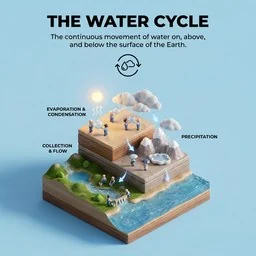 “How It Works” Educational DioramasCreate a clear, 45° top-down isometric miniature 3D educational diorama explaining [PROCESS / CONCEPT].3D games3D game development principles. Rendering, shaders, physics, cameras.3D web experienceExpert in building 3D experiences for the web - Three.js, React Three Fiber, Spline, WebGL, and interactive 3D scenes. Covers product configurators, 3D portfolios, immersive websites, and bringing depth to web experiences. Use when: 3D website, three.js, WebGL, react three fiber, 3D experience.Pascal 3DConnect to Pascal and use its MCP tools to create, inspect, edit, validate, save, or hand off editable 3D building scenes. Use this skill whenever a user asks an agent to work in Pascal, make a room or building model, inspect a Pascal project, perform spatial edits, connect Pascal MCP, or return a verified Pascal editor link. It also governs safe local, existing-account, and explicitly authorized autonomous setup.
Browse more free Claude skills or everything in Content creator.