Edit talking-head, tutorial
Video edit

Edit talking-head, tutorial, explainer and Short videos with Claude Code. Word-accurate cuts from raw takes, motion graphics built as HTML + GSAP (optionally three.js) pages locked to the spoken words, sound effects synthesized in…
---
name: video-edit
description: Edit talking-head, tutorial, explainer and Short videos with Claude Code. Word-accurate cuts from raw takes, motion graphics built as HTML + GSAP (optionally three.js) pages locked to the spoken words, sound effects synthesized in Python, honest loudness handling and frame-exact rendering. On first use it asks for the creator's name, colours, logo and preferences and remembers them for every later video. Use when the user wants to cut raw footage, remove retakes and pauses, add animated cards or chapters, add or design sound effects, fix loudness, or render a final edit.
---

# Video edit

This skill turns raw footage into a finished edit together with a human editor. Read this whole file before touching a project. Then read `reference/audio.md` before any cut or level change, and `reference/style.md` before any graphics.

## Read first: what you can and cannot do

- **You cannot hear.** You never listen to audio. Everything you know about sound comes from numbers: Whisper word timestamps, a 10 ms energy envelope, loudness meters, spectrograms. Say this to the user plainly and never claim that something "sounds good".
- **The human ear is the final check.** Whether a cut clips a word, whether an effect is too loud, whether a voice sounds muffled: the user decides. Your job is to make every problem measurable and every fix fast.
- **The first pass is never the final edit.** Work stage by stage, hand over a preview after each stage, and expect corrections. Most good results come from short review loops, not from one long autonomous run.
- **Sync by construction, not by ear.** Animations and sound effects are triggered from the same timeline clock, and that clock is derived from the measured word times. That is how effects land on the picture without you hearing them.
- **Be creative, on purpose.** Every visual should help the viewer understand, and nothing should look like a template. See "Creative direction" below.

## Paths
Overview
This skill turns raw footage into a finished edit together with a human editor. Read this whole file before touching a project. Then read reference/audio.md before any cut or level change, and reference/style.md before any graphics.
Manual install (npx, ZIP)
npx skills add YildizDikme/claude-video-edit -g -a claude-codeConnects with Agent Alley MCP · agentalley.io/mcp
Files included
SKILL.md15.9 KB
Read SKILL.md here
YildizDikme/
Show the full text199 lines
Video edit
This skill turns raw footage into a finished edit together with a human editor. Read this whole file before touching a project. Then read reference/audio.md before any cut or level change, and reference/style.md before any graphics.
Read first: what you can and cannot do
- You cannot hear. You never listen to audio. Everything you know about sound comes from numbers: Whisper word timestamps, a 10 ms energy envelope, loudness meters, spectrograms. Say this to the user plainly and never claim that something "sounds good".
- The human ear is the final check. Whether a cut clips a word, whether an effect is too loud, whether a voice sounds muffled: the user decides. Your job is to make every problem measurable and every fix fast.
- The first pass is never the final edit. Work stage by stage, hand over a preview after each stage, and expect corrections. Most good results come from short review loops, not from one long autonomous run.
- Sync by construction, not by ear. Animations and sound effects are triggered from the same timeline clock, and that clock is derived from the measured word times. That is how effects land on the picture without you hearing them.
- Be creative, on purpose. Every visual should help the viewer understand, and nothing should look like a template. See "Creative direction" below.
Paths
Commands run from the user's project folder. $SKILL is the folder this file is in (for example ~/.claude/skills/video-edit); set it once in the shell: SKILL=~/.claude/skills/video-edit.
First run: get to know the creator
Look for the creator profile at ~/.claude/video-edit/profile.md. If it does not exist, this is the first run: introduce yourself in one short message and ask these together. The user may skip any of them.
- Name on screen: the name and a one-line role for the lower third and the end screen.
- Channel: channel name, platforms (YouTube, Instagram, TikTok…), the language they speak in the videos, and whether they want a second language on screen.
- Colours: the colours they like (one accent and one or two support colours) and colours they never want. A thumbnail or a brand page works as an answer too.
- Logo: a logo file (SVG, or PNG with transparency), and where it may appear: lower third, end screen, or nowhere.
- Font: a brand font, or the default.
- Usual videos: educational, talk, tutorial, Shorts, and how calm or energetic they like the motion.
- Sound: sound effects never, only when a sound is the thing being shown, or also quietly on transitions. Background music yes or no.
- Never: things they dislike (glows, italics, emoji, fast zooms, a colour…).
Save the answers to ~/.claude/video-edit/profile.md (format in reference/profile.md) and copy the logo into ~/.claude/video-edit/brand/. Show the saved profile in a few lines and ask whether it is right.
From then on:
- Read the profile at the start of every project and apply it without asking again: the accent and support colours go into the scene's CSS variables, the name and logo into the lower third and the end screen, and the sound and motion defaults into the plan.
- Remember lasting rules. When the user gives a rule for all videos ("no sound on transitions", "always deliver 4K and 480p", "my accent is now green"), add it to the profile's "Lasting rules" with the date right away, and say that you did. A rule for one video goes to that project's
work/NOTES.mdinstead. When unsure which, ask. - The profile is personal. It lives in the user's home folder. Never copy it into a project that is shared or into a repository.
Every project: ask
Ask these once per project and keep the answers in work/NOTES.md. Skip what the profile already answers.
- Video type: educational / explainer, talk (talking head), tutorial with screen recording, or Short (vertical, under 60 s). This sets the motion level (see the table below).
- Raw material: which clips, in which order, is there a script or outline to follow?
- On-screen language(s): from the profile, unless this video is different.
- Sound effects: from the profile. Without a profile, the default is no effects on transitions, effects only where a sound is the subject.
- Deliverables: resolution (1080p / 1440p / 4K), captions and their languages, YouTube chapter list, deadline.
Video types
| Type | Motion | Sound effects | Cuts |
|---|---|---|---|
| Educational / explainer | Calm and serious. Clean diagrams, readable panels, slow camera moves. three.js only when it explains something (a 3D model of the thing being taught). | None, or very quiet transitions | Natural pace |
| Talk (talking head) | Few cards that stay on screen long, placed in empty areas, never over the face. | Quiet chapter transitions only | Natural or tight |
| Tutorial / screen recording | Zoom into the part of the screen being discussed, highlight boxes, step cards. | Optional soft clicks on highlights | Natural |
| Short | More energetic: faster reveals, bigger type, a hook in the first 2 s, captions on. Still eased, never jittery. | Allowed, still under the voice | Tight |
If the user does not say, infer the type from the transcript and confirm it. Do not over-animate an educational video, and do not make a Short feel slow.
Creative direction
Be creative, on purpose. A good edit explains the topic better than the speaker alone could, and it never looks like the same card pasted again and again.
- Explain, don't decorate. For every beat ask: what would make this click for someone who has never heard of it? Draw the abstract idea (for "the model needs a lot of data", show many different faces being scanned and labelled). When a tool, language or term is named that many viewers may not know, show a small box: its name, what kind of thing it is (language, tool, model, concept) and one plain sentence.
- Use real material. The video's own measured data (the waveform of the sentence being spoken, the real loudness numbers), real screenshots and screen recordings the user has, the real before and after. Real proof beats an invented example every time. Ask the user for screenshots when a beat needs one.
- Show mistakes honestly. When the video talks about something that went wrong, show the actual screenshot, the note that was given and the fixed version side by side.
- Vary the form. Alternate between a keyword card, a list that grows as each item is said, a counter, a full-screen board for a dense idea, a zoom into the screen, a framed insert of another video. Pick the form that fits the content, not the one used last.
- One idea at a time, calm motion. Creative does not mean busy. Keep the motion level of the video type and the profile.
- Pitch the big pieces first. Before building a full-screen board, a montage or a 3D scene, describe it in two lines and let the user say yes.
The workflow
Work in this order. After each numbered stage, stop and hand over a preview URL or file plus a short list of what you decided and why.
0. Project layout
project/
  src/            raw clips (or symlinks to them)
  work/           everything generated: wav, transcripts, program.json, proxy.mp4, sfx/, NOTES.md, backups
  scene/          the motion-graphics page (copied from this skill's template/)
  out/            renders and final files
Keep the project outside cloud-synced folders (iCloud Desktop, Dropbox) if possible. Synced files can be evicted from disk mid-render and reads then hang.
1. Transcribe
python3 $SKILL/scripts/transcribe.py --project . src/*.mov --lang en
This splits each clip at pauses, transcribes each short chunk separately (padded with silence), and writes work/transcripts/<clip>.json + .txt with numbered utterances and word times. Transcribing whole files hides retakes: Whisper merges repeated sentences and drops repeated words. See reference/audio.md.
Then read the .txt files yourself. Mark retakes, false starts, half sentences and filler. Speakers often repeat a sentence two or three times; keep the last fluent take unless the user says otherwise.
2. Rough cut
Write work/edl.json (format in reference/edl.md): the utterances to keep, in the script's order, with chapter markers. Then:
python3 $SKILL/scripts/cuts.py --project .          # edl.json -> work/program.json (cut points snapped to real word edges)
python3 $SKILL/scripts/build.py --project . audio video   # -> work/prog.wav + work/proxy.mp4 (1080p preview)
python3 $SKILL/scripts/verify.py --project .        # re-transcribes every join, flags clipped words and leftover repeats
Fix what verify.py flags, rebuild, and only then hand over. Tell the user the new length and how many cuts were made.
3. Review loop
- The user gives timestamps. Map them by content, not by clock. Their tab may show an older build. Quote the sentence you think they mean and confirm when unsure. If a time does not match, search the transcripts for the quoted words.
- Before every new version, copy
work/edl.jsonandwork/program.jsontowork/backup/vN/. If the user says "undo everything", restore exactly, do not reinterpret. - Never replace
work/proxy.mp4while the user is watching it; write the new one and say when it is ready. - Change one thing at a time when the user is unhappy. A broken preview makes people distrust the whole revision.
4. Chapters
Split the video into chapters by meaning, not by clock:
- One chapter per real change of topic, in the order the viewer needs to understand it. Follow the script's sections when there is a script.
- For a 10–15 minute video that is usually 5–10 main chapters, each at least about 45 s. A short sub-topic stays inside its chapter as a chip change, not a chapter of its own.
- Title each chapter with what the viewer gets from it ("Where the AI went wrong"), not with a vague label ("Part 3"). Short enough to read in one glance.
- YouTube rules: the first chapter starts at 0:00, at least three chapters in ascending order, each at least 10 s long, timestamps written with colons (
0:51, not0.51), in the description (not in a comment). Chapters that break a rule fail silently.
Propose the list with one line on why each chapter starts where it does. After approval, add {"chapter": "..."} items to the EDL. cuts.py prints a YouTube chapter list (0:00 Intro …) and writes work/chapters.txt. The on-screen veils and the YouTube list use the same times.
A chapter transition on screen is a full-frame veil (see reference/style.md, section 9): the chapter number, the title, and a progress row. Put 0.3–0.6 s of the clip's own room tone before each chapter so the veil never wipes across the last word.
5. Graphics, range by range
Copy the template into the project (cp -R $SKILL/template scene), serve the project and open the scene. ?demo shows the template's own demo; without it the scene loads work/program.json and plays work/proxy.mp4:
python3 $SKILL/scripts/serve.py --project . --port 5600 # http://127.0.0.1:5600/scene/
Work on one chapter or time range at a time, never the whole video at once. For each range:
- List the beats: the few things worth showing (numbers, steps, a comparison, a key idea, a source). Do not put the narration on screen. Cards are not subtitles; they carry what the voice cannot (structure, data, a picture). Use the creative direction above.
- Lock every beat to a spoken word with
at('phrase'). An element rises when its word is said (about 0.1 s before) and leaves only after its sentence ends.at()returns the first match: for a phrase said more than once, pass{ from: sectionStart }. A number in speech may be a timestamp ("at zero eighteen" is 0:18 of a video, not 0.18 seconds); check the context before drawing it. - Place the transitions (
reference/style.md, section 9): a veil at each chapter, a blur dip where the picture jumps, a dark blur dip where a cut removes a whole stretch. Nothing on plain cuts. - Check
?t=SECONDSfreezes at the beats, then hand over the URL. Always check?t=0too: the first frame is what YouTube and most players show before play, so nothing that belongs later may be visible there.
After a re-cut, re-check every time that is tied to a source moment rather than to a word: a source time that was cut away no longer exists in the program.
Rules that apply to every frame are in reference/style.md. Run the layout audit before each handover:
node $SKILL/scripts/audit.mjs http://127.0.0.1:5600/scene/ --every 0.5
6. Sound effects (only if wanted)
Follow the profile. Without one, put no sound on transitions; use effects where a sound is the subject (showing what a whoosh at a given level sounds like, a click on the button being explained). Generate the library, then cue effects from the scene's timeline with cue(t, 'whoosh'):
python3 $SKILL/scripts/sfx.py lib --out scene/sfx # --gain -3 makes every effect 3 dB quieter
Levels and rules are in reference/audio.md. The user's first reaction to the level decides: if they say "can't hear it" or "too much", change the level in small steps and remember the answer for the rest of the video.
7. Final render and mix
python3 $SKILL/scripts/build.py --project . video --final           # source-resolution program video (the render background)
node $SKILL/scripts/render.mjs "http://127.0.0.1:5600/scene/?src=../work/prog-final.mp4" --out out/frames --workers 4 --dpr 2
python3 $SKILL/scripts/mix.py --project . --video out/frames --out out/FINAL.mp4
python3 $SKILL/scripts/loudness.py out/FINAL.mp4
Only start a long final render after the user approves the preview. Ask before deleting anything to free disk space.
Deliver the file plus a short report: length, resolution, loudness (integrated LUFS, true peak), the YouTube chapter list, and what was not checked.
Scripts
| Script | What it does |
|---|---|
transcribe.py |
Chunked transcription with word times (faster-whisper or whisperkit-cli) |
cuts.py |
EDL to program: cut points snapped to measured word edges, pause removal, chapters, words in program time |
build.py |
Sample-exact program audio (gain only, no filters by default) and frame-exact video |
verify.py |
Re-transcribes the program around every join to catch clipped words and repeats |
loudness.py |
Integrated LUFS, true peak, loudness range, with a plain verdict |
sfx.py |
Sound effects synthesized from math: whoosh, tick, click, key, typing, pop, chime |
serve.py |
Static server with HTTP range support (needed for video seeking) |
render.mjs |
Frame-exact render of the scene in headless Chrome, piped into ffmpeg, parallel workers |
audit.mjs |
Finds overlapping cards, text under the face, and elements touching the frame edge |
mix.py |
Joins the rendered parts with the voice and the effects track, final encode |
Requirements: Python 3.10+, numpy, ffmpeg + ffprobe, Node 20+, Google Chrome or Chromium, and one Whisper backend (pip install faster-whisper, or whisperkit-cli on Apple Silicon).
Working notes
Keep work/NOTES.md up to date: the answers from the intake, every rule the user gives for this video ("effects one step quieter here"), and the current version. Rules meant for every video go into the profile (see "First run"); when you are not sure whether a rule is for this video or for all of them, ask.
| 1 | |
| 2 | name video-edit |
| 3 | description Edit talking-head, tutorial, explainer and Short videos with Claude Code. Word-accurate cuts from raw takes, motion graphics built as HTML + GSAP (optionally three.js) pages locked to the spoken words, sound effects synthesized in Python, honest loudness handling and frame-exact rendering. On first use it asks for the creator's name, colours, logo and preferences and remembers them for every later video. Use when the user wants to cut raw footage, remove retakes and pauses, add animated cards or chapters, add or design sound effects, fix loudness, or render a final edit. |
| 4 | |
| 5 | |
| 6 | # Video edit |
| 7 | |
| 8 | This skill turns raw footage into a finished edit together with a human editor. Read this whole file before touching a project. Then read `reference/audio.md` before any cut or level change, and `reference/style.md` before any graphics. |
| 9 | |
| 10 | ## Read first: what you can and cannot do |
| 11 | |
| 12 | **You cannot hear.** You never listen to audio. Everything you know about sound comes from numbers: Whisper word timestamps, a 10 ms energy envelope, loudness meters, spectrograms. Say this to the user plainly and never claim that something "sounds good". |
| 13 | **The human ear is the final check.** Whether a cut clips a word, whether an effect is too loud, whether a voice sounds muffled: the user decides. Your job is to make every problem measurable and every fix fast. |
| 14 | **The first pass is never the final edit.** Work stage by stage, hand over a preview after each stage, and expect corrections. Most good results come from short review loops, not from one long autonomous run. |
| 15 | **Sync by construction, not by ear.** Animations and sound effects are triggered from the same timeline clock, and that clock is derived from the measured word times. That is how effects land on the picture without you hearing them. |
| 16 | **Be creative, on purpose.** Every visual should help the viewer understand, and nothing should look like a template. See "Creative direction" below. |
| 17 | |
| 18 | ## Paths |
| 19 | |
| 20 | Commands run from the user's project folder. `$SKILL` is the folder this file is in (for example `~/.claude/skills/video-edit`); set it once in the shell: `SKILL=~/.claude/skills/video-edit`. |
| 21 | |
| 22 | ## First run: get to know the creator |
| 23 | |
| 24 | Look for the creator profile at `~/.claude/video-edit/profile.md`. If it does not exist, this is the first run: introduce yourself in one short message and ask these together. The user may skip any of them. |
| 25 | |
| 26 | **Name on screen:** the name and a one-line role for the lower third and the end screen. |
| 27 | **Channel:** channel name, platforms (YouTube, Instagram, TikTok…), the language they speak in the videos, and whether they want a second language on screen. |
| 28 | **Colours:** the colours they like (one accent and one or two support colours) and colours they never want. A thumbnail or a brand page works as an answer too. |
| 29 | **Logo:** a logo file (SVG, or PNG with transparency), and where it may appear: lower third, end screen, or nowhere. |
| 30 | **Font:** a brand font, or the default. |
| 31 | **Usual videos:** educational, talk, tutorial, Shorts, and how calm or energetic they like the motion. |
| 32 | **Sound:** sound effects never, only when a sound is the thing being shown, or also quietly on transitions. Background music yes or no. |
| 33 | **Never:** things they dislike (glows, italics, emoji, fast zooms, a colour…). |
| 34 | |
| 35 | Save the answers to `~/.claude/video-edit/profile.md` (format in `reference/profile.md`) and copy the logo into `~/.claude/video-edit/brand/`. Show the saved profile in a few lines and ask whether it is right. |
| 36 | |
| 37 | From then on: |
| 38 | |
| 39 | **Read the profile at the start of every project** and apply it without asking again: the accent and support colours go into the scene's CSS variables, the name and logo into the lower third and the end screen, and the sound and motion defaults into the plan. |
| 40 | **Remember lasting rules.** When the user gives a rule for all videos ("no sound on transitions", "always deliver 4K and 480p", "my accent is now green"), add it to the profile's "Lasting rules" with the date right away, and say that you did. A rule for one video goes to that project's `work/NOTES.md` instead. When unsure which, ask. |
| 41 | **The profile is personal.** It lives in the user's home folder. Never copy it into a project that is shared or into a repository. |
| 42 | |
| 43 | ## Every project: ask |
| 44 | |
| 45 | Ask these once per project and keep the answers in `work/NOTES.md`. Skip what the profile already answers. |
| 46 | |
| 47 | **Video type:** educational / explainer, talk (talking head), tutorial with screen recording, or Short (vertical, under 60 s). This sets the motion level (see the table below). |
| 48 | **Raw material:** which clips, in which order, is there a script or outline to follow? |
| 49 | **On-screen language(s):** from the profile, unless this video is different. |
| 50 | **Sound effects:** from the profile. Without a profile, the default is no effects on transitions, effects only where a sound is the subject. |
| 51 | **Deliverables:** resolution (1080p / 1440p / 4K), captions and their languages, YouTube chapter list, deadline. |
| 52 | |
| 53 | ## Video types |
| 54 | |
| 55 | | Type | Motion | Sound effects | Cuts | |
| 56 | |---|---|---|---| |
| 57 | | Educational / explainer | Calm and serious. Clean diagrams, readable panels, slow camera moves. three.js only when it explains something (a 3D model of the thing being taught). | None, or very quiet transitions | Natural pace | |
| 58 | | Talk (talking head) | Few cards that stay on screen long, placed in empty areas, never over the face. | Quiet chapter transitions only | Natural or tight | |
| 59 | | Tutorial / screen recording | Zoom into the part of the screen being discussed, highlight boxes, step cards. | Optional soft clicks on highlights | Natural | |
| 60 | | Short | More energetic: faster reveals, bigger type, a hook in the first 2 s, captions on. Still eased, never jittery. | Allowed, still under the voice | Tight | |
| 61 | |
| 62 | If the user does not say, infer the type from the transcript and confirm it. Do not over-animate an educational video, and do not make a Short feel slow. |
| 63 | |
| 64 | ## Creative direction |
| 65 | |
| 66 | Be creative, on purpose. A good edit explains the topic better than the speaker alone could, and it never looks like the same card pasted again and again. |
| 67 | |
| 68 | **Explain, don't decorate.** For every beat ask: what would make this click for someone who has never heard of it? Draw the abstract idea (for "the model needs a lot of data", show many different faces being scanned and labelled). When a tool, language or term is named that many viewers may not know, show a small box: its name, what kind of thing it is (language, tool, model, concept) and one plain sentence. |
| 69 | **Use real material.** The video's own measured data (the waveform of the sentence being spoken, the real loudness numbers), real screenshots and screen recordings the user has, the real before and after. Real proof beats an invented example every time. Ask the user for screenshots when a beat needs one. |
| 70 | **Show mistakes honestly.** When the video talks about something that went wrong, show the actual screenshot, the note that was given and the fixed version side by side. |
| 71 | **Vary the form.** Alternate between a keyword card, a list that grows as each item is said, a counter, a full-screen board for a dense idea, a zoom into the screen, a framed insert of another video. Pick the form that fits the content, not the one used last. |
| 72 | **One idea at a time, calm motion.** Creative does not mean busy. Keep the motion level of the video type and the profile. |
| 73 | **Pitch the big pieces first.** Before building a full-screen board, a montage or a 3D scene, describe it in two lines and let the user say yes. |
| 74 | |
| 75 | ## The workflow |
| 76 | |
| 77 | Work in this order. After each numbered stage, stop and hand over a preview URL or file plus a short list of what you decided and why. |
| 78 | |
| 79 | ### 0. Project layout |
| 80 | |
| 81 | |
| 82 | project/ |
| 83 | src/ raw clips (or symlinks to them) |
| 84 | work/ everything generated: wav, transcripts, program.json, proxy.mp4, sfx/, NOTES.md, backups |
| 85 | scene/ the motion-graphics page (copied from this skill's template/) |
| 86 | out/ renders and final files |
| 87 | |
| 88 | |
| 89 | Keep the project outside cloud-synced folders (iCloud Desktop, Dropbox) if possible. Synced files can be evicted from disk mid-render and reads then hang. |
| 90 | |
| 91 | ### 1. Transcribe |
| 92 | |
| 93 | |
| 94 | python3 $SKILL/scripts/transcribe.py --project . src/*.mov --lang en |
| 95 | |
| 96 | |
| 97 | This splits each clip at pauses, transcribes each short chunk separately (padded with silence), and writes `work/transcripts/<clip>.json` + `.txt` with numbered utterances and word times. Transcribing whole files hides retakes: Whisper merges repeated sentences and drops repeated words. See `reference/audio.md`. |
| 98 | |
| 99 | Then **read the .txt files yourself**. Mark retakes, false starts, half sentences and filler. Speakers often repeat a sentence two or three times; keep the last fluent take unless the user says otherwise. |
| 100 | |
| 101 | ### 2. Rough cut |
| 102 | |
| 103 | Write `work/edl.json` (format in `reference/edl.md`): the utterances to keep, in the script's order, with chapter markers. Then: |
| 104 | |
| 105 | |
| 106 | python3 $SKILL/scripts/cuts.py --project . # edl.json -> work/program.json (cut points snapped to real word edges) |
| 107 | python3 $SKILL/scripts/build.py --project . audio video # -> work/prog.wav + work/proxy.mp4 (1080p preview) |
| 108 | python3 $SKILL/scripts/verify.py --project . # re-transcribes every join, flags clipped words and leftover repeats |
| 109 | |
| 110 | |
| 111 | Fix what `verify.py` flags, rebuild, and only then hand over. Tell the user the new length and how many cuts were made. |
| 112 | |
| 113 | ### 3. Review loop |
| 114 | |
| 115 | The user gives timestamps. **Map them by content, not by clock.** Their tab may show an older build. Quote the sentence you think they mean and confirm when unsure. If a time does not match, search the transcripts for the quoted words. |
| 116 | Before every new version, copy `work/edl.json` and `work/program.json` to `work/backup/vN/`. If the user says "undo everything", restore exactly, do not reinterpret. |
| 117 | Never replace `work/proxy.mp4` while the user is watching it; write the new one and say when it is ready. |
| 118 | Change one thing at a time when the user is unhappy. A broken preview makes people distrust the whole revision. |
| 119 | |
| 120 | ### 4. Chapters |
| 121 | |
| 122 | Split the video into chapters by meaning, not by clock: |
| 123 | |
| 124 | One chapter per real change of topic, in the order the viewer needs to understand it. Follow the script's sections when there is a script. |
| 125 | For a 10–15 minute video that is usually 5–10 main chapters, each at least about 45 s. A short sub-topic stays inside its chapter as a chip change, not a chapter of its own. |
| 126 | Title each chapter with what the viewer gets from it ("Where the AI went wrong"), not with a vague label ("Part 3"). Short enough to read in one glance. |
| 127 | YouTube rules: the first chapter starts at 0:00, at least three chapters in ascending order, each at least 10 s long, timestamps written with colons (`0:51`, not `0.51`), in the description (not in a comment). Chapters that break a rule fail silently. |
| 128 | |
| 129 | Propose the list with one line on why each chapter starts where it does. After approval, add `{"chapter": "..."}` items to the EDL. `cuts.py` prints a YouTube chapter list (`0:00 Intro …`) and writes `work/chapters.txt`. The on-screen veils and the YouTube list use the same times. |
| 130 | |
| 131 | A chapter transition on screen is a full-frame veil (see `reference/style.md`, section 9): the chapter number, the title, and a progress row. Put 0.3–0.6 s of the clip's own room tone before each chapter so the veil never wipes across the last word. |
| 132 | |
| 133 | ### 5. Graphics, range by range |
| 134 | |
| 135 | Copy the template into the project (`cp -R $SKILL/template scene`), serve the project and open the scene. `?demo` shows the template's own demo; without it the scene loads `work/program.json` and plays `work/proxy.mp4`: |
| 136 | |
| 137 | |
| 138 | python3 $SKILL/scripts/serve.py --project . --port 5600 # http://127.0.0.1:5600/scene/ |
| 139 | |
| 140 | |
| 141 | Work on one chapter or time range at a time, never the whole video at once. For each range: |
| 142 | |
| 143 | List the beats: the few things worth showing (numbers, steps, a comparison, a key idea, a source). **Do not put the narration on screen.** Cards are not subtitles; they carry what the voice cannot (structure, data, a picture). Use the creative direction above. |
| 144 | Lock every beat to a spoken word with `at('phrase')`. An element rises when its word is said (about 0.1 s before) and leaves only after its sentence ends. `at()` returns the first match: for a phrase said more than once, pass `{ from: sectionStart }`. A number in speech may be a timestamp ("at zero eighteen" is 0:18 of a video, not 0.18 seconds); check the context before drawing it. |
| 145 | Place the transitions (`reference/style.md`, section 9): a veil at each chapter, a blur dip where the picture jumps, a dark blur dip where a cut removes a whole stretch. Nothing on plain cuts. |
| 146 | Check `?t=SECONDS` freezes at the beats, then hand over the URL. Always check `?t=0` too: the first frame is what YouTube and most players show before play, so nothing that belongs later may be visible there. |
| 147 | |
| 148 | After a re-cut, re-check every time that is tied to a source moment rather than to a word: a source time that was cut away no longer exists in the program. |
| 149 | |
| 150 | Rules that apply to every frame are in `reference/style.md`. Run the layout audit before each handover: |
| 151 | |
| 152 | |
| 153 | node $SKILL/scripts/audit.mjs http://127.0.0.1:5600/scene/ --every 0.5 |
| 154 | |
| 155 | |
| 156 | ### 6. Sound effects (only if wanted) |
| 157 | |
| 158 | Follow the profile. Without one, put no sound on transitions; use effects where a sound is the subject (showing what a whoosh at a given level sounds like, a click on the button being explained). Generate the library, then cue effects from the scene's timeline with `cue(t, 'whoosh')`: |
| 159 | |
| 160 | |
| 161 | python3 $SKILL/scripts/sfx.py lib --out scene/sfx # --gain -3 makes every effect 3 dB quieter |
| 162 | |
| 163 | |
| 164 | Levels and rules are in `reference/audio.md`. The user's first reaction to the level decides: if they say "can't hear it" or "too much", change the level in small steps and remember the answer for the rest of the video. |
| 165 | |
| 166 | ### 7. Final render and mix |
| 167 | |
| 168 | |
| 169 | python3 $SKILL/scripts/build.py --project . video --final # source-resolution program video (the render background) |
| 170 | node $SKILL/scripts/render.mjs "http://127.0.0.1:5600/scene/?src=../work/prog-final.mp4" --out out/frames --workers 4 --dpr 2 |
| 171 | python3 $SKILL/scripts/mix.py --project . --video out/frames --out out/FINAL.mp4 |
| 172 | python3 $SKILL/scripts/loudness.py out/FINAL.mp4 |
| 173 | |
| 174 | |
| 175 | Only start a long final render after the user approves the preview. Ask before deleting anything to free disk space. |
| 176 | |
| 177 | Deliver the file plus a short report: length, resolution, loudness (integrated LUFS, true peak), the YouTube chapter list, and what was not checked. |
| 178 | |
| 179 | ## Scripts |
| 180 | |
| 181 | | Script | What it does | |
| 182 | |---|---| |
| 183 | | `transcribe.py` | Chunked transcription with word times (faster-whisper or whisperkit-cli) | |
| 184 | | `cuts.py` | EDL to program: cut points snapped to measured word edges, pause removal, chapters, words in program time | |
| 185 | | `build.py` | Sample-exact program audio (gain only, no filters by default) and frame-exact video | |
| 186 | | `verify.py` | Re-transcribes the program around every join to catch clipped words and repeats | |
| 187 | | `loudness.py` | Integrated LUFS, true peak, loudness range, with a plain verdict | |
| 188 | | `sfx.py` | Sound effects synthesized from math: whoosh, tick, click, key, typing, pop, chime | |
| 189 | | `serve.py` | Static server with HTTP range support (needed for video seeking) | |
| 190 | | `render.mjs` | Frame-exact render of the scene in headless Chrome, piped into ffmpeg, parallel workers | |
| 191 | | `audit.mjs` | Finds overlapping cards, text under the face, and elements touching the frame edge | |
| 192 | | `mix.py` | Joins the rendered parts with the voice and the effects track, final encode | |
| 193 | |
| 194 | Requirements: Python 3.10+, numpy, ffmpeg + ffprobe, Node 20+, Google Chrome or Chromium, and one Whisper backend (`pip install faster-whisper`, or `whisperkit-cli` on Apple Silicon). |
| 195 | |
| 196 | ## Working notes |
| 197 | |
| 198 | Keep `work/NOTES.md` up to date: the answers from the intake, every rule the user gives for this video ("effects one step quieter here"), and the current version. Rules meant for every video go into the profile (see "First run"); when you are not sure whether a rule is for this video or for all of them, ask. |
| 199 |
Details
- License
- MIT
- Stars on the repo
- ★ 37
- Checked
- Source
- YildizDikme/claude-video-edit ↗
- Creator
- YildizDikme · 1 listing
Similar skills
See all →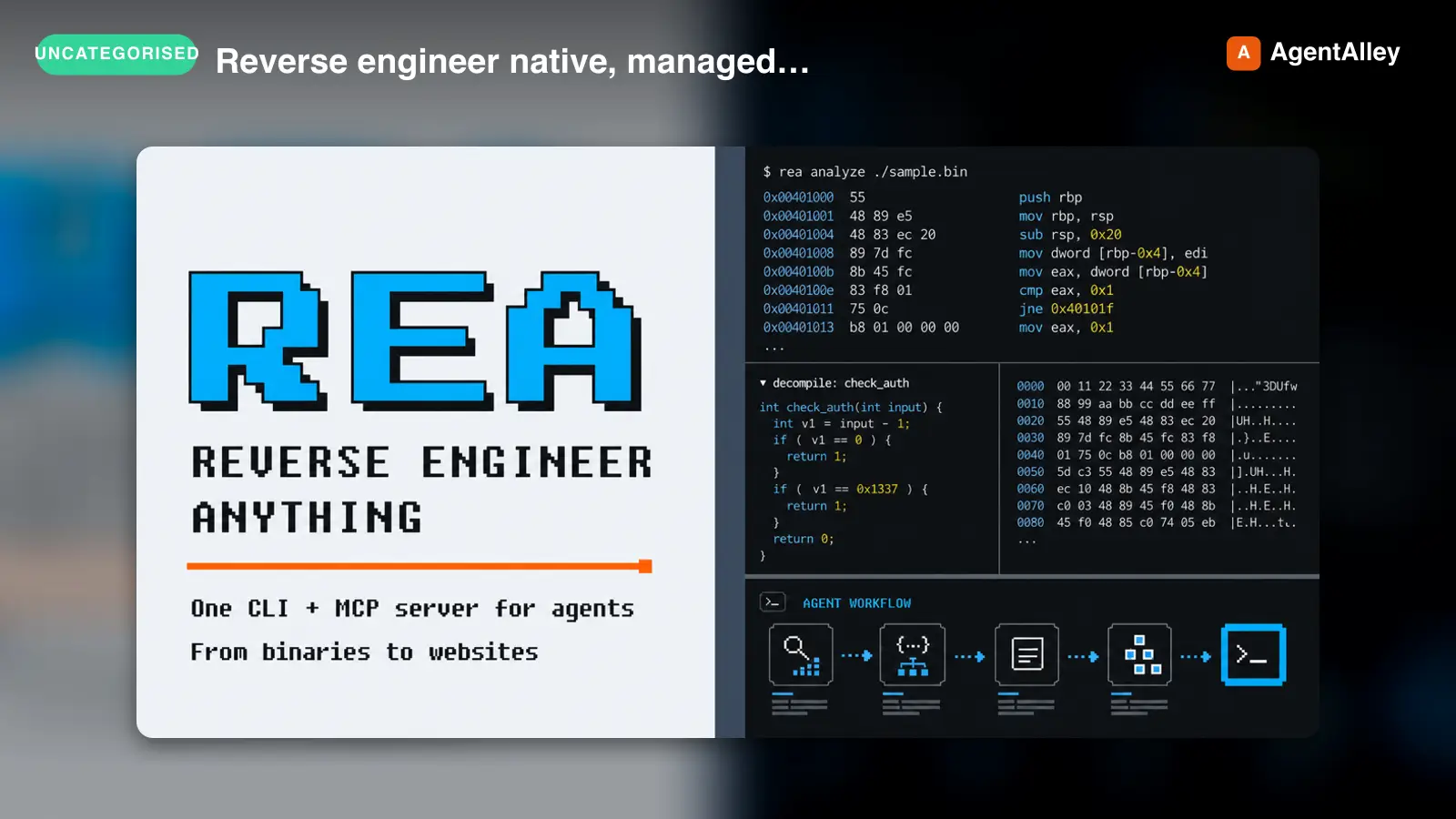 SkillReverse engineer native, managed, Electron/JavaScriptREA
 morluto/rea · by morlutoReverse engineer native, managed, Electron/JavaScript, packaged, firmware, and browser targets with REA. Use shipped-artifact or requested runtime evidence to explain features, compare versions, decompile code, or guide a reconstruction. Skip REA for ordinary source-repository architecture analysis.★ 316k GitHub stars
 SkillBrainstorms ideas into designs before any creative workBrainstorming Ideas Into Designs
 obra/superpowers · by obraYou MUST use this before any creative work - creating features, building components, adding functionality, or modifying behavior. Explores user intent, requirements and design before implementation.★ 290k GitHub stars
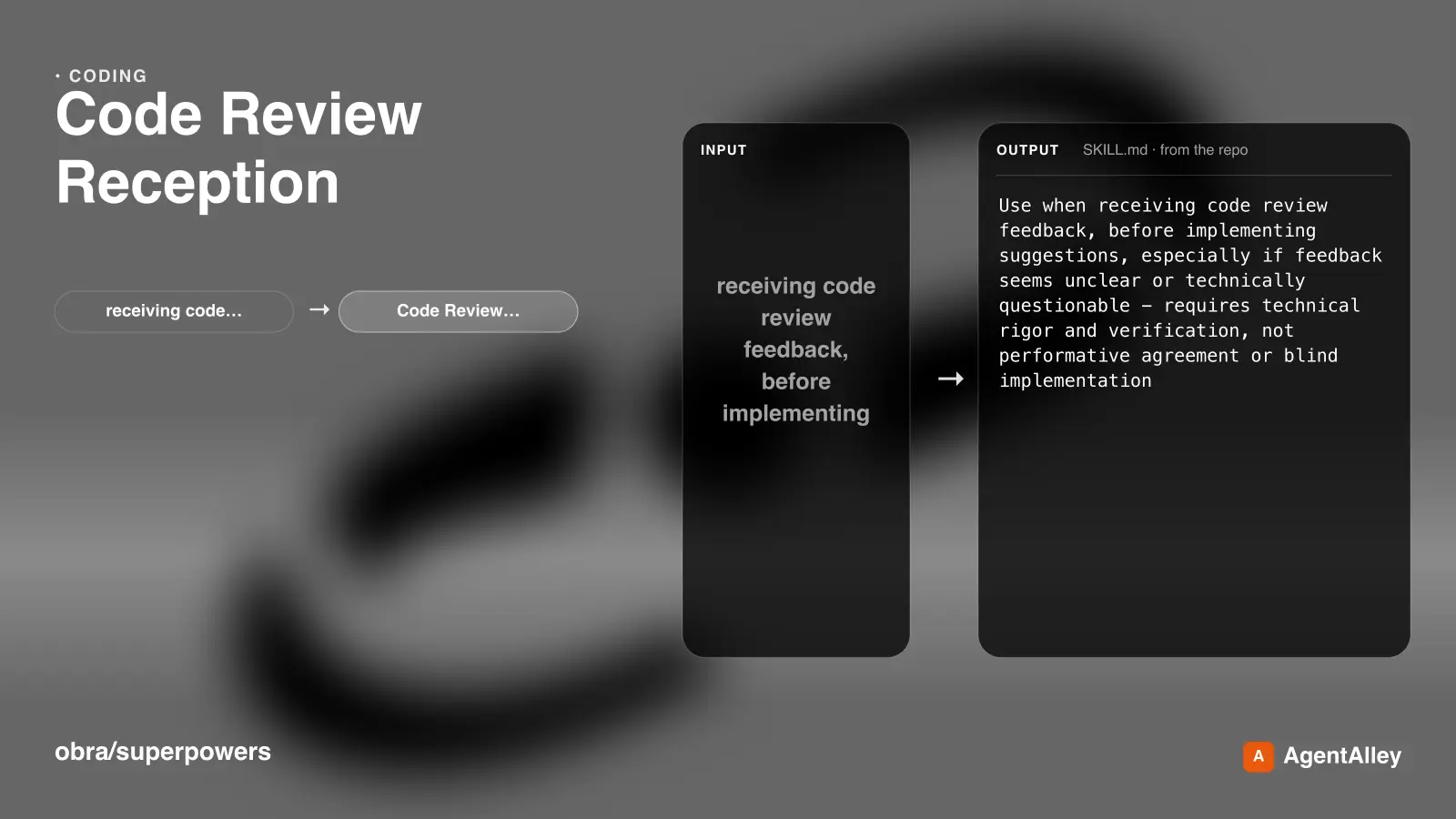 SkillRequires technical rigor and verificationCode Review Receptionobra/superpowers · by obraUse when receiving code review feedback, before implementing suggestions, especially if feedback seems unclear or technically questionable - requires technical rigor and verification, not performative agreement or blind implementation★ 290k GitHub stars
 SkillDiagnosis loop for hard bugs and performance regressionsDiagnosing bugs
 mattpocock/skills · by mattpocockDiagnosis loop for hard bugs and performance regressions. Use when the user says "diagnose"/"debug this", or reports something broken/throwing/failing/slow.★ 267k GitHub stars
 SkillImplement the result of /to-spec and /to-tickets in codeImplement specmattpocock/skills · by mattpocockImplement the result of /to-spec and /to-tickets in code.★ 267k GitHub stars
 SkillWriting a PR bodymattpocock/skills · by mattpocockUse when writing a PR body.★ 267k GitHub stars