Big arrow skill
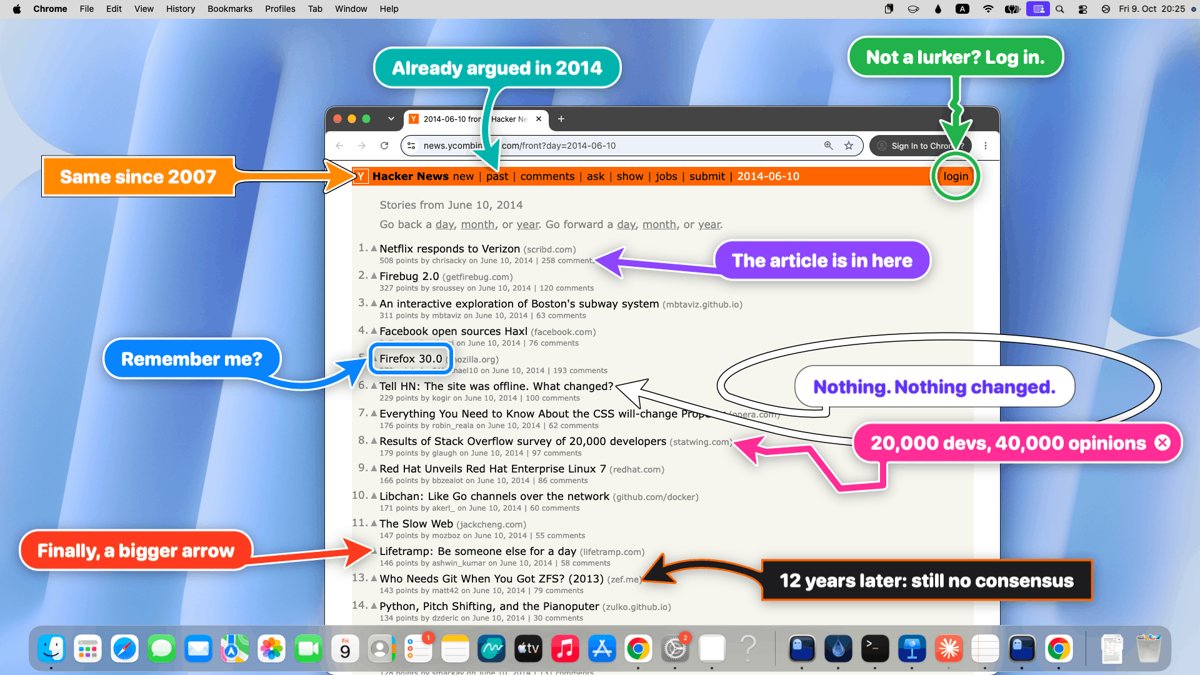
Illustration · not a resultFrom the franzenzenhofer/big-arrow-on-the-screen README — shows the whole collection, not only this skill.source ↗
Point at something on the human's macOS screen with a big arrow and a sign ("Franz, click HERE") using the bigarrow CLI.
by franzenzenhofer·MIT license·★ 783 Stars on the repo·GitHub ↗
npx degit franzenzenhofer/big-arrow-on-the-screen/skill/big-arrow#main ~/.claude/skills/big-arrowChecked ·commit main
Files of Big arrow
Show the full text72 lines
big-arrow
bigarrow draws a click-through arrow with a sign, needs no permission and never takes the
focus. Point at the thing itself, a line in the terminal is easy to miss.
Needs bigarrow 0.4.6 or newer. If bigarrow --version prints an older one, run
brew upgrade franzenzenhofer/tap/bigarrow first: an old binary prints {{value}} as plain text.
open "x-apple.systempreferences:com.apple.preference.security?Privacy_ScreenCapture"
bigarrow start --element "Ghostty" --app "System Settings" --text "Franz, switch this on: Ghostty may record your screen" --say
# watch for the result (page changed, job continued, file appeared), then:
bigarrow stop
Rules
- Open the exact pane or URL yourself, then point at the one control left for the human. Never walk them through menus. The human clicks; you point.
- The sign is one full sentence naming the action ("Franz, click Save", never "here"). When the click approves, grants, pays, signs, sends or deletes, add what happens: "Franz, click Pay: 49 EUR to Hetzner". The human decides; the facts go on the sign, not only in the terminal.
--saywhen the human may not be looking. Time-critical (code expires, page times out, job waits):--color red --sayand say by when: "Franz, enter the 2FA code now, it expires in 60 s".- Something to paste (a command you may not run, a URL, a code): put it on the sign as
{{value}}. The human sees the value on a copy button (no braces); one click copies all of it and the arrow stays. Point at where it goes: "Franz, copy {{sudo xcodebuild -license accept}} and paste it here", then check that it was pasted. - One arrow per step;
bigarrow stopthe moment the step is done. Arrows also end alone: after 300 s, when your session exits, when the human answers (hook below). - A click on the sign or shaft, except a copy button, removes the arrow (target clicks pass
through). A removed arrow was seen: check the result, do not redraw. Skip
--close-buttonunless asked.
Targets
| You know | Use |
|---|---|
| A label in a native or Electron app | --element "Allow" --app "System Settings" |
| An app or one of its windows | --window "Safari" / --window "Safari:Inbox" |
| A spot inside a Chrome tab | --rect x,y,w,h --app "Google Chrome:<tab title>" |
| A spot in a screenshot | --at X,Y --app "<App>" |
Always pass --app (or --window) for a target inside an app: it is raised first and the arrow
hides while another app covers it. App:title matches a window title, else a tab. Coordinates
are global top-left points. Inside a Chrome page --element needs Chrome started with
--force-renderer-accessibility; otherwise convert getBoundingClientRect() to --rect
(reference.md). Unsure? bigarrow elements --app X --match "allow" or --dry-run.
Errors
Exit 2 bad input, 3 target not found (the message lists what exists), 4 permission missing: run
bigarrow doctor. Accessibility (--element, App:title, --until-click) and Screen Recording
(--window App:title) belong to the app running your shell (Terminal, Ghostty, VS Code), never
to bigarrow. Open the pane the error names (macOS 27: Accessibility is "Device Control and Data
Access") and point at that app's switch.
More (pane ids, look and timing flags): reference.md.
Setup once
~/.claude/settings.json: "hooks": {"UserPromptSubmit": [{"hooks": [{"type": "command", "command": "bigarrow stop --hook"}]}]}
| 1 | |
| 2 | name big-arrow |
| 3 | description "Point at something on the human's macOS screen with a big arrow and a sign (\"Franz, click HERE\") using the bigarrow CLI. Use whenever the human has to look at, click, type into or choose a specific spot, button, field, window, tab or menu: show me where, point to it, which button, where do I click, zeig mir wo, guide me through this UI, the human must approve or sign something, or you need the human's hand and they may not be looking at the terminal. Mandatory when it is time-critical: a code that expires, a login or payment page that times out, a build waiting on the human." |
| 4 | license MIT |
| 5 | allowed-tools Bash(bigarrow:*) |
| 6 | metadata |
| 7 | short-description "Point at the screen with a big arrow and a sign" |
| 8 | |
| 9 | |
| 10 | # big-arrow |
| 11 | |
| 12 | `bigarrow` draws a click-through arrow with a sign, needs no permission and never takes the |
| 13 | focus. Point at the thing itself, a line in the terminal is easy to miss. |
| 14 | |
| 15 | Needs bigarrow 0.4.6 or newer. If `bigarrow --version` prints an older one, run |
| 16 | `brew upgrade franzenzenhofer/tap/bigarrow` first: an old binary prints `{{value}}` as plain text. |
| 17 | |
| 18 | |
| 19 | open "x-apple.systempreferences:com.apple.preference.security?Privacy_ScreenCapture" |
| 20 | bigarrow start --element "Ghostty" --app "System Settings" --text "Franz, switch this on: Ghostty may record your screen" --say |
| 21 | # watch for the result (page changed, job continued, file appeared), then: |
| 22 | bigarrow stop |
| 23 | |
| 24 | |
| 25 | ## Rules |
| 26 | |
| 27 | Open the exact pane or URL yourself, then point at the one control left for the human. Never |
| 28 | walk them through menus. The human clicks; you point. |
| 29 | The sign is one full sentence naming the action ("Franz, click Save", never "here"). When the |
| 30 | click approves, grants, pays, signs, sends or deletes, add what happens: "Franz, click Pay: |
| 31 | 49 EUR to Hetzner". The human decides; the facts go on the sign, not only in the terminal. |
| 32 | `--say` when the human may not be looking. Time-critical (code expires, page times out, job |
| 33 | waits): `--color red --say` and say by when: "Franz, enter the 2FA code now, it expires in 60 s". |
| 34 | Something to paste (a command you may not run, a URL, a code): put it on the sign as |
| 35 | `{{value}}`. The human sees the value on a copy button (no braces); one click copies all of it |
| 36 | and the arrow stays. Point at where it goes: "Franz, copy {{sudo xcodebuild -license accept}} |
| 37 | and paste it here", then check that it was pasted. |
| 38 | One arrow per step; `bigarrow stop` the moment the step is done. Arrows also end alone: after |
| 39 | 300 s, when your session exits, when the human answers (hook below). |
| 40 | A click on the sign or shaft, except a copy button, removes the arrow (target clicks pass |
| 41 | through). A removed arrow was seen: check the result, do not redraw. Skip `--close-button` |
| 42 | unless asked. |
| 43 | |
| 44 | ## Targets |
| 45 | |
| 46 | | You know | Use | |
| 47 | |---|---| |
| 48 | | A label in a native or Electron app | `--element "Allow" --app "System Settings"` | |
| 49 | | An app or one of its windows | `--window "Safari"` / `--window "Safari:Inbox"` | |
| 50 | | A spot inside a Chrome tab | `--rect x,y,w,h --app "Google Chrome:<tab title>"` | |
| 51 | | A spot in a screenshot | `--at X,Y --app "<App>"` | |
| 52 | |
| 53 | Always pass `--app` (or `--window`) for a target inside an app: it is raised first and the arrow |
| 54 | hides while another app covers it. `App:title` matches a window title, else a tab. Coordinates |
| 55 | are global top-left points. Inside a Chrome page `--element` needs Chrome started with |
| 56 | `--force-renderer-accessibility`; otherwise convert `getBoundingClientRect()` to `--rect` |
| 57 | ([reference.md]). Unsure? `bigarrow elements --app X --match "allow"` or `--dry-run`. |
| 58 | |
| 59 | ## Errors |
| 60 | |
| 61 | Exit 2 bad input, 3 target not found (the message lists what exists), 4 permission missing: run |
| 62 | `bigarrow doctor`. Accessibility (`--element`, `App:title`, `--until-click`) and Screen Recording |
| 63 | (`--window App:title`) belong to the app running your shell (Terminal, Ghostty, VS Code), never |
| 64 | to bigarrow. Open the pane the error names (macOS 27: Accessibility is "Device Control and Data |
| 65 | Access") and point at that app's switch. |
| 66 | |
| 67 | More (pane ids, look and timing flags): [reference.md]. |
| 68 | |
| 69 | ## Setup once |
| 70 | |
| 71 | `~/.claude/settings.json`: `"hooks": {"UserPromptSubmit": [{"hooks": [{"type": "command", "command": "bigarrow stop --hook"}]}]}` |
| 72 |
Discussion
Browse more free Claude skills.