
Post to X (Twitter) skill
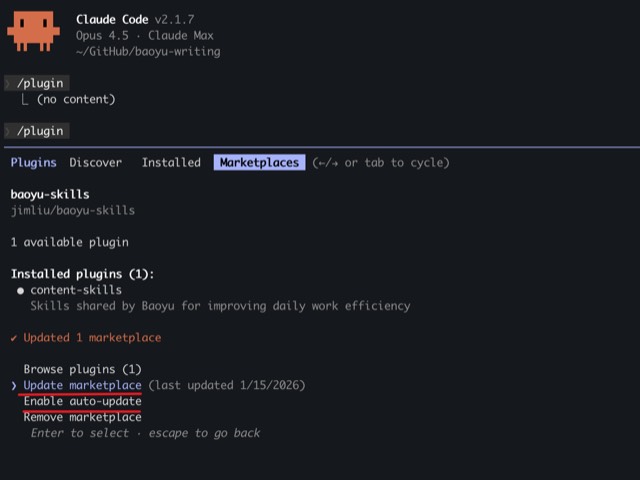
Illustration · not a resultFrom the JimLiu/baoyu-skills README — shows the whole collection, not only this skill.source ↗
Posts content and articles to X (Twitter).
by JimLiu·MIT license·★ 26,555 Stars on the repo·GitHub ↗
npx degit JimLiu/baoyu-skills/skills/baoyu-post-to-x#main ~/.claude/skills/baoyu-post-to-xChecked ·commit main
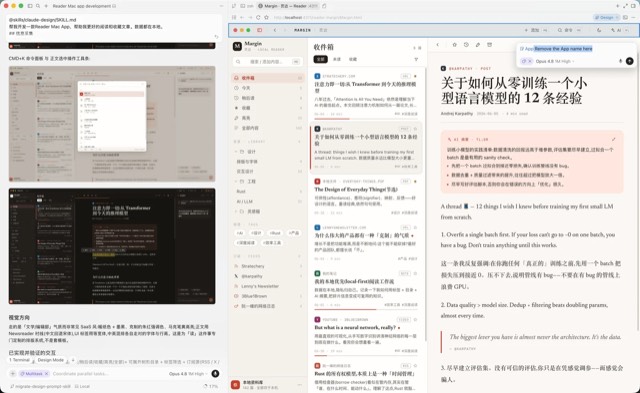
Illustration · not a resultFrom the JimLiu/baoyu-skills README — shows the whole collection, not only this skill.view on GitHub
Files of Post to X (Twitter)
Show the full text336 lines
Post to X (Twitter)
Posts text, images, videos, and long-form articles to X via a real Chrome browser.
In Codex, do not conflate these browser paths:
- Codex Chrome plugin /
@chrome/ Chrome Extension: use the bundledchrome:Chromeskill and its Node REPL browser client. This is required whenever the user says "Codex Chrome plugin", "Codex 自带的 Chrome 插件",@chrome, or similar. - Chrome Computer Use: use
mcp__computer_use__.*against the visible Google Chrome UI only when the user asks for Computer Use or no Chrome-plugin preference is stated and Computer Use is available. - CDP script mode: use only as a fallback when the selected mode is unavailable or the user explicitly asks for CDP/script mode.
Script Directory
Important: All scripts are located in the scripts/ subdirectory of this skill.
Agent Execution Instructions:
- Determine this SKILL.md file's directory path as
{baseDir} - Script path =
{baseDir}/scripts/<script-name>.ts - Replace all
{baseDir}in this document with the actual path - Resolve
${BUN_X}runtime: ifbuninstalled →bun; ifnpxavailable →npx -y bun; else suggest installing bun
Script Reference:
| Script | Purpose |
|---|---|
scripts/x-browser.ts |
Regular posts (text + images), CDP fallback |
scripts/x-video.ts |
Video posts (text + video), CDP fallback |
scripts/x-quote.ts |
Quote tweet with comment, CDP fallback |
scripts/x-article.ts |
Long-form article publishing (Markdown), CDP fallback |
scripts/md-to-html.ts |
Markdown → HTML conversion |
scripts/copy-to-clipboard.ts |
Copy content to clipboard |
scripts/paste-from-clipboard.ts |
Send real paste keystroke |
scripts/check-paste-permissions.ts |
Verify environment & permissions |
Execution Mode Selection (Required)
Choose exactly one mode before interacting with X:
- If the user explicitly asks for the Codex Chrome plugin,
@chrome, the Chrome extension, or "Codex 自带的 Chrome 插件", use Codex Chrome Plugin Mode. Do not call Computer Use first. - If the user explicitly asks for Chrome Computer Use, use Chrome Computer Use Mode. Do not fall back to CDP, Playwright, the in-app Browser, or the Chrome plugin without telling the user and getting approval.
- If the user explicitly asks for CDP/script mode, use CDP Script Mode.
- Otherwise, prefer Chrome Computer Use Mode. For Markdown X Articles with local content images, use the tested X editor flow: insert each body image from the toolbar (
Insert->Media-> dialog icon buttonAdd photos or video) at its placeholder, then delete the placeholder text. Use CDP Script Mode only when the selected browser-control mode is unavailable or the UI upload/selection flow is unreliable.
Never use the in-app Browser for X publishing workflows.
Codex Chrome Plugin Mode
Use this mode whenever the user requests the Codex Chrome plugin, @chrome, or the Chrome Extension path. This uses the user's real Chrome profile and X login through the bundled Chrome plugin, not Computer Use and not CDP.
Setup
- Load the
chrome:Chromeskill before browser work. - Use
tool_searchfornode_repl jsif the Node REPLjstool is not already visible. - Initialize the Chrome browser client exactly as the Chrome skill specifies, then run a lightweight call such as
browser.user.openTabs()to verify the extension connection. - If the first lightweight call fails, wait 2 seconds and retry once. If it still fails, follow the Chrome skill's extension checks and recovery steps. If checks pass but communication still fails, ask the user before opening a new Chrome window. Do not switch to Computer Use or CDP silently.
General rules
- Use the Chrome plugin's
browser.tabs.*,tab.playwright.*,tab.cua.*, and file chooser APIs for X UI actions. - Shell commands are allowed for Markdown preprocessing and rich-HTML clipboard preparation. For X Article body images, do not rely on image clipboard paste; use the editor's
Insert->Mediaupload flow. - If a file upload fails with
Not allowed, tell the user:To enable file upload, go to chrome://extensions in Chrome, click Details under the Codex extension, and enable "Allow access to file URLs." See https://developers.openai.com/codex/app/chrome-extension#upload-files for details. - If the Chrome plugin reports
native pipe is closed, retry the lightweight browser call once after 2 seconds, then run the Chrome skill health checks. If Chrome is running, the extension is enabled, and the native host manifest is correct, ask permission to open a new Chrome window and retry. Do not keep sending browser actions through the broken pipe. - Never click
Publish,Post, or any externally visible submit action without explicit final confirmation from the user in the current conversation.
X Articles
- Convert Markdown and keep the image map:
${BUN_X} {baseDir}/scripts/md-to-html.ts article.md --save-html /tmp/x-article-body.html > /tmp/x-article.json - Read the JSON output for
title,coverImage, andcontentImages(placeholder→localPath). - Open or create the article draft at
https://x.com/compose/articles. - Upload the cover with the Chrome plugin file chooser flow. If upload is blocked by extension permissions, stop and report the exact permission fix above.
- Fill the title, then copy rich HTML:
${BUN_X} {baseDir}/scripts/copy-to-clipboard.ts html --file /tmp/x-article-body.html - Paste into the article body with a real paste keystroke through the Chrome plugin. On macOS use
Meta+V. - Verify the editor text contains the article body and
XIMGPH_placeholders. Do not rely ontab.clipboard.readText()as proof of the system clipboard after shell clipboard writes; on macOS verify withpbpasteif needed. - For each
contentImagesitem in placeholder order:- Locate the visible placeholder text (
XIMGPH_N) and click it to place the caret there. - Open the toolbar menu
Insert->Media. - In the modal, click the icon button with
aria-label="Add photos or video"; do not click the text/dropzone or hidden file input. - Use the file chooser to upload that image's
localPath. - After the image appears, if
XIMGPH_Nremains above it, select exactly that placeholder and pressDeletefirst. UseBackspaceonly ifDeletefails and the selected text is confirmed to be exactly the placeholder. - Verify the placeholder count for that
XIMGPH_Nis0.
- Locate the visible placeholder text (
- Open Preview and verify title, cover, body, links, and images.
- Ask for explicit confirmation before clicking
Publish.
Preferences (EXTEND.md)
Check EXTEND.md in priority order — the first one found wins:
| Priority | Path | Scope |
|---|---|---|
| 1 | .baoyu-skills/baoyu-post-to-x/EXTEND.md |
Project |
| 2 | ${XDG_CONFIG_HOME:-$HOME/.config}/baoyu-skills/baoyu-post-to-x/EXTEND.md |
XDG |
| 3 | $HOME/.baoyu-skills/baoyu-post-to-x/EXTEND.md |
User home |
If none found, use defaults.
EXTEND.md supports: Default Chrome profile
Prerequisites
- Google Chrome or Chromium
bunruntime- First run: log in to X manually (session saved)
Pre-flight Check (Optional)
Before first use, suggest running the environment check. User can skip if they prefer.
${BUN_X} {baseDir}/scripts/check-paste-permissions.ts
Checks: Chrome, profile isolation, Bun, Accessibility, clipboard, paste keystroke, Chrome conflicts.
If any check fails, provide fix guidance per item:
| Check | Fix |
|---|---|
| Chrome | Install Chrome or set X_BROWSER_CHROME_PATH env var |
| Profile dir | Shared profile at baoyu-skills/chrome-profile (see CLAUDE.md Chrome Profile section) |
| Bun runtime | brew install oven-sh/bun/bun (macOS) or npm install -g bun |
| Accessibility (macOS) | System Settings → Privacy & Security → Accessibility → enable terminal app |
| Clipboard copy | Ensure Swift/AppKit available (macOS Xcode CLI tools: xcode-select --install) |
| Paste keystroke (macOS) | Same as Accessibility fix above |
| Paste keystroke (Linux) | Install xdotool (X11) or ydotool (Wayland) |
References
- Regular Posts: See
references/regular-posts.mdfor manual workflow, troubleshooting, and technical details - X Articles: See
references/articles.mdfor long-form article publishing guide
Chrome Computer Use Mode
Use this mode when the user explicitly asks for Chrome Computer Use, or when no Chrome-plugin preference is stated and Codex can control Google Chrome with Computer Use. This uses the user's existing Chrome window, cookies, login, extensions, and X session.
General rules:
- Start each assistant turn that controls Chrome by calling
get_app_stateforGoogle Chrome. - Prefer element-index actions when available; use coordinates only for editor text selection or drag selection.
- Do not use the in-app Browser, the Chrome plugin, Playwright, or CDP for X UI actions in this mode unless the user approves a mode change.
- Never click
Publish,Post, or any externally visible submit action without an explicit final confirmation from the user in the current conversation.
Regular posts:
- Open or navigate Chrome to
https://x.com/compose/post. - Type the post text into the composer using Computer Use.
- For each image, run:
${BUN_X} {baseDir}/scripts/copy-to-clipboard.ts image /absolute/path/to/image.png - Paste with Computer Use (
super+von macOS,control+von Windows/Linux), then wait until X finishes uploading media. - Ask for confirmation before clicking
Post.
Video posts:
- Open or navigate Chrome to
https://x.com/compose/post. - Type the post text into the composer.
- Use the visible media upload/file picker UI to attach the video.
- Wait for upload and processing to complete.
- Ask for confirmation before clicking
Post.
Quote tweets:
- Open the tweet URL in Chrome.
- Use the visible quote/repost UI to choose Quote.
- Type the comment.
- Ask for confirmation before clicking
Post.
X Articles:
- Convert Markdown and keep the image map:
${BUN_X} {baseDir}/scripts/md-to-html.ts article.md --save-html /tmp/x-article-body.html > /tmp/x-article.json - Read the JSON output for
title,coverImage, andcontentImages(placeholder→localPath). - In Chrome, open
https://x.com/compose/articles, create or open the draft, upload the cover if present, and fill the title. - Copy rich HTML to the clipboard:
${BUN_X} {baseDir}/scripts/copy-to-clipboard.ts html --file /tmp/x-article-body.html - Paste into the article body with Computer Use.
- For each
contentImagesentry in placeholder order:- Locate the exact visible placeholder text such as
XIMGPH_3and click it to set the insertion point. - Open the toolbar
Insertdropdown, chooseMedia, then click the modal's icon button labeledAdd photos or video. - Use the native file picker to choose the image's
localPath. - Wait until the image block appears and any upload activity is finished.
- If the placeholder remains above the inserted image, reselect exactly that placeholder text and press
Deletefirst. UseBackspaceonly ifDeletefails and the selected text is confirmed to be exactly the placeholder.
- Locate the exact visible placeholder text such as
- Verify no
XIMGPH_placeholders remain and the expected images appear. - Open Preview and verify title, cover, body, links, and images.
- Ask for explicit confirmation before clicking
Publish.
If Computer Use selection, toolbar upload, or file-picker control becomes unreliable, stop and report the blocker instead of switching to the Chrome plugin or CDP silently.
CDP Script Mode (Fallback)
Use the script sections below only when the selected browser-control mode is unavailable, unreliable, or explicitly not requested. These scripts launch or reuse a real Chrome instance via CDP and keep the browser open for review.
Do not use CDP Script Mode when the user explicitly requires the Codex Chrome plugin or Chrome Computer Use unless the user approves the fallback after you explain the blocker.
Post Type Selection
Unless the user explicitly specifies the post type:
- Plain text + within 10,000 characters → Regular Post (Premium members support up to 10,000 characters, non-Premium: 280)
- Markdown file (.md) → X Article
Regular Posts
${BUN_X} {baseDir}/scripts/x-browser.ts "Hello!" --image ./photo.png
Parameters:
| Parameter | Description |
|---|---|
<text> |
Post content (positional) |
--image <path> |
Image file (repeatable, max 4) |
--profile <dir> |
Custom Chrome profile |
Note: Script opens browser with content filled in. User reviews and publishes manually.
Codex mode note: If the user explicitly requested the Codex Chrome plugin, use Codex Chrome Plugin Mode. Otherwise, if Chrome Computer Use is enabled, use Chrome Computer Use Mode instead of running x-browser.ts.
Video Posts
Text + video file.
${BUN_X} {baseDir}/scripts/x-video.ts "Check this out!" --video ./clip.mp4
Parameters:
| Parameter | Description |
|---|---|
<text> |
Post content (positional) |
--video <path> |
Video file (MP4, MOV, WebM) |
--profile <dir> |
Custom Chrome profile |
Note: Script opens browser with content filled in. User reviews and publishes manually.
Codex mode note: If the user explicitly requested the Codex Chrome plugin, use Codex Chrome Plugin Mode. Otherwise, if Chrome Computer Use is enabled, use Chrome Computer Use Mode instead of running x-video.ts.
Limits: Regular 140s max, Premium 60min. Processing: 30-60s.
Quote Tweets
Quote an existing tweet with comment.
${BUN_X} {baseDir}/scripts/x-quote.ts https://x.com/user/status/123 "Great insight!"
Parameters:
| Parameter | Description |
|---|---|
<tweet-url> |
URL to quote (positional) |
<comment> |
Comment text (positional, optional) |
--profile <dir> |
Custom Chrome profile |
Note: Script opens browser with content filled in. User reviews and publishes manually.
Codex mode note: If the user explicitly requested the Codex Chrome plugin, use Codex Chrome Plugin Mode. Otherwise, if Chrome Computer Use is enabled, use Chrome Computer Use Mode instead of running x-quote.ts.
X Articles
Long-form Markdown articles (requires X Premium).
${BUN_X} {baseDir}/scripts/x-article.ts article.md
${BUN_X} {baseDir}/scripts/x-article.ts article.md --cover ./cover.jpg
Parameters:
| Parameter | Description |
|---|---|
<markdown> |
Markdown file (positional) |
--cover <path> |
Cover image |
--title <text> |
Override title |
Frontmatter: title, cover_image supported in YAML front matter.
Codex mode note: If the user explicitly requested the Codex Chrome plugin, follow Codex Chrome Plugin Mode above. If the user explicitly requested Chrome Computer Use, follow Chrome Computer Use Mode. Otherwise, prefer Chrome Computer Use; for Markdown articles with local content images, use the toolbar Insert -> Media image-upload workflow before falling back to x-article.ts in CDP Script Mode.
CDP fallback note: The script opens browser with article filled in. User reviews and publishes manually unless --submit is used.
Publish safety: Do not use --submit or click Publish unless the user explicitly confirms the final public publish action.
Post-Composition Check: The script automatically verifies after all images are inserted:
- Remaining
XIMGPH_placeholders in editor content - Expected vs actual image count
If the check fails (warnings in output), alert the user with the specific issues before they publish.
Troubleshooting
Chrome debug port not ready
CDP fallback only: if a script fails with Chrome debug port not ready or Unable to connect, kill existing Chrome CDP instances first, then retry:
pkill -f "Chrome.*remote-debugging-port" 2>/dev/null; pkill -f "Chromium.*remote-debugging-port" 2>/dev/null; sleep 2
Important: This should be done automatically — when encountering this error, kill Chrome CDP instances and retry the command without asking the user.
Notes
- First run: manual login required (session persists)
- In Codex Chrome Plugin Mode and Chrome Computer Use Mode, use the user's existing Chrome session and do not launch a separate CDP profile
- CDP scripts only fill content into the browser by default; user must review and publish manually unless
--submitis explicitly used - Cross-platform: macOS, Linux, Windows
Extension Support
Custom configurations via EXTEND.md. See Preferences section for paths and supported options.
| 1 | |
| 2 | name baoyu-post-to-x |
| 3 | description Posts content and articles to X (Twitter). Supports regular posts with images/videos and X Articles (long-form Markdown). In Codex, honor explicit requests for the Codex Chrome plugin/@chrome by using the Chrome Extension workflow; otherwise use Chrome Computer Use when available and fall back to real Chrome CDP scripts only when allowed. Use when user asks to "post to X", "tweet", "publish to Twitter", or "share on X". |
| 4 | version 1.58.1 |
| 5 | metadata |
| 6 | openclaw |
| 7 | homepage https://github.com/JimLiu/baoyu-skills#baoyu-post-to-x |
| 8 | requires |
| 9 | anyBins |
| 10 | - bun |
| 11 | - npx |
| 12 | |
| 13 | |
| 14 | # Post to X (Twitter) |
| 15 | |
| 16 | Posts text, images, videos, and long-form articles to X via a real Chrome browser. |
| 17 | |
| 18 | In Codex, do not conflate these browser paths: |
| 19 | **Codex Chrome plugin / `@chrome` / Chrome Extension**: use the bundled `chrome:Chrome` skill and its Node REPL browser client. This is required whenever the user says "Codex Chrome plugin", "Codex 自带的 Chrome 插件", `@chrome`, or similar. |
| 20 | **Chrome Computer Use**: use `mcp__computer_use__.*` against the visible Google Chrome UI only when the user asks for Computer Use or no Chrome-plugin preference is stated and Computer Use is available. |
| 21 | **CDP script mode**: use only as a fallback when the selected mode is unavailable or the user explicitly asks for CDP/script mode. |
| 22 | |
| 23 | ## Script Directory |
| 24 | |
| 25 | **Important**: All scripts are located in the `scripts/` subdirectory of this skill. |
| 26 | |
| 27 | **Agent Execution Instructions**: |
| 28 | Determine this SKILL.md file's directory path as `{baseDir}` |
| 29 | Script path = `{baseDir}/scripts/<script-name>.ts` |
| 30 | Replace all `{baseDir}` in this document with the actual path |
| 31 | Resolve `${BUN_X}` runtime: if `bun` installed → `bun`; if `npx` available → `npx -y bun`; else suggest installing bun |
| 32 | |
| 33 | **Script Reference**: |
| 34 | | Script | Purpose | |
| 35 | |--------|---------| |
| 36 | | `scripts/x-browser.ts` | Regular posts (text + images), CDP fallback | |
| 37 | | `scripts/x-video.ts` | Video posts (text + video), CDP fallback | |
| 38 | | `scripts/x-quote.ts` | Quote tweet with comment, CDP fallback | |
| 39 | | `scripts/x-article.ts` | Long-form article publishing (Markdown), CDP fallback | |
| 40 | | `scripts/md-to-html.ts` | Markdown → HTML conversion | |
| 41 | | `scripts/copy-to-clipboard.ts` | Copy content to clipboard | |
| 42 | | `scripts/paste-from-clipboard.ts` | Send real paste keystroke | |
| 43 | | `scripts/check-paste-permissions.ts` | Verify environment & permissions | |
| 44 | |
| 45 | ## Execution Mode Selection (Required) |
| 46 | |
| 47 | Choose exactly one mode before interacting with X: |
| 48 | |
| 49 | If the user explicitly asks for the Codex Chrome plugin, `@chrome`, the Chrome extension, or "Codex 自带的 Chrome 插件", use **Codex Chrome Plugin Mode**. Do not call Computer Use first. |
| 50 | If the user explicitly asks for Chrome Computer Use, use **Chrome Computer Use Mode**. Do not fall back to CDP, Playwright, the in-app Browser, or the Chrome plugin without telling the user and getting approval. |
| 51 | If the user explicitly asks for CDP/script mode, use **CDP Script Mode**. |
| 52 | Otherwise, prefer **Chrome Computer Use Mode**. For Markdown **X Articles with local content images**, use the tested X editor flow: insert each body image from the toolbar (`Insert` -> `Media` -> dialog icon button `Add photos or video`) at its placeholder, then delete the placeholder text. Use CDP Script Mode only when the selected browser-control mode is unavailable or the UI upload/selection flow is unreliable. |
| 53 | |
| 54 | Never use the in-app Browser for X publishing workflows. |
| 55 | |
| 56 | ## Codex Chrome Plugin Mode |
| 57 | |
| 58 | Use this mode whenever the user requests the Codex Chrome plugin, `@chrome`, or the Chrome Extension path. This uses the user's real Chrome profile and X login through the bundled Chrome plugin, not Computer Use and not CDP. |
| 59 | |
| 60 | **Setup** |
| 61 | Load the `chrome:Chrome` skill before browser work. |
| 62 | Use `tool_search` for `node_repl js` if the Node REPL `js` tool is not already visible. |
| 63 | Initialize the Chrome browser client exactly as the Chrome skill specifies, then run a lightweight call such as `browser.user.openTabs()` to verify the extension connection. |
| 64 | If the first lightweight call fails, wait 2 seconds and retry once. If it still fails, follow the Chrome skill's extension checks and recovery steps. If checks pass but communication still fails, ask the user before opening a new Chrome window. Do not switch to Computer Use or CDP silently. |
| 65 | |
| 66 | **General rules** |
| 67 | Use the Chrome plugin's `browser.tabs.*`, `tab.playwright.*`, `tab.cua.*`, and file chooser APIs for X UI actions. |
| 68 | Shell commands are allowed for Markdown preprocessing and rich-HTML clipboard preparation. For X Article body images, do not rely on image clipboard paste; use the editor's `Insert` -> `Media` upload flow. |
| 69 | If a file upload fails with `Not allowed`, tell the user: `To enable file upload, go to chrome://extensions in Chrome, click Details under the Codex extension, and enable "Allow access to file URLs." See https://developers.openai.com/codex/app/chrome-extension#upload-files for details.` |
| 70 | If the Chrome plugin reports `native pipe is closed`, retry the lightweight browser call once after 2 seconds, then run the Chrome skill health checks. If Chrome is running, the extension is enabled, and the native host manifest is correct, ask permission to open a new Chrome window and retry. Do not keep sending browser actions through the broken pipe. |
| 71 | Never click `Publish`, `Post`, or any externally visible submit action without explicit final confirmation from the user in the current conversation. |
| 72 | |
| 73 | **X Articles** |
| 74 | Convert Markdown and keep the image map: |
| 75 | |
| 76 | ${BUN_X} {baseDir}/scripts/md-to-html.ts article.md --save-html /tmp/x-article-body.html > /tmp/x-article.json |
| 77 | |
| 78 | Read the JSON output for `title`, `coverImage`, and `contentImages` (`placeholder` → `localPath`). |
| 79 | Open or create the article draft at `https://x.com/compose/articles`. |
| 80 | Upload the cover with the Chrome plugin file chooser flow. If upload is blocked by extension permissions, stop and report the exact permission fix above. |
| 81 | Fill the title, then copy rich HTML: |
| 82 | |
| 83 | ${BUN_X} {baseDir}/scripts/copy-to-clipboard.ts html --file /tmp/x-article-body.html |
| 84 | |
| 85 | Paste into the article body with a real paste keystroke through the Chrome plugin. On macOS use `Meta+V`. |
| 86 | Verify the editor text contains the article body and `XIMGPH_` placeholders. Do not rely on `tab.clipboard.readText()` as proof of the system clipboard after shell clipboard writes; on macOS verify with `pbpaste` if needed. |
| 87 | For each `contentImages` item in placeholder order: |
| 88 | Locate the visible placeholder text (`XIMGPH_N`) and click it to place the caret there. |
| 89 | Open the toolbar menu `Insert` -> `Media`. |
| 90 | In the modal, click the icon button with `aria-label="Add photos or video"`; do not click the text/dropzone or hidden file input. |
| 91 | Use the file chooser to upload that image's `localPath`. |
| 92 | After the image appears, if `XIMGPH_N` remains above it, select exactly that placeholder and press `Delete` first. Use `Backspace` only if `Delete` fails and the selected text is confirmed to be exactly the placeholder. |
| 93 | Verify the placeholder count for that `XIMGPH_N` is `0`. |
| 94 | Open Preview and verify title, cover, body, links, and images. |
| 95 | Ask for explicit confirmation before clicking `Publish`. |
| 96 | |
| 97 | ## Preferences (EXTEND.md) |
| 98 | |
| 99 | Check EXTEND.md in priority order — the first one found wins: |
| 100 | |
| 101 | | Priority | Path | Scope | |
| 102 | |----------|------|-------| |
| 103 | | 1 | `.baoyu-skills/baoyu-post-to-x/EXTEND.md` | Project | |
| 104 | | 2 | `${XDG_CONFIG_HOME:-$HOME/.config}/baoyu-skills/baoyu-post-to-x/EXTEND.md` | XDG | |
| 105 | | 3 | `$HOME/.baoyu-skills/baoyu-post-to-x/EXTEND.md` | User home | |
| 106 | |
| 107 | If none found, use defaults. |
| 108 | |
| 109 | **EXTEND.md supports**: Default Chrome profile |
| 110 | |
| 111 | ## Prerequisites |
| 112 | |
| 113 | Google Chrome or Chromium |
| 114 | `bun` runtime |
| 115 | First run: log in to X manually (session saved) |
| 116 | |
| 117 | ## Pre-flight Check (Optional) |
| 118 | |
| 119 | Before first use, suggest running the environment check. User can skip if they prefer. |
| 120 | |
| 121 | |
| 122 | ${BUN_X} {baseDir}/scripts/check-paste-permissions.ts |
| 123 | |
| 124 | |
| 125 | Checks: Chrome, profile isolation, Bun, Accessibility, clipboard, paste keystroke, Chrome conflicts. |
| 126 | |
| 127 | **If any check fails**, provide fix guidance per item: |
| 128 | |
| 129 | | Check | Fix | |
| 130 | |-------|-----| |
| 131 | | Chrome | Install Chrome or set `X_BROWSER_CHROME_PATH` env var | |
| 132 | | Profile dir | Shared profile at `baoyu-skills/chrome-profile` (see CLAUDE.md Chrome Profile section) | |
| 133 | | Bun runtime | `brew install oven-sh/bun/bun` (macOS) or `npm install -g bun` | |
| 134 | | Accessibility (macOS) | System Settings → Privacy & Security → Accessibility → enable terminal app | |
| 135 | | Clipboard copy | Ensure Swift/AppKit available (macOS Xcode CLI tools: `xcode-select --install`) | |
| 136 | | Paste keystroke (macOS) | Same as Accessibility fix above | |
| 137 | | Paste keystroke (Linux) | Install `xdotool` (X11) or `ydotool` (Wayland) | |
| 138 | |
| 139 | ## References |
| 140 | |
| 141 | **Regular Posts**: See `references/regular-posts.md` for manual workflow, troubleshooting, and technical details |
| 142 | **X Articles**: See `references/articles.md` for long-form article publishing guide |
| 143 | |
| 144 | |
| 145 | |
| 146 | ## Chrome Computer Use Mode |
| 147 | |
| 148 | Use this mode when the user explicitly asks for Chrome Computer Use, or when no Chrome-plugin preference is stated and Codex can control `Google Chrome` with Computer Use. This uses the user's existing Chrome window, cookies, login, extensions, and X session. |
| 149 | |
| 150 | **General rules**: |
| 151 | Start each assistant turn that controls Chrome by calling `get_app_state` for `Google Chrome`. |
| 152 | Prefer element-index actions when available; use coordinates only for editor text selection or drag selection. |
| 153 | Do not use the in-app Browser, the Chrome plugin, Playwright, or CDP for X UI actions in this mode unless the user approves a mode change. |
| 154 | Never click `Publish`, `Post`, or any externally visible submit action without an explicit final confirmation from the user in the current conversation. |
| 155 | |
| 156 | **Regular posts**: |
| 157 | Open or navigate Chrome to `https://x.com/compose/post`. |
| 158 | Type the post text into the composer using Computer Use. |
| 159 | For each image, run: |
| 160 | |
| 161 | ${BUN_X} {baseDir}/scripts/copy-to-clipboard.ts image /absolute/path/to/image.png |
| 162 | |
| 163 | Paste with Computer Use (`super+v` on macOS, `control+v` on Windows/Linux), then wait until X finishes uploading media. |
| 164 | Ask for confirmation before clicking `Post`. |
| 165 | |
| 166 | **Video posts**: |
| 167 | Open or navigate Chrome to `https://x.com/compose/post`. |
| 168 | Type the post text into the composer. |
| 169 | Use the visible media upload/file picker UI to attach the video. |
| 170 | Wait for upload and processing to complete. |
| 171 | Ask for confirmation before clicking `Post`. |
| 172 | |
| 173 | **Quote tweets**: |
| 174 | Open the tweet URL in Chrome. |
| 175 | Use the visible quote/repost UI to choose Quote. |
| 176 | Type the comment. |
| 177 | Ask for confirmation before clicking `Post`. |
| 178 | |
| 179 | **X Articles**: |
| 180 | Convert Markdown and keep the image map: |
| 181 | |
| 182 | ${BUN_X} {baseDir}/scripts/md-to-html.ts article.md --save-html /tmp/x-article-body.html > /tmp/x-article.json |
| 183 | |
| 184 | Read the JSON output for `title`, `coverImage`, and `contentImages` (`placeholder` → `localPath`). |
| 185 | In Chrome, open `https://x.com/compose/articles`, create or open the draft, upload the cover if present, and fill the title. |
| 186 | Copy rich HTML to the clipboard: |
| 187 | |
| 188 | ${BUN_X} {baseDir}/scripts/copy-to-clipboard.ts html --file /tmp/x-article-body.html |
| 189 | |
| 190 | Paste into the article body with Computer Use. |
| 191 | For each `contentImages` entry in placeholder order: |
| 192 | Locate the exact visible placeholder text such as `XIMGPH_3` and click it to set the insertion point. |
| 193 | Open the toolbar `Insert` dropdown, choose `Media`, then click the modal's icon button labeled `Add photos or video`. |
| 194 | Use the native file picker to choose the image's `localPath`. |
| 195 | Wait until the image block appears and any upload activity is finished. |
| 196 | If the placeholder remains above the inserted image, reselect exactly that placeholder text and press `Delete` first. Use `Backspace` only if `Delete` fails and the selected text is confirmed to be exactly the placeholder. |
| 197 | Verify no `XIMGPH_` placeholders remain and the expected images appear. |
| 198 | Open Preview and verify title, cover, body, links, and images. |
| 199 | Ask for explicit confirmation before clicking `Publish`. |
| 200 | |
| 201 | If Computer Use selection, toolbar upload, or file-picker control becomes unreliable, stop and report the blocker instead of switching to the Chrome plugin or CDP silently. |
| 202 | |
| 203 | |
| 204 | |
| 205 | ## CDP Script Mode (Fallback) |
| 206 | |
| 207 | Use the script sections below only when the selected browser-control mode is unavailable, unreliable, or explicitly not requested. These scripts launch or reuse a real Chrome instance via CDP and keep the browser open for review. |
| 208 | |
| 209 | Do not use CDP Script Mode when the user explicitly requires the Codex Chrome plugin or Chrome Computer Use unless the user approves the fallback after you explain the blocker. |
| 210 | |
| 211 | |
| 212 | |
| 213 | ## Post Type Selection |
| 214 | |
| 215 | Unless the user explicitly specifies the post type: |
| 216 | **Plain text** + within 10,000 characters → **Regular Post** (Premium members support up to 10,000 characters, non-Premium: 280) |
| 217 | **Markdown file** (.md) → **X Article** |
| 218 | |
| 219 | ## Regular Posts |
| 220 | |
| 221 | |
| 222 | ${BUN_X} {baseDir}/scripts/x-browser.ts "Hello!" --image ./photo.png |
| 223 | |
| 224 | |
| 225 | **Parameters**: |
| 226 | | Parameter | Description | |
| 227 | |-----------|-------------| |
| 228 | | `<text>` | Post content (positional) | |
| 229 | | `--image <path>` | Image file (repeatable, max 4) | |
| 230 | | `--profile <dir>` | Custom Chrome profile | |
| 231 | |
| 232 | **Note**: Script opens browser with content filled in. User reviews and publishes manually. |
| 233 | |
| 234 | **Codex mode note**: If the user explicitly requested the Codex Chrome plugin, use **Codex Chrome Plugin Mode**. Otherwise, if Chrome Computer Use is enabled, use **Chrome Computer Use Mode** instead of running `x-browser.ts`. |
| 235 | |
| 236 | |
| 237 | |
| 238 | ## Video Posts |
| 239 | |
| 240 | Text + video file. |
| 241 | |
| 242 | |
| 243 | ${BUN_X} {baseDir}/scripts/x-video.ts "Check this out!" --video ./clip.mp4 |
| 244 | |
| 245 | |
| 246 | **Parameters**: |
| 247 | | Parameter | Description | |
| 248 | |-----------|-------------| |
| 249 | | `<text>` | Post content (positional) | |
| 250 | | `--video <path>` | Video file (MP4, MOV, WebM) | |
| 251 | | `--profile <dir>` | Custom Chrome profile | |
| 252 | |
| 253 | **Note**: Script opens browser with content filled in. User reviews and publishes manually. |
| 254 | |
| 255 | **Codex mode note**: If the user explicitly requested the Codex Chrome plugin, use **Codex Chrome Plugin Mode**. Otherwise, if Chrome Computer Use is enabled, use **Chrome Computer Use Mode** instead of running `x-video.ts`. |
| 256 | |
| 257 | **Limits**: Regular 140s max, Premium 60min. Processing: 30-60s. |
| 258 | |
| 259 | |
| 260 | |
| 261 | ## Quote Tweets |
| 262 | |
| 263 | Quote an existing tweet with comment. |
| 264 | |
| 265 | |
| 266 | ${BUN_X} {baseDir}/scripts/x-quote.ts https://x.com/user/status/123 "Great insight!" |
| 267 | |
| 268 | |
| 269 | **Parameters**: |
| 270 | | Parameter | Description | |
| 271 | |-----------|-------------| |
| 272 | | `<tweet-url>` | URL to quote (positional) | |
| 273 | | `<comment>` | Comment text (positional, optional) | |
| 274 | | `--profile <dir>` | Custom Chrome profile | |
| 275 | |
| 276 | **Note**: Script opens browser with content filled in. User reviews and publishes manually. |
| 277 | |
| 278 | **Codex mode note**: If the user explicitly requested the Codex Chrome plugin, use **Codex Chrome Plugin Mode**. Otherwise, if Chrome Computer Use is enabled, use **Chrome Computer Use Mode** instead of running `x-quote.ts`. |
| 279 | |
| 280 | |
| 281 | |
| 282 | ## X Articles |
| 283 | |
| 284 | Long-form Markdown articles (requires X Premium). |
| 285 | |
| 286 | |
| 287 | ${BUN_X} {baseDir}/scripts/x-article.ts article.md |
| 288 | ${BUN_X} {baseDir}/scripts/x-article.ts article.md --cover ./cover.jpg |
| 289 | |
| 290 | |
| 291 | **Parameters**: |
| 292 | | Parameter | Description | |
| 293 | |-----------|-------------| |
| 294 | | `<markdown>` | Markdown file (positional) | |
| 295 | | `--cover <path>` | Cover image | |
| 296 | | `--title <text>` | Override title | |
| 297 | |
| 298 | **Frontmatter**: `title`, `cover_image` supported in YAML front matter. |
| 299 | |
| 300 | **Codex mode note**: If the user explicitly requested the Codex Chrome plugin, follow **Codex Chrome Plugin Mode** above. If the user explicitly requested Chrome Computer Use, follow **Chrome Computer Use Mode**. Otherwise, prefer Chrome Computer Use; for Markdown articles with local content images, use the toolbar `Insert` -> `Media` image-upload workflow before falling back to `x-article.ts` in **CDP Script Mode**. |
| 301 | |
| 302 | **CDP fallback note**: The script opens browser with article filled in. User reviews and publishes manually unless `--submit` is used. |
| 303 | |
| 304 | **Publish safety**: Do not use `--submit` or click `Publish` unless the user explicitly confirms the final public publish action. |
| 305 | |
| 306 | **Post-Composition Check**: The script automatically verifies after all images are inserted: |
| 307 | Remaining `XIMGPH_` placeholders in editor content |
| 308 | Expected vs actual image count |
| 309 | |
| 310 | If the check fails (warnings in output), alert the user with the specific issues before they publish. |
| 311 | |
| 312 | |
| 313 | |
| 314 | ## Troubleshooting |
| 315 | |
| 316 | ### Chrome debug port not ready |
| 317 | |
| 318 | CDP fallback only: if a script fails with `Chrome debug port not ready` or `Unable to connect`, kill existing Chrome CDP instances first, then retry: |
| 319 | |
| 320 | |
| 321 | pkill -f "Chrome.*remote-debugging-port" 2>/dev/null; pkill -f "Chromium.*remote-debugging-port" 2>/dev/null; sleep 2 |
| 322 | |
| 323 | |
| 324 | **Important**: This should be done automatically — when encountering this error, kill Chrome CDP instances and retry the command without asking the user. |
| 325 | |
| 326 | ## Notes |
| 327 | |
| 328 | First run: manual login required (session persists) |
| 329 | In Codex Chrome Plugin Mode and Chrome Computer Use Mode, use the user's existing Chrome session and do not launch a separate CDP profile |
| 330 | CDP scripts only fill content into the browser by default; user must review and publish manually unless `--submit` is explicitly used |
| 331 | Cross-platform: macOS, Linux, Windows |
| 332 | |
| 333 | ## Extension Support |
| 334 | |
| 335 | Custom configurations via EXTEND.md. See **Preferences** section for paths and supported options. |
| 336 |
Discussion
Alternatives
 run-wechat-article-loop — 公众号长文闭环微信公众号长文增长闭环 —— 从读者问题与复刻锚选题、写出可验证的公众号长文、预览与合规检查、同步微信草稿、三重确认下受控发布,到回收阅读与转化数据并复盘。用户要求写公众号、把内容改成公众号、同步或发布微信草稿、查看公众号数据或复盘时使用。Twitter/X SkillSearch and retrieve content from Twitter/X. Get user info, tweets, replies, followers, communities, spaces, and trends via twitterapi.io. Use when user mentions Twitter, X, or tweets.
Browse more free Claude skills or everything in Marketing.