Diagram Generator skill
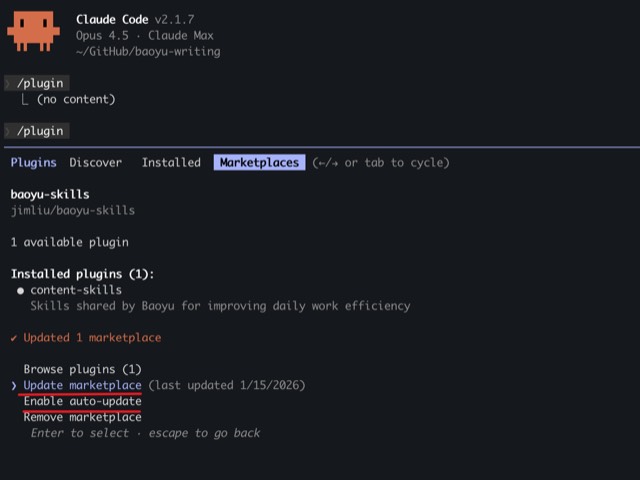
Illustration · not a resultFrom the JimLiu/baoyu-skills README — shows the whole collection, not only this skill.source ↗
Create professional, dark-themed SVG diagrams of any type — architecture diagrams, flowcharts, sequence diagrams, structural diagrams, mind maps, timelines, illustrative/conceptual diagrams, and more.
by JimLiu·MIT license·★ 26,555 Stars on the repo·GitHub ↗
npx degit JimLiu/baoyu-skills/skills/baoyu-diagram#main ~/.claude/skills/baoyu-diagramChecked ·commit main
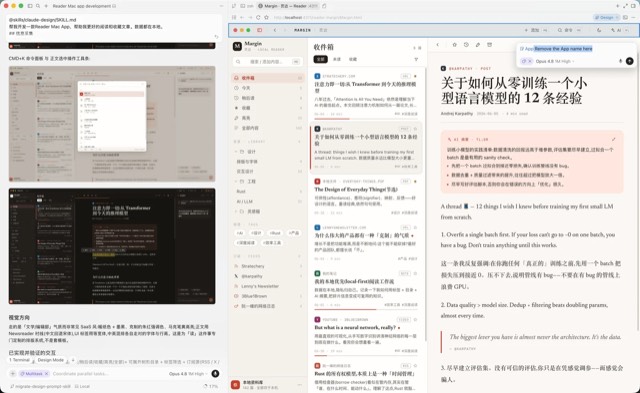
Illustration · not a resultFrom the JimLiu/baoyu-skills README — shows the whole collection, not only this skill.view on GitHub
Files of Diagram Generator
Show the full text249 lines
Diagram Generator
Create professional SVG diagrams across multiple diagram types. All output is a single self-contained .svg file with embedded styles and fonts.
Supported Diagram Types
| Type | When to Use | Key Characteristics |
|---|---|---|
| Architecture | System components & relationships | Grouped boxes, connection arrows, region boundaries |
| Flowchart | Decision logic, process steps | Diamond decisions, rounded step boxes, directional flow |
| Sequence | Time-ordered interactions between actors | Vertical lifelines, horizontal messages, activation bars |
| Structural | Class diagrams, ER diagrams, org charts | Compartmented boxes, typed relationships (inheritance, composition) |
| Mind Map | Brainstorming, topic exploration | Central node, radiating branches, organic layout |
| Timeline | Chronological events | Horizontal/vertical axis, event markers, period spans |
| Illustrative | Conceptual explanations, comparisons | Free-form layout, icons, annotations, visual metaphors |
| State Machine | State transitions, lifecycle | Rounded state nodes, labeled transitions, start/end markers |
| Data Flow | Data transformation pipelines | Process bubbles, data stores, external entities |
Design System
Color Palette
Semantic colors for component categories:
| Category | Fill (rgba) | Stroke | Use For |
|---|---|---|---|
| Primary | rgba(8, 51, 68, 0.4) |
#22d3ee (cyan) |
Frontend, user-facing, inputs |
| Secondary | rgba(6, 78, 59, 0.4) |
#34d399 (emerald) |
Backend, services, processing |
| Tertiary | rgba(76, 29, 149, 0.4) |
#a78bfa (violet) |
Database, storage, persistence |
| Accent | rgba(120, 53, 15, 0.3) |
#fbbf24 (amber) |
Cloud, infrastructure, regions |
| Alert | rgba(136, 19, 55, 0.4) |
#fb7185 (rose) |
Security, errors, warnings |
| Connector | rgba(251, 146, 60, 0.3) |
#fb923c (orange) |
Buses, queues, middleware |
| Neutral | rgba(30, 41, 59, 0.5) |
#94a3b8 (slate) |
External, generic, unknown |
| Highlight | rgba(59, 130, 246, 0.3) |
#60a5fa (blue) |
Active state, focus, current step |
For flowcharts and sequence diagrams, assign colors by role (actor, decision, process) rather than by technology.
Typography
Use embedded SVG @font-face or system monospace fallback:
<style>
@import url('https://fonts.googleapis.com/css2?family=JetBrains+Mono:wght@400;500;600;700&display=swap');
text { font-family: 'JetBrains Mono', 'SF Mono', 'Cascadia Code', monospace; }
</style>
Font sizes by role:
- Title: 16px, weight 700
- Component name: 11-12px, weight 600
- Sublabel / description: 9px, weight 400, color
#94a3b8 - Annotation / note: 8px, weight 400
- Tiny label (on arrows): 7-8px
Core Visual Elements
Background: #0f172a (slate-900) with subtle grid:
<defs>
  <pattern id="grid" width="40" height="40" patternUnits="userSpaceOnUse">
    <path d="M 40 0 L 0 0 0 40" fill="none" stroke="#1e293b" stroke-width="0.5"/>
  </pattern>
</defs>
<rect width="100%" height="100%" fill="#0f172a"/>
<rect width="100%" height="100%" fill="url(#grid)"/>
Arrowhead marker (standard):
<marker id="arrow" markerWidth="10" markerHeight="7" refX="9" refY="3.5" orient="auto">
  <polygon points="0 0, 10 3.5, 0 7" fill="#64748b"/>
</marker>
Arrowhead marker (colored) — create per-color as needed:
<marker id="arrow-cyan" markerWidth="10" markerHeight="7" refX="9" refY="3.5" orient="auto">
  <polygon points="0 0, 10 3.5, 0 7" fill="#22d3ee"/>
</marker>
Open arrowhead (for async/return messages):
<marker id="arrow-open" markerWidth="10" markerHeight="7" refX="9" refY="3.5" orient="auto">
  <polyline points="0 0, 10 3.5, 0 7" fill="none" stroke="#64748b" stroke-width="1.5"/>
</marker>
SVG Structure & Layering
Draw elements in this order to get correct z-ordering (SVG paints back-to-front):
- Background fill + grid pattern
- Region/group boundaries (dashed outlines)
- Connection arrows and lines
- Opaque masking rects (same position as component boxes,
fill="#0f172a") - Component boxes (semi-transparent fill + stroke)
- Text labels
- Legend (bottom-right or bottom area, outside all boundaries)
- Title block (top-left)
The opaque masking rect trick is essential — semi-transparent component fills will show arrows underneath without it:
<!-- Mask layer: opaque background to hide arrows -->
<rect x="100" y="100" width="160" height="60" rx="6" fill="#0f172a"/>
<!-- Visual layer: styled component -->
<rect x="100" y="100" width="160" height="60" rx="6" fill="rgba(8,51,68,0.4)" stroke="#22d3ee" stroke-width="1.5"/>
<text x="180" y="125" fill="white" font-size="11" font-weight="600" text-anchor="middle">API Gateway</text>
<text x="180" y="141" fill="#94a3b8" font-size="9" text-anchor="middle">Kong / Nginx</text>
Spacing Rules
These prevent overlapping — follow them strictly:
- Component box height: 50-70px (standard), 80-120px (large/complex)
- Minimum gap between components: 40px vertical, 30px horizontal
- Arrow label clearance: 10px from any box edge
- Region boundary padding: 20px inside edges around contained components
- Legend placement: At least 20px below the lowest diagram element
- Title block: 20px from top-left, outside diagram content area
- viewBox: Always extend to fit all content + 30px padding on all sides
Component Patterns
Standard box (service/process):
<rect x="X" y="Y" width="160" height="60" rx="6" fill="#0f172a"/>
<rect x="X" y="Y" width="160" height="60" rx="6" fill="FILL" stroke="STROKE" stroke-width="1.5"/>
<text x="CX" y="Y+24" fill="white" font-size="11" font-weight="600" text-anchor="middle">Name</text>
<text x="CX" y="Y+40" fill="#94a3b8" font-size="9" text-anchor="middle">description</text>
Decision diamond (flowchart):
<g transform="translate(CX, CY)">
  <polygon points="0,-35 50,0 0,35 -50,0" fill="#0f172a"/>
  <polygon points="0,-35 50,0 0,35 -50,0" fill="rgba(120,53,15,0.3)" stroke="#fbbf24" stroke-width="1.5"/>
  <text y="4" fill="white" font-size="10" font-weight="600" text-anchor="middle">Condition?</text>
</g>
Database cylinder:
<g transform="translate(X, Y)">
  <rect x="0" y="10" width="120" height="50" rx="2" fill="#0f172a"/>
  <ellipse cx="60" cy="10" rx="60" ry="12" fill="#0f172a"/>
  <ellipse cx="60" cy="60" rx="60" ry="12" fill="#0f172a"/>
  <rect x="0" y="10" width="120" height="50" fill="rgba(76,29,149,0.4)"/>
  <ellipse cx="60" cy="10" rx="60" ry="12" fill="rgba(76,29,149,0.4)" stroke="#a78bfa" stroke-width="1.5"/>
  <ellipse cx="60" cy="60" rx="60" ry="12" fill="rgba(76,29,149,0.4)" stroke="#a78bfa" stroke-width="1.5"/>
  <line x1="0" y1="10" x2="0" y2="60" stroke="#a78bfa" stroke-width="1.5"/>
  <line x1="120" y1="10" x2="120" y2="60" stroke="#a78bfa" stroke-width="1.5"/>
  <text x="60" y="40" fill="white" font-size="11" font-weight="600" text-anchor="middle">PostgreSQL</text>
</g>
Region boundary:
<rect x="X" y="Y" width="W" height="H" rx="12" fill="none" stroke="#fbbf24" stroke-width="1" stroke-dasharray="8,4"/>
<text x="X+12" y="Y+16" fill="#fbbf24" font-size="9" font-weight="600">AWS us-east-1</text>
Security group:
<rect x="X" y="Y" width="W" height="H" rx="8" fill="none" stroke="#fb7185" stroke-width="1" stroke-dasharray="4,4"/>
<text x="X+10" y="Y+14" fill="#fb7185" font-size="8" font-weight="500">VPC / Security Group</text>
Type-Specific Layout Guidance
Determine this SKILL.md file's directory path as {baseDir}. Read the reference file for the specific diagram type before starting layout. Reference files are located at {baseDir}/references/ and contain detailed layout algorithms and examples.
Architecture Diagrams
→ Read {baseDir}/references/architecture.md
Key points: left-to-right or top-to-bottom data flow. Group related services in region boundaries. Use buses/connectors between layers. Place databases at the bottom or right.
Flowcharts
→ Read {baseDir}/references/flowchart.md
Key points: top-to-bottom primary flow. Diamonds for decisions with Yes/No labels on exit arrows. Rounded rectangles for start/end. Use the Highlight color for the happy path.
Sequence Diagrams
→ Read {baseDir}/references/sequence.md
Key points: actors as boxes at top, vertical dashed lifelines, horizontal arrows for messages (solid=sync, dashed=return). Time flows downward. Activation bars show processing. Number messages if complex.
Structural Diagrams
→ Read {baseDir}/references/structural.md
Key points: compartmented boxes (name / attributes / methods for class diagrams). Relationship lines: solid with filled diamond=composition, solid with empty diamond=aggregation, dashed arrow=dependency, solid triangle=inheritance.
Mind Maps
Free-form radiating layout from a central concept. Use organic curves (<path> with cubic beziers) for branches. Vary branch colors using the palette. Larger font for central node, decreasing as you go outward.
Timelines
Horizontal or vertical axis line. Event markers as circles or diamonds on the axis. Description text offset to alternating sides to avoid overlap. Use color to categorize event types.
State Machines
Rounded-rect states with double-border for composite states. Filled circle for initial state, bullseye for final state. Curved arrows for self-transitions. Label all transitions with event [guard] / action format.
Output Rules
- Output a single
.svgfile — no external dependencies except the Google Fonts import - Set
viewBoxto fit all content with 30px padding; do NOT set fixedwidth/heightattributes (let the SVG scale responsively) - Include
xmlns="http://www.w3.org/2000/svg"on the root<svg>element - Put all
<style>,<defs>, markers, and patterns at the top of the SVG - Use
text-anchor="middle"for centered labels; ensure text doesn't overflow boxes - Chinese text support: When labels contain Chinese characters, use
font-family: 'JetBrains Mono', 'Noto Sans SC', 'PingFang SC', sans-serif'and increase box widths — CJK characters are wider - Save location: If the input is a file, save to
{inputFileDir}/diagram/. Otherwise save to{projectDir}/diagram/{topic-slug}/. Create the directory if it doesn't exist
Script
Determine this SKILL.md file's directory path as {baseDir}. Script path: {baseDir}/scripts/main.ts.
Resolve ${BUN_X} runtime: if bun installed → bun; if npx available → npx -y bun; else suggest installing bun.
SVG → @2x PNG
After saving the SVG, convert it to a @2x PNG:
${BUN_X} {baseDir}/scripts/main.ts <svg-path> [options]
Options:
-s, --scale <n>— Scale factor (default: 2)-o, --output <path>— Custom output path (default:<input>@2x.png)--json— JSON output
Process
- Identify the diagram type from the user's request
- Read the relevant reference file if one exists for that type
- Plan the layout: list all components, determine grouping and flow direction, calculate positions
- Write the SVG following the layering order above
- Verify spacing rules — no overlaps, legends outside boundaries, viewBox large enough
- Save the SVG file
- Run
${BUN_X} {baseDir}/scripts/main.ts <svg-path>to generate @2x PNG - Present both files to the user
| 1 | |
| 2 | name baoyu-diagram |
| 3 | description Create professional, dark-themed SVG diagrams of any type — architecture diagrams, flowcharts, sequence diagrams, structural diagrams, mind maps, timelines, illustrative/conceptual diagrams, and more. Use this skill whenever the user asks for any kind of technical or conceptual diagram, visualization of a system, process flow, data flow, component relationship, network topology, decision tree, org chart, state machine, or any visual representation of structure/logic/process. Also trigger when the user says "画个图" "画一个架构图" "diagram" "flowchart" "sequence diagram" "draw me a ..." or uploads content and asks to visualize it. Output is always a standalone .svg file. |
| 4 | version 1.117.3 |
| 5 | |
| 6 | |
| 7 | # Diagram Generator |
| 8 | |
| 9 | Create professional SVG diagrams across multiple diagram types. All output is a single self-contained `.svg` file with embedded styles and fonts. |
| 10 | |
| 11 | ## Supported Diagram Types |
| 12 | |
| 13 | | Type | When to Use | Key Characteristics | |
| 14 | |------|-------------|-------------------| |
| 15 | | **Architecture** | System components & relationships | Grouped boxes, connection arrows, region boundaries | |
| 16 | | **Flowchart** | Decision logic, process steps | Diamond decisions, rounded step boxes, directional flow | |
| 17 | | **Sequence** | Time-ordered interactions between actors | Vertical lifelines, horizontal messages, activation bars | |
| 18 | | **Structural** | Class diagrams, ER diagrams, org charts | Compartmented boxes, typed relationships (inheritance, composition) | |
| 19 | | **Mind Map** | Brainstorming, topic exploration | Central node, radiating branches, organic layout | |
| 20 | | **Timeline** | Chronological events | Horizontal/vertical axis, event markers, period spans | |
| 21 | | **Illustrative** | Conceptual explanations, comparisons | Free-form layout, icons, annotations, visual metaphors | |
| 22 | | **State Machine** | State transitions, lifecycle | Rounded state nodes, labeled transitions, start/end markers | |
| 23 | | **Data Flow** | Data transformation pipelines | Process bubbles, data stores, external entities | |
| 24 | |
| 25 | ## Design System |
| 26 | |
| 27 | ### Color Palette |
| 28 | |
| 29 | Semantic colors for component categories: |
| 30 | |
| 31 | | Category | Fill (rgba) | Stroke | Use For | |
| 32 | |----------|-------------|--------|---------| |
| 33 | | Primary | `rgba(8, 51, 68, 0.4)` | `#22d3ee` (cyan) | Frontend, user-facing, inputs | |
| 34 | | Secondary | `rgba(6, 78, 59, 0.4)` | `#34d399` (emerald) | Backend, services, processing | |
| 35 | | Tertiary | `rgba(76, 29, 149, 0.4)` | `#a78bfa` (violet) | Database, storage, persistence | |
| 36 | | Accent | `rgba(120, 53, 15, 0.3)` | `#fbbf24` (amber) | Cloud, infrastructure, regions | |
| 37 | | Alert | `rgba(136, 19, 55, 0.4)` | `#fb7185` (rose) | Security, errors, warnings | |
| 38 | | Connector | `rgba(251, 146, 60, 0.3)` | `#fb923c` (orange) | Buses, queues, middleware | |
| 39 | | Neutral | `rgba(30, 41, 59, 0.5)` | `#94a3b8` (slate) | External, generic, unknown | |
| 40 | | Highlight | `rgba(59, 130, 246, 0.3)` | `#60a5fa` (blue) | Active state, focus, current step | |
| 41 | |
| 42 | For flowcharts and sequence diagrams, assign colors by role (actor, decision, process) rather than by technology. |
| 43 | |
| 44 | ### Typography |
| 45 | |
| 46 | Use embedded SVG `@font-face` or system monospace fallback: |
| 47 | |
| 48 | |
| 49 | <style> |
| 50 | @import url('https://fonts.googleapis.com/css2?family=JetBrains+Mono:wght@400;500;600;700&display=swap'); |
| 51 | text { font-family: 'JetBrains Mono', 'SF Mono', 'Cascadia Code', monospace; } |
| 52 | </style> |
| 53 | |
| 54 | |
| 55 | Font sizes by role: |
| 56 | **Title:** 16px, weight 700 |
| 57 | **Component name:** 11-12px, weight 600 |
| 58 | **Sublabel / description:** 9px, weight 400, color `#94a3b8` |
| 59 | **Annotation / note:** 8px, weight 400 |
| 60 | **Tiny label (on arrows):** 7-8px |
| 61 | |
| 62 | ### Core Visual Elements |
| 63 | |
| 64 | **Background:** `#0f172a` (slate-900) with subtle grid: |
| 65 | |
| 66 | <defs> |
| 67 | <pattern id="grid" width="40" height="40" patternUnits="userSpaceOnUse"> |
| 68 | <path d="M 40 0 L 0 0 0 40" fill="none" stroke="#1e293b" stroke-width="0.5"/> |
| 69 | </pattern> |
| 70 | </defs> |
| 71 | <rect width="100%" height="100%" fill="#0f172a"/> |
| 72 | <rect width="100%" height="100%" fill="url(#grid)"/> |
| 73 | |
| 74 | |
| 75 | **Arrowhead marker (standard):** |
| 76 | |
| 77 | <marker id="arrow" markerWidth="10" markerHeight="7" refX="9" refY="3.5" orient="auto"> |
| 78 | <polygon points="0 0, 10 3.5, 0 7" fill="#64748b"/> |
| 79 | </marker> |
| 80 | |
| 81 | |
| 82 | **Arrowhead marker (colored) — create per-color as needed:** |
| 83 | |
| 84 | <marker id="arrow-cyan" markerWidth="10" markerHeight="7" refX="9" refY="3.5" orient="auto"> |
| 85 | <polygon points="0 0, 10 3.5, 0 7" fill="#22d3ee"/> |
| 86 | </marker> |
| 87 | |
| 88 | |
| 89 | **Open arrowhead (for async/return messages):** |
| 90 | |
| 91 | <marker id="arrow-open" markerWidth="10" markerHeight="7" refX="9" refY="3.5" orient="auto"> |
| 92 | <polyline points="0 0, 10 3.5, 0 7" fill="none" stroke="#64748b" stroke-width="1.5"/> |
| 93 | </marker> |
| 94 | |
| 95 | |
| 96 | ### SVG Structure & Layering |
| 97 | |
| 98 | Draw elements in this order to get correct z-ordering (SVG paints back-to-front): |
| 99 | |
| 100 | Background fill + grid pattern |
| 101 | Region/group boundaries (dashed outlines) |
| 102 | Connection arrows and lines |
| 103 | Opaque masking rects (same position as component boxes, `fill="#0f172a"`) |
| 104 | Component boxes (semi-transparent fill + stroke) |
| 105 | Text labels |
| 106 | Legend (bottom-right or bottom area, outside all boundaries) |
| 107 | Title block (top-left) |
| 108 | |
| 109 | The opaque masking rect trick is essential — semi-transparent component fills will show arrows underneath without it: |
| 110 | |
| 111 | <!-- Mask layer: opaque background to hide arrows --> |
| 112 | <rect x="100" y="100" width="160" height="60" rx="6" fill="#0f172a"/> |
| 113 | <!-- Visual layer: styled component --> |
| 114 | <rect x="100" y="100" width="160" height="60" rx="6" fill="rgba(8,51,68,0.4)" stroke="#22d3ee" stroke-width="1.5"/> |
| 115 | <text x="180" y="125" fill="white" font-size="11" font-weight="600" text-anchor="middle">API Gateway</text> |
| 116 | <text x="180" y="141" fill="#94a3b8" font-size="9" text-anchor="middle">Kong / Nginx</text> |
| 117 | |
| 118 | |
| 119 | ### Spacing Rules |
| 120 | |
| 121 | These prevent overlapping — follow them strictly: |
| 122 | |
| 123 | **Component box height:** 50-70px (standard), 80-120px (large/complex) |
| 124 | **Minimum gap between components:** 40px vertical, 30px horizontal |
| 125 | **Arrow label clearance:** 10px from any box edge |
| 126 | **Region boundary padding:** 20px inside edges around contained components |
| 127 | **Legend placement:** At least 20px below the lowest diagram element |
| 128 | **Title block:** 20px from top-left, outside diagram content area |
| 129 | **viewBox:** Always extend to fit all content + 30px padding on all sides |
| 130 | |
| 131 | ### Component Patterns |
| 132 | |
| 133 | **Standard box (service/process):** |
| 134 | |
| 135 | <rect x="X" y="Y" width="160" height="60" rx="6" fill="#0f172a"/> |
| 136 | <rect x="X" y="Y" width="160" height="60" rx="6" fill="FILL" stroke="STROKE" stroke-width="1.5"/> |
| 137 | <text x="CX" y="Y+24" fill="white" font-size="11" font-weight="600" text-anchor="middle">Name</text> |
| 138 | <text x="CX" y="Y+40" fill="#94a3b8" font-size="9" text-anchor="middle">description</text> |
| 139 | |
| 140 | |
| 141 | **Decision diamond (flowchart):** |
| 142 | |
| 143 | <g transform="translate(CX, CY)"> |
| 144 | <polygon points="0,-35 50,0 0,35 -50,0" fill="#0f172a"/> |
| 145 | <polygon points="0,-35 50,0 0,35 -50,0" fill="rgba(120,53,15,0.3)" stroke="#fbbf24" stroke-width="1.5"/> |
| 146 | <text y="4" fill="white" font-size="10" font-weight="600" text-anchor="middle">Condition?</text> |
| 147 | </g> |
| 148 | |
| 149 | |
| 150 | **Database cylinder:** |
| 151 | |
| 152 | <g transform="translate(X, Y)"> |
| 153 | <rect x="0" y="10" width="120" height="50" rx="2" fill="#0f172a"/> |
| 154 | <ellipse cx="60" cy="10" rx="60" ry="12" fill="#0f172a"/> |
| 155 | <ellipse cx="60" cy="60" rx="60" ry="12" fill="#0f172a"/> |
| 156 | <rect x="0" y="10" width="120" height="50" fill="rgba(76,29,149,0.4)"/> |
| 157 | <ellipse cx="60" cy="10" rx="60" ry="12" fill="rgba(76,29,149,0.4)" stroke="#a78bfa" stroke-width="1.5"/> |
| 158 | <ellipse cx="60" cy="60" rx="60" ry="12" fill="rgba(76,29,149,0.4)" stroke="#a78bfa" stroke-width="1.5"/> |
| 159 | <line x1="0" y1="10" x2="0" y2="60" stroke="#a78bfa" stroke-width="1.5"/> |
| 160 | <line x1="120" y1="10" x2="120" y2="60" stroke="#a78bfa" stroke-width="1.5"/> |
| 161 | <text x="60" y="40" fill="white" font-size="11" font-weight="600" text-anchor="middle">PostgreSQL</text> |
| 162 | </g> |
| 163 | |
| 164 | |
| 165 | **Region boundary:** |
| 166 | |
| 167 | <rect x="X" y="Y" width="W" height="H" rx="12" fill="none" stroke="#fbbf24" stroke-width="1" stroke-dasharray="8,4"/> |
| 168 | <text x="X+12" y="Y+16" fill="#fbbf24" font-size="9" font-weight="600">AWS us-east-1</text> |
| 169 | |
| 170 | |
| 171 | **Security group:** |
| 172 | |
| 173 | <rect x="X" y="Y" width="W" height="H" rx="8" fill="none" stroke="#fb7185" stroke-width="1" stroke-dasharray="4,4"/> |
| 174 | <text x="X+10" y="Y+14" fill="#fb7185" font-size="8" font-weight="500">VPC / Security Group</text> |
| 175 | |
| 176 | |
| 177 | ## Type-Specific Layout Guidance |
| 178 | |
| 179 | Determine this SKILL.md file's directory path as `{baseDir}`. Read the reference file for the specific diagram type before starting layout. Reference files are located at `{baseDir}/references/` and contain detailed layout algorithms and examples. |
| 180 | |
| 181 | ### Architecture Diagrams |
| 182 | → Read `{baseDir}/references/architecture.md` |
| 183 | |
| 184 | Key points: left-to-right or top-to-bottom data flow. Group related services in region boundaries. Use buses/connectors between layers. Place databases at the bottom or right. |
| 185 | |
| 186 | ### Flowcharts |
| 187 | → Read `{baseDir}/references/flowchart.md` |
| 188 | |
| 189 | Key points: top-to-bottom primary flow. Diamonds for decisions with Yes/No labels on exit arrows. Rounded rectangles for start/end. Use the Highlight color for the happy path. |
| 190 | |
| 191 | ### Sequence Diagrams |
| 192 | → Read `{baseDir}/references/sequence.md` |
| 193 | |
| 194 | Key points: actors as boxes at top, vertical dashed lifelines, horizontal arrows for messages (solid=sync, dashed=return). Time flows downward. Activation bars show processing. Number messages if complex. |
| 195 | |
| 196 | ### Structural Diagrams |
| 197 | → Read `{baseDir}/references/structural.md` |
| 198 | |
| 199 | Key points: compartmented boxes (name / attributes / methods for class diagrams). Relationship lines: solid with filled diamond=composition, solid with empty diamond=aggregation, dashed arrow=dependency, solid triangle=inheritance. |
| 200 | |
| 201 | ### Mind Maps |
| 202 | Free-form radiating layout from a central concept. Use organic curves (`<path>` with cubic beziers) for branches. Vary branch colors using the palette. Larger font for central node, decreasing as you go outward. |
| 203 | |
| 204 | ### Timelines |
| 205 | Horizontal or vertical axis line. Event markers as circles or diamonds on the axis. Description text offset to alternating sides to avoid overlap. Use color to categorize event types. |
| 206 | |
| 207 | ### State Machines |
| 208 | Rounded-rect states with double-border for composite states. Filled circle for initial state, bullseye for final state. Curved arrows for self-transitions. Label all transitions with `event [guard] / action` format. |
| 209 | |
| 210 | ## Output Rules |
| 211 | |
| 212 | Output a **single `.svg` file** — no external dependencies except the Google Fonts import |
| 213 | Set `viewBox` to fit all content with 30px padding; do NOT set fixed `width`/`height` attributes (let the SVG scale responsively) |
| 214 | Include `xmlns="http://www.w3.org/2000/svg"` on the root `<svg>` element |
| 215 | Put all `<style>`, `<defs>`, markers, and patterns at the top of the SVG |
| 216 | Use `text-anchor="middle"` for centered labels; ensure text doesn't overflow boxes |
| 217 | **Chinese text support:** When labels contain Chinese characters, use `font-family: 'JetBrains Mono', 'Noto Sans SC', 'PingFang SC', sans-serif'` and increase box widths — CJK characters are wider |
| 218 | **Save location:** If the input is a file, save to `{inputFileDir}/diagram/`. Otherwise save to `{projectDir}/diagram/{topic-slug}/`. Create the directory if it doesn't exist |
| 219 | |
| 220 | ## Script |
| 221 | |
| 222 | Determine this SKILL.md file's directory path as `{baseDir}`. Script path: `{baseDir}/scripts/main.ts`. |
| 223 | |
| 224 | Resolve `${BUN_X}` runtime: if `bun` installed → `bun`; if `npx` available → `npx -y bun`; else suggest installing bun. |
| 225 | |
| 226 | ### SVG → @2x PNG |
| 227 | |
| 228 | After saving the SVG, convert it to a @2x PNG: |
| 229 | |
| 230 | |
| 231 | ${BUN_X} {baseDir}/scripts/main.ts <svg-path> [options] |
| 232 | |
| 233 | |
| 234 | Options: |
| 235 | `-s, --scale <n>` — Scale factor (default: 2) |
| 236 | `-o, --output <path>` — Custom output path (default: `<input>@2x.png`) |
| 237 | `--json` — JSON output |
| 238 | |
| 239 | ## Process |
| 240 | |
| 241 | Identify the diagram type from the user's request |
| 242 | Read the relevant reference file if one exists for that type |
| 243 | Plan the layout: list all components, determine grouping and flow direction, calculate positions |
| 244 | Write the SVG following the layering order above |
| 245 | Verify spacing rules — no overlaps, legends outside boundaries, viewBox large enough |
| 246 | Save the SVG file |
| 247 | Run `${BUN_X} {baseDir}/scripts/main.ts <svg-path>` to generate @2x PNG |
| 248 | Present both files to the user |
| 249 |
Discussion
Alternatives
Browse more free Claude skills or everything in Design.